G DATA MXDR
Notifications
In this view, options are available for Email notifications, the emergency call chain, and Status Reports.
Email notifications
Regardless of your service level, all Customers receive an email notification after an incident reported by the G DATA Agent. Messages are also sent if the priority or Impact of an incident changes. This ensures that Customers can respond promptly to important changes.
Authorized users can specify here
who exactly is to be notified.
Users stored in the portal can be selected, or shared mailboxes can be specified.
|
Authorized users who can create recipients in this area see ALL users stored in the G DATA Web Portal in the selection, not only the users within the Organization Units assigned to them. Show screenshot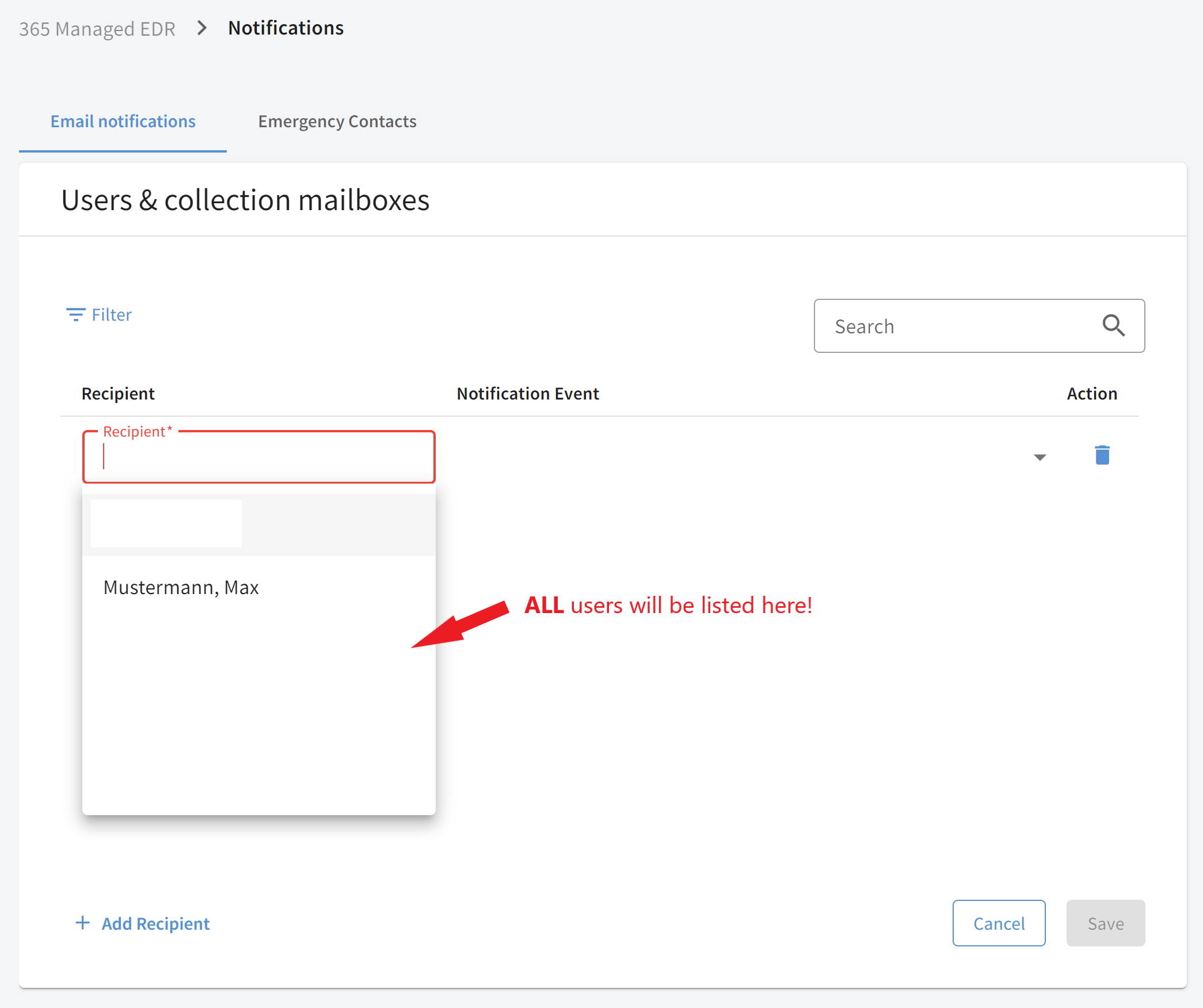
|
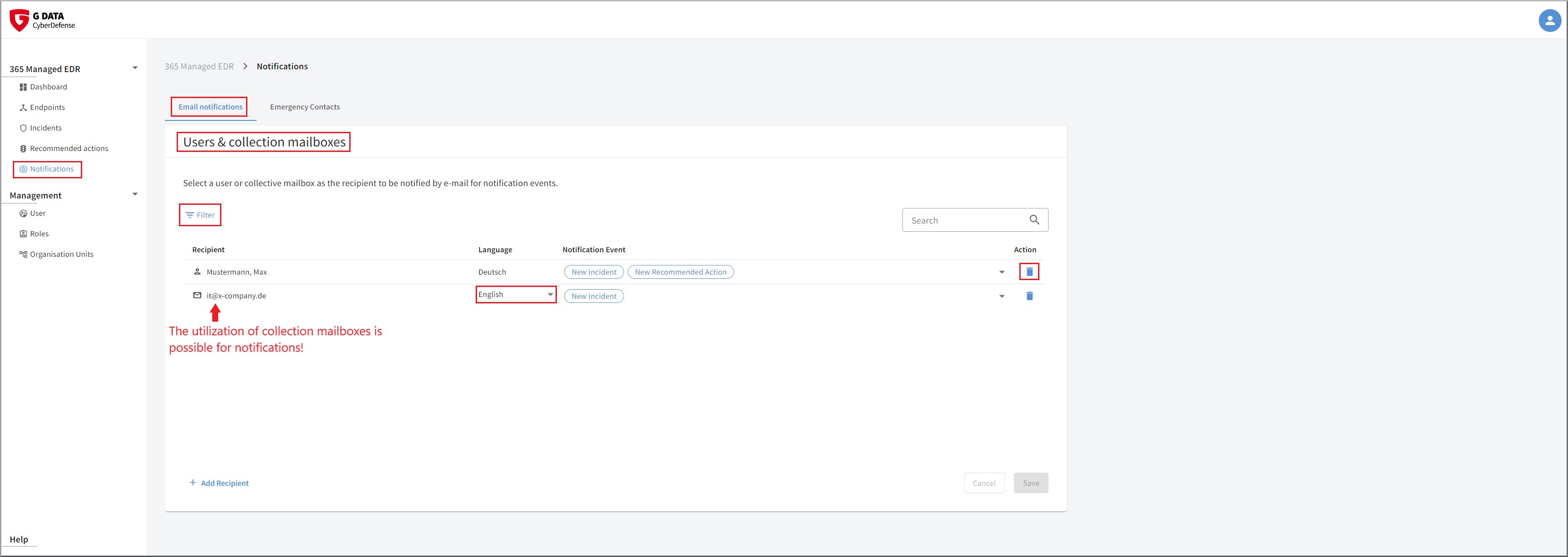
Create email recipient |
New notification recipients can be created by
authorized users
using the button |
||
Filter email recipients |
The list of displayed email recipients can be filtered using the filter icon
|
||
Delete email recipient |
Using the delete icon
|
||
Change notification event |
If you want to change the notification event for a stored user or a stored email address, click once in the column in that row. Show screenshot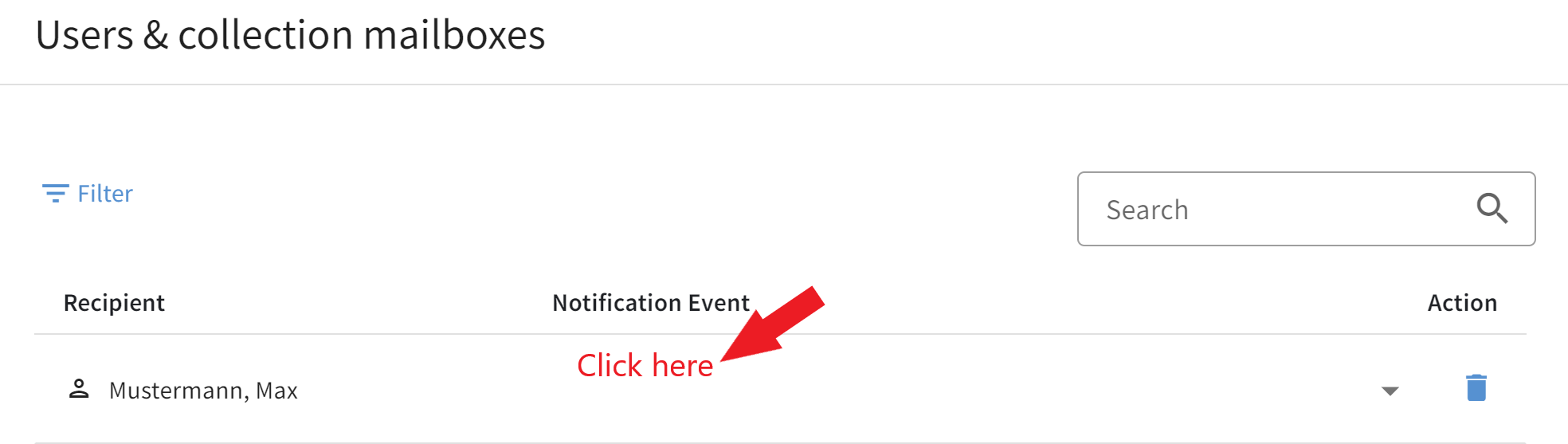
|
||
Change a user’s email address. |
Changes to a user’s email address are made in the User management. |
||
Language |
For users, the language in which notifications are sent is displayed here. This is display-only and cannot be changed here. The language can be configured via the user profile. For shared mailboxes, you can select here the language in which the notification is sent. |


Emergency call chain
In the event of a critical incident, we inform the contacts you have stored by phone starting at service level G7. This can be a user stored in the portal, a shared line of the responsible department, or a responsible person in executive management. You determine the order in which we will attempt to reach a responsible person.
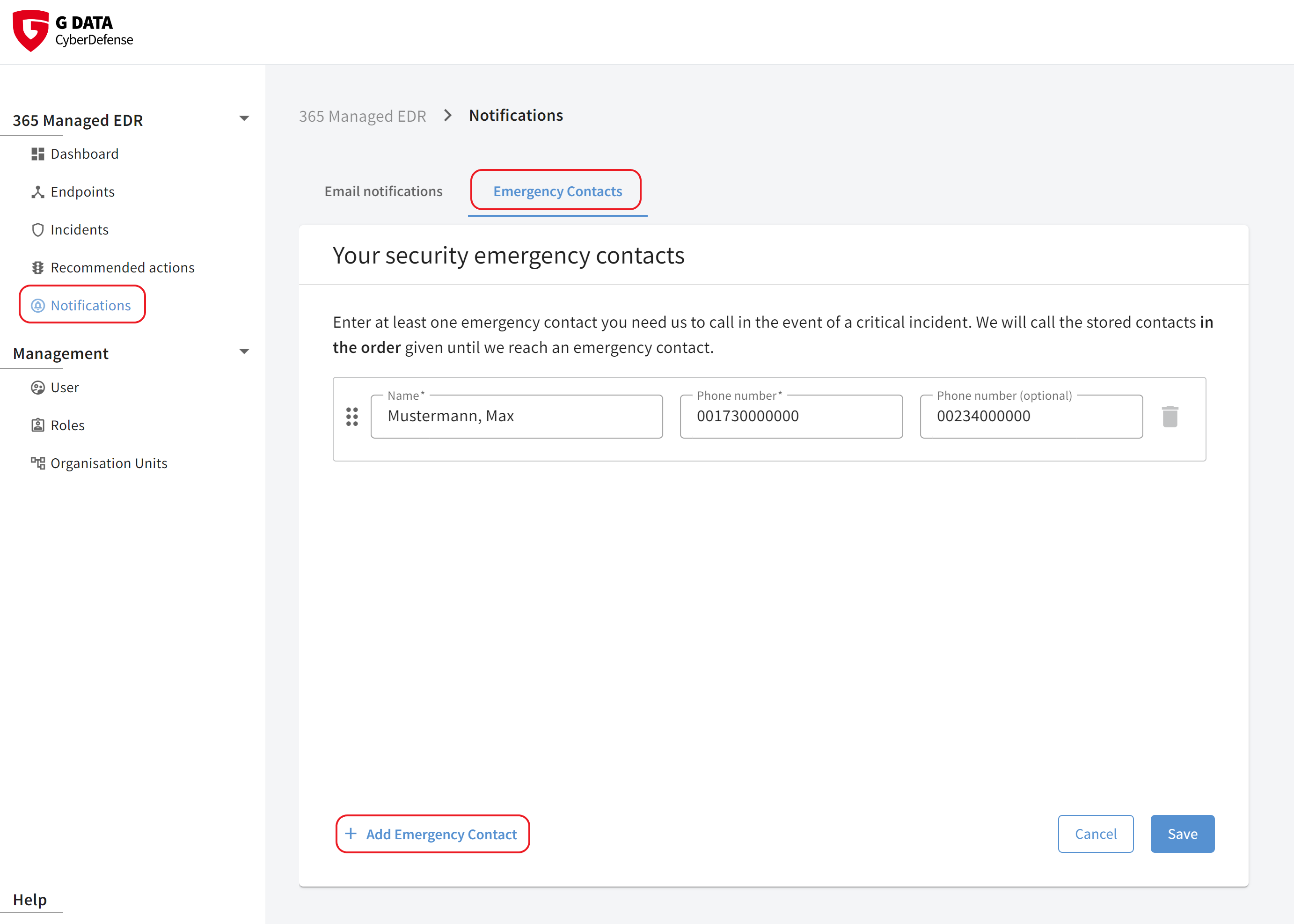
Create emergency contact |
New contacts can be created by
authorized users
using the button |
||
Delete email recipient |
Using the delete icon
|
||
Optional phone number |
For each contact who is to be notified in the event of a critical incident, an optional second phone number can be stored. |

Status Reports
In the Status Reports view, you have an overview of automatically created reports that are generated at regular intervals. These are created monthly, and in addition there are quarterly reports, semiannual reports, and one report covering all activities that occurred during the full year.
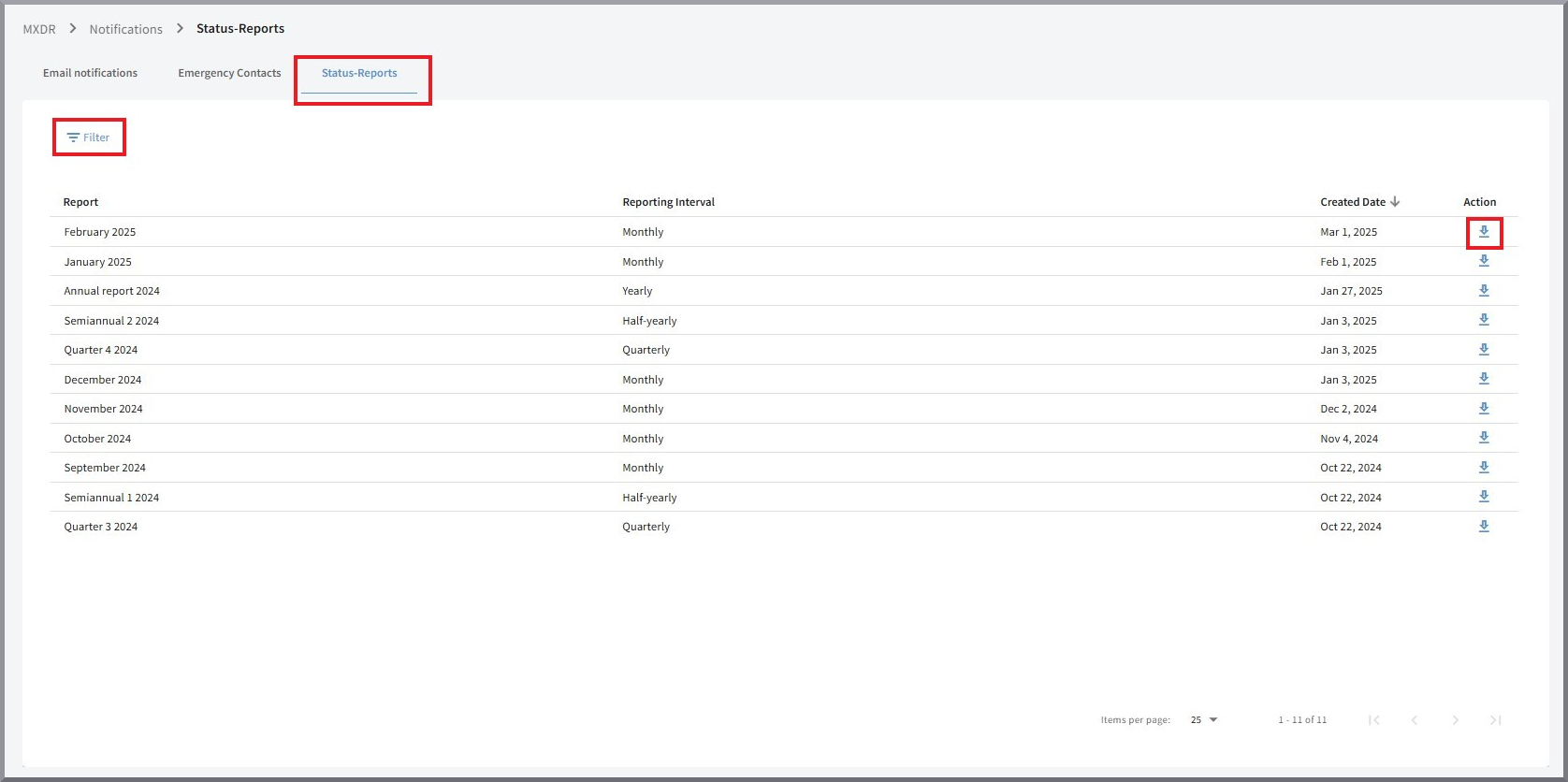
You have the option to sort the reports by Reporting interval and Date. Using the Filter, you can view only those that either occurred in a specific year or filter by the creation interval.
Report |
Designation / name of the report |
Reporting interval |
Type of Status Report; available options are monthly, quarterly, semiannual, and annual. |
Created on |
Creation date |
Action |
Here you can download the respective report. |
Structure of the Status Reports
The Status Reports are intended to provide a clear list of all actions that were performed for you as part of G DATA MXDR.
Example Status Report
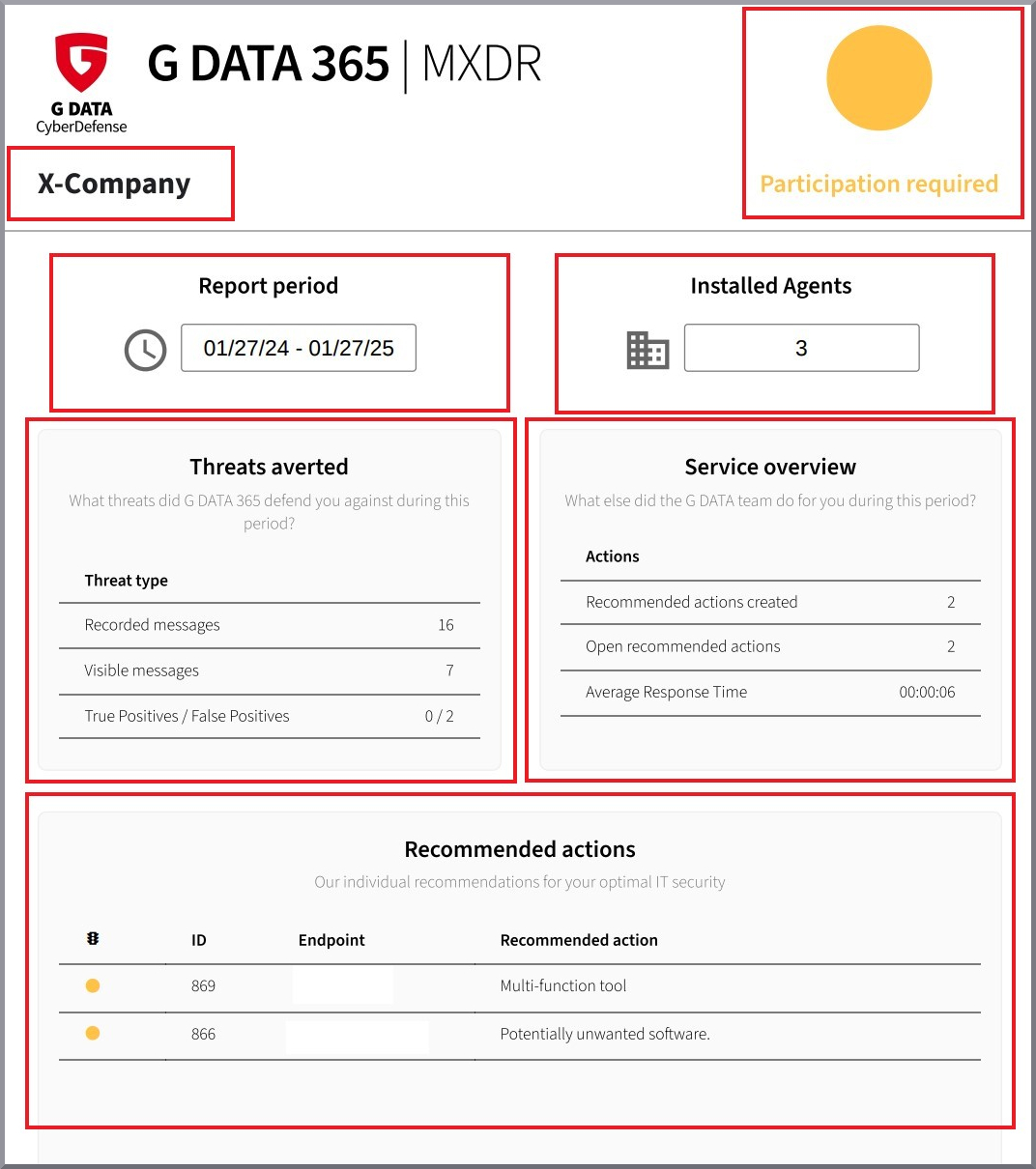
In a Status Report, the affected company is listed at the top, as well as whether action was required at the time of creation. In addition, the period for which the report was created and the number of Endpoints are provided.
Under "Blocked threats", you can see an overview of all recorded and all alerts visible to you. In addition, it lists how many of these were false positives and true positives.
In the "Service overview", the number of Recommended Actions created as well as all Recommended Actions that are still open are listed, along with the average response time to a Recommended Action.
Finally, a list of all open Recommended Actions follows, which should still be completed at the time the report was created.
| These are not only the open items that occurred during the reporting period, but all Recommended Actions that still need to be completed. |