G DATA 365 | Managed XDR
Organization Units
Organization Units allow you to group endpoints with identical characteristics.
These characteristics can be departments or locations within your company. Endpoints with the same Exclusions (for example, all Microsoft Exchange servers or all database servers) can also be grouped in this way, because Exclusions and security settings can be applied not only to endpoints, but also to Organization Units.
| For MXDR customers, the Exclusions and security settings are configured by our G DATA Security Operations Team. |
Organization Units can also be assigned to users by an
authorized user.
This allows you to specify that users can access only the endpoints that are contained in their assigned
Organization Unit. Through the assignment, a user receives rights exclusively for the endpoints in
their Organization Unit, as well as for all subordinate units.
| During the kickoff, MXDR customers receive support from our G DATA Security Operations Team in building the structure that is most suitable for you. This structure can, but does not necessarily have to, correspond to your Active Directory structure. |
Management within the portal
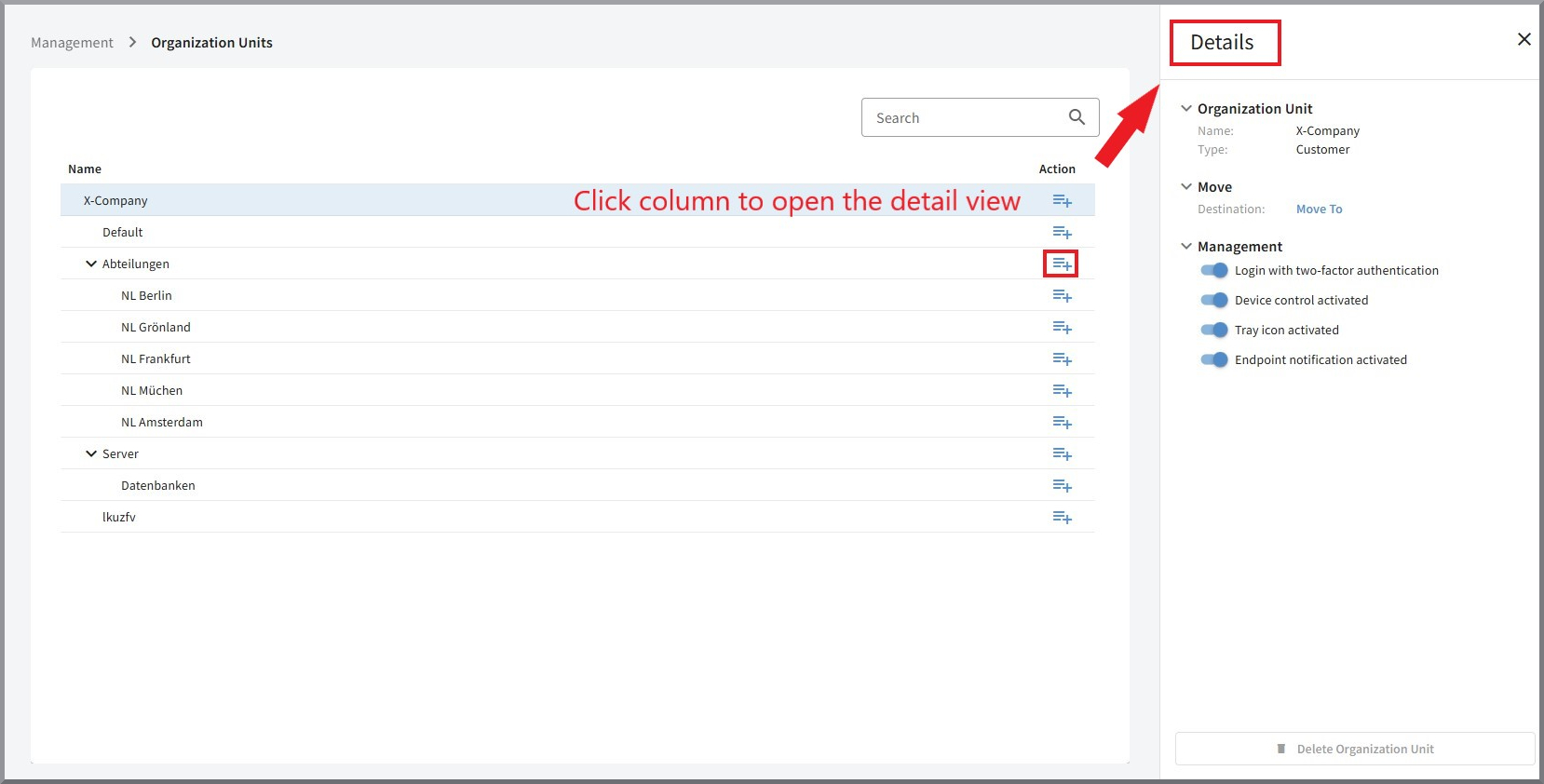
In this portal window, authorized users can view the hierarchical structure of your Organization Units.
The Organization Unit Default |
Initially, below the root node (customer name), there is only the standard Organization Unit Default. Additional Organization Units can be created by you.
|
||||
The details pane |
Show screenshot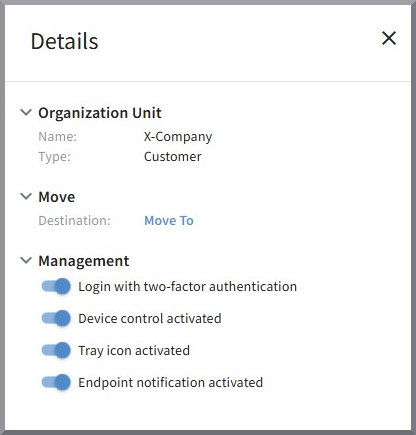
Clicking the row for your Customer Organization Unit opens the details pane. Depending on the configuration and your rights, you have several configuration options here:
In addition, you can enter notes about the Organization Unit in a free-text field. These are also taken into account in the search!
If you select a subordinate Organization Unit (not type: Customer, but type: Organization), the item "Manage" is omitted in the details pane. In that case, you can rename the selected Organization Unit here or move it within the hierarchy.
|
||||
Create Organization Unit |
Clicking Show screenshot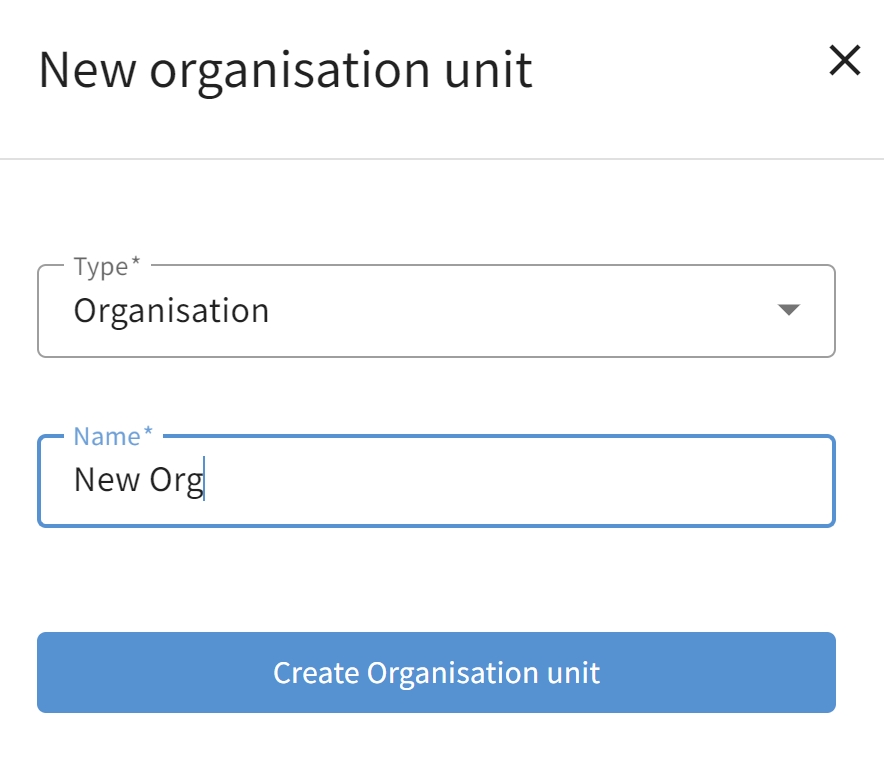
|
||||
Delete Organization Unit |
If you want to delete an Organization Unit, you can do so via the button
Show screenshot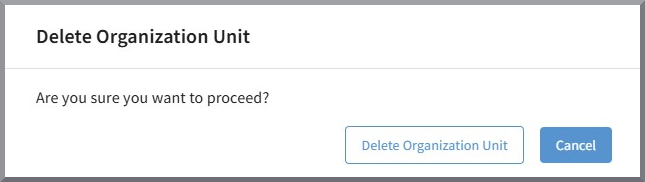
|

Depending on the role profile of the signed-in user, it
may happen that not all Organization Units are displayed to the user and/or the  is missing because the user does not have the corresponding rights.