G DATA MXDR
Management of G DATA Device Control in the G DATA Web-Portal
With G DATA Device Control, you have the option to control the use of external devices on the endpoints in your network directly in our web portal.
The "Device Control" view is available in the navigation below "Policy Control". Here you can define which global rules apply to external devices, create Exclusions, and view logs specifically in the context of using external devices. In addition, you can configure notifications that can be displayed on the endpoints.
| To use G DATA Device Control, it must be enabled via Organization Units! |
Device logging
In the Device logging section, you can view comprehensive logs about interactions of individual external devices.
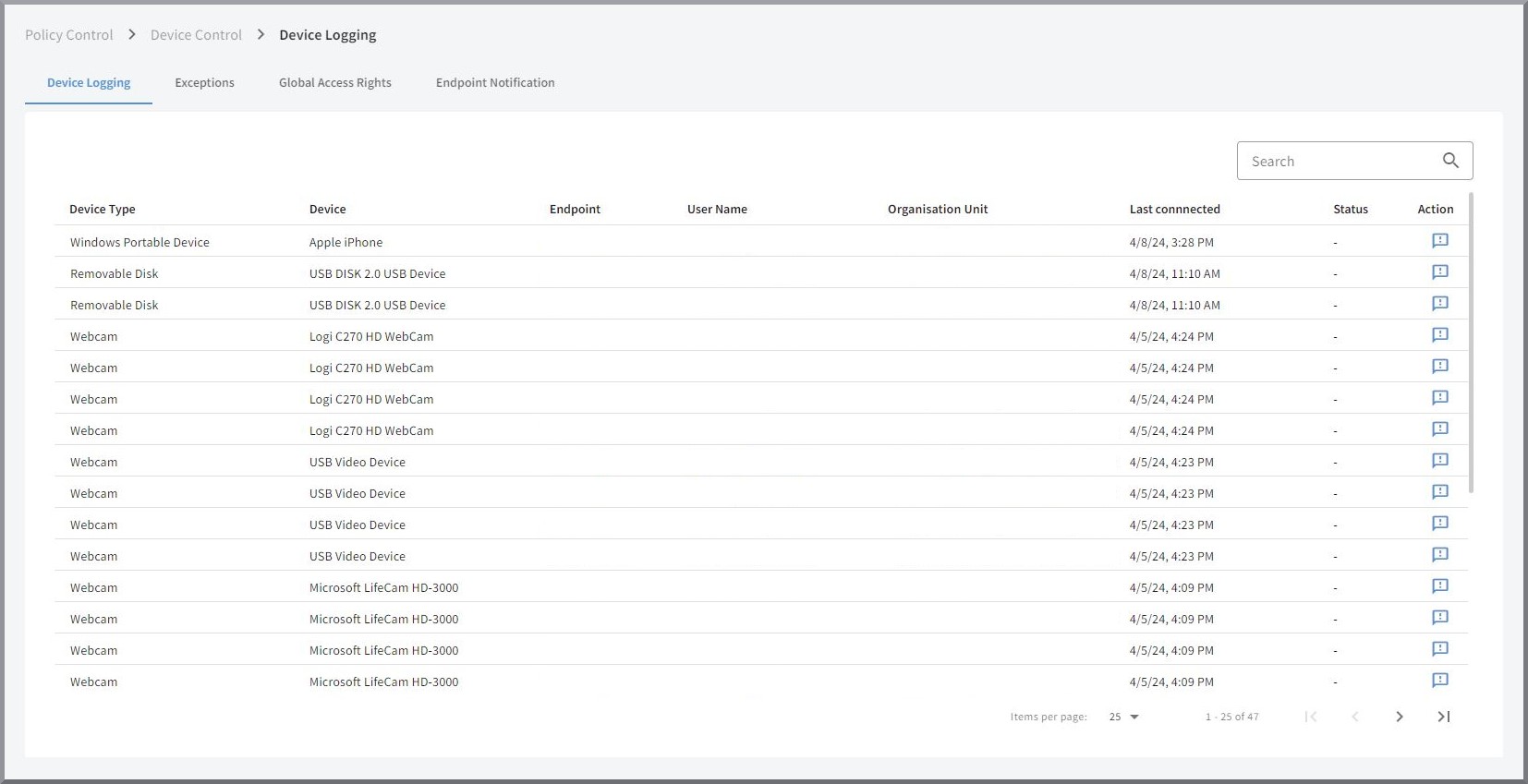
A list is displayed that contains all interactions originating from external devices in the supported device classes on the endpoints. You can sort the entries alphanumerically in descending or ascending order by clicking the column heading. There is also a search field that you can use to display specific interactions.
By clicking a list entry, a details window opens with all information about the respective interaction.
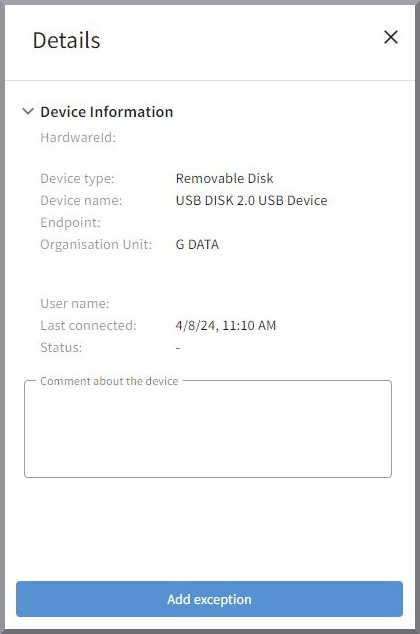
Here you can store information about the device involved in a free-text field and also directly create an Exclusion for the device.
|
Exclusions can also be created directly in the list by clicking the
|

Exclusions
In certain cases, it can be useful to set up exclusions with regard to the global rules for specific devices. With G DATA Device Control, it is possible to allow the use of individual external devices contrary to the global rules. This can be defined either globally or for specific endpoints.
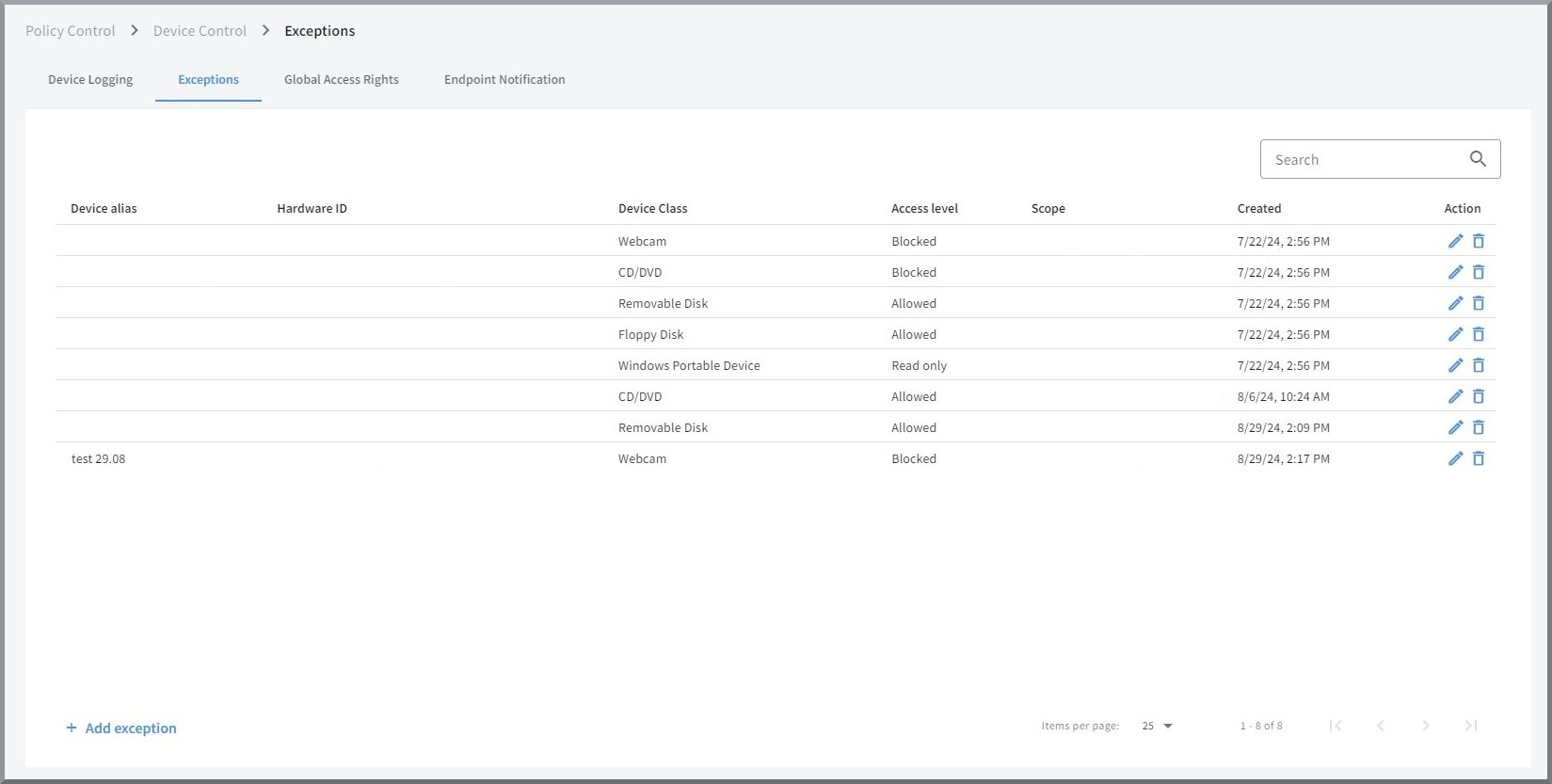
In the Exclusions section, a list of all created exclusions is displayed. You can sort the entries alphanumerically in descending or ascending order by clicking the column heading; there is also a search field so that you can search specifically when you have a large number of exclusions.
To create an exclusion, click  . An input form opens
in which you can enter the data for the exclusion to be created.
. An input form opens
in which you can enter the data for the exclusion to be created.
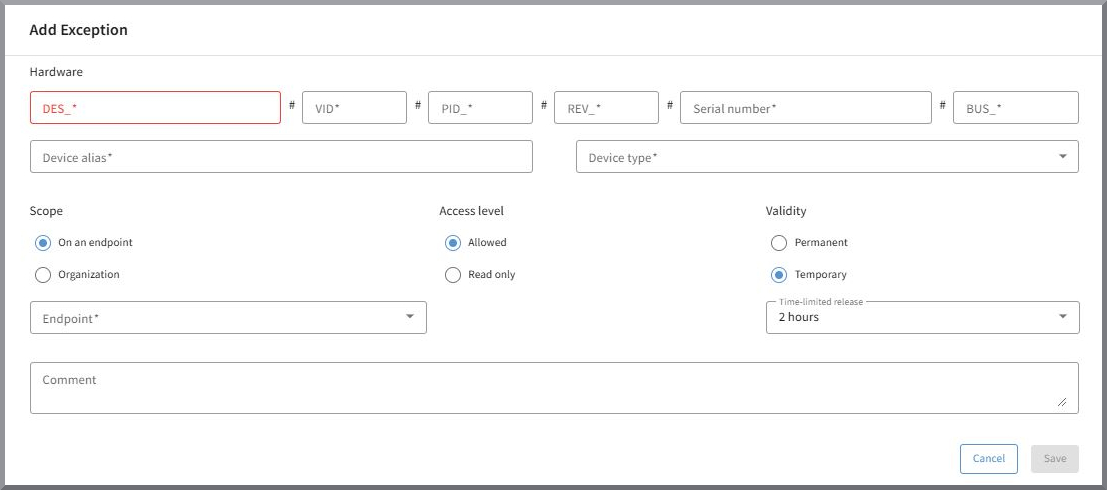
All fields in the input form are required in order to uniquely identify the device for which an exclusion is to be created.
You must also select whether the exclusion is to be created globally or for a specific endpoint and whether read-only access
or full access is granted. You can also specify whether the exclusion should be permanently active or active for a limited time.
Immediately after creating a new exclusion, it is displayed in the list.
| Exclusions should only be created here in special cases. It is easier to allow devices via device logging. In that case, all identification data is already prefilled in the form. |
Exclusions can be deleted or edited via the buttons  in the action column. The edit form corresponds to the form for creating an exclusion.
Global settings
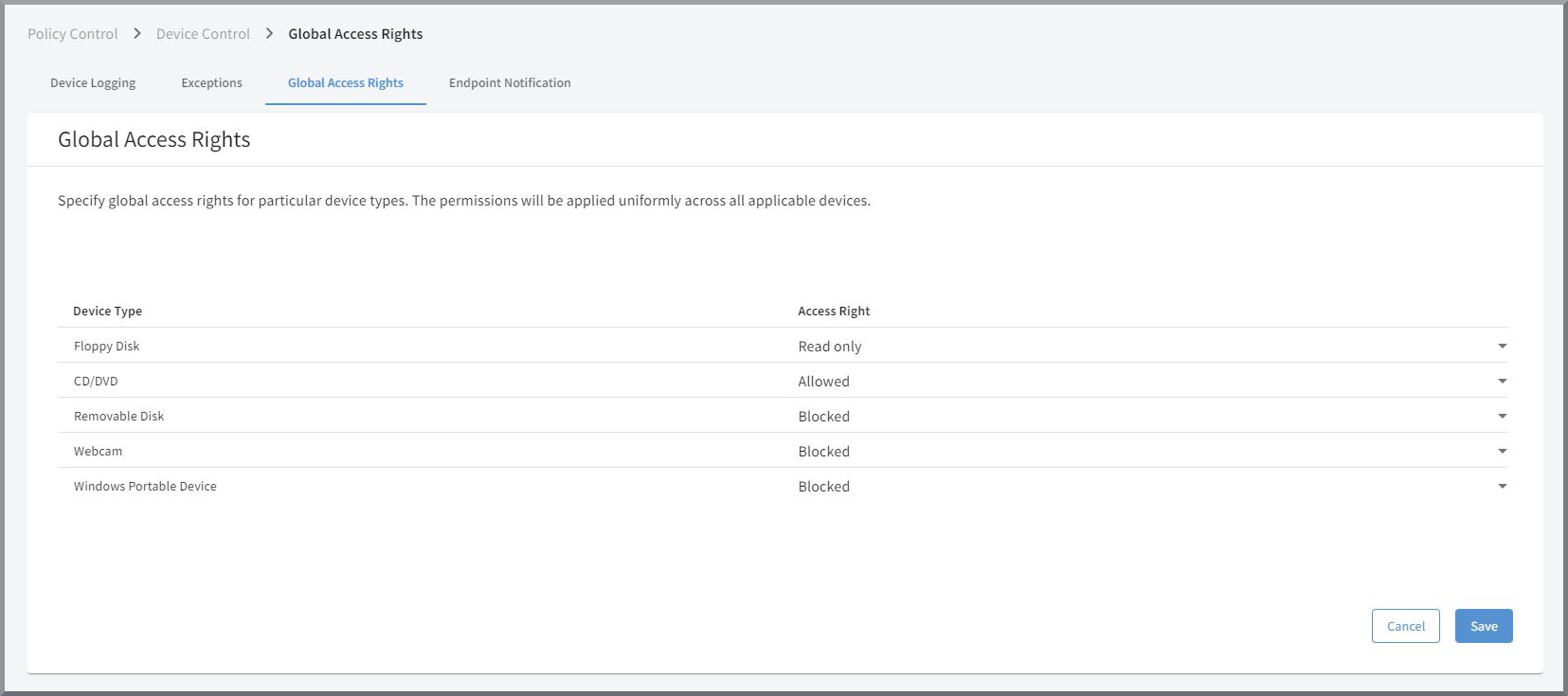
In the Global access rights section, you can configure which basic rules apply to five classes of external devices:
-
Removable media → e.g., USB flash drives, USB hard drives, etc.
-
Optical drives → e.g., DVD or Blu-ray drives.
-
Floppy drives → no longer widespread, but still a potential attack vector.
-
Windows Portable Devices (WPDs) → e.g., smartphones or digital cameras with an SD card.
-
Webcams → regardless of the type of connection.
There are three different access rights that can be assigned to a device class: Allowed, Blocked, and Read-only.
Allowed |
Use of devices in this device class is fully allowed. |
Blocked |
Devices in this device class are blocked and cannot be used. Users are shown the notification configured on the endpoint under notifications (or a default text if no customizations were made). |
Read-only |
Data from devices of this type can only be read; saving data is blocked. |
| The defined access right is active for all devices of the respective type on all endpoints unless Exclusions have been created. |
Configuring the notification on the endpoints
In the Device notifications section, you can configure the message displayed to users when they attempt to use a blocked external device on an endpoint.
| Custom configuration of the displayed messages is optional. If you do not make any changes here, default notifications are shown on the endpoints. |
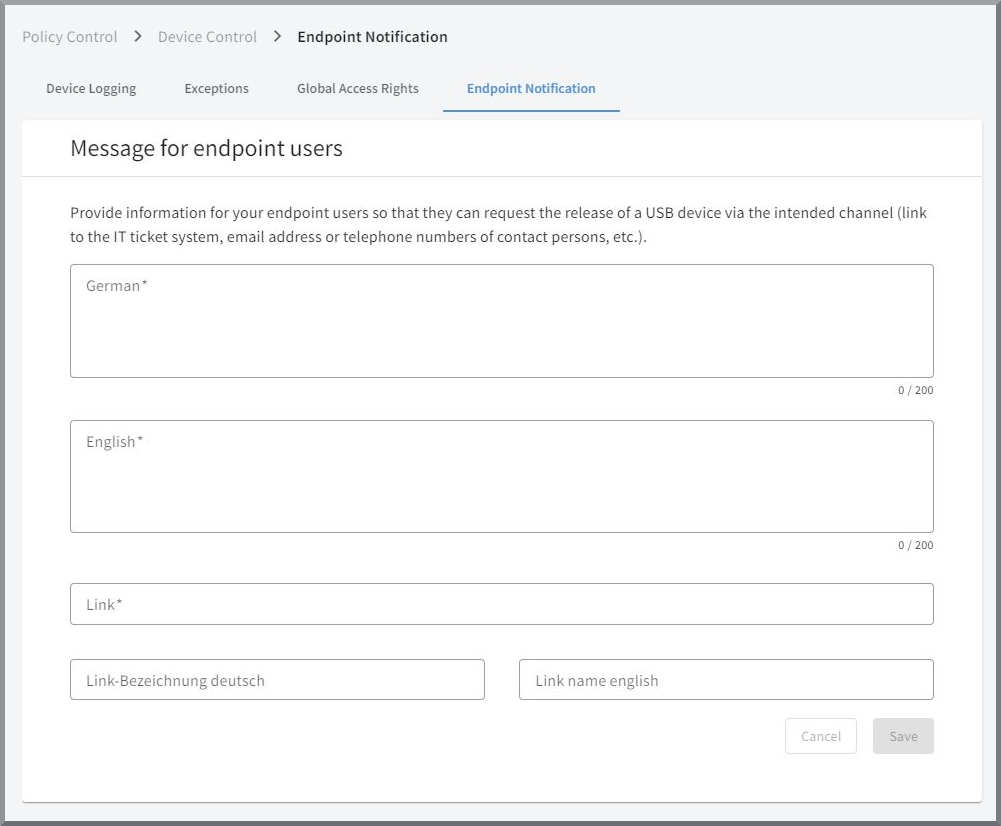
You can enter the exact text in German and in English in the designated text fields. Users will then see this instead of the predefined standard texts when required. In addition, you can specify a link including link label to provide, for example, an easy way for users to communicate with your IT or ticketing system and have the external device enabled quickly.
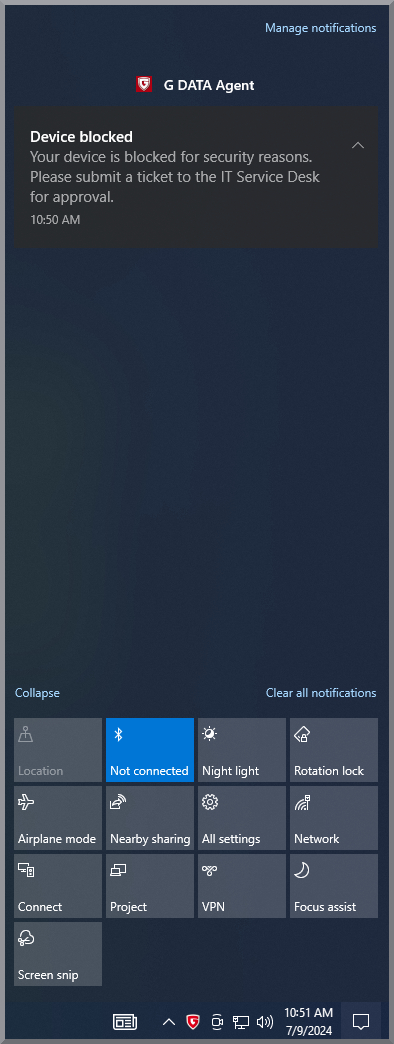
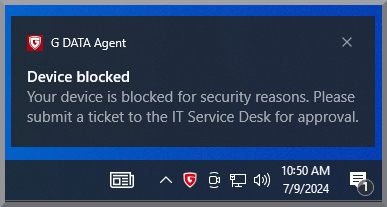
Example of a notification on an endpoint
Notifications are displayed on endpoints in Windows notifications and also as a pop-up message. |
|
|
| Since both URLs and URIs can be entered for the link, it is also possible without any issues to specify an email address using the "mailto" prefix (for example, "mailto:ex@ample.com"). |