G DATA MXDR
Uninstalling Agents on Windows endpoints
The easiest way to uninstall an G DATA Agent is to initiate the uninstallation via the G DATA Web Portal. If you choose a different method, you require an uninstall token. You can obtain it from our G DATA Security Operations Team.
1 |
Log in to the G DATA Web Portal. |
2 |
Go to the Endpoints view and open the details panel for the endpoint from which you want to remove the G DATA Agent. To do so, click the relevant endpoint in the overview list. |
3 |
Click Uninstall Agent. 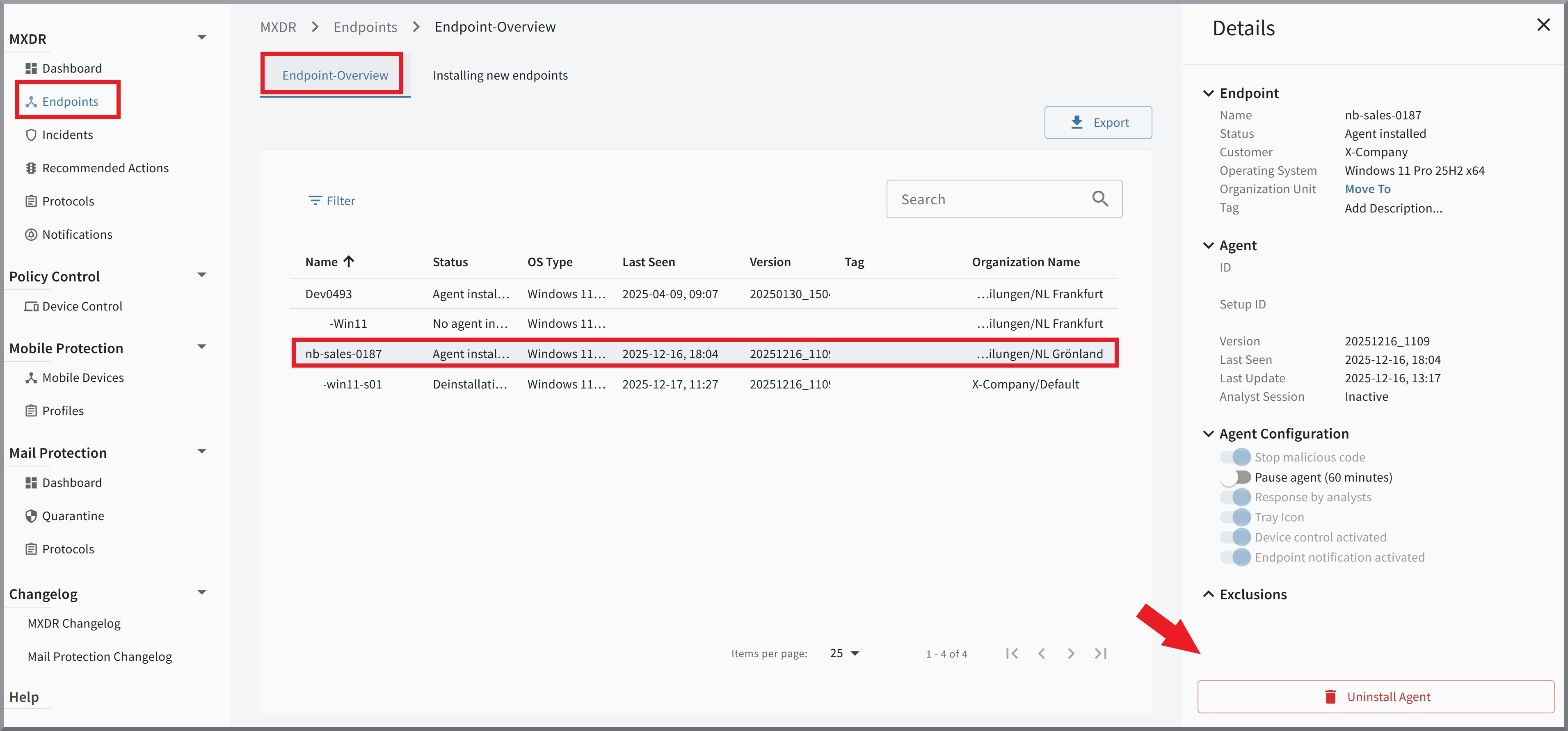
|
4 |
If you want to permanently remove the device from monitoring, enable the checkbox Remove endpoint from the endpoint list now. If this is a temporary uninstallation of the Agent, the endpoint can remain in the list so that the assignment to the Organization Unit remains in place. 
|
5 |
The Agent will be uninstalled as soon as the endpoint is reachable. |
Local uninstallation
As an alternative to the method outlined above, you can also uninstall the endpoint locally.
| For the uninstallation methods described below, you require an uninstall token. To obtain it, you must contact our G DATA Security Operations Team. We recommend uninstalling via the G DATA Web Portal, because you can perform this independently. |
Uninstalling via Microsoft Software Installer (MSI)
Show
| This method only works if you used the Microsoft Software Installer (.msi file) for the installation. |
1 |
Open Command Prompt on the system where you want to uninstall the G DATA Agent. |
||
2 |
Run the following command.
|
||
3 |
After the uninstallation, the G DATA Agent is removed from the system. Complete the uninstallation with a restart. |
Uninstalling via Windows Settings
Show
| This uninstallation method is only available if you used the Windows Standard Setup (.exe file) for the installation. |
1 |
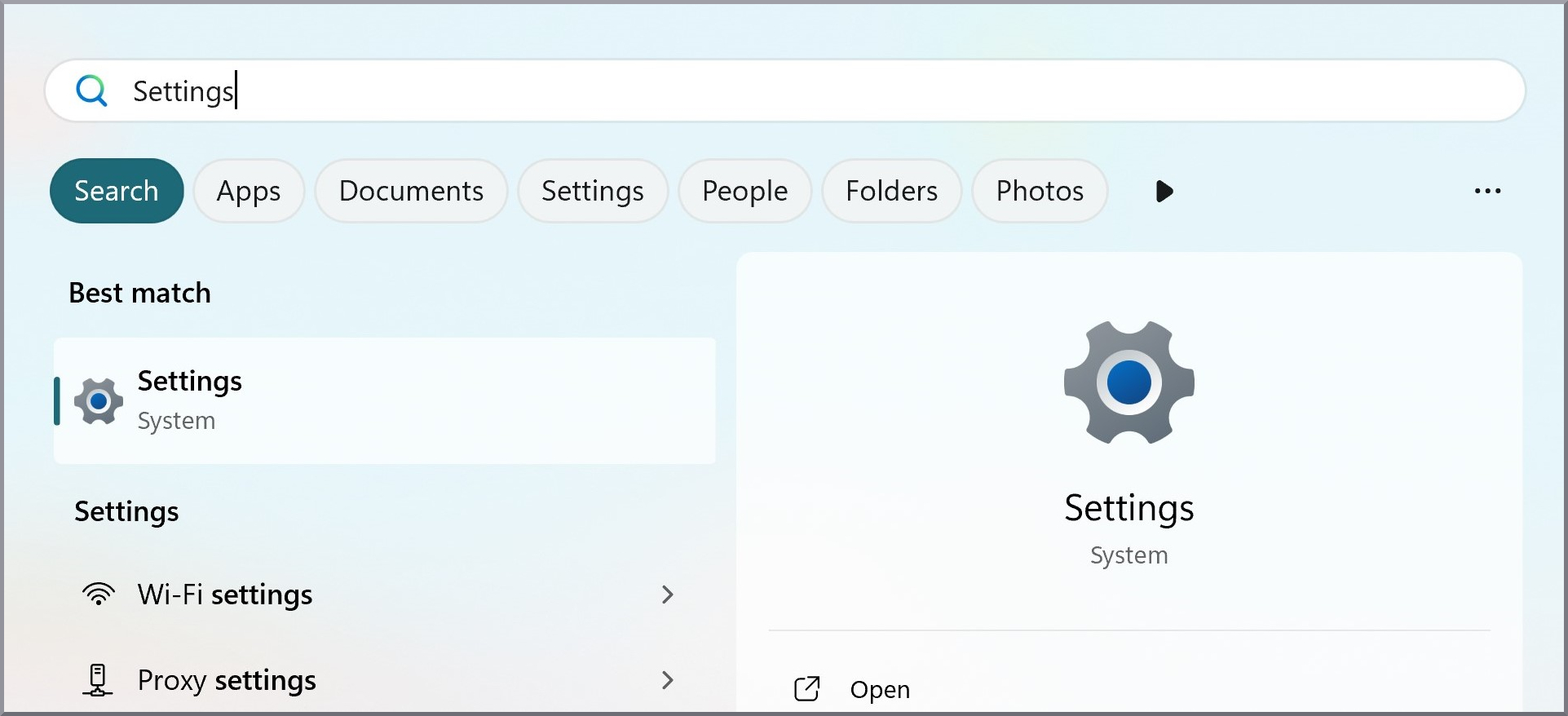
Open Windows Settings. |
|
2 |
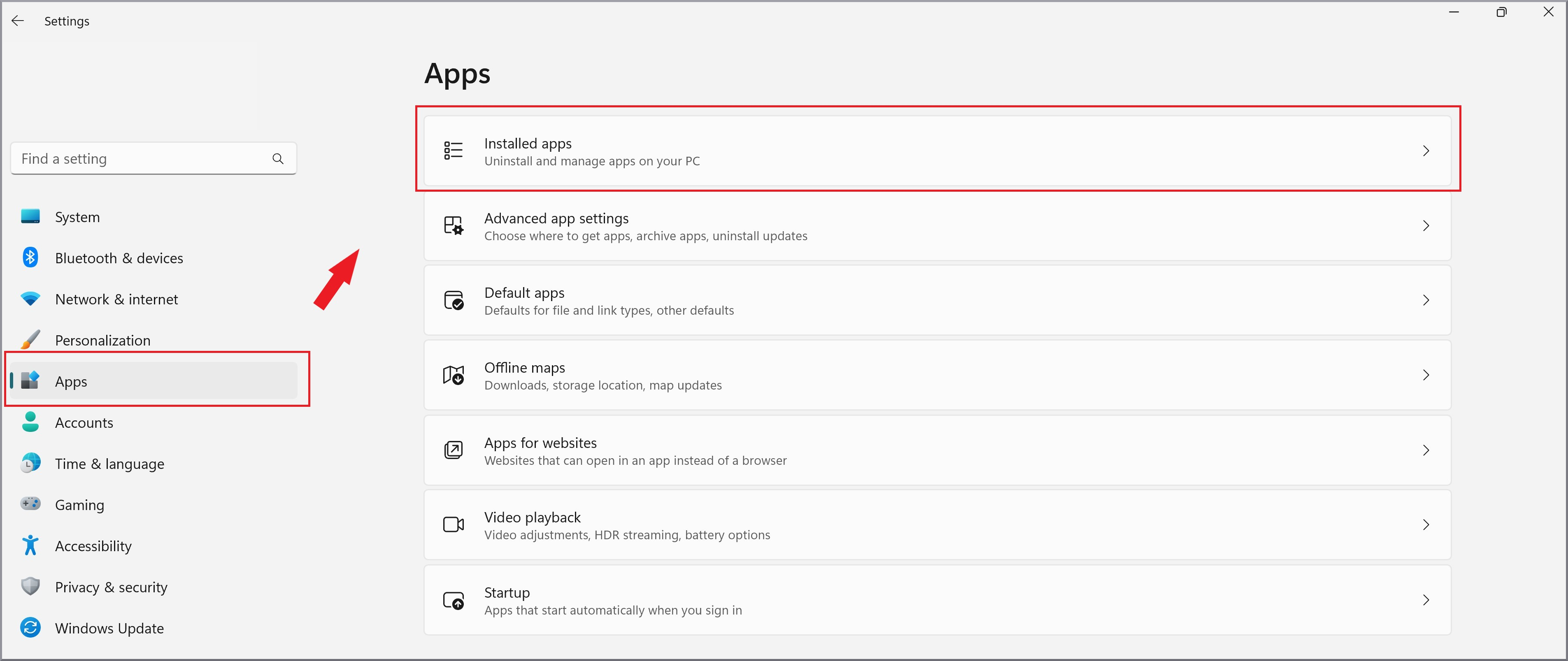
Select Apps and open Installed apps. |
|
3 |
Go to the G DATA Agent entry and select Uninstall via the context menu. This starts the Agent uninstallation routine. |

|
4 |
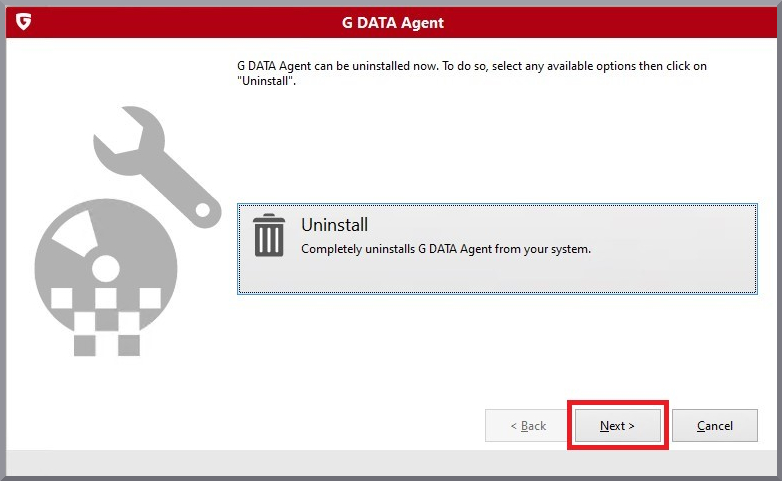
In the window that opens, click Next. |
|
5 |
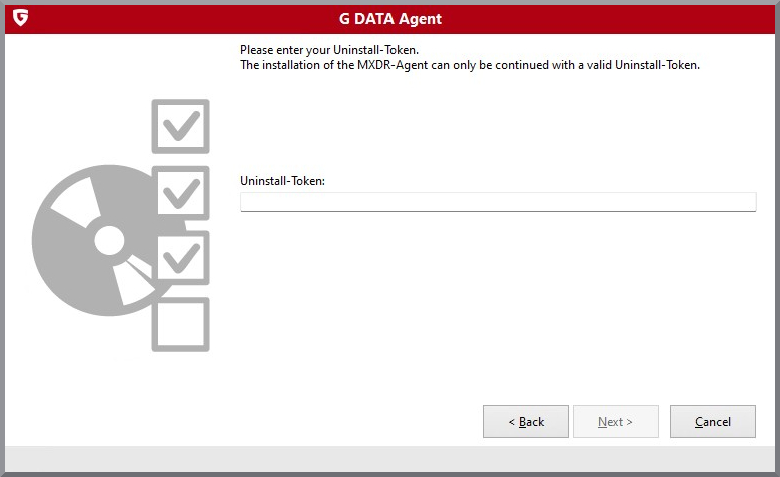
Then enter the uninstall token and click Next again. This starts the uninstallation. |
|
6 |
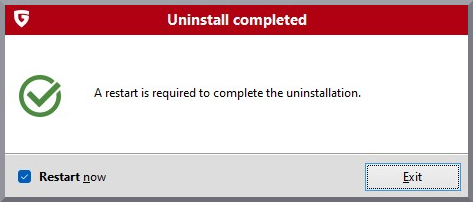
Restart the system to complete the uninstallation. |
|