G DATA MXDR
Endpoints
The Endpoints view lists all devices on which a G DATA Agent is installed or was installed. This can be, for example, a laptop, desktop PC, server, or a virtual machine. Supported operating systems are Windows, Linux, and macOS.
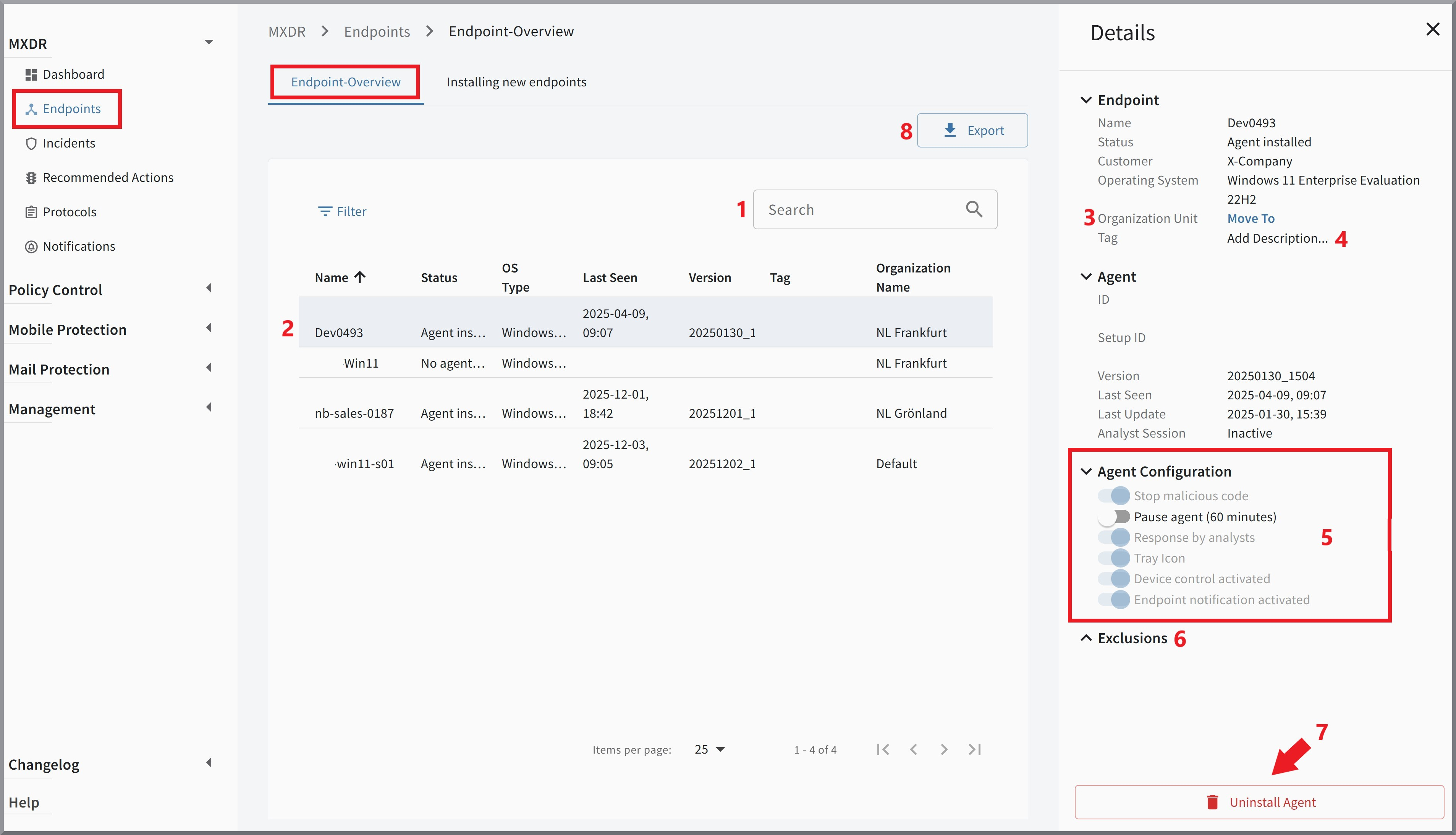
In the G DATA Web Portal, under Endpoints, you will find a list of all endpoints that have connected at least once to our G DATA Web Portal backend and have not been deleted.
| The name of endpoints that are managed in G DATA XDR must be unique. It cannot be assigned individually; it is always the full device name, i.e., the FQDN (Fully Qualified Domain Name)! |
1 |
Endpoint list |
In the row for each endpoint, you can see at a glance the name of the endpoint, its status, the operating system, when the G DATA Agent was last seen by the G DATA Cloud Backend, the version of the installed Agent, the tag you assigned (if present), and the Organization Unit in which the endpoint is located. These status details are possibleAgent installed Uninstallation scheduled No Agent installed Clicking a row opens the details window for the selected endpoint.
|
||||
2 |
Move |
|||||
3 |
Tag |
It is possible to assign one or more tags to each endpoint. You can use a tag suggested by us or
formulate a tag freely. This can be, for example, the name of the employee who owns this device. Or you
may want to indicate that this endpoint has a specific function (for example, POS systems, control unit, etc.) or
a particular criticality level.
To edit the tags, click Add description… (→ 1). 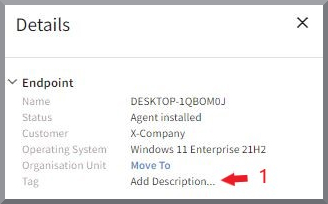
Click the X to delete a tag (→ 2).
It is important to confirm your input with the blue save icon 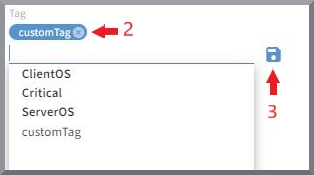
|
||||
4 |
Agent configuration |
This section is for your information. Changes here can only be made by our G DATA Security Operations Team. The exception is the toggle "Temporarily log only (60 minutes)", which is explained below. By default, these items are enabled. Both stopping malware immediately and the analysis by our G DATA Security Analyst are prerequisites for a timely and effective response to prevent damage from a security incident. When the product was introduced, before onboarding with our G DATA Security Operations Team, a detailed list was created specifying which of your systems we exclude from the Agent response or from analysis by our G DATA Security Analyst. This was done based on a detailed risk analysis. If you have further change requests for individual endpoints during ongoing operations, please contact our G DATA Security Operations Team. Using the "Temporarily log only (60 minutes)" toggle, you can prevent work from being blocked due to detections on
the affected endpoint for 60 minutes. 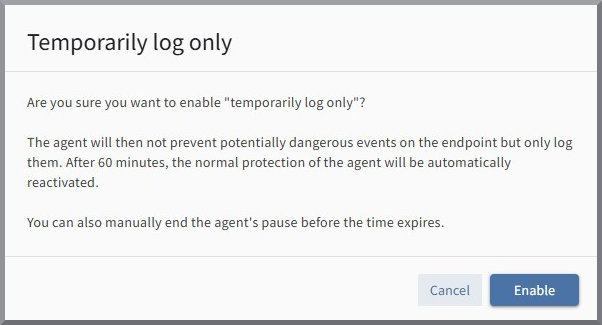
|
||||
5 |
Exclusions |
This section is for your information. Changes here can only be made by our G DATA Security Operations Team. If technical issues occur, and you suspect a connection with our Agent, it is not necessary to define exclusions. Contact us in this case, and we will review and resolve the issues as quickly as possible. |
||||
6 |
Uninstall Agent |
Here you can uninstall the Agent or remove the endpoint from the list. Endpoints on which an Agent is still installed and running cannot be removed from the list. |
||||
7 |
Export |
Using the button |
||||
8 |
Column display |
Here you can configure which table columns are shown or hidden. Click the highlighted icon and adjust the display as required in the window that opens. 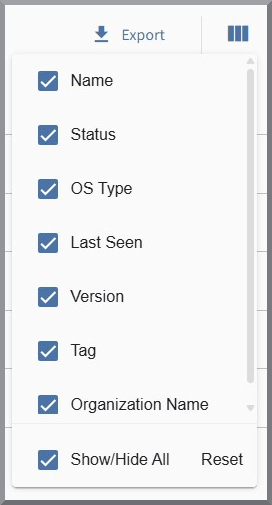
|
||||
9 |
Search |
Here you can enter any search terms to search for individual entries. |
||||
10 |
Filter options |
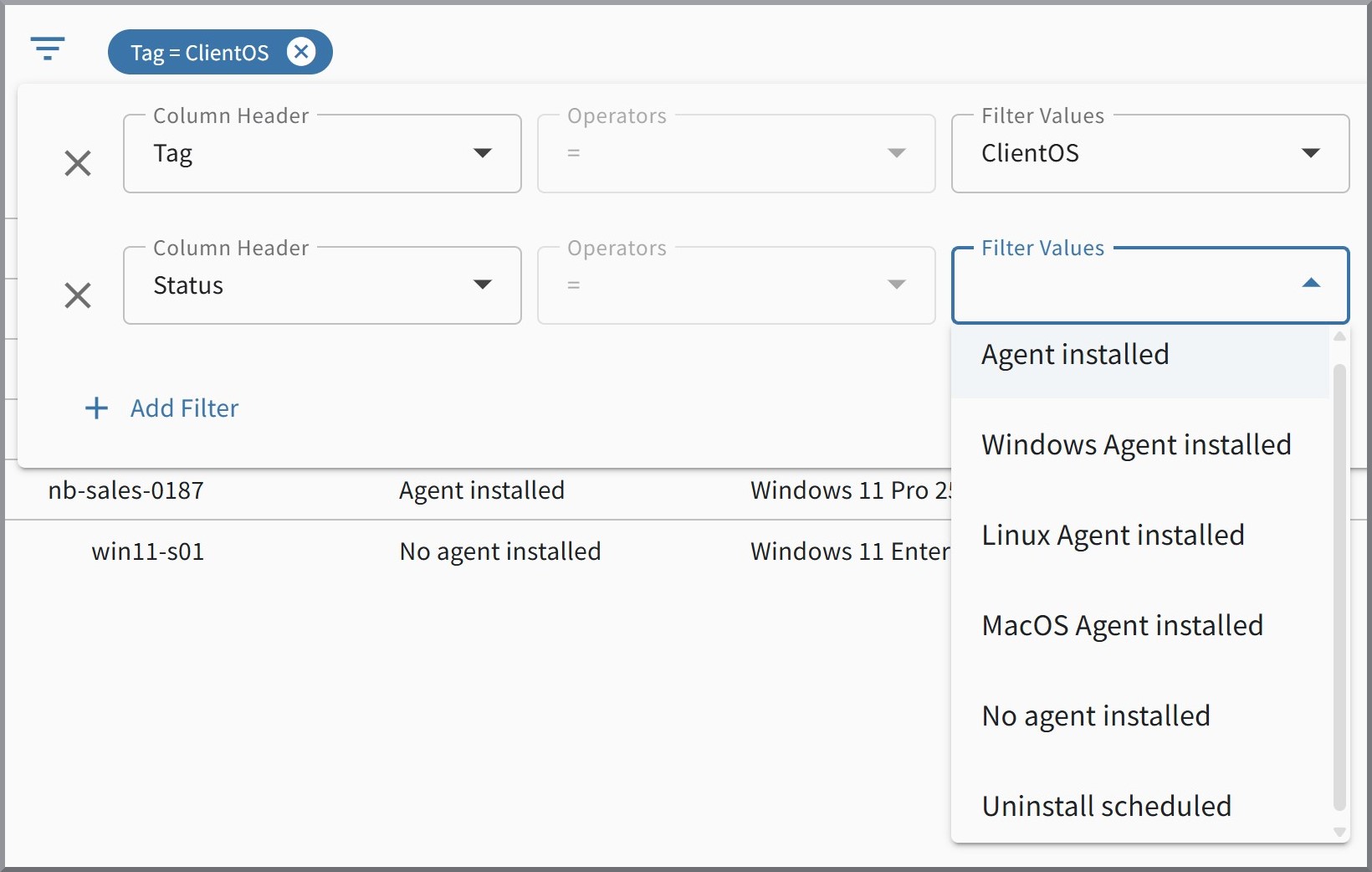
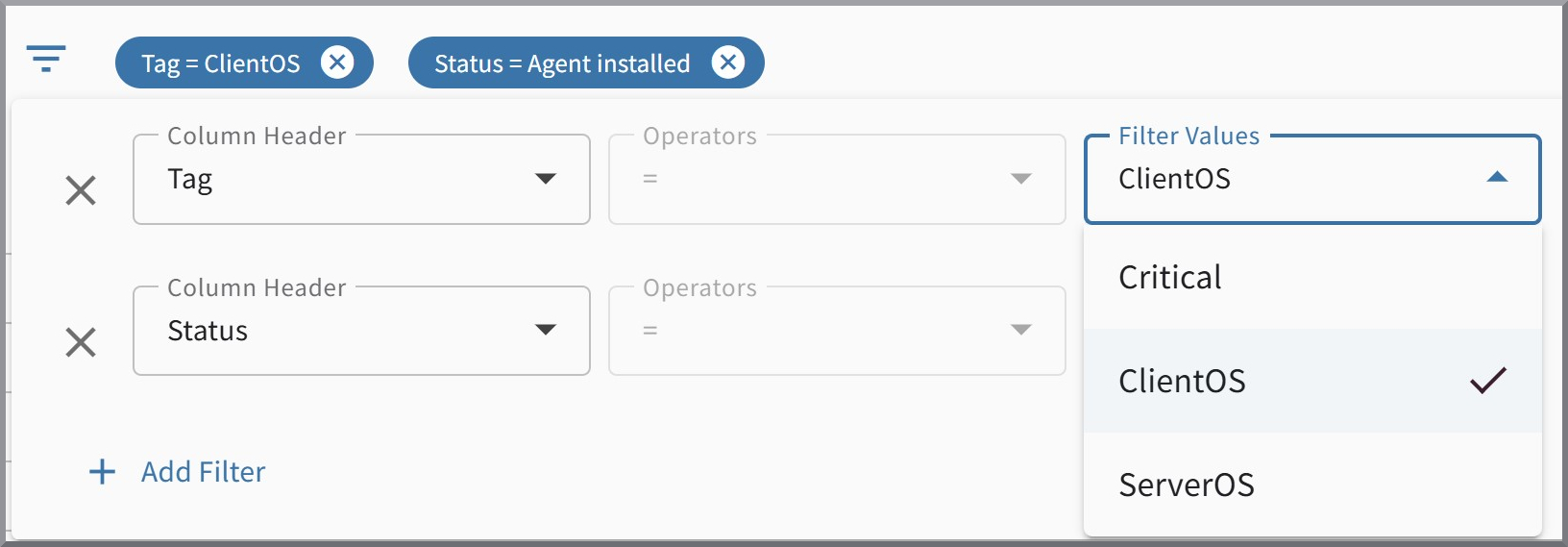
The list can be filtered by various options. These are grouped by "Status" and "Tag", and you can combine as many options as needed.
|

Notification for detections on endpoints
It is possible to enable a notification on endpoints on which the Agent is installed in case detections occur on the respective system. These are delivered via Windows notifications and help users understand why an application is blocked.
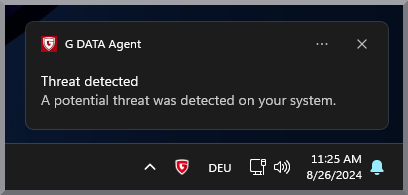
You can enable these notifications via the role management or via the Organization Units detail view.