G DATA Security Awareness Trainings
Delete learners
To delete learners, you must move them to a special branch. How you can do this is explained below.
| First, you must deactivate the user or users to be deleted. |
1 |
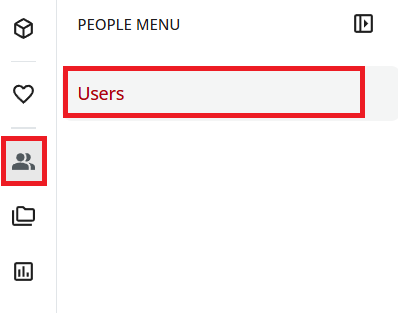
Open user administration: In the menu on the left, select the person icon and select Users. |
|
2 |
Select the user or users to be deleted (select the checkbox). |
|
3 |
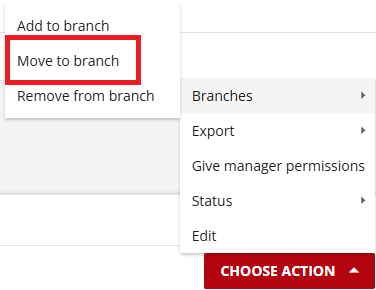
In the lower-right corner, select Select action > Branches > Move to another branch. |
|
4 |
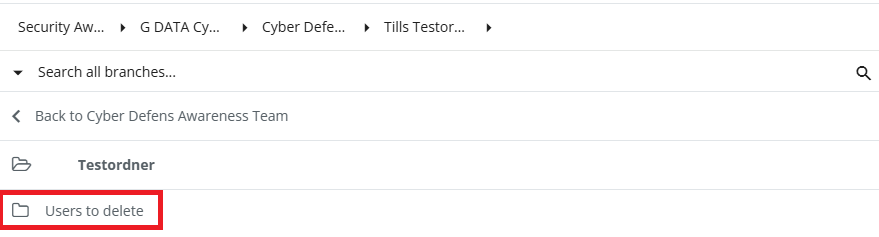
In the menu, select the branch to which the users are to be moved. In this case, the branch "users to be deleted". |
|
5 |
Confirm the move by selecting Confirm. |
|
Please inform us by email each time that we should delete the users in the branch "users to be deleted" from the platform.
| Please note that the users and their progress will be irreversibly deleted. Restoration is not possible. |
| Deleting or deactivating a user does not make the used license available again. If a user has been created on the learning platform, that license is considered consumed. You can purchase additional licenses for additional staff members from your sales contact or sales partner. |