G DATA Security Awareness Trainings
Assign users to a training plan using a dropdown
If you have purchased additional training plans, such as the Ransomware training series, the Phishing training series, or Compliance courses, you can assign them to users as described below.
How to assign training plans to one user using a dropdown.
1 |
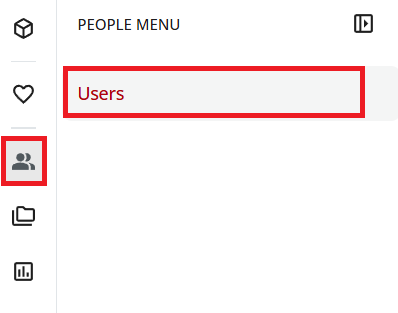
Open the Users view. To do so, open the menu using the folder icon in the upper left, then select Users. |
|
2 |
Find the user for whom you want to activate the training journey. |
|
3 |
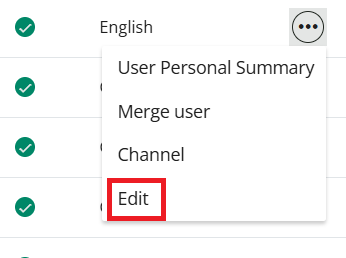
Click the three dots to the right of the user’s name and select Edit. |
|
4 |
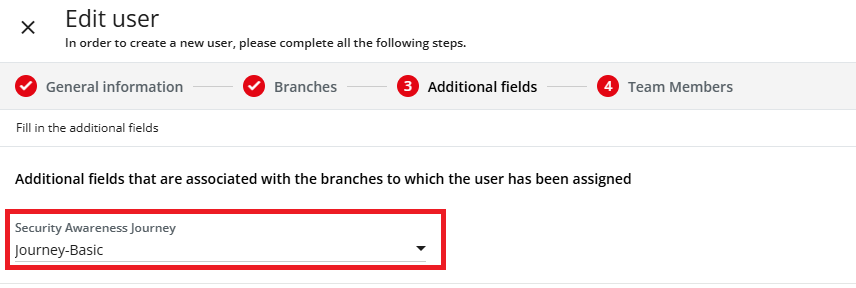
Click Additional Fields in the upper right. |
|
5 |
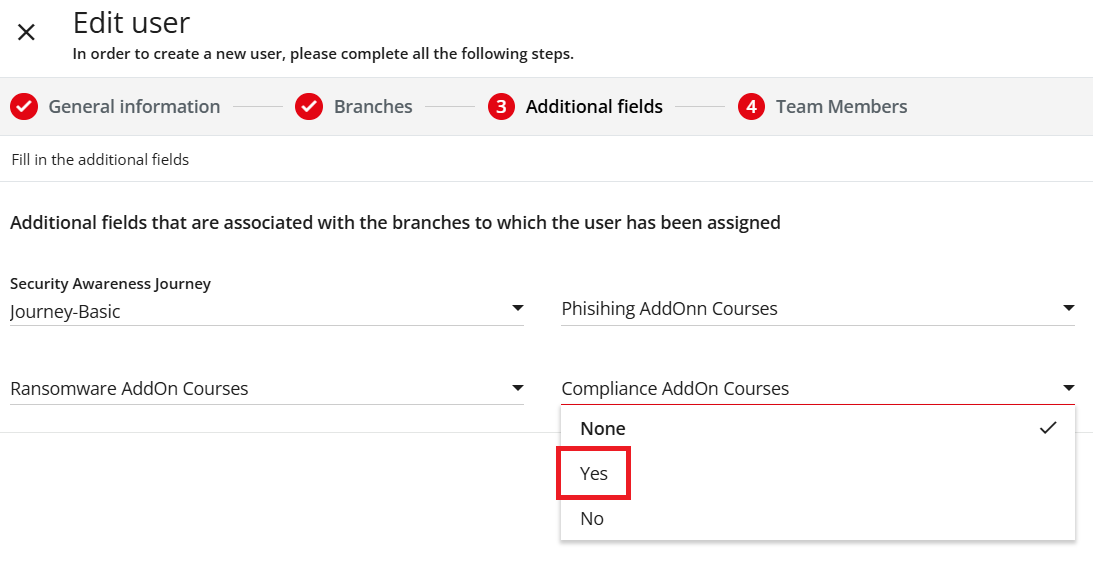
Select Yes from the dropdown menu in the corresponding field to assign the desired training plan. |
|
6 |
Click Update to save the changes. |
|
How to assign training plans to multiple users using a dropdown.
1 |
Open the Users view. To do so, open the menu using the folder icon in the upper left, then select Users. |
|
2 |
Select the users for whom you want to activate the training journey. |
|
3 |
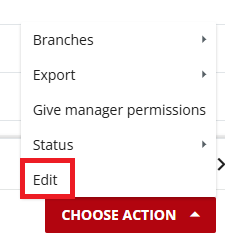
Click Select Action and select Edit. |
|
4 |
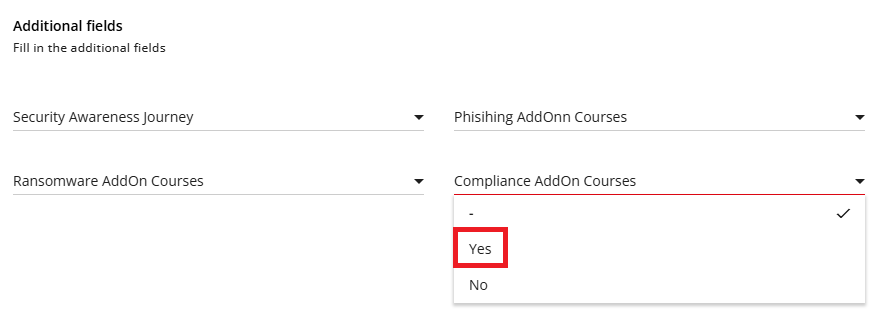
Scroll down slightly and select Yes from the dropdown menu in the corresponding field to assign the desired training plan. |
|
5 |
Click Edit Users to save the changes. |
|