G DATA Security Awareness Trainings
How do I assign the 3-level system?
You can assign the 3-level system to a single learner or to multiple learners at once.
| If you are switching from your own/previous learning plans to the 3-level system, your learners can switch to the new learning concept after it has been enabled by G DATA. |
Assign the 3-level system to a learner
1 |
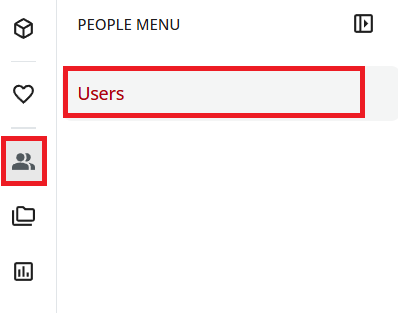
Open user management: In the menu on the left, select the person icon and select Users. |
|
2 |
Search for the user for whom you want to activate the learning journey. |
|
3 |
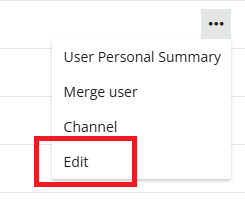
To the right of the name, click the three dots and select Edit. |
|
4 |
In the upper-right corner, click Additional Fields. |
|
5 |
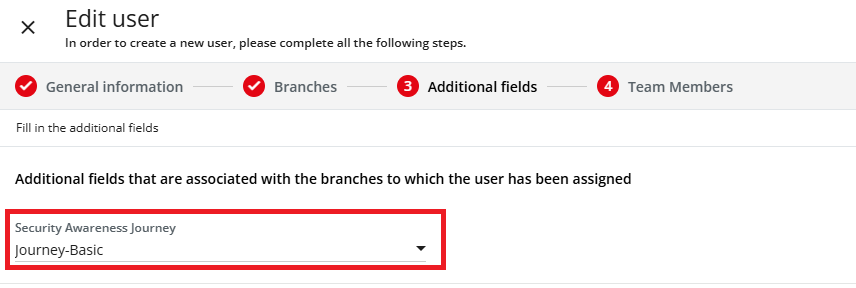
In the drop-down menu in the "Security Awareness Journey" field, select the Journey-Basic learning plan (for Switzerland: Journey-Basic-CH). |
|
6 |
Click Update to save the changes. |
|
Assign the 3-level system to multiple learners
1 |
Open user management: In the menu on the left, select the person icon and select Users. |
|
2 |
Select the desired learners for whom you want to activate the learning journey. |
|
3 |
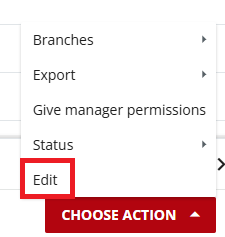
Click Select Action and select Edit. |
|
4 |
Scroll down a bit. |
|
5 |
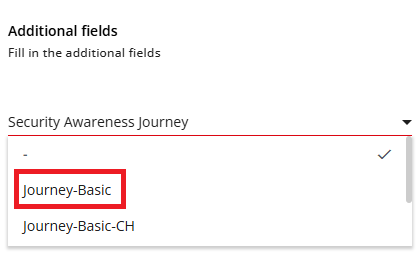
In the drop-down menu in the "Security Awareness Journey" field, select the Journey-Basic learning plan (for Switzerland: Journey-Basic-CH). |
|
6 |
Click Edit Users to save the changes. |
|