G DATA Security Awareness Trainings
Access learners’ certificates
As an administrator, you have two options for downloading your learners’ certificates.
Via the "Certificates" section
1 |
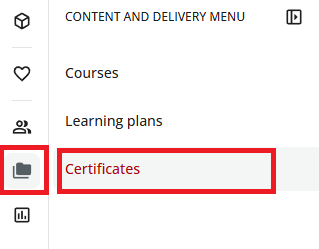
In the left menu, click the folder icon and then click Certificates. |
|
2 |
Search for the desired certificate in the list. |
|
3 |
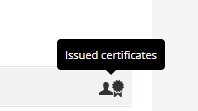
On the right, click the Issued Certificates icon. |
|
4 |
Select the relevant course or learning plan. |
|
5 |
View the people for whom the certificate has already been issued. |
|
6 |
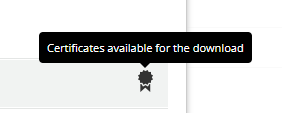
Download the desired certificate using the corresponding download icon. |
|
Via the user report
1 |
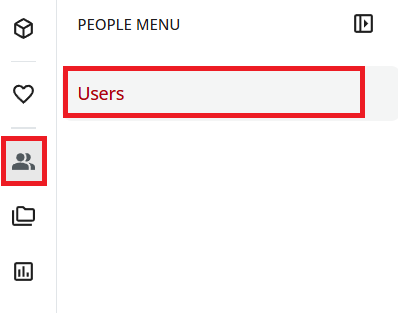
Open the "Users" section. To do this, open the menu at the top left via the statistics icon and then click Users. |
|
2 |
Search for the desired user or learner. |
|
3 |
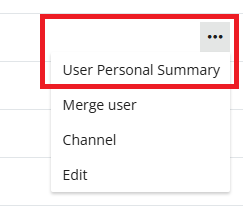
Use the three-dot (ellipsis) menu at the right end of the user row to open the user report. |
|
4 |
In the user report, switch to the Courses or Learning Plans section. |
|
5 |
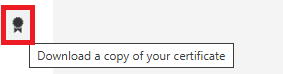
Download the desired certificate using the corresponding download icon. |
|