G DATA Security Awareness Trainings
Downloading a report as a CSV or Excel file
The following instructions describe how you can download a report as a CSV or Excel file.
1 |
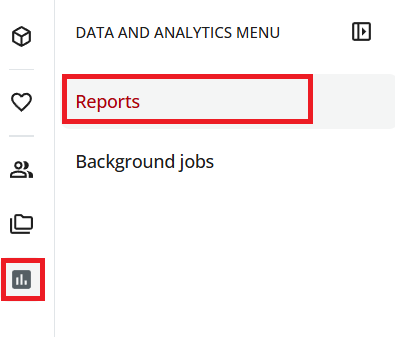
Open the "Reports" page. To do so, use the statistics icon at the top left to open the menu and then select Reports. |
|
2 |
Switch to the "Create custom reports" tab. A list of three reports appears that we provide by default. |
|
3 |
Move the mouse pointer over the report that you want to download. The ellipsis (three-dot menu) appears at the end of the row. |
|
4 |
Click the ellipsis. A drop-down menu opens. |
|
5 |
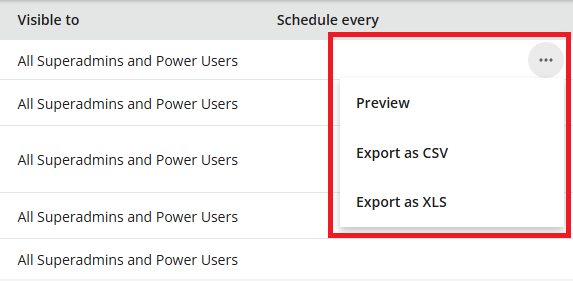
In the selection menu, point to "Export as" and then select CSV or XLS. |
|
6 |
In the dialog box, confirm the export by clicking Export. The Learning Management System now creates a "background job" that generates your report. Depending on the scope of the report, generation can take different amounts of time. You can monitor the progress of the background process by selecting "Background jobs" from the menu. You will be notified by e-mail when the report has been generated. |
|
7 |
In the e-mail, click the link, or in "Background jobs" click Download file. |
|
Your report will now be downloaded automatically as a ZIP file. Depending on the browser, you can download it from the lower or upper area of the browser window. Alternatively, you can find your report in your Downloads folder.