G DATA Security Awareness Trainings
Creating learners
This section explains how you can add users after the fact in the 3-level system.
1 |
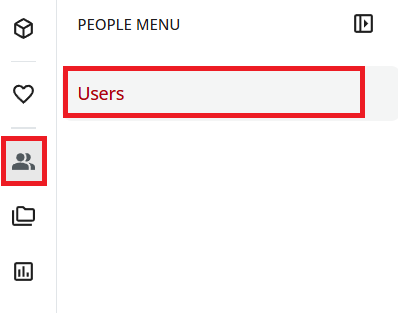
Open the user management area: In the menu on the left, select the person icon and select Users. |
|
2 |
On the left, select your main branch or the branch in which the user is to be created. |
|
3 |
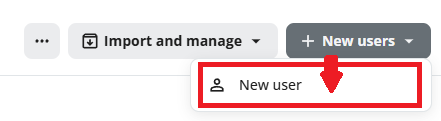
Click the New users icon in the upper-right corner and select New user. |
|
4 |
Fill in the fields in the form. You can have a password generated automatically for the user. Click in the field first and then click Automatic generation. |
|
5 |
Enable the toggle Prompt users to change their password after the first login. At the first login, the learner is prompted to create their own password. An expiration date does not need to be set . |
|
6 |
Click Next in the lower-right corner. |
|
7 |
In the next window, check whether the user is created in the correct branch (if not, select the desired branch) and click Next in the lower-right corner. |
|
8 |
In the next step, select from the drop-down menu. Click Next in the lower-right corner. |
|
9 |
In the next step, no settings need to be made. Click Next in the lower-right corner. |
|
10 |
In the last step, you can review your entries. Then click Create user in the lower-right corner. |
|
The user will now receive their login credentials, the learning environment - including the learning plan - will be automatically set up and the training courses can be completed.