G DATA MXDR
Organization Units
Organization Units allow you to group Endpoints with identical characteristics.
These characteristics can be departments or locations within your company. Endpoints with the same Exclusions (for example, all Microsoft Exchange servers or all database servers) can also be grouped this way, since Exclusions and security settings can be applied not only to Endpoints but also to Organization Units.
| For MXDR Customers, Exclusions and security settings are configured by our G DATA Security Operations Team. |
Organization Units can also be assigned to users by an
authorized user.
This allows you to specify that users can access only the Endpoints contained in their assigned
Organization Unit. The assignment grants a user permissions only for the Endpoints in
their Organization Unit and in all subordinate Organization Units.
| During the kickoff meeting, MXDR Customers receive support from our G DATA Security Operations Team in setting up the structure that best suits their needs. This structure can, but does not necessarily have to, match their Active Directory structure. |
Using the Portal Interface
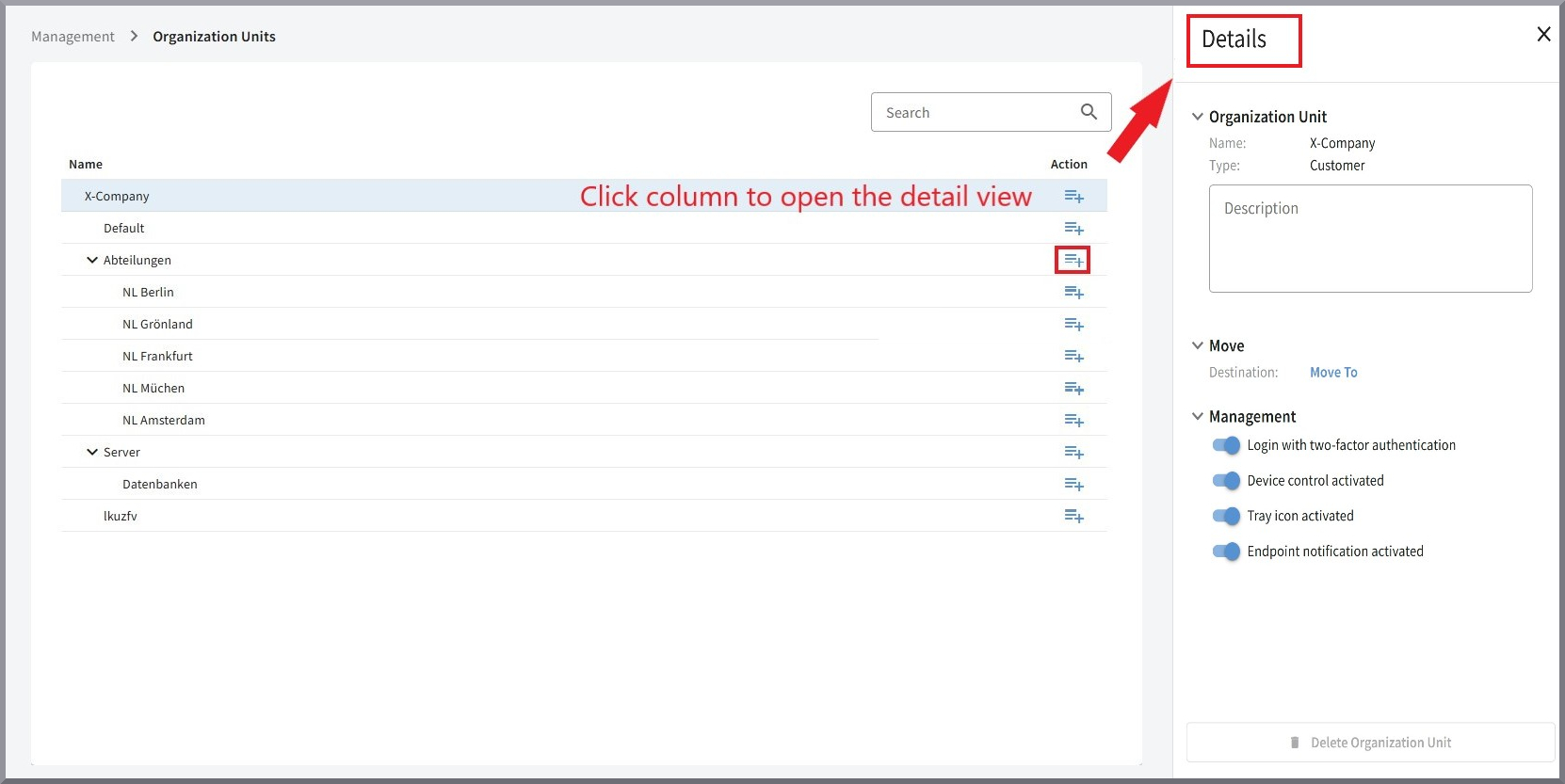
In this portal window, authorized users can view the hierarchical structure of your Organization Units.
The Default Organization Unit |
Initially, only the default Organization Unit, Default, appears below your root node (Customer name). Additional Organization Units can be created.
|
||||
Details Window |
View screenshot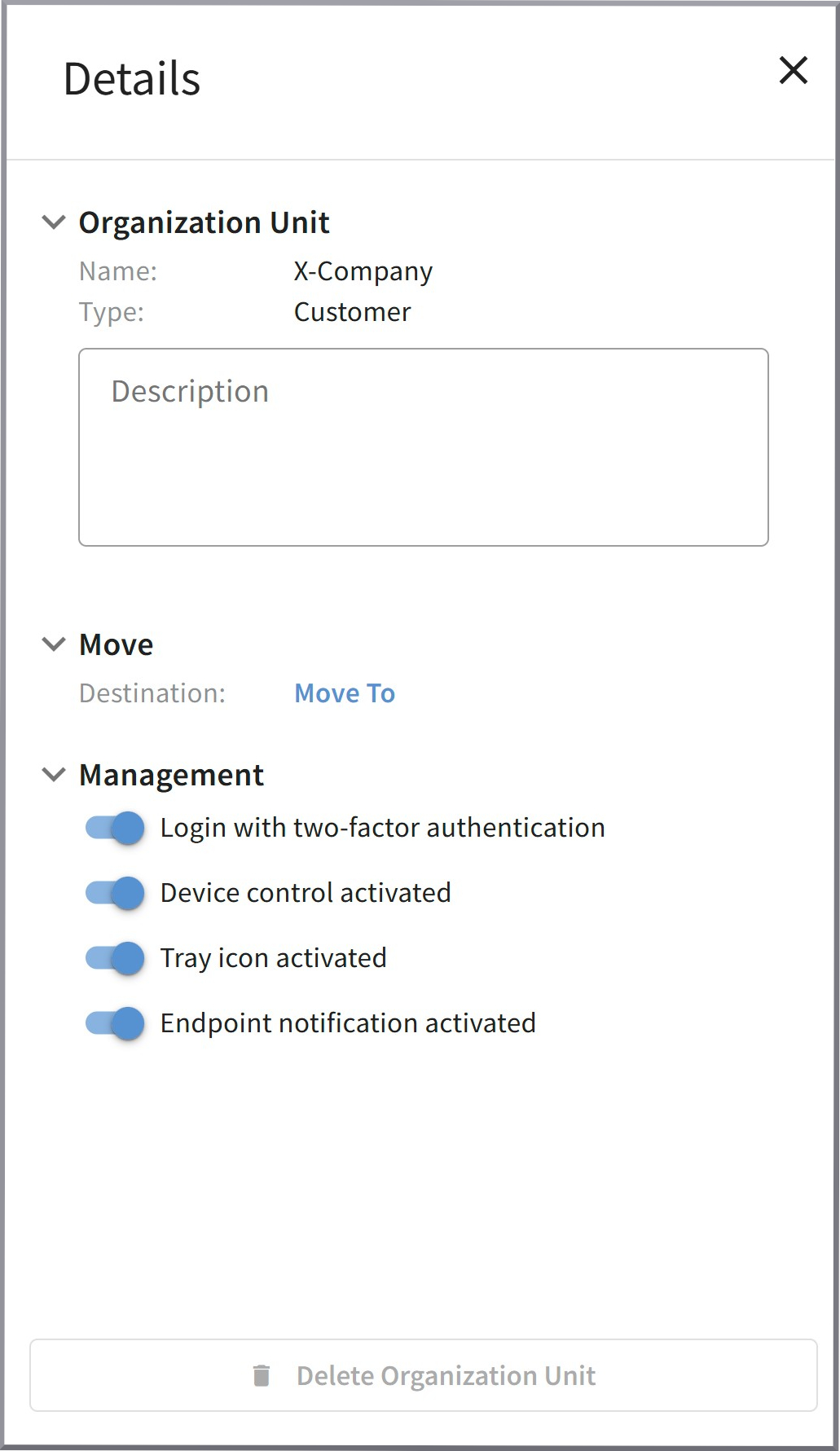
Click the row for your Customer-type Organization Unit to open the details window. Depending on the settings and your permissions, you have several configuration options here:
You can also enter notes about the Organization Unit in a free-text field. These are also included in searches!
If you select a subordinate Organization Unit (of type Organization rather than Customer), the “Manage” option is not available in the details window. You can then use this window to rename the selected Organization Unit or move it within the hierarchy.
|
||||
Creating an Organization Unit |
Clicking View screenshot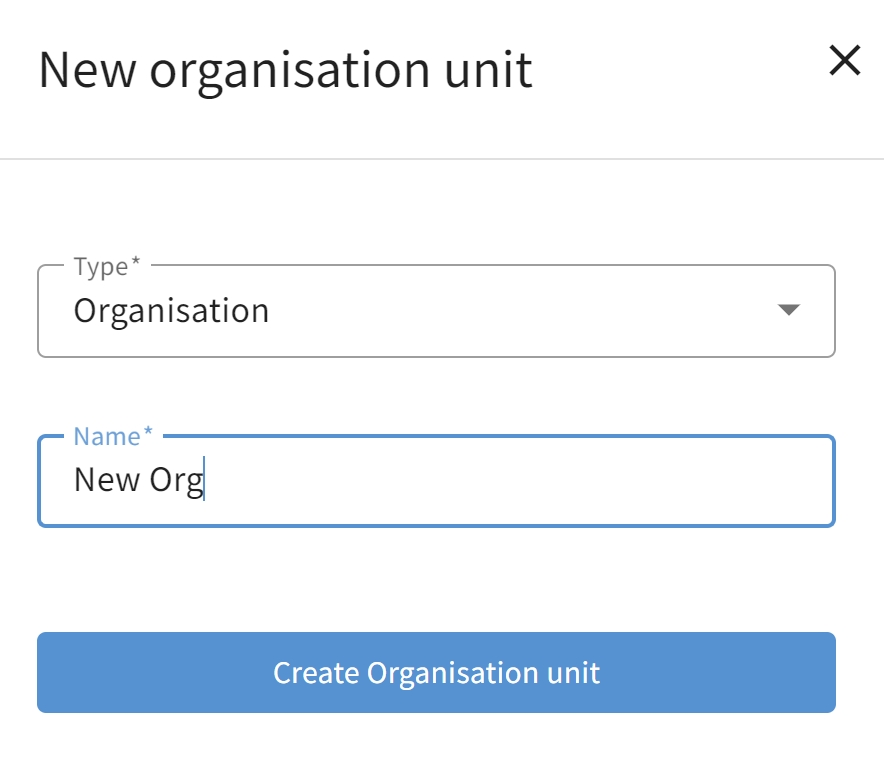
|
||||
Deleting an Organization Unit |
To delete an Organization Unit, use the following button:
View screenshot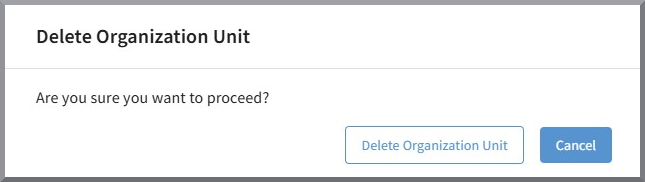
|

Depending on the logged-in user’s role profile,
some Organization Units may not be displayed and/or the  symbol may be
missing because the user lacks the required permissions.