G DATA 365 | Mail Protection
Configure filters
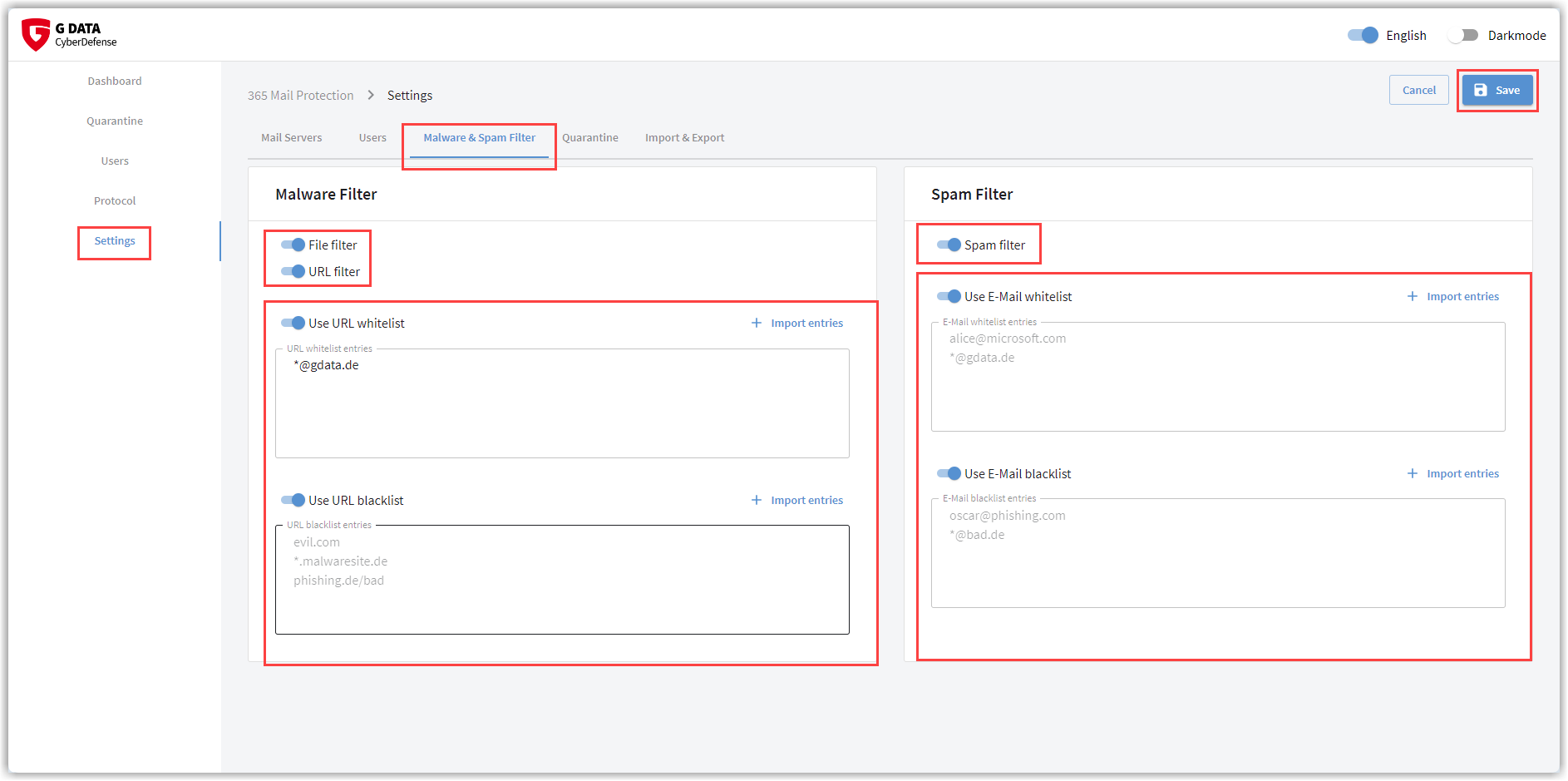
| Do not forget to save all changes using the button in the upper-right corner of the window. The position of the toggle switch and the stored values are applied only after saving. |
| All allowlist entries cause emails, attachments, or included URLs to no longer be checked by 365 Mail Protection. Please note that this leads to security risks. |
Sender filter
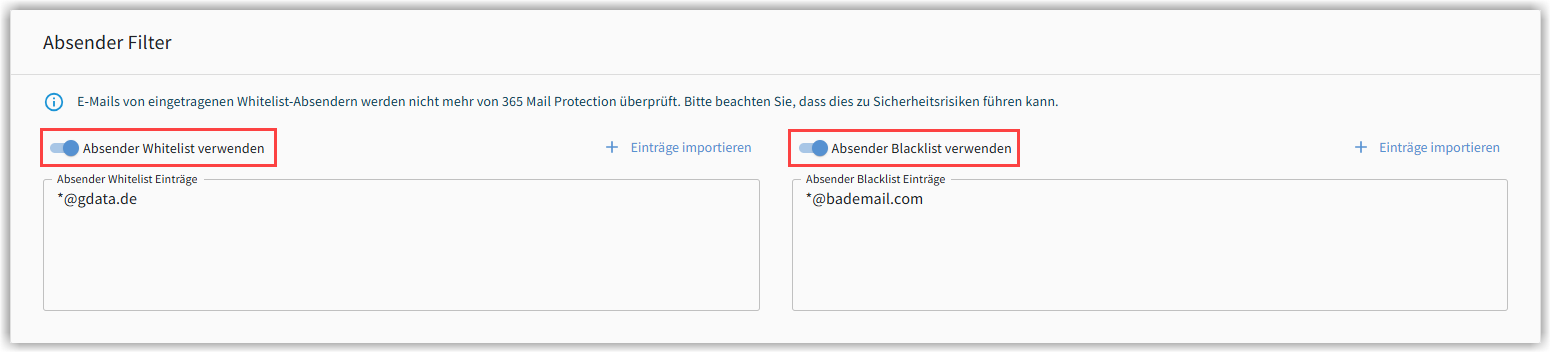
Enable this filter if you do not want to scan certain sender email addresses for malware (allowlist) or if you always want to move certain senders to quarantine (blocklist).
| Add senders to the allowlist only in justified exceptional cases. The mere fact that you know the sender of an email or a specific website does not justify a false positive (False Positive). It can never be ruled out that email senders or website operators themselves are victims of a virus outbreak and unknowingly continue to spread the infection. When in doubt, have the Detection checked by us! |
You can enter allowlist and blocklist entries directly in the designated field.
Use the following syntax:
-
[Email address] = only this one sender
-
*@domäne.de = all senders that send from this domain.
Enter each entry on its own line.
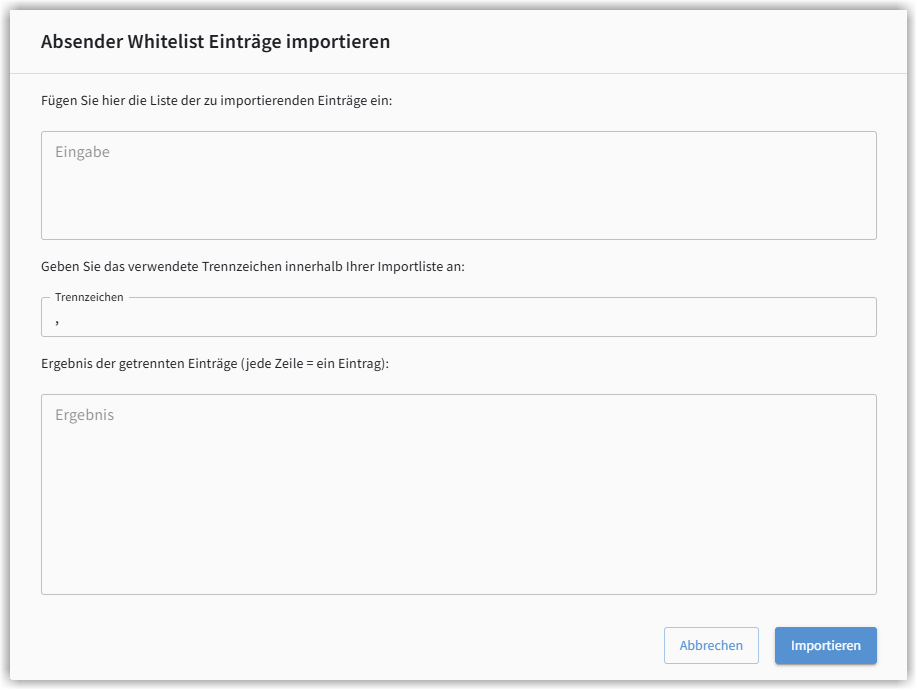
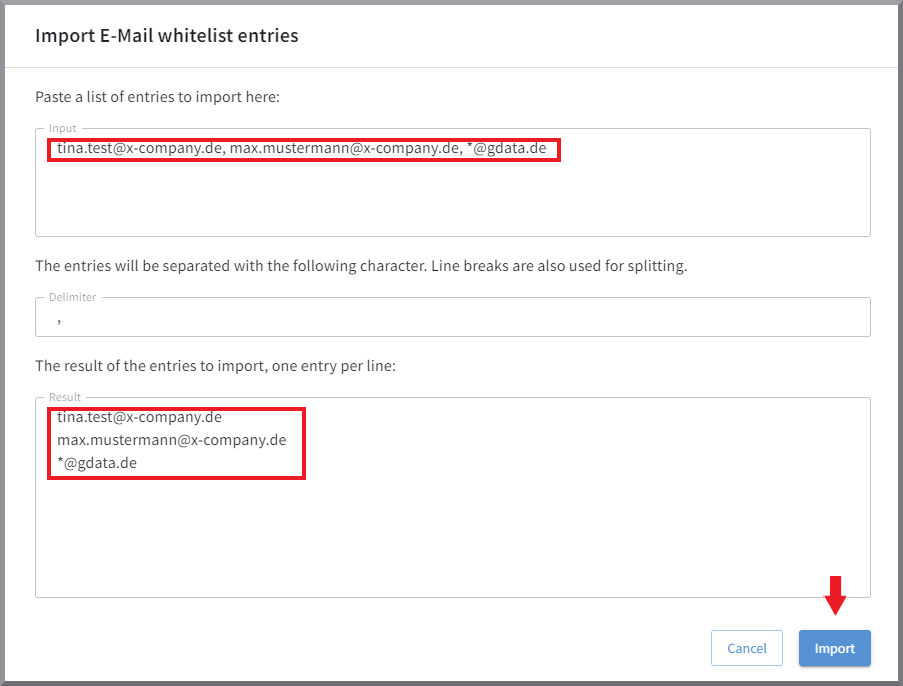
If you already have an exported list of entries, separated by a special character, click + Einträge importieren. Copy the content into the upper block and specify the separator used. You will then see the list of separated entries as it will look after import. Here you can verify everything for correctness. Click the Importieren button if you want to import the list.
Screenshot
| Please note that the entries you create yourself as an allowlist or blocklist do not constitute a professional spam filter. This is already provided by enabling our spam filtering feature. Not every email that slipped through once needs to be entered here. The probability of receiving this sender again next time is low, since the sender names used in spam attacks change constantly. Persistent newsletters that cannot be disabled, however, can be meaningfully stored as blocklist entries. |
URL filter and spam filtering
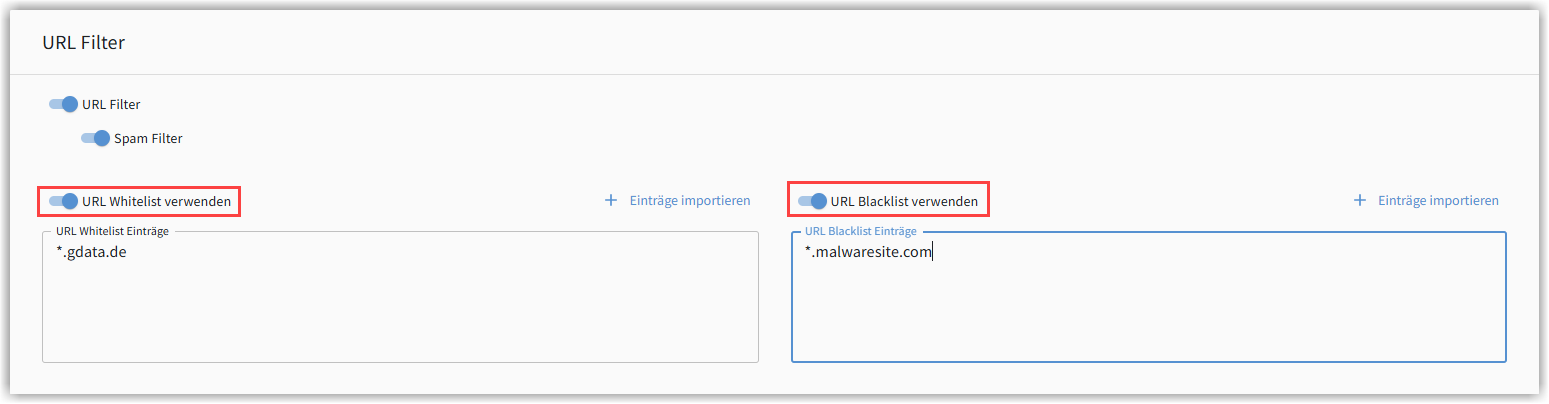
Here you can enable or disable checking of the URL included in an email and define Exclusions. Entries on the allowlist are not checked. Emails that contain URLs listed on the blocklist are moved to quarantine immediately without being checked.
| Add URLs to the allowlist only in justified exceptional cases. The mere fact that you know the sender of an email or a specific website does not justify a false positive (False Positive). It can never be ruled out that email senders or website operators themselves are victims of a virus outbreak and unknowingly continue to spread the infection. When in doubt, have the Detection checked by us! |
If you disable the URL filter, there is generally no longer any checking of URLs. However, spam filtering is then also no longer possible, because checking URLs is an essential component of spam detection.
|
Please note that the entries you create yourself as an allowlist or blocklist do not constitute a professional spam filter. This is already provided by enabling our spam filtering feature. Not every email that slipped through once needs to be entered here or in the sender filter. The probability of receiving this sender again next time is low, since the sender names used in spam attacks change constantly. Persistent newsletters that cannot be disabled, however, can be meaningfully stored as blocklist entries. Allowlist entries should also be carefully considered. Sender addresses known to you can be used by spam senders. These spam emails would then have a free pass. Adding the sender of a desired newsletter that is correctly detected as a mass email to your allowlist, on the other hand, can make sense. |
You can enter allowlist and blocklist entries directly in the designated field.
Use the following syntax:
-
www.domäne.de = only the primary domain
-
*.domäne.de = domain including all subdomains
-
domäne.de/ = only specific domain pages
Enter each entry on its own line.
If you already have an exported list of entries, separated by a special character, click + Einträge importieren. Copy the content into the upper block and specify the separator used. You will then see the list of separated entries as it will look after import. Here you can verify everything for correctness. Click the Importieren button if you want to import the list.
Show screenshot
File filter
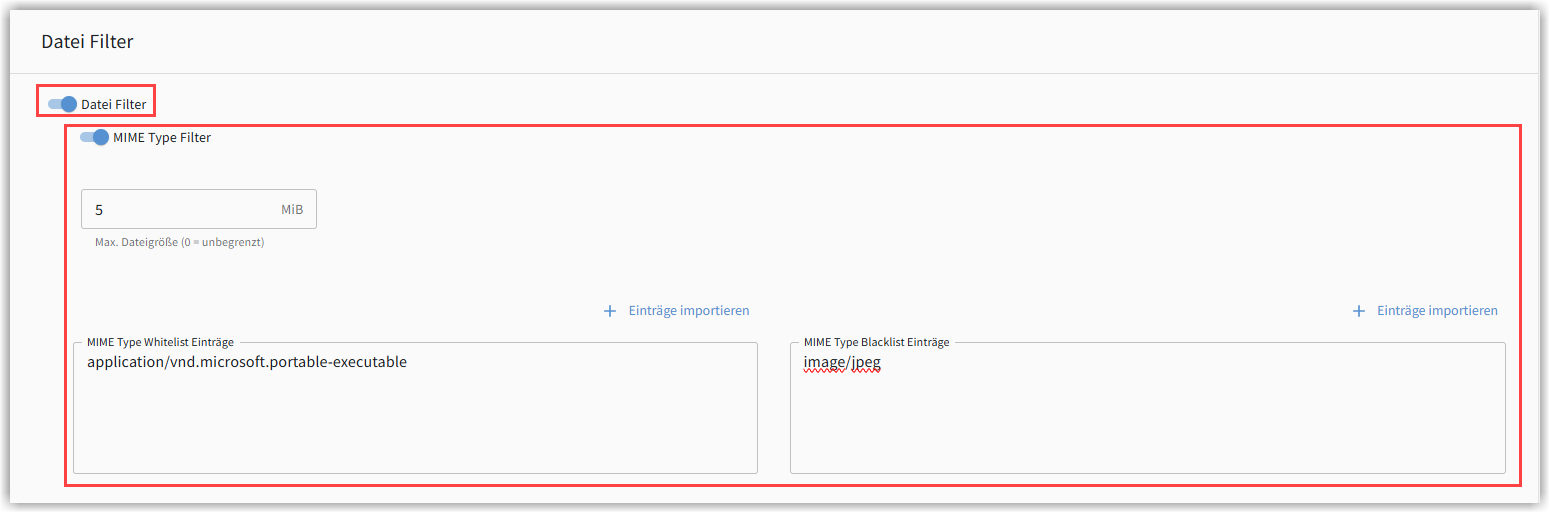
Here you can enable or disable scanning of email attachments and define Exclusions. If you disable this function, no files are scanned.
If you have file scanning enabled, you can filter email attachments based on MIME detection and, depending on the file type, either accept them without being checked (allowlist) or move the email with attachment to quarantine immediately (blocklist).
Here it is also possible to set a size limit for email attachments. Attachments that are larger than the value you enter here are not delivered to the recipient, but are first moved to quarantine. If you do not want to set a size limit, set the value to 0.
| You can find the syntax for creating allowlist entries for MIME types, among other places, here: https://mimetype.io/all-types |
Enter each entry on its own line.
If you already have an exported list of entries, separated by a special character, click + Einträge importieren. Copy the content into the upper block and specify the separator used. You will then see the list of separated entries as it will look after import. Here you can verify everything for correctness. Click the Importieren button if you want to import the list.