G DATA 365 | Mail Protection
Quarantine settings
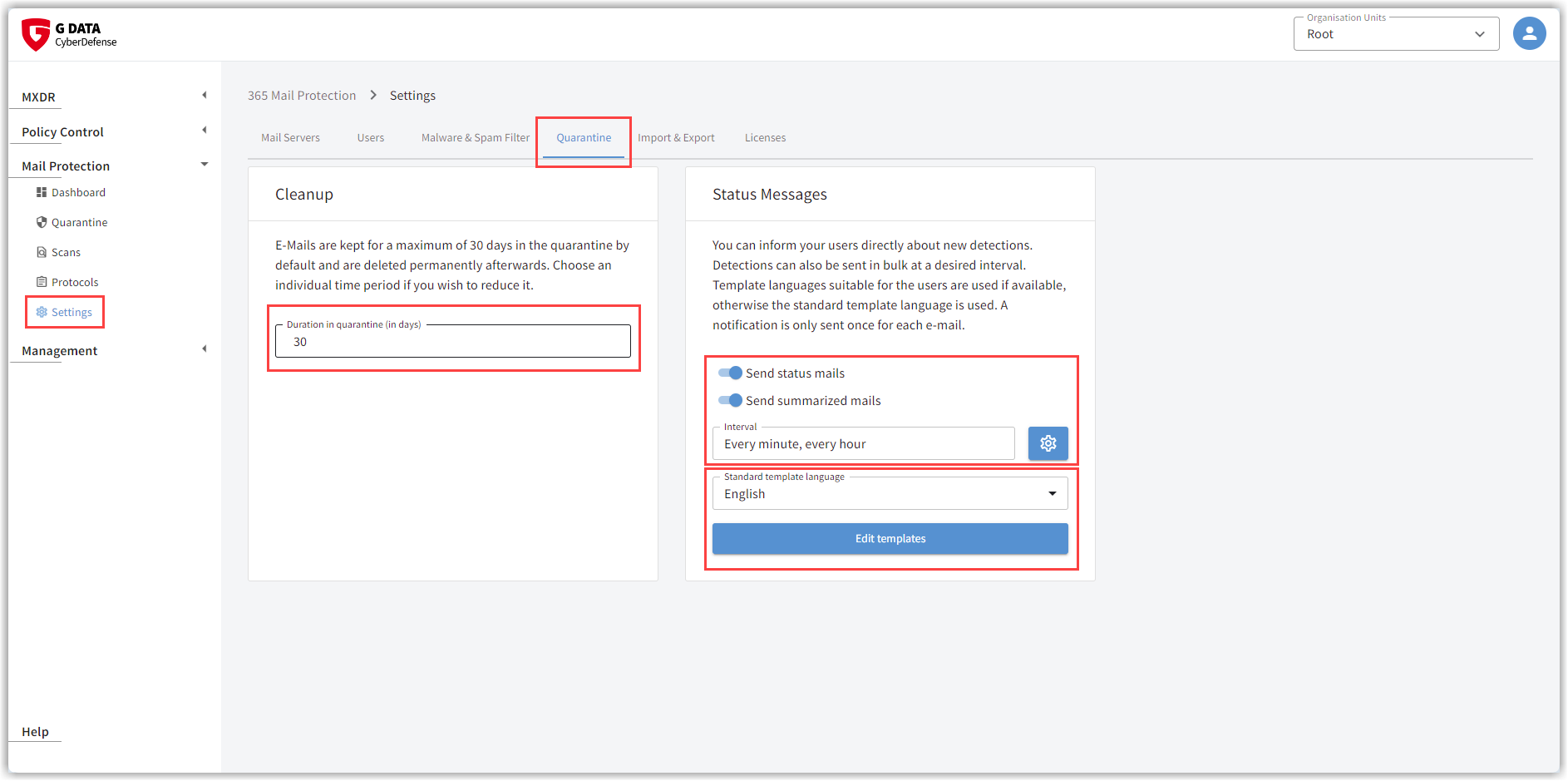
| Do not forget to save all changes using the button in the upper-right corner of the window. The position of the toggle switch as well as the stored values are applied only after saving. |
Quarantine retention
Emails moved to quarantine are deleted after 30 days. You have the option to shorten this period. Enter how many days the emails should be retained in quarantine. Any whole number between 1 and 30 is possible.
Status messages
It is possible to notify the recipients of infected emails moved to quarantine either immediately or at a specific time in a batch.
Use the toggle switch Send status email to enable or disable the sending of notification emails. By activating the toggle switch Send status emails in a batch, you can configure that these status messages are not sent to recipients immediately after the original email is moved to quarantine. The messages can be collected and always sent at a defined time.
Click the gear icon  if you would like to send the notification emails
in a batch. The window opens in which you can define the send time:
if you would like to send the notification emails
in a batch. The window opens in which you can define the send time:
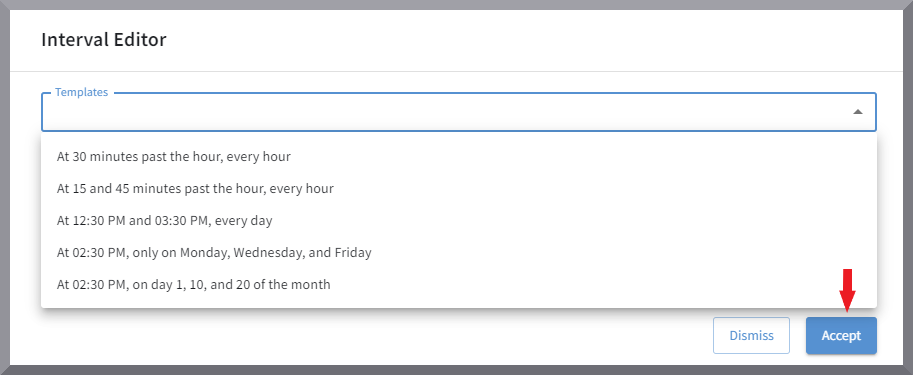
Either by selecting one of the templates: |
|
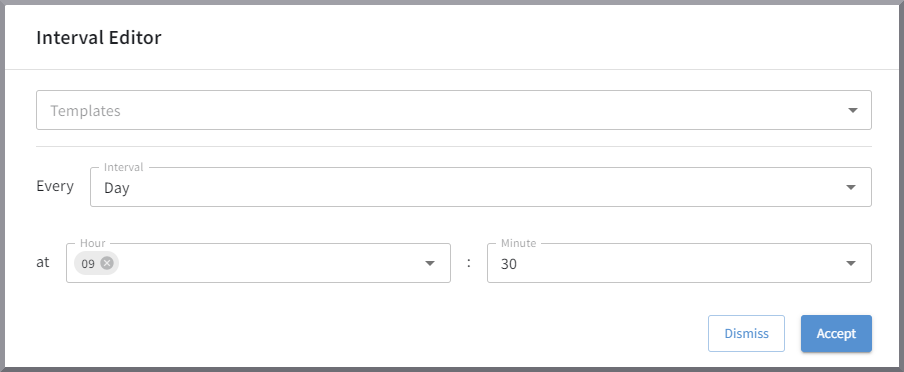
Or define the interval manually using a drop-down menu: |
|
Edit status email.
Click the button 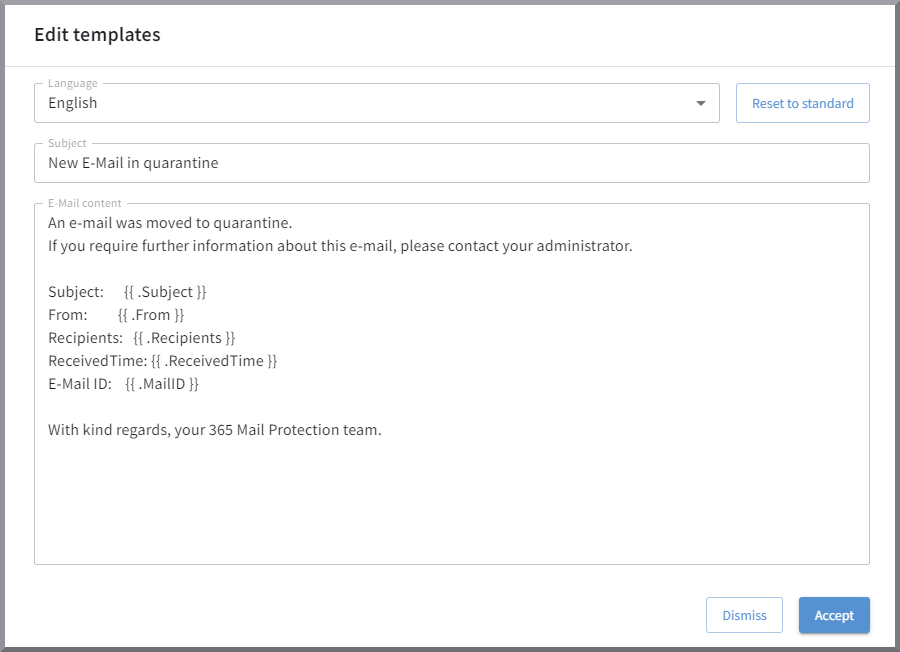 to open a small text editor that you can use to customize the text of the
email as desired.
to open a small text editor that you can use to customize the text of the
email as desired.
The existing default text informs the original recipient of the original email about:
-
The subject of the infected email (Subject).
-
The sender email address of the infected email (From).
-
The recipient email addresses of the infected email (Recipients).
-
The date and time the infected email was received (ReceivedTime).
-
The email ID assigned to this email by G DATA 365 | Mail Protection (MailID).
|
Use placeholders in your email for the information listed above so that it is automatically inserted into your email. You can see the syntax with the curly braces in the screenshot. |