G DATA 365 | Mail Protection
Add MIME types and URLs directly from Quarantine to the Whitelist
This article describes how you can add files (MIME types) and URLs directly from Quarantine to the Whitelist.
| Add senders to the Whitelist only in justified Exclusion cases. The mere fact that you know the sender of an email or a specific website does not justify an incorrect Detection (false positive). It can never be ruled out that senders of emails or website operators are themselves victims of a virus outbreak and unknowingly continue to spread the infection. If in doubt, have us review the Detection via have us review it! |
1 |
In the interface of your G DATA 365 | Mail Protection, select Quarantine. |
||
2 |
Search for the affected email in the quarantine list. |
||
3 |
Click the email row. |
||
4 |
The side panel opens: 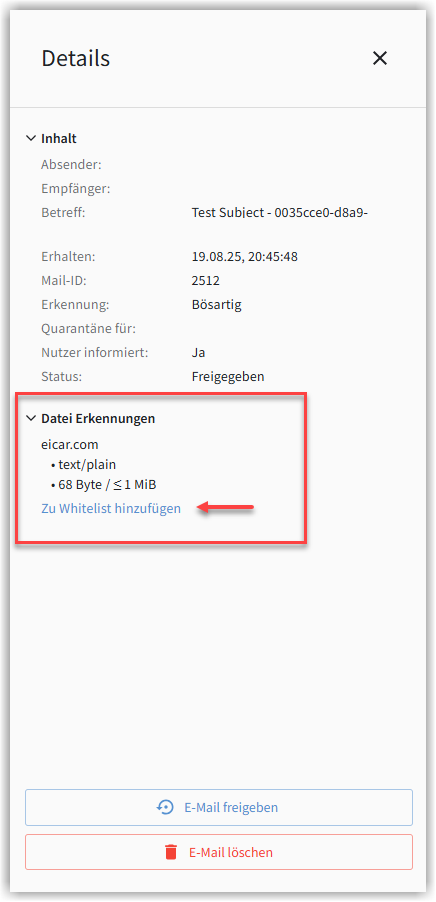
|
||
5 |
There, you can see
Click ADD TO WHITELIST. |
||
6 |
You will be shown again what you want to add to the Whitelist.
Confirm again that you want to add the selection to the Whitelist. 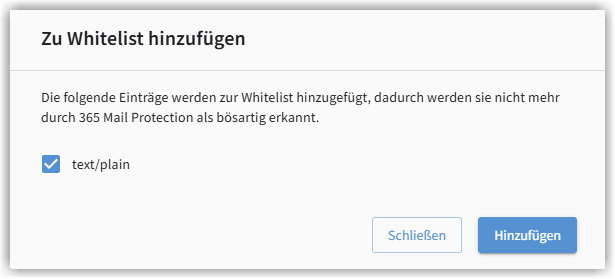
|