G DATA 365 | Mail Protection
Exporting and importing settings
It is possible to export the settings of G DATA 365 | Mail Protection and import them again.
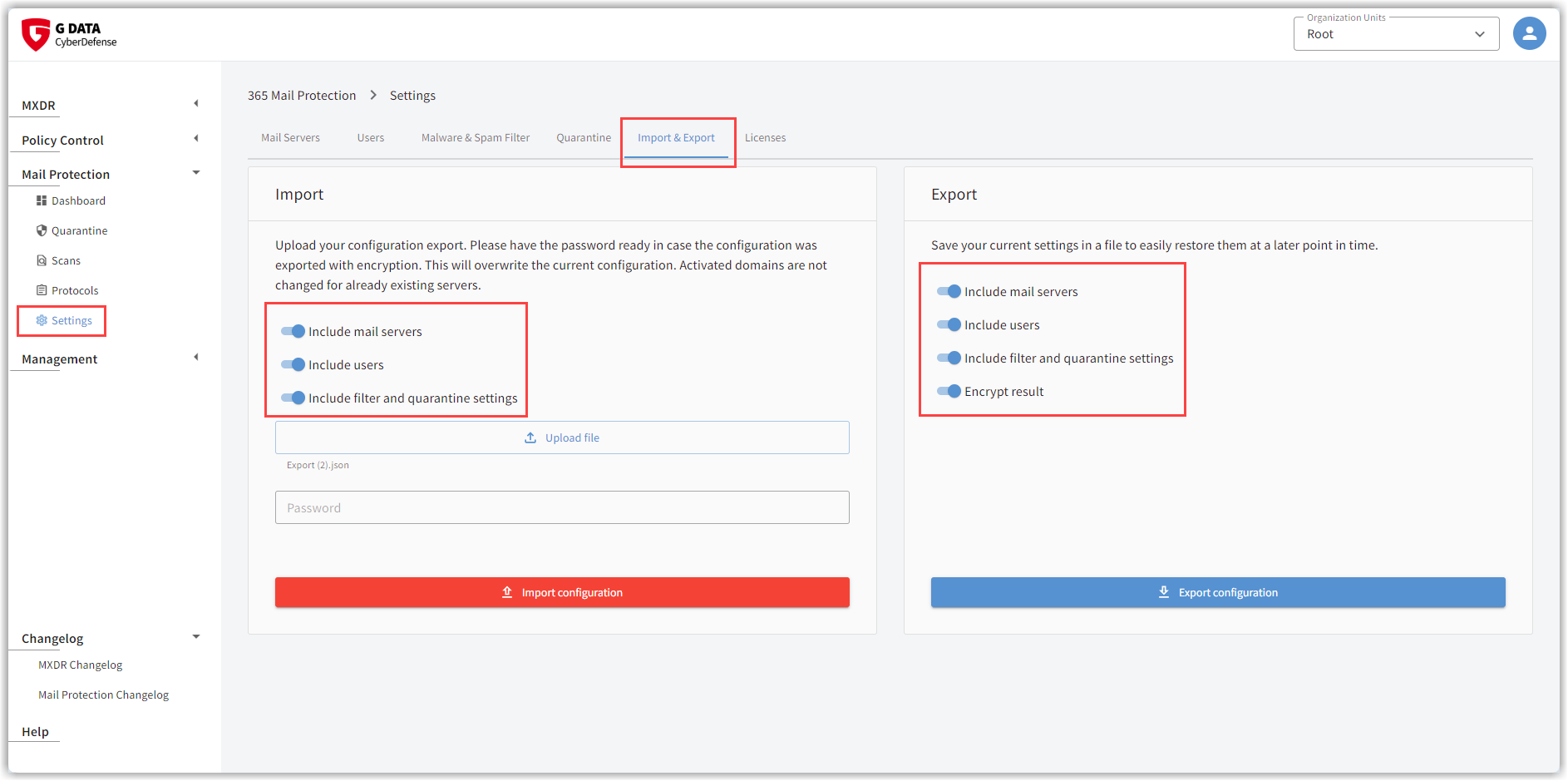
Export
Use the toggle switches to control which settings you want to export:
-
mail server settings,
-
Users
-
Settings for the filters (malware and spam) and the quarantine.
The export creates an unencrypted .json file in your Downloads folder. If you have enabled the *Encrypt result toggle switch, an encrypted *.enc file is created.
|
If you have enabled the Encrypt result toggle switch, a secure password consisting of letters and numbers is displayed on the screen. Be sure to save this password! Without this password, the exported file cannot be imported again. For Privacy policy reasons, it is also not stored in G DATA Web Portal. Show screenshot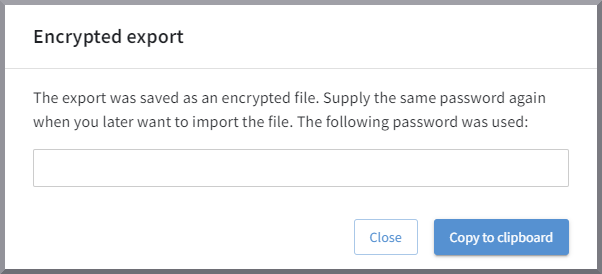
|
Import
Use the toggle switches to control which settings you want to import:
-
mail server settings,
-
Users:
-
If a user is in the current database but not in the backup file, the existing user remains unchanged. No deletion occurs.
-
If a user is in the current database and in the backup file, user settings are applied from the backup file. The current settings are overwritten.
-
If a user exists only in the backup file, the user is added to the current database. An import is performed first. However, if the user does not have a valid mailbox in Microsoft Exchange, the user is automatically removed again after synchronization with the Exchange server.
-
-
Settings for the filters (malware and spam) and the quarantine.
You can import a *.json file created by an export or an encrypted *.enc file.
If you want to import a *.enc file, please enter the password that was displayed to you when the file was created.
|
As soon as you click the Import configuration button, the settings are imported. The existing settings are overwritten immediately! |