G DATA MXDR
Uninstalling agents from Windows Endpoints
The easiest way to uninstall a G DATA Agent is to initiate the uninstallation through the G DATA Web Portal. If you choose another method, you will need an uninstall token. You can obtain it from our G DATA Security Operations Team.
1 |
Log in to the G DATA Web Portal. |
2 |
Go to the Endpoints view and open the details panel for the Endpoint from which you want to remove the G DATA Agent. To do this, click the corresponding Endpoint in the overview list. |
3 |
Click Uninstall Agent. 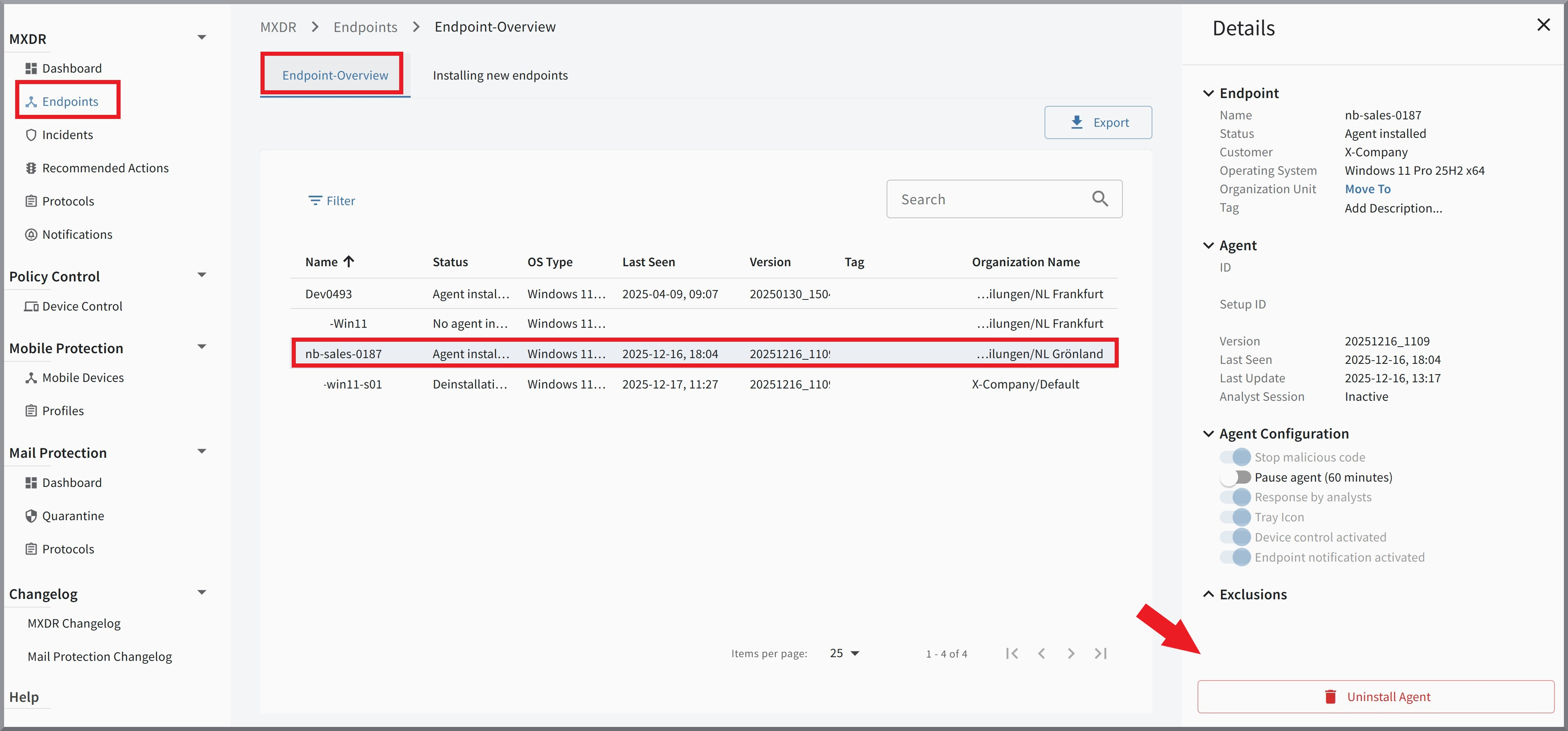
|
4 |
If you want to permanently remove the device from monitoring, select the Checkbox Remove Endpoint from the Endpoint list now. If the agent is being uninstalled temporarily, the Endpoint can remain in the list to preserve its assignment to the Organization Unit. 
|
5 |
The agent will be uninstalled as soon as the Endpoint is available for communication. |
Local Uninstallation
As an alternative to the procedure outlined above, you can also uninstall the agent software locally on the Endpoint.
| The uninstallation methods described below require an uninstall token. To obtain one, you must contact our G DATA Security Operations Team. We recommend uninstalling via the G DATA Web Portal, as you can do this yourself. |
Uninstallation using Microsoft Software Installer (MSI)
Display
| This method works only if you used the Microsoft Software Installer (.msi file) for installation. |
1 |
Open Command Prompt on the system where you want to uninstall the G DATA Agent. |
||
2 |
Run the following command.
|
||
3 |
After uninstallation, G DATA Agent is removed from the system. Restart the system to complete the uninstallation. |
Uninstallation via Windows Settings
Display
| This uninstallation method is only available if you used Windows Standard Setup (.exe file) for installation. |
1 |
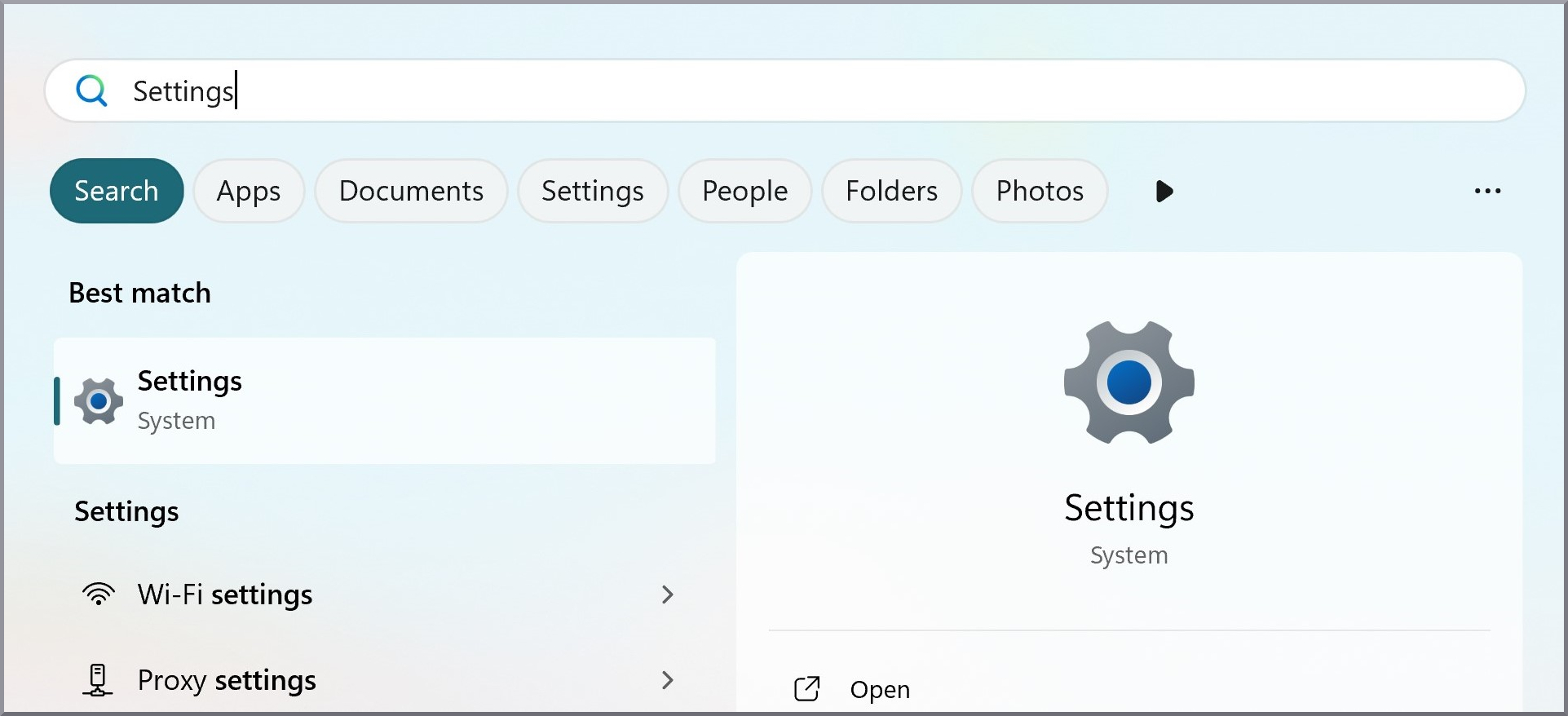
Open Windows Settings. |
|
2 |
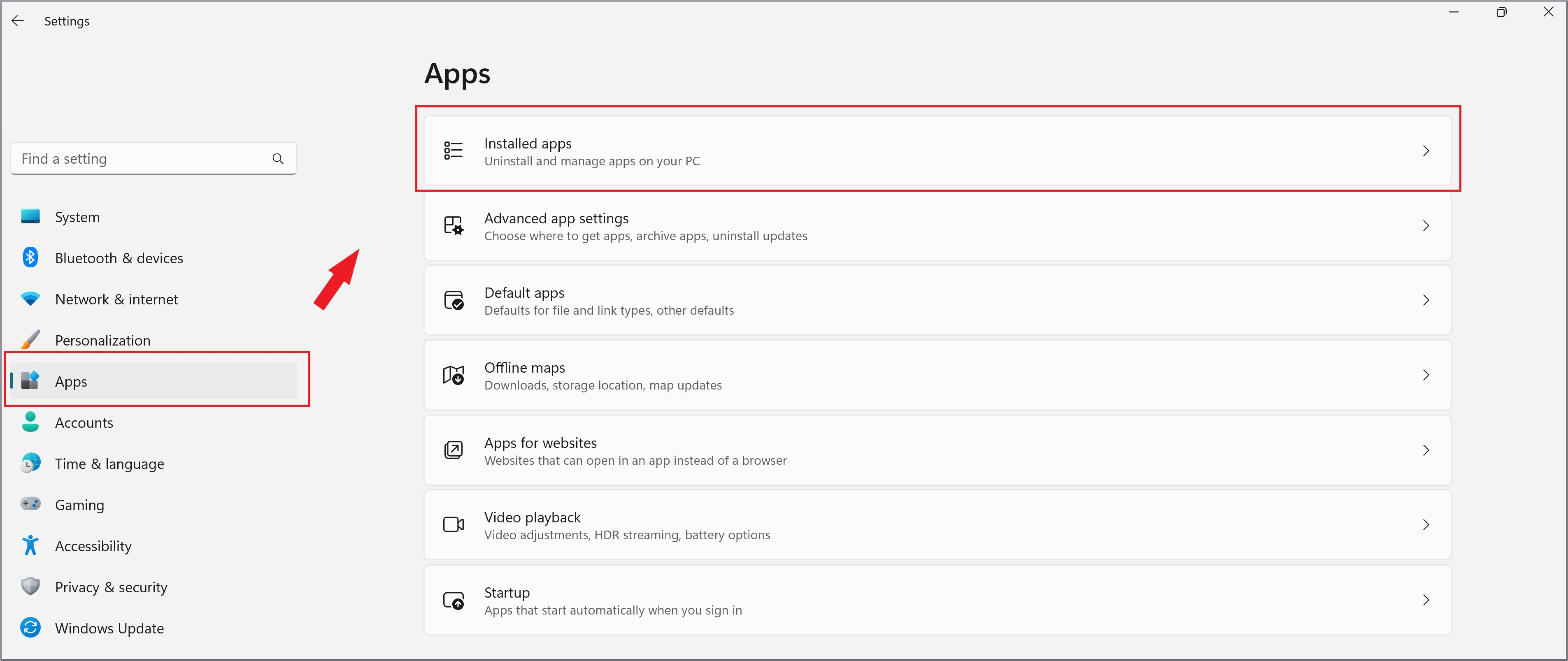
Select Apps and open Installed apps. |
|
3 |
Go to the entry for G DATA Agent and select Uninstall from the context menu. This starts the Agent’s uninstallation process. |

|
4 |
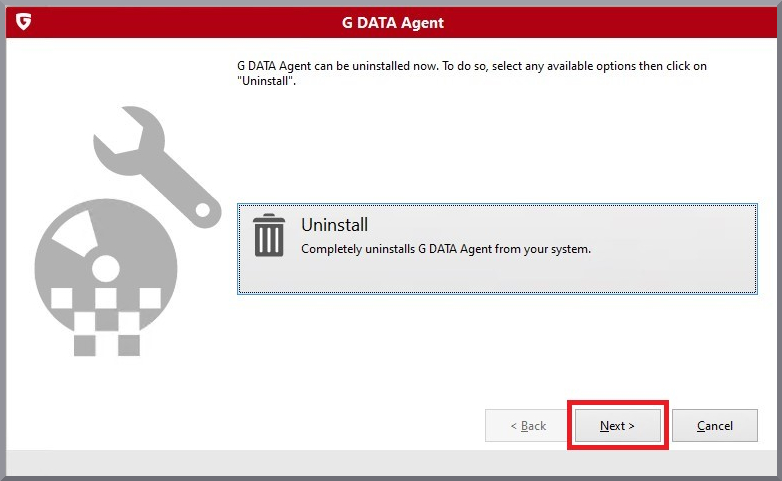
In the window that opens, click Next. |
|
5 |
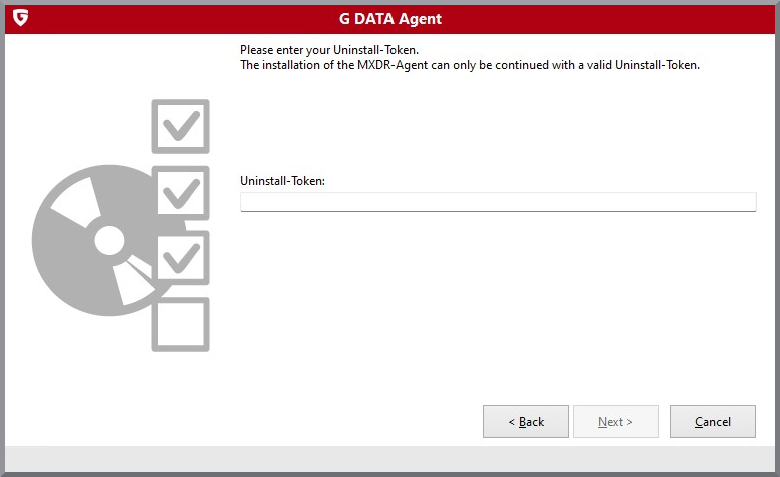
Then enter the uninstallation token and click Next again. This starts the uninstallation. |
|
6 |
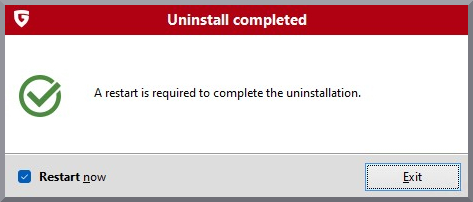
Restart the system to complete the uninstallation. |
|