G DATA Mobile Device Management: Information Areas
Mobile Devices
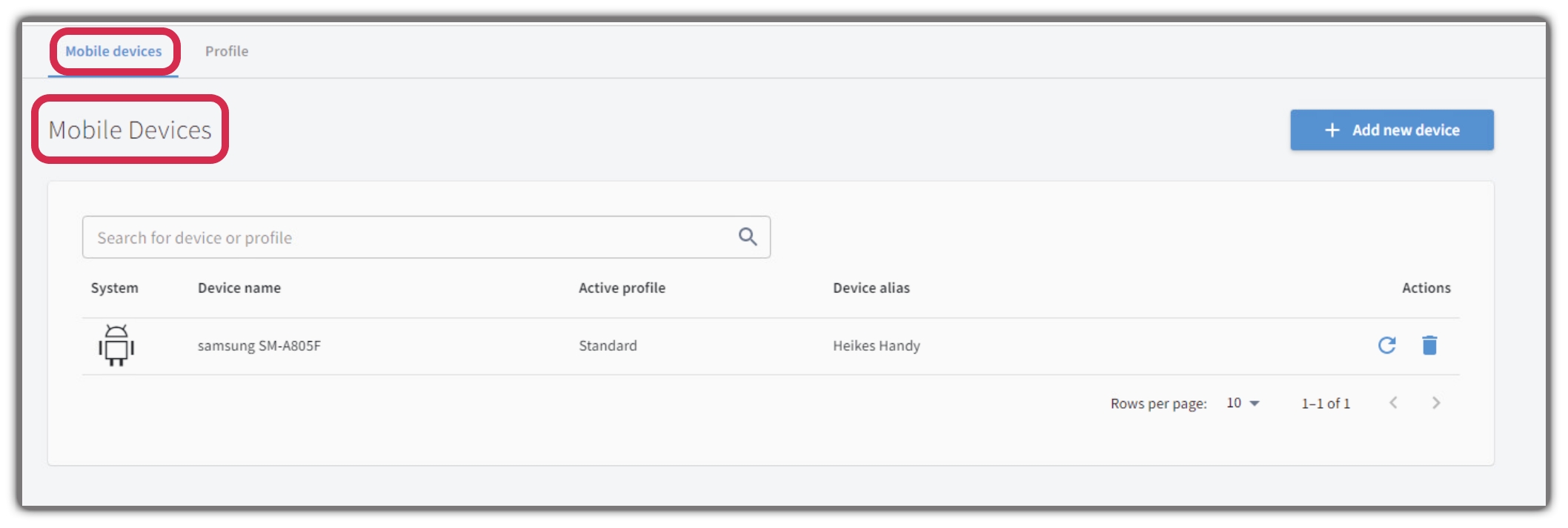
Under Mobile Devices, the devices that have checked in with the G DATA Mobile Device Management are displayed as a list. Here you can immediately see whether Recommended Actions are available for a device (the system icon is then displayed with a red dot).
From here, you can see at a glance which devices are assigned to which profile and which device has checked in with which device alias. You can also remove devices from management here.
Show Screenshot
Settings
When you click a mobile device in the list, you will see the Settings tab in the submenu.
Here you can disable the device’s profile assignment (configure devices independently of profiles) and configure the settings for this device individually. You can find explanations of the settings in the Profile Descriptions.
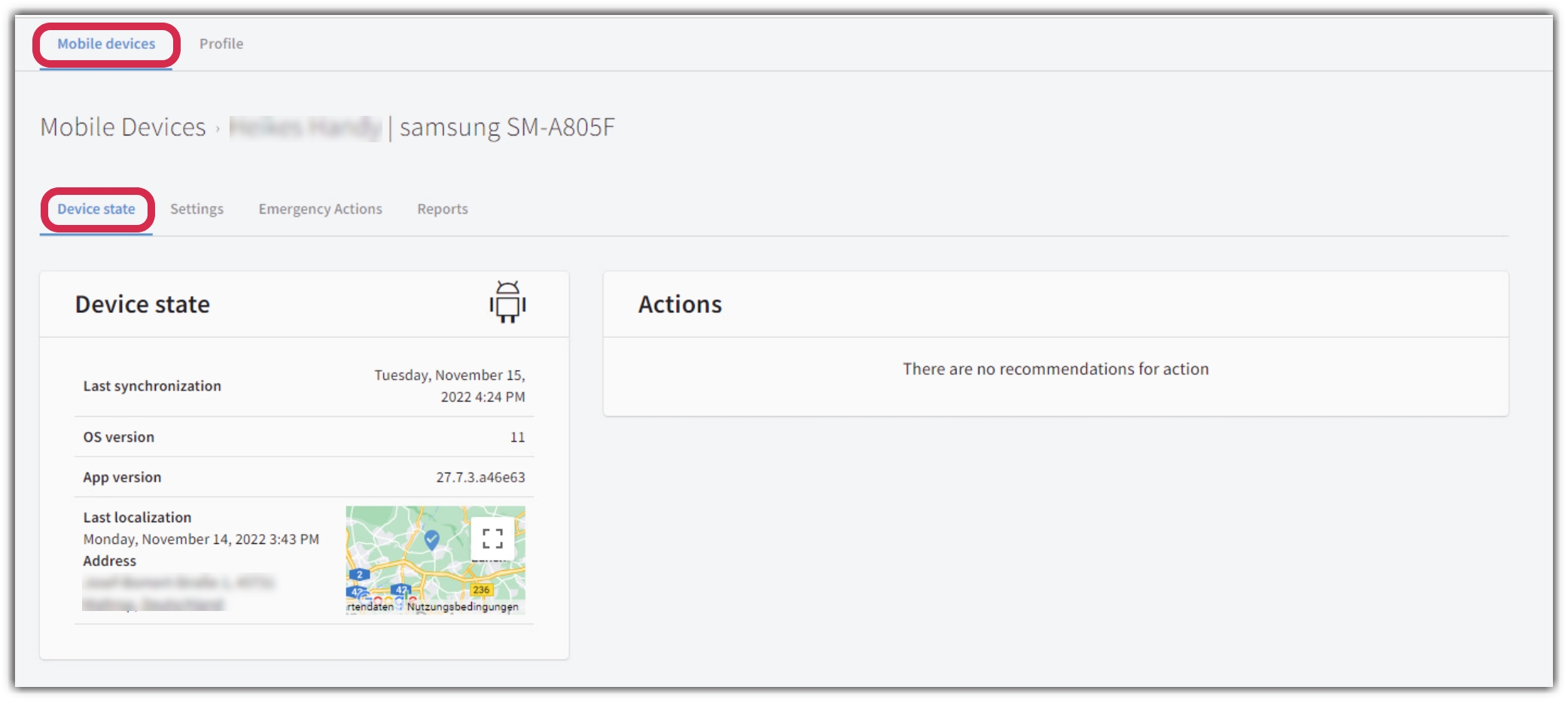
Status
When you click a device, the status and the Recommended Actions for the selected device are displayed.
In the Status area, you will see
-
Date and time of the device’s last synchronization with the G DATA Mobile Device Management.
| This is not the date when the device received new virus signatures. The signatures are loaded independently. |
-
The Android version.
-
Version of the G DATA Endpoint Security Android app.
-
The Recommended Actions.
-
If location tracking has already been triggered in the emergency actions, you will see a Google map view showing where the device is located.
Show Screenshot