G DATA XDR
How do I set up two-factor authentication (2FA) as a user?
After you have been created as a user, you will receive an email at the specified email address.
You can now set up two-factor authentication (2FA) and set a secure password.
Proceed as follows:
1. |
Install an authenticator app of your choice if one is not already installed on your phone.
|
||
2. |
Click the link for the account update in the email. 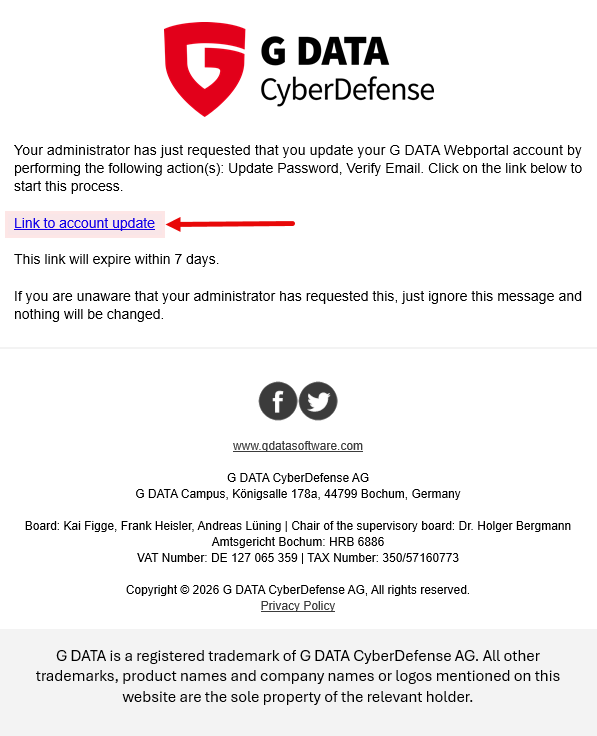
|
||
3. |
On the home page, click Click here to continue. 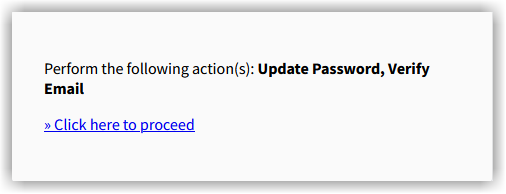
|
||
4. |
Open your authenticator app on your phone. |
||
5. |
In your authenticator app, click Add.
|
||
6. |
In your authenticator app, select whether you want to scan the QR code (recommended!), or whether you want to use the manual option via the secret key, which is usually more cumbersome. This guide assumes that you select Scan QR code. |
||
7. |
Scan the QR code from the G DATA form. G DATA web portal: Your email address will be created and a 6-digit code will be displayed. 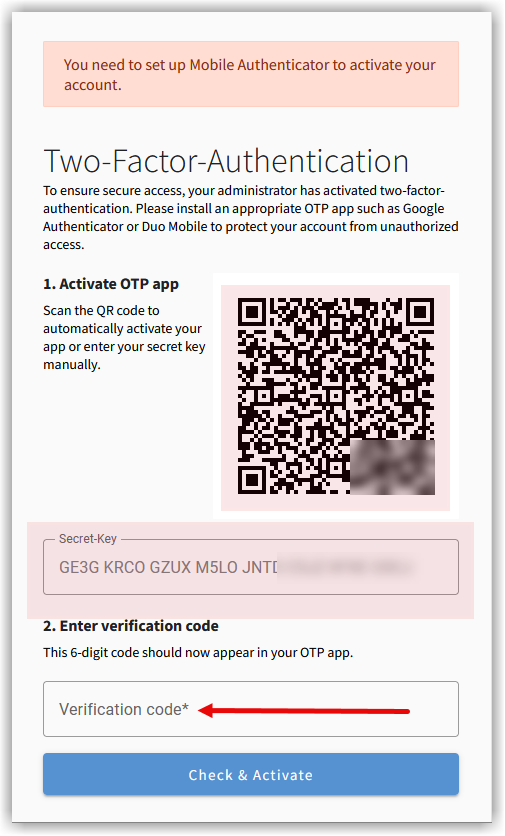
|
||
8. |
Enter the code from the authenticator app in the form field on the G DATA page. |
||
9. |
Click |
||
10. |
In the next step, set a secure password.
|
