Managing profiles in G DATA Mobile Device Management
This article describes profile creation
Profiles are similar to group management. This allows you to create different profiles with different settings and then assign them to a device. Instead of creating groups of devices, for example, with the names "Administration" "Sales" and "Technicians", profiles with the corresponding names are created and provided to the device during installation.
Of course, profiles can be changed at any time. When you change the profile, all devices with the corresponding profile receive the changes as soon as they have established contact with G DATA Mobile Device Management.
The settings recommended by G DATA are already bundled in a profile named "Standard".
You can find profile creation and profile management in G DATA Web Portal under Mobile Device Management in the Profile menu item.
The general settings of a profile
| Section | Description | ||
|---|---|---|---|
Antivirus scanning |
|
||
Synchronization |
At what interval should devices with this profile transmit information about their status, their installed apps, and settings to G DATA Mobile Device Management? (every 6 hours, 12 hours, daily, every 2 days, or weekly?) This setting can be configured separately for Wi-Fi connections and mobile data/cellular connections. |
||
SIM card protection |
If the SIM card is removed without authorization, the device is locked with the lock screen and an alarm signal sounds. |
||
Rooting policy |
With the Yes setting, you allow phones to be rooted. With No, rooted devices are reported to you as a security risk.
|
||
Virus signature updates |
Specify how often the device should download virus signatures (daily, every 3 days, weekly, every 2 weeks, or monthly). You can specify that updates should be performed only when there is an active Wi-Fi connection. |
||
Web protection |
You can specify whether you want to enable web protection always or only when there are active Wi-Fi connections. Web protection supports the Chrome, Firefox, Edge, and Opera browsers for Android. |
||
Wi-Fi configuration |
Here you can store the data for your secured company Wi-Fi. Your users can use it automatically as soon as they are within range. This means your users do not need to know the password. |
The app filter
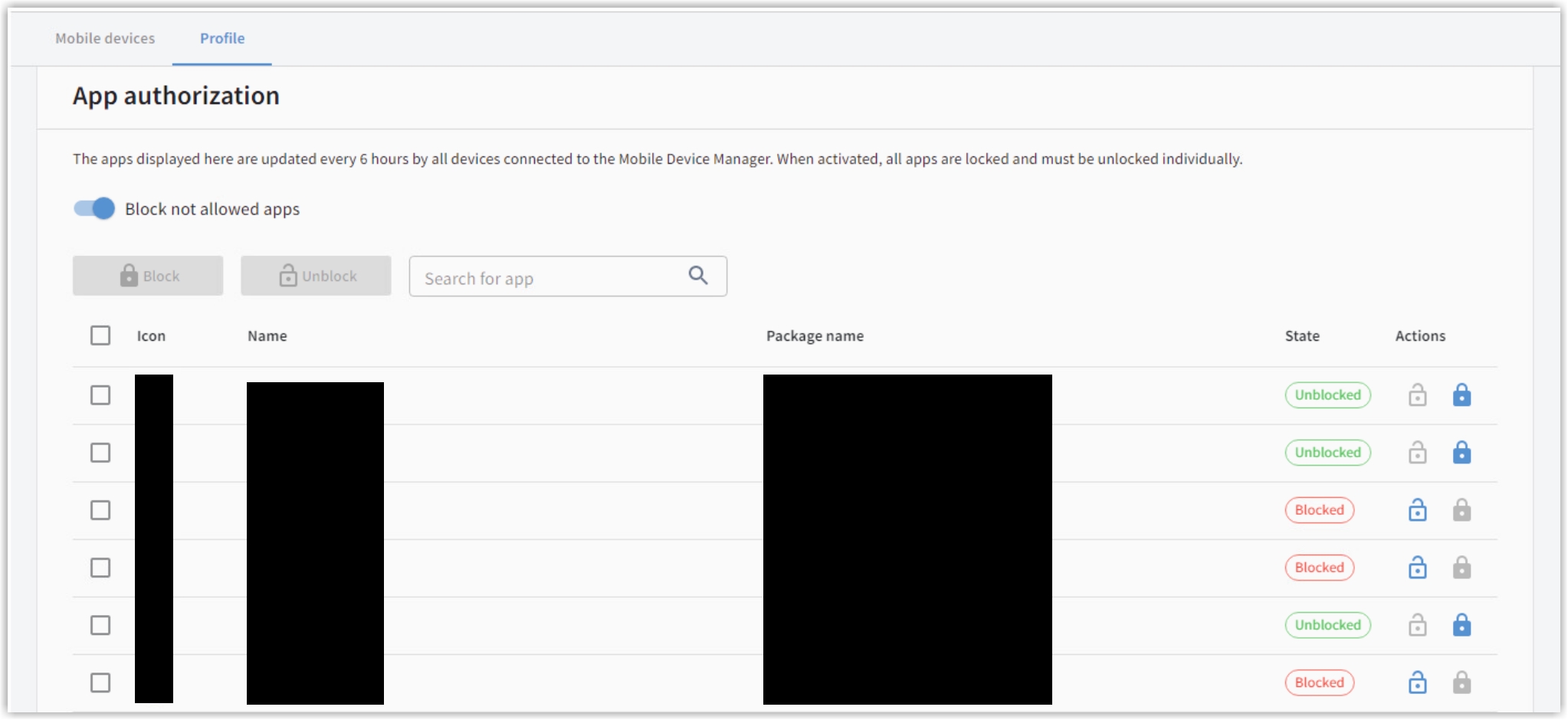
In the standard profile, all apps are allowed. In your custom-created profiles, you have the option to specify whether you want to prohibit certain apps or allow only certain apps.
Use the "Apps blockieren" slider to enable or disable this function.
You will see a list of all apps that your users use on your devices. By selecting the checkboxes and issuing the corresponding instruction, you can determine which apps are allowed and which are not. If you want to select all apps or clear the selection of all apps, select or clear the checkbox in the header row.
Notifications
To avoid having to check the devices in the console every day, you can store one or more email addresses here. We will send an informational email to these addresses as soon as a Recommended Action occurs. This ensures that you are always informed in a timely manner. You can also select the language in which you want to receive the email.
Emails are sent from the email address noreply@gdata.de.
Add it to your allowlist if necessary. This ensures that the email is not accidentally moved to your spam folder.
Since notifications can be created via profiles, it is possible to specify different recipients and languages for different device groups.
Configuring devices independently of profiles
When installing G DATA Endpoint Security Android/G DATA Endpoint Security iOS on the endpoint device, a profile must be assigned. If a device is to be administered separately as the only one, it is possible to disable the profile in the device configuration (select Mobile Device Management in G DATA Web Portal and click the desired device in the device list. Then select Einstellungen and disable Profil verwenden in the device settings.).