G DATA XDR
Creating a New Setup Configuration
To create a new setup configuration, click
 in the upper-right corner above the overview table of all Endpoints.
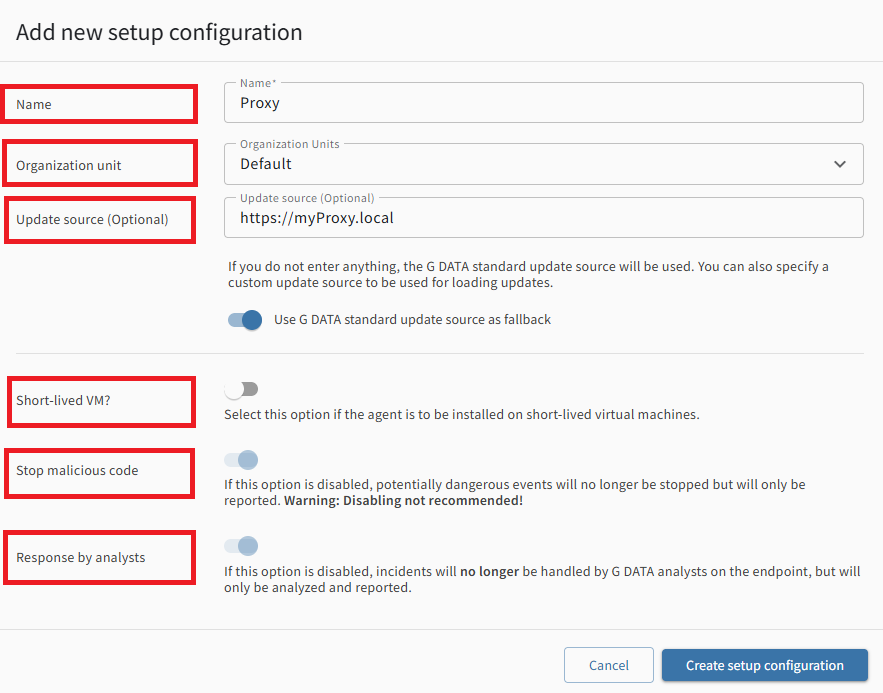
The window for creating a new setup configuration opens.
Several configuration options are available.
Name |
Enter a name for the new setup configuration here. |
||
Organization Unit |
Select the Organization Unit on whose Endpoints you want to install agents using this configuration.
|
||
Update source (optional) |
Enter the domain of your reverse proxy here. Also refer to the instructions for setting up a proxy. The proxy can be used to cache Agent updates. This ensures that each update is fetched only once and made available by the proxy to G DATA Agent running on Endpoints.
|
||
Short-lived VM? |
Use this toggle to specify whether this is a short-lived virtual machine. |
||
Stop malicious code |
Use this toggle to prevent detected malicious code from being stopped.
When you have finished specifying the settings for the new setup configuration, click Create setup configuration to create it. |