The Profiles View
Using profiles, you can assign the same set of settings to multiple mobile devices and make changes in one central location. Those changes are then automatically distributed to the assigned devices.
| Once you assign a profile to a mobile device, you can no longer configure device-specific settings that differ from the profile. |
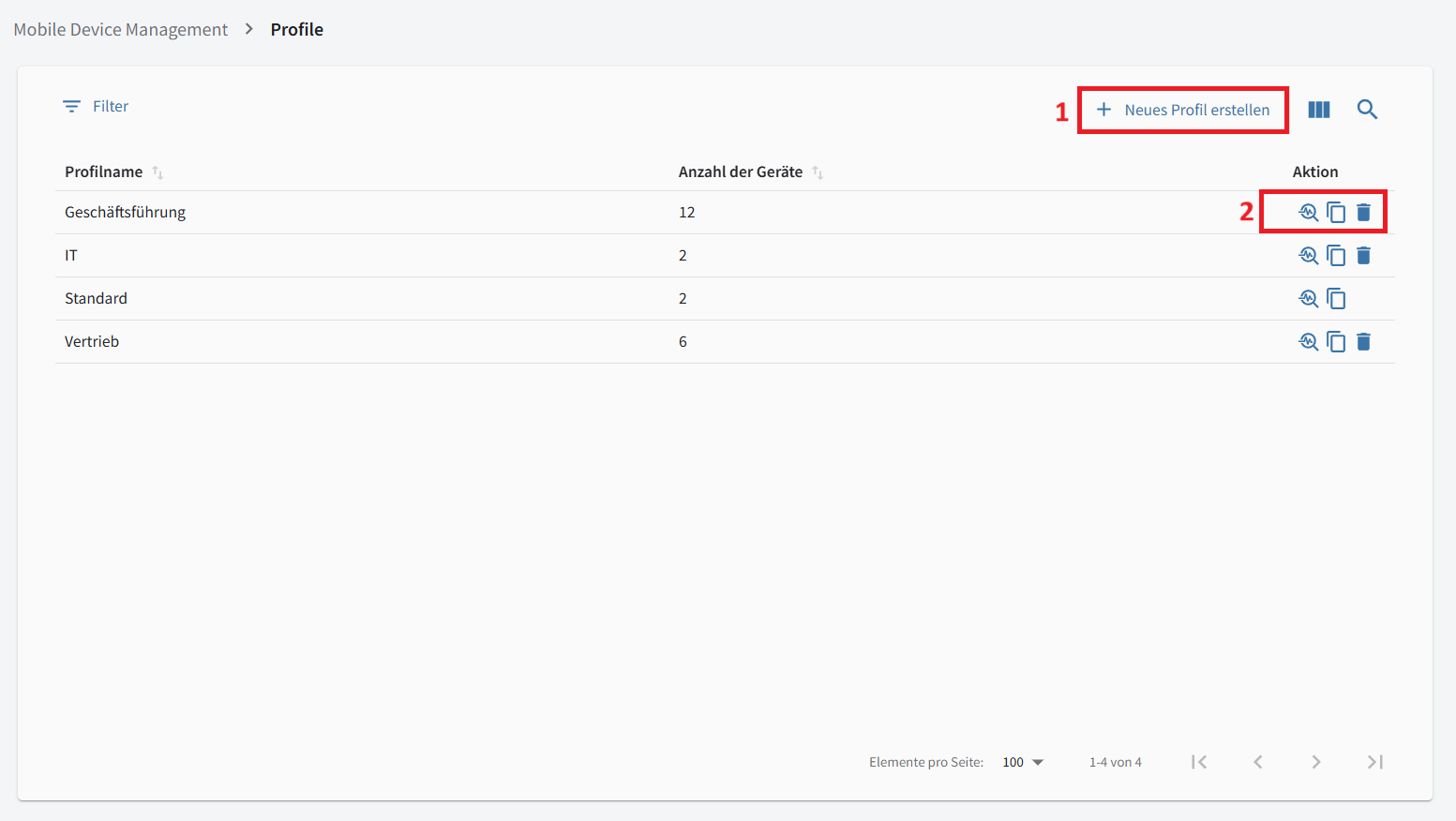
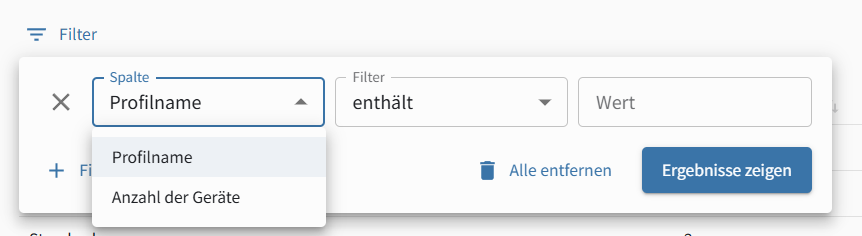
The view initially shows an overview of all profiles. In the overview table, you can show or hide columns, filter entries, and search as in the other tables.
Under "Actions" (→ 2) in the overview, you can delete a profile using  or copy it using
  .
.
Click the  icon to open the profile details and edit its settings.
| The "Standard" profile cannot be deleted. |
|
After copying a profile, open it by clicking and give it a new name, because copying assigns a temporary name.
|
Create a New Profile
To create a profile, click + Create New Profile in the upper-right corner of the view.
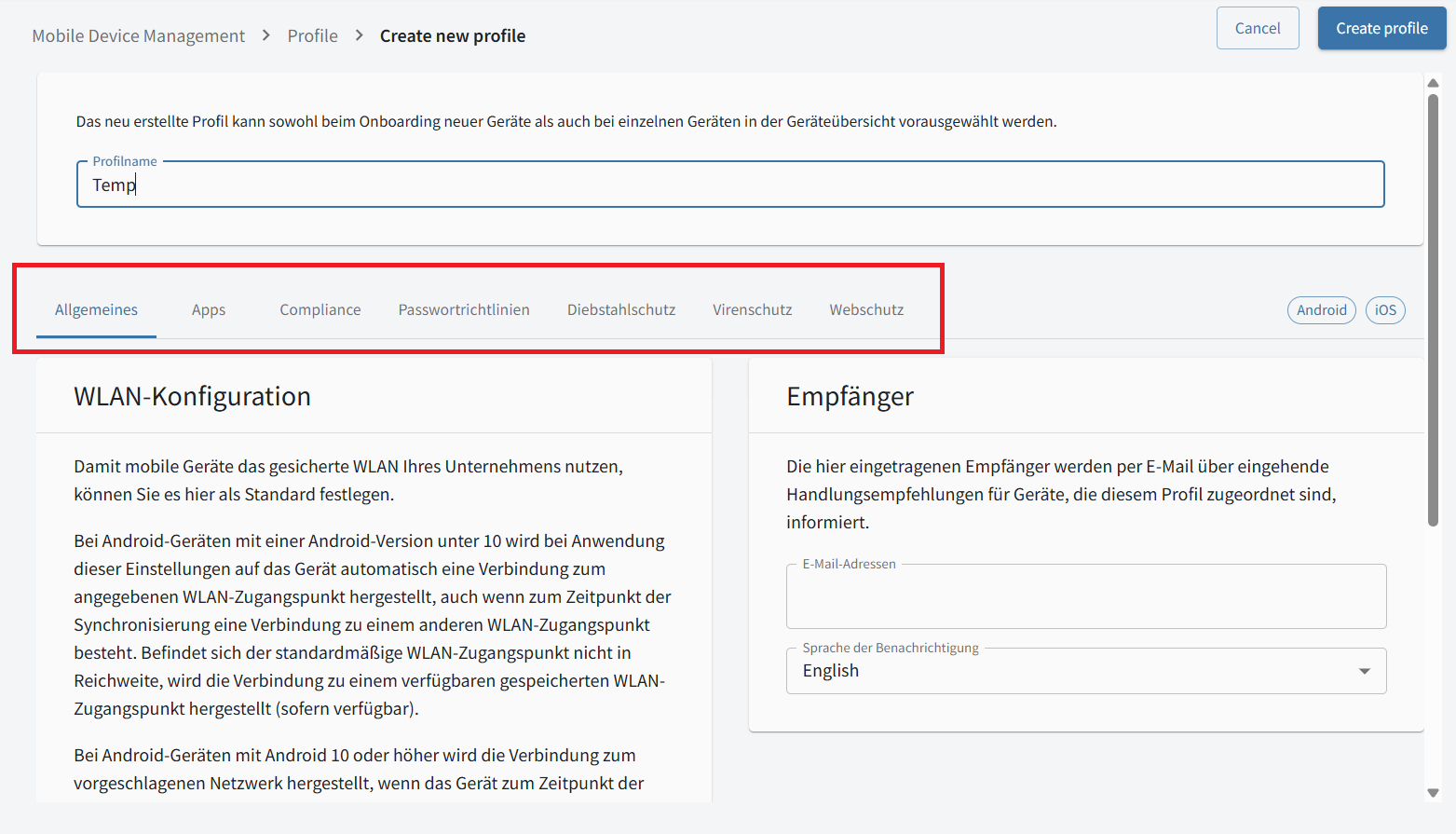
You can give the profile a name and configure all the settings described in the settings in the mobile device detail view. These settings apply to every device assigned the profile.