The Device Detail View
Detail View for Individual Devices
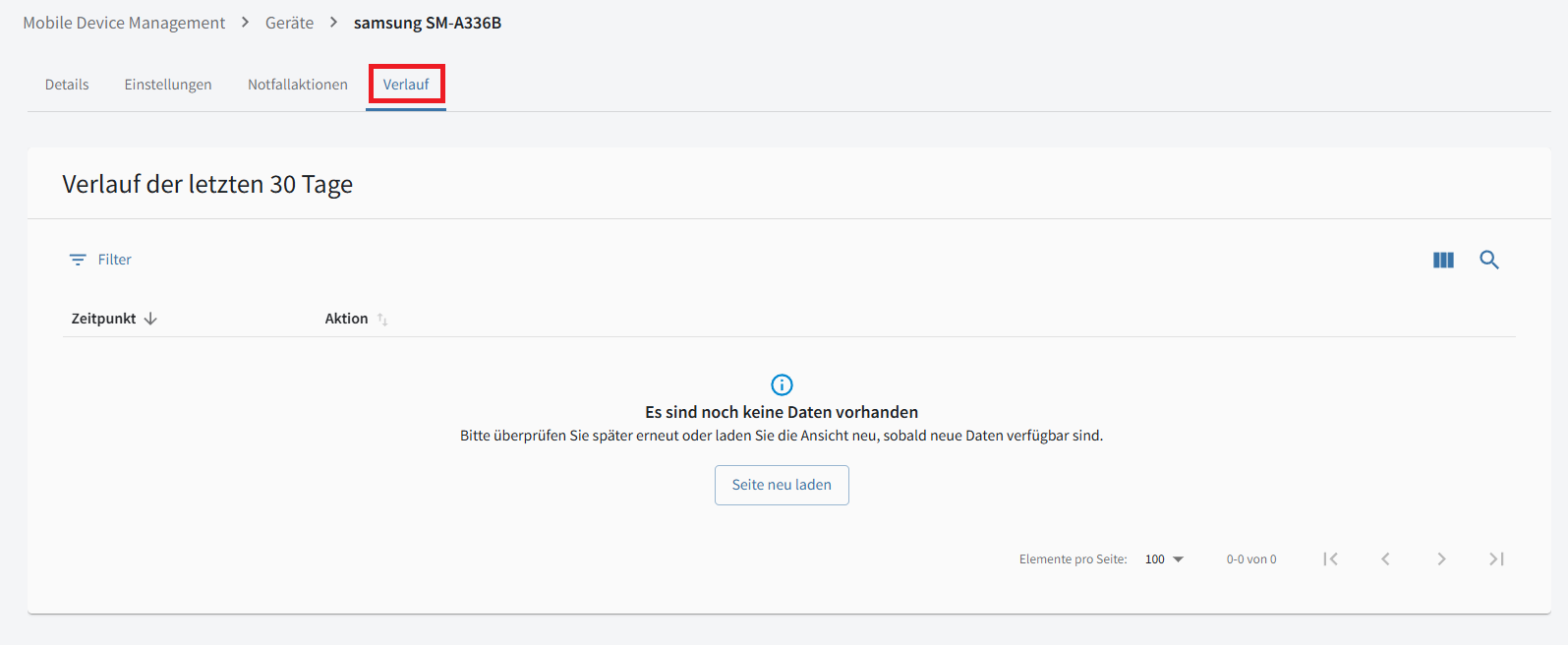
When you open the detail view for one of your mobile devices, there are three subviews [review: four are listed]: Details, Settings, Emergency Actions, and History.
| Depending on your specific product and the mobile device’s operating system, model, and type, some of the features described here might not appear in that device’s detail view! |
| Click "Android" or "iOS" on the right to filter the settings for the corresponding operating system. |
Details
This view shows the device’s Device Status, Configuration Variables, and any Recommended Actions.
Show details
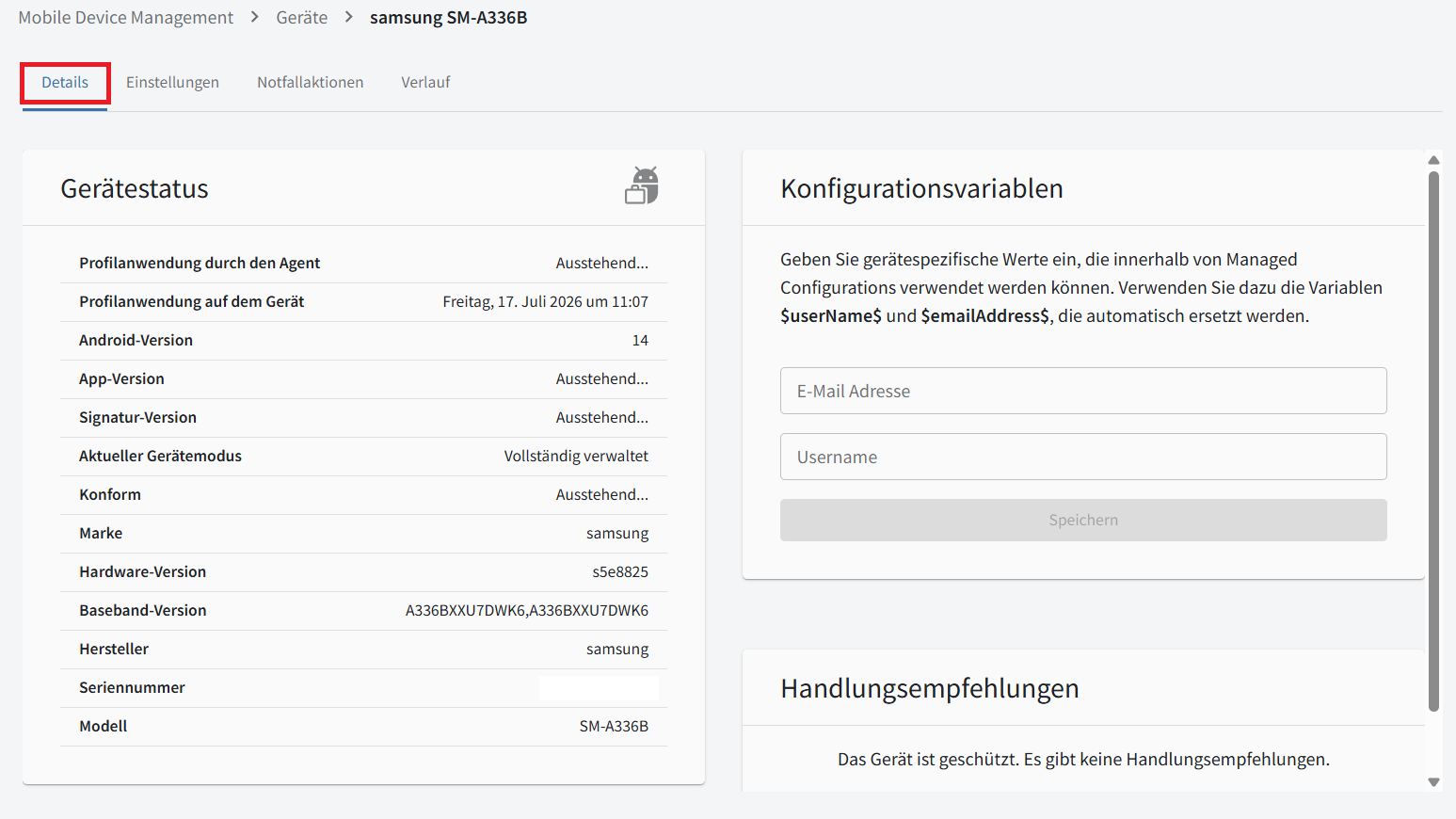
This view shows the device’s Device Status, Configuration Variables, and any Recommended Actions.
Device Status
Basic device details and information about the G DATA Mobile Security used on the device are displayed here. These include:
-
Configuration profile deployment by the Agent,
-
Configuration profile deployment on the device,
-
Operating system version,
-
App and signature versions,
-
Device mode,
-
Whether the device is policy-compliant,
-
Device brand,
-
Hardware and baseband versions,
-
Manufacturer, serial number, and model of the mobile device.
A warning may also appear if the mobile device has been rooted.
Configuration Variables
Here you can enter device-specific values for use in managed app configurations on this device
(Android Enterprise). The variables $userName$ and $emailAddress$ are automatically replaced with the values entered here.
Recommended Actions
Important Recommended Actions are displayed here. Some can be addressed directly in this view;
others require actions on the mobile device or Emergency Actions.
| The severity of a Recommended Action is indicated by a traffic-light color code. |
Settings
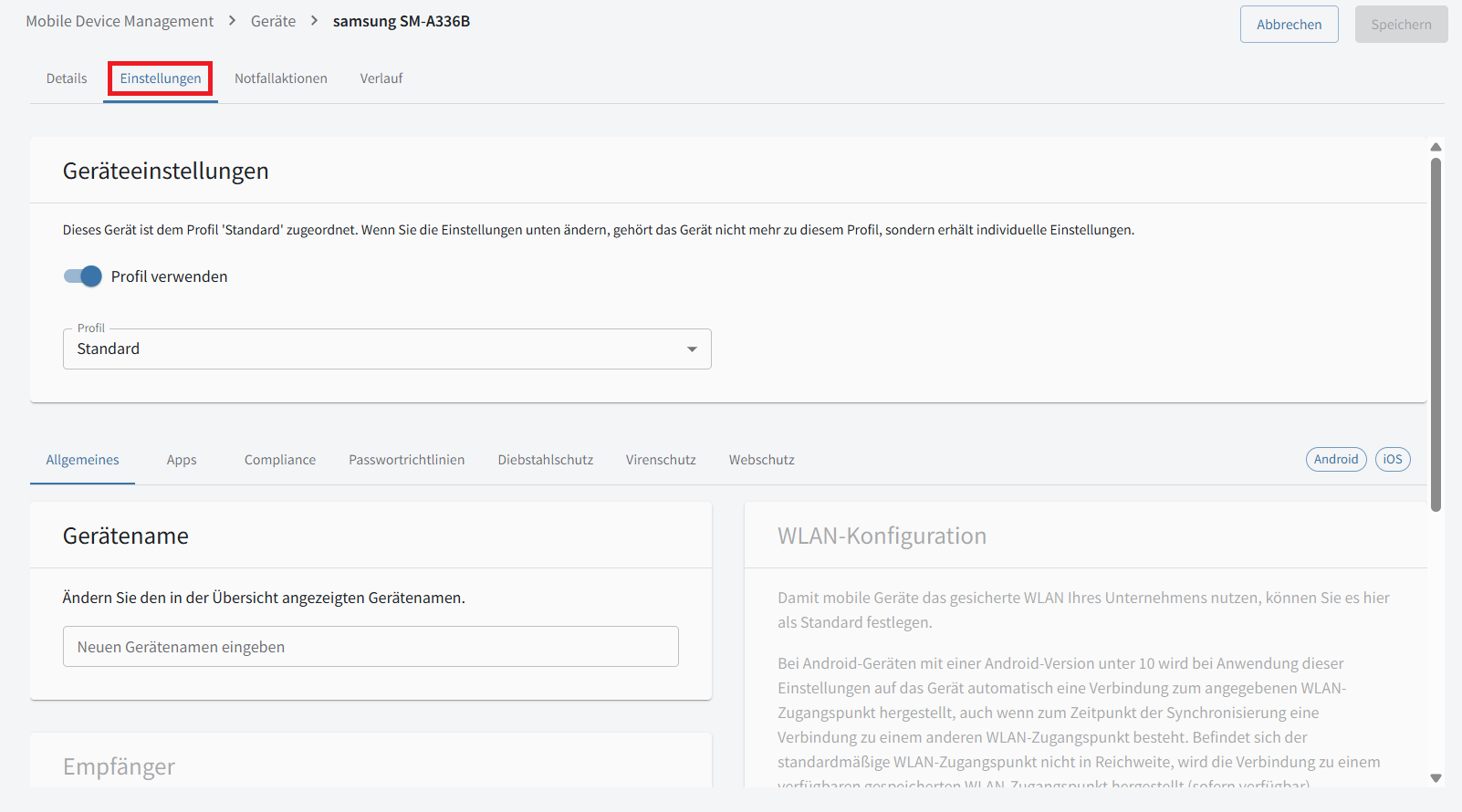
This view provides numerous settings for protecting the mobile device and taking various measures. They are divided into General, Apps, Compliance, Password Policies, Anti-Theft, Antivirus, and Web Protection categories.
At the top, outside these categories, you can select the profile in use. For details about profiles, see this article.
Show details
General
This section contains general settings.
Device Name
Here you can change the device name, which also appears in the Devices overview.
Wi-Fi Configuration
Here you can configure a Wi-Fi network to be preferred on managed devices.
Android versions below 10
After synchronization, the device automatically attempts to connect to the configured Wi-Fi network, even
if it is already connected to another Wi-Fi network. If the configured network is unavailable,
the device uses another saved and available Wi-Fi network instead.
Android 10 or later
The configured Wi-Fi network is used as the preferred network if:
-
The device is connected through mobile data at the time of synchronization,
-
Wi-Fi is enabled, and
-
The device is not connected to another Wi-Fi network.
If Wi-Fi is disabled on the device, synchronization cannot enable it automatically because of Android system restrictions.
Recipients
Here you can enter the email addresses to which emergency emails are sent. You can also select
the language in which the emails are sent.
Apps
This section provides configuration and filtering options for apps allowed on the mobile device.
App Management
This setting applies only to Apple devices. You can configure whether apps may be removed, installed, or updated.
You can also allow or prevent installation from unknown sources.
| These settings require the Apple device to be in supervised mode. |
iTunes Store Settings
This setting also applies to Apple devices. You can allow or prohibit use of the iTunes Store.
Credential Manager
Here you can specify which apps can be used as password managers. On devices with multiple profiles, this
setting applies only to the work profile.
App Filter
Use the App Filter to specify which apps are allowed or blocked on devices assigned to this profile.
For fully managed Android Enterprise devices, you can also specify whether allowed apps should be preinstalled
or their installation enforced.
| The app table provides the same search and filter options available in other portal overview tables. |
Compliance
Here you can configure policies relating to rooted devices and work profiles. You can also adjust how these policies are enforced.
Rooting Policies
You can allow rooted Android mobile devices or prevent their use.
Policy Enforcement Rules
Here you can specify how strictly work profile policies are enforced. Criteria for determining noncompliance include:
-
The current lock method or password does not meet password requirements.
-
The current Android version is lower than required.
-
A non-system default input method is used.
-
An accessibility service is used that is neither a system service nor our Web Protection service.
You can specify how long a device may remain noncompliant before its apps are blocked. You can also specify how long a device may remain noncompliant before it is reset.
Password Policies Here you can configure policies for passwords and passcodes.
Passcode Settings for Apple Devices
Here you can specify the required complexity of the Apple device’s passcode, whether the user can change it,
and whether Face ID / Touch ID is allowed. You can also specify how often the device PIN must be used to unlock the device.
Device Password Policy
Here you can specify the required password complexity for Android devices.
Anti-Theft
Here you can configure the immediate anti-theft measures that can be triggered in an emergency.
SIM Card Protection
You have several options for responding when the SIM card is removed from an Android device.
You can:
-
Lock the device when the SIM card is removed,
-
Play a loud alert when it is removed,
-
Locate the device when the SIM card is removed.
| This setting is available only for devices with Endpoint Security Agent version 29.2 or later. On devices with an earlier version, enabling SIM Card Protection always causes an alert to sound and the device to be located. |
Emergency Actions
You can specify which emergency measures are available under Emergency Actions,
for example, if the mobile device is stolen. The specific measures available depend on the mobile device’s
Device Management Type and operating system version.
In general, you can enable or disable the following actions for the mobile device here:
-
Lock Screen (Device),
-
Wipe Data,
-
Sound Alert, and
-
Locate Device.
Antivirus
This section contains antivirus measures.
| Currently, these settings are available only for Android. |
Virus Scan
Here you can configure regular virus scans on the device. You can choose whether to scan only apps
or the entire mobile device. You can also set the interval and prevent regular scans when the battery is low
or allow scans only while the device is charging.
Virus Signature Updates
You can set the interval for updating virus signatures and allow signature updates
only when a Wi-Fi connection is available.
Web Protection Settings
This section contains Web Protection settings for Android and Safari options for iOS.
Web Protection
You can enable or disable Web Protection and restrict it to use when a Wi-Fi connection is available.
| Starting with Android 17, Android Advanced Protection prevents Web Protection from being enabled. Android Advanced Protection restricts accessibility services that are not verified accessibility tools. Because Web Protection currently uses an accessibility service, devices with Android Advanced Protection mode enabled cannot apply this Web Protection setting. Other profile settings are not affected. |
| Web Protection supports Chrome, Firefox, Edge, Brave, and Opera on Android devices. |
Safari Settings
On Apple devices, you can configure Safari options to protect against malicious websites.
You can Allow / Prohibit Safari Use, Turn Safari Fraud Warning On / Off, and Block Pop-ups in Safari. Cookies and tracking are blocked by default, but you can let users decide on each individually.
Emergency Actions
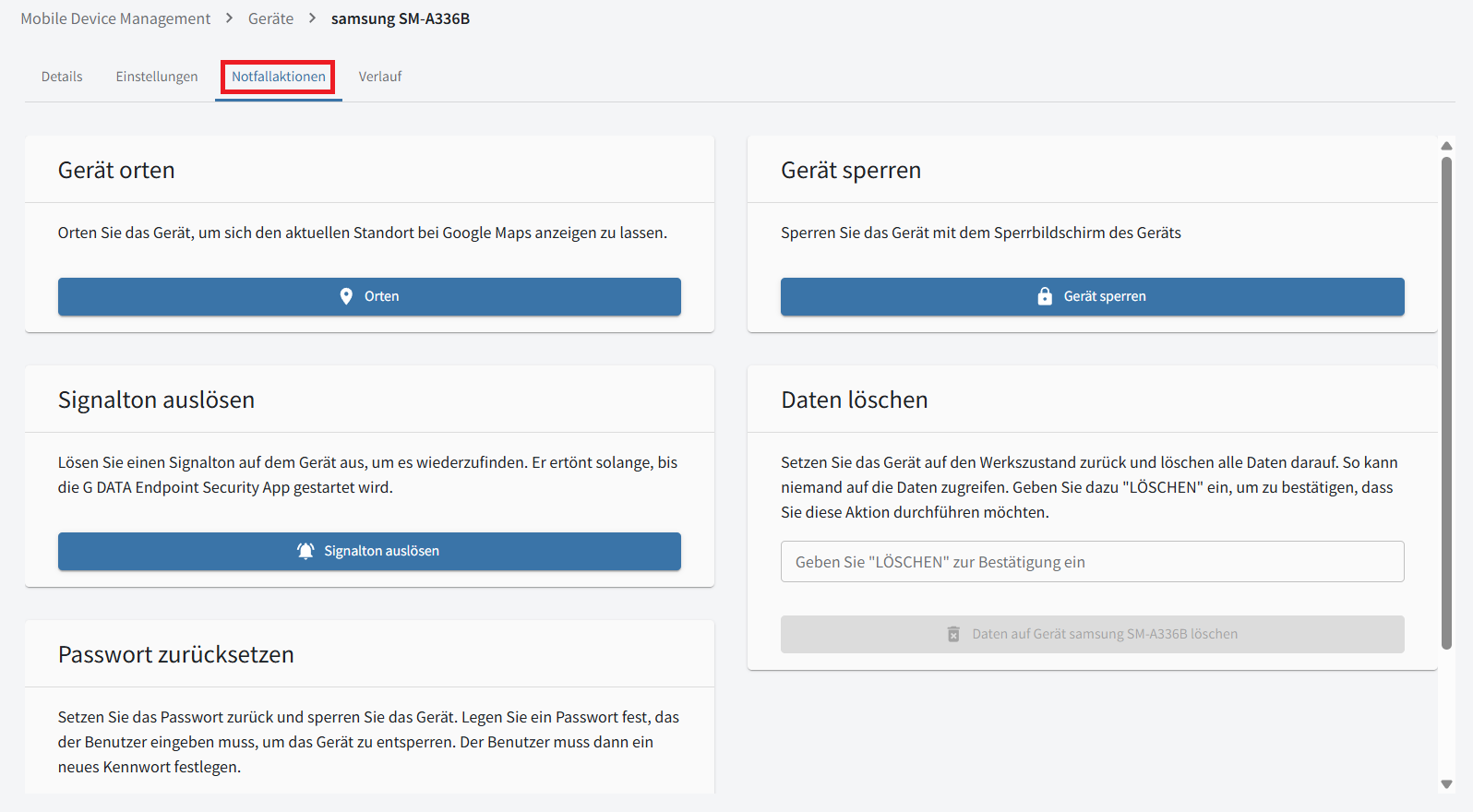
You can trigger all available Emergency Actions from this view: Locate Device, Lock Device, Sound Alert, Wipe Data, and Reset Password.
Show details
Locate Device
Here you can locate the device remotely and display its current location on Google Maps.
Lock Device
Use this emergency action to lock the device screen to prevent unauthorized use.
Sound Alert
This triggers a loud alert on the device.
Wipe Data
This emergency action deletes all data on the device and resets it to factory settings.
Reset Password
You can lock the device and set a password that must be entered to unlock it. The user must then
set a new password.
|
The following Emergency Actions are available for each management type. Fully Managed
G DATA Agent
Apple
|