Adding Mobile Devices to Mobile Device Management
There are several ways to add mobile devices to the Mobile Device Management web portal. For Android, fully managed and app-based management are available. iOS and iPadOS devices can be added using profile-based management.
Fully Managed Installation (Android)
Show
1 |
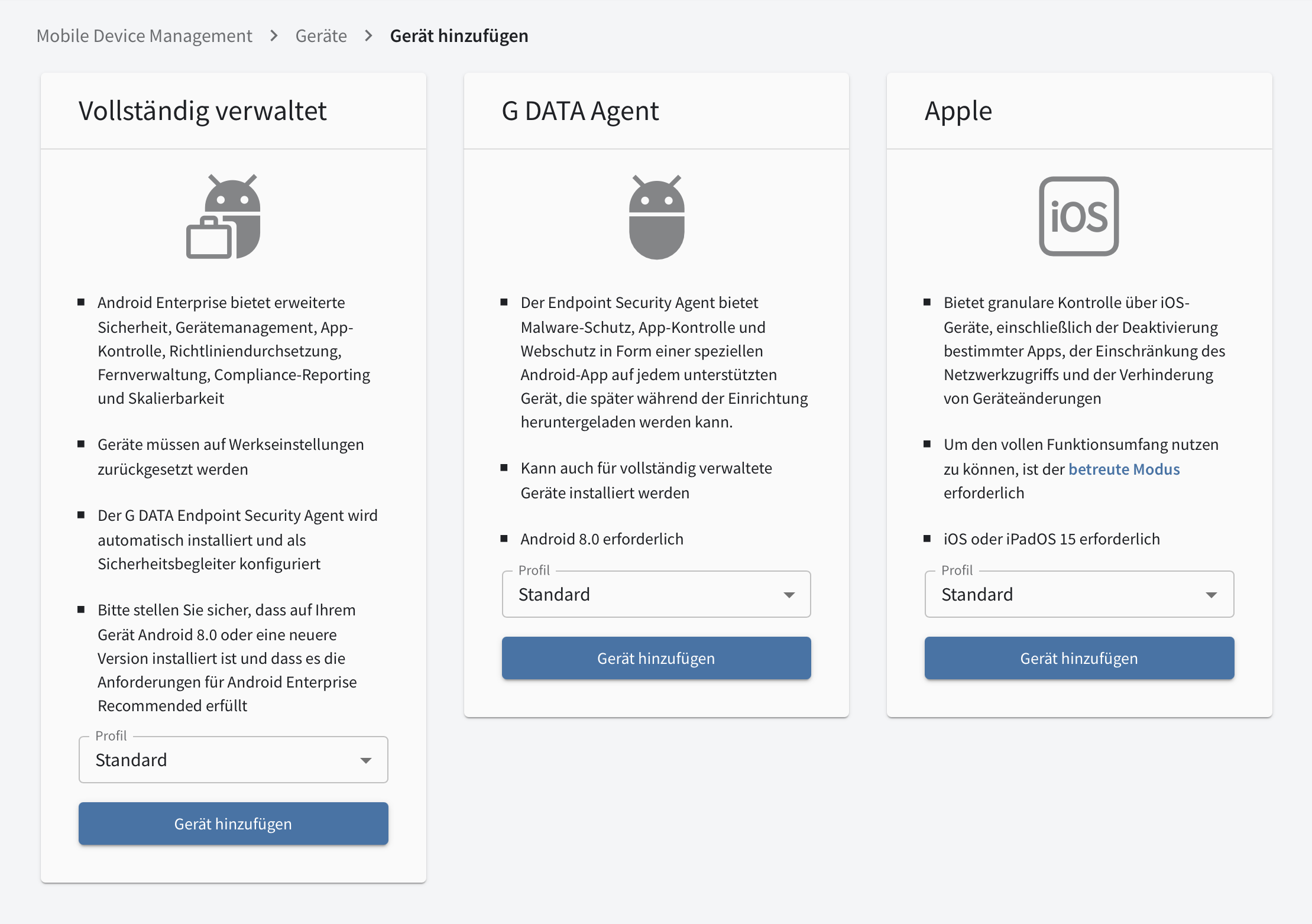
Under "Fully Managed," select the desired profile, then click Add device. |
|||
2 |
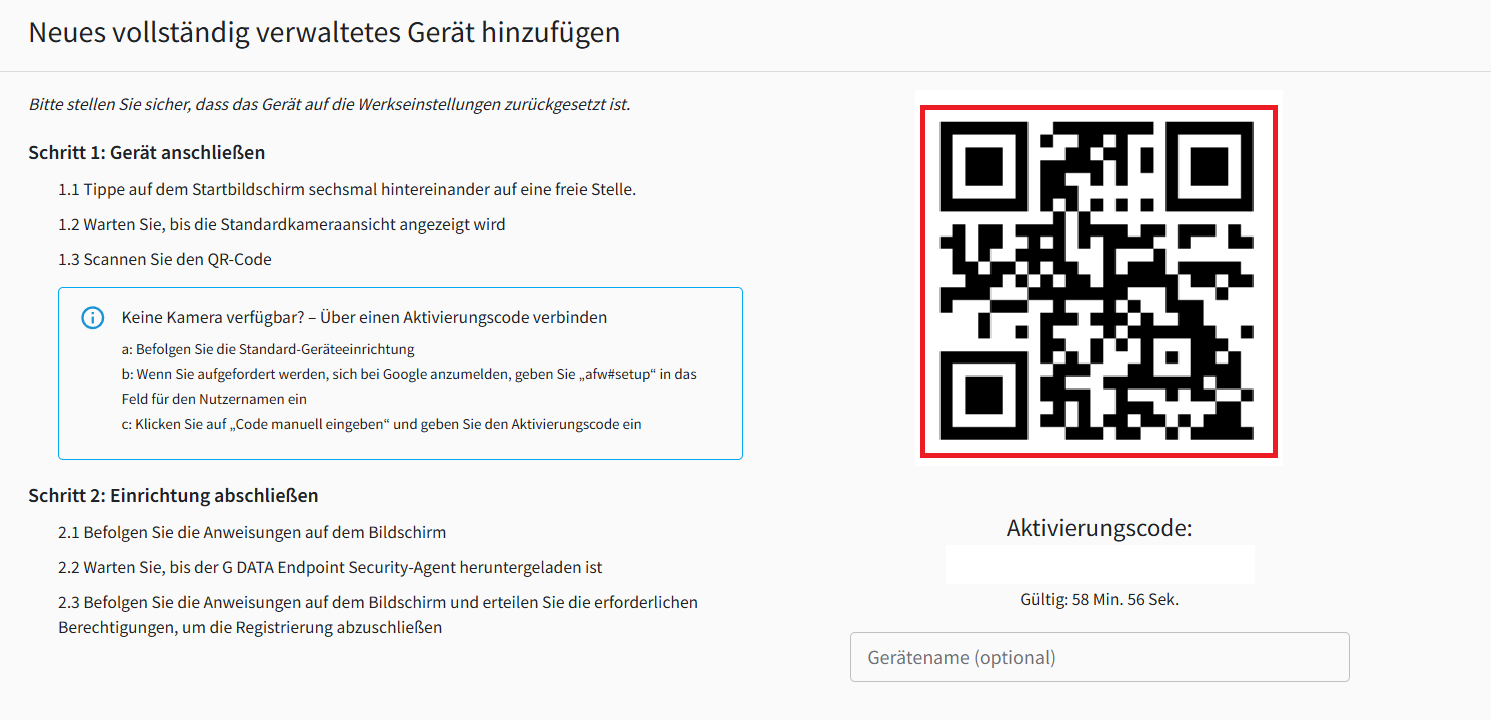
A new window opens with a QR code and instructions for the next steps. Read the instructions carefully.
|
|
||
2a |
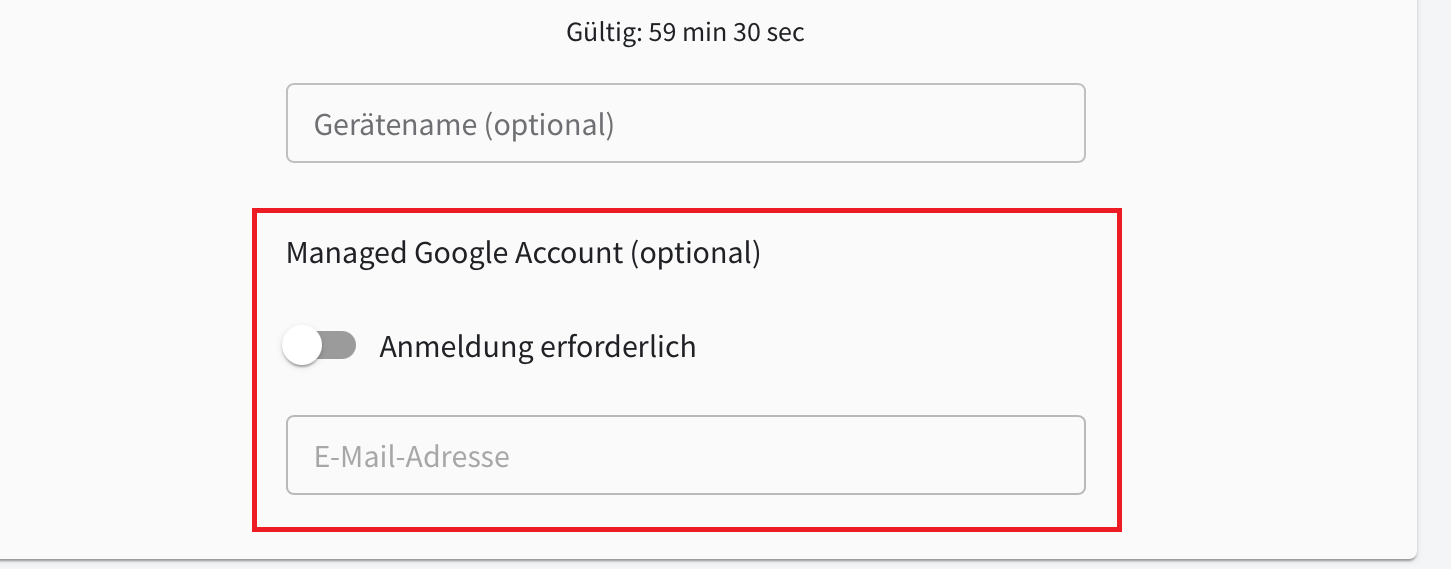
If you used a domain super-admin account to set up Android Enterprise, you can assign a Managed Google Account to the mobile device at this point. |
|
||
3 |
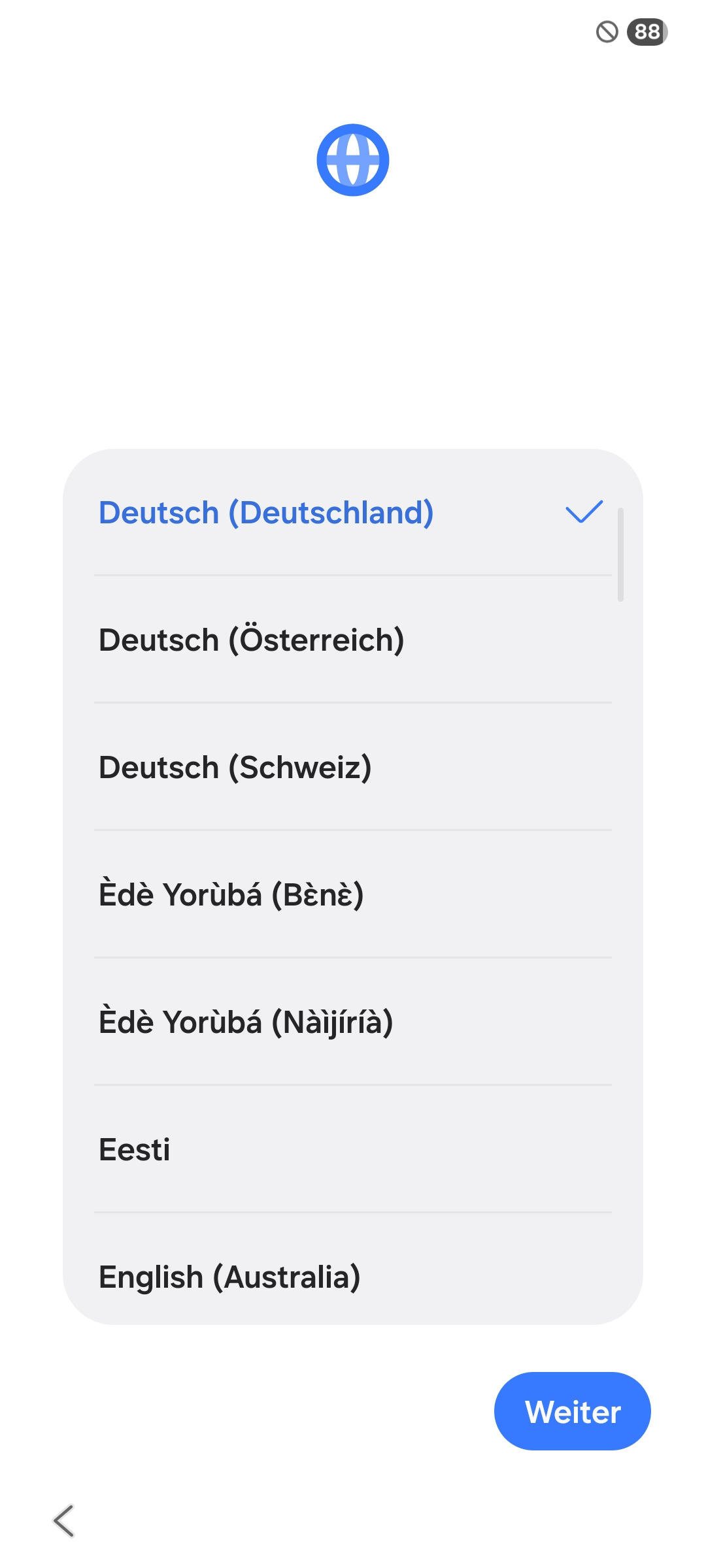
Tap the welcome screen of your reset Android smartphone six times in succession. The language selection opens. Select your preferred language. |
|
||
4 |
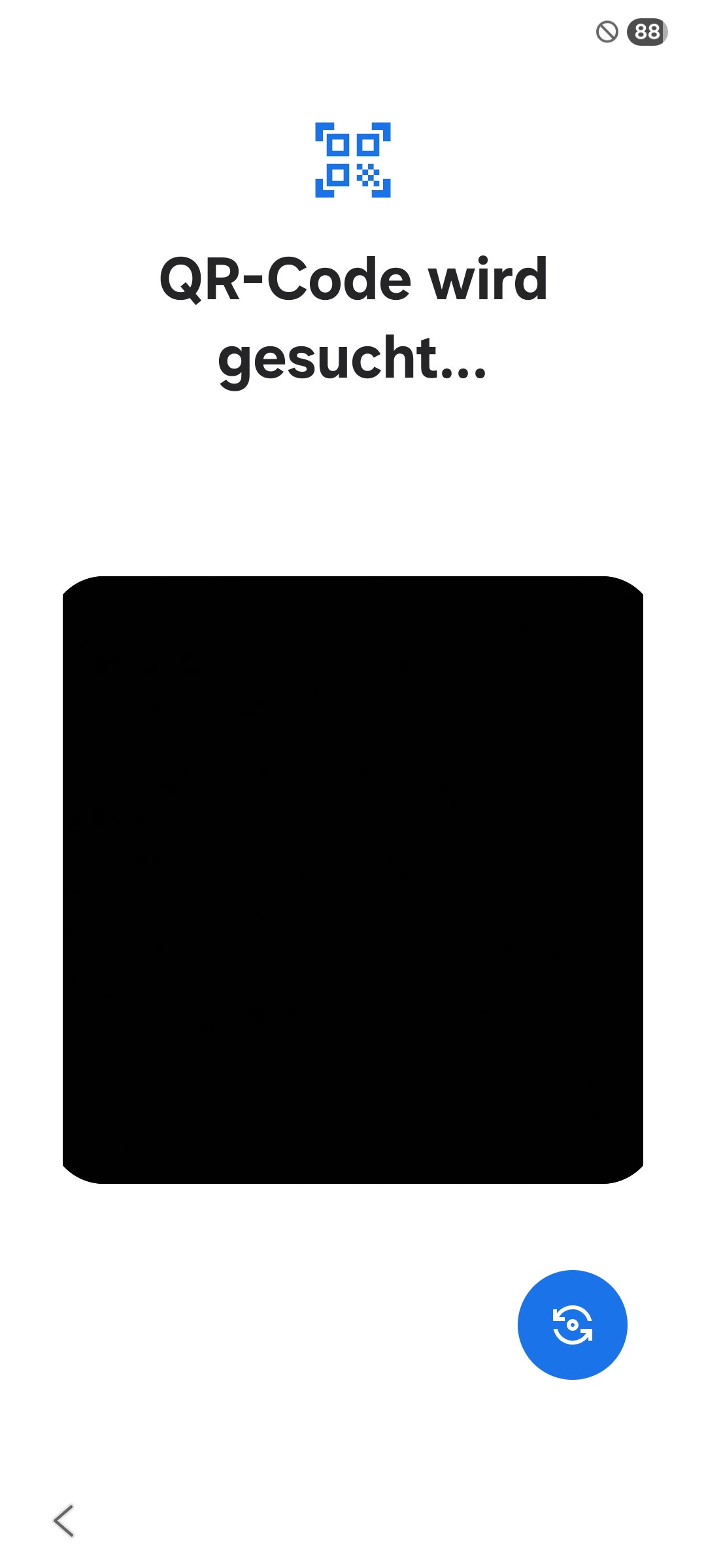
Then scan the QR code with the mobile device and follow the remaining steps on the device. |
|
||
5 |
Connect to a Wi-Fi network of your choice. |
|||
6 |
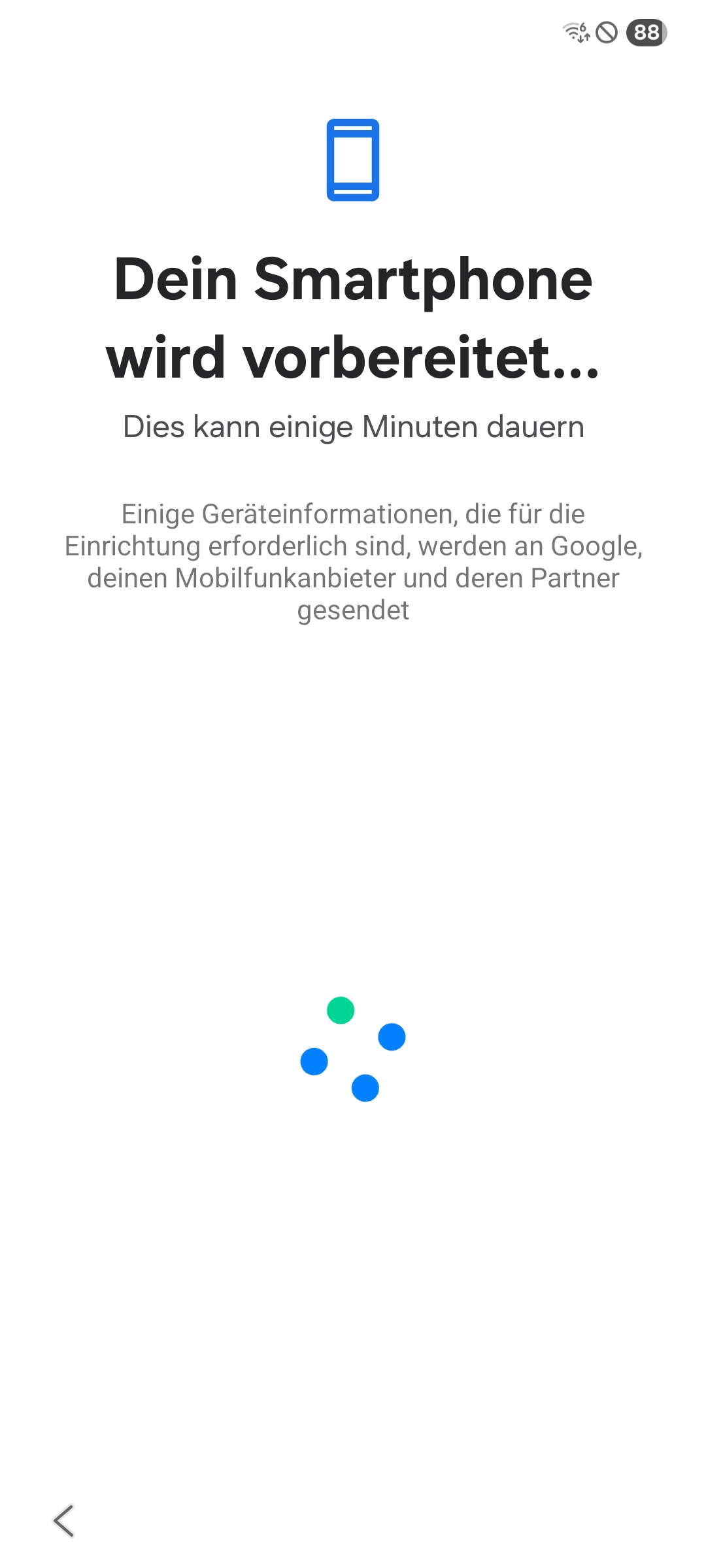
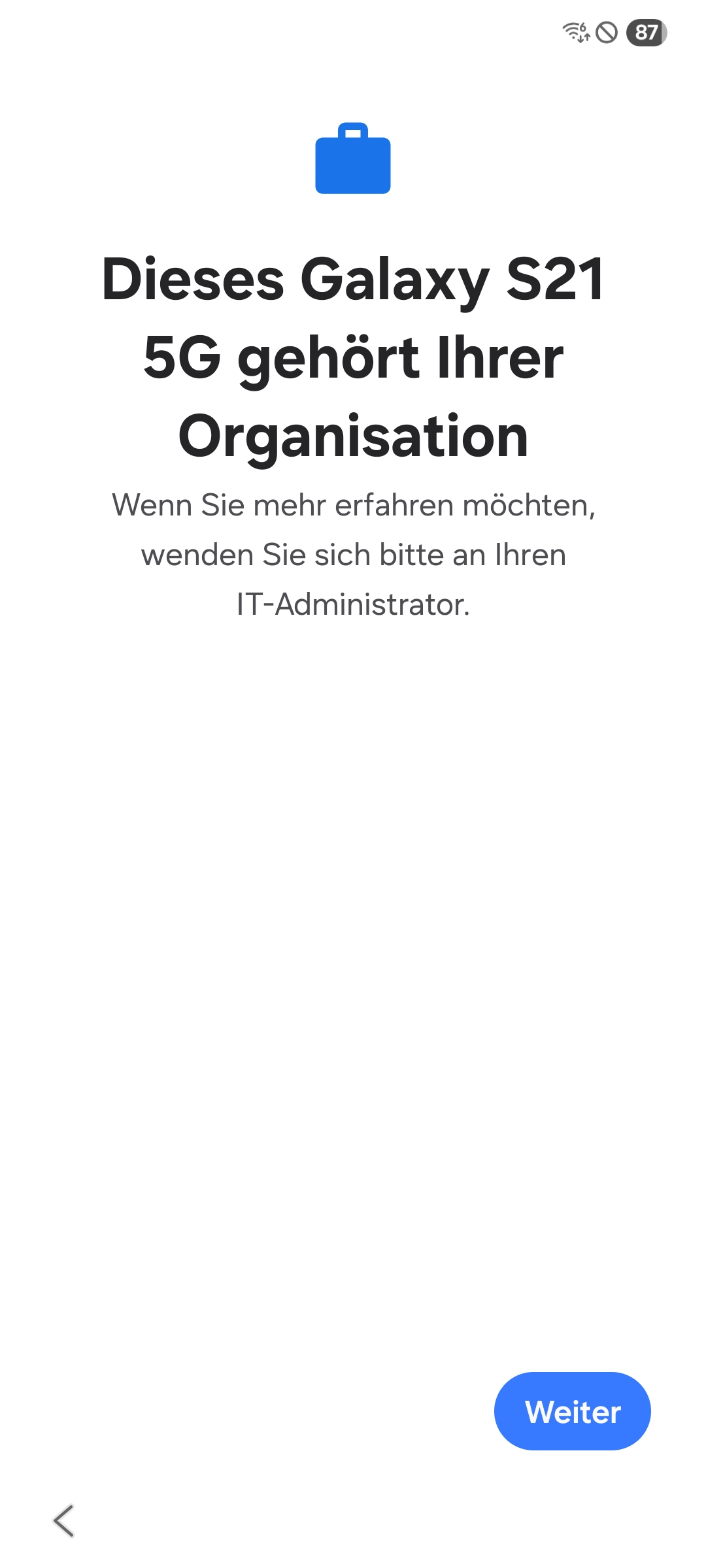
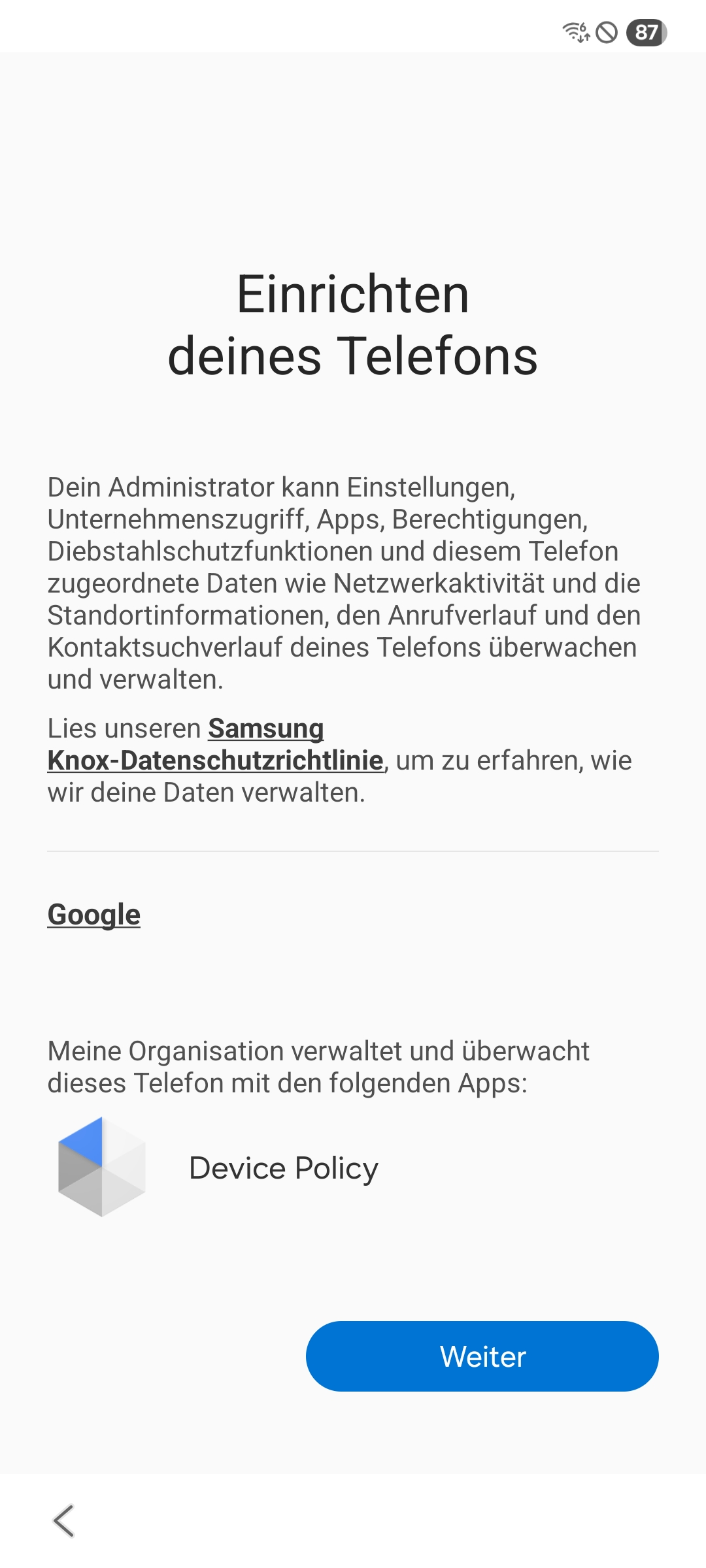
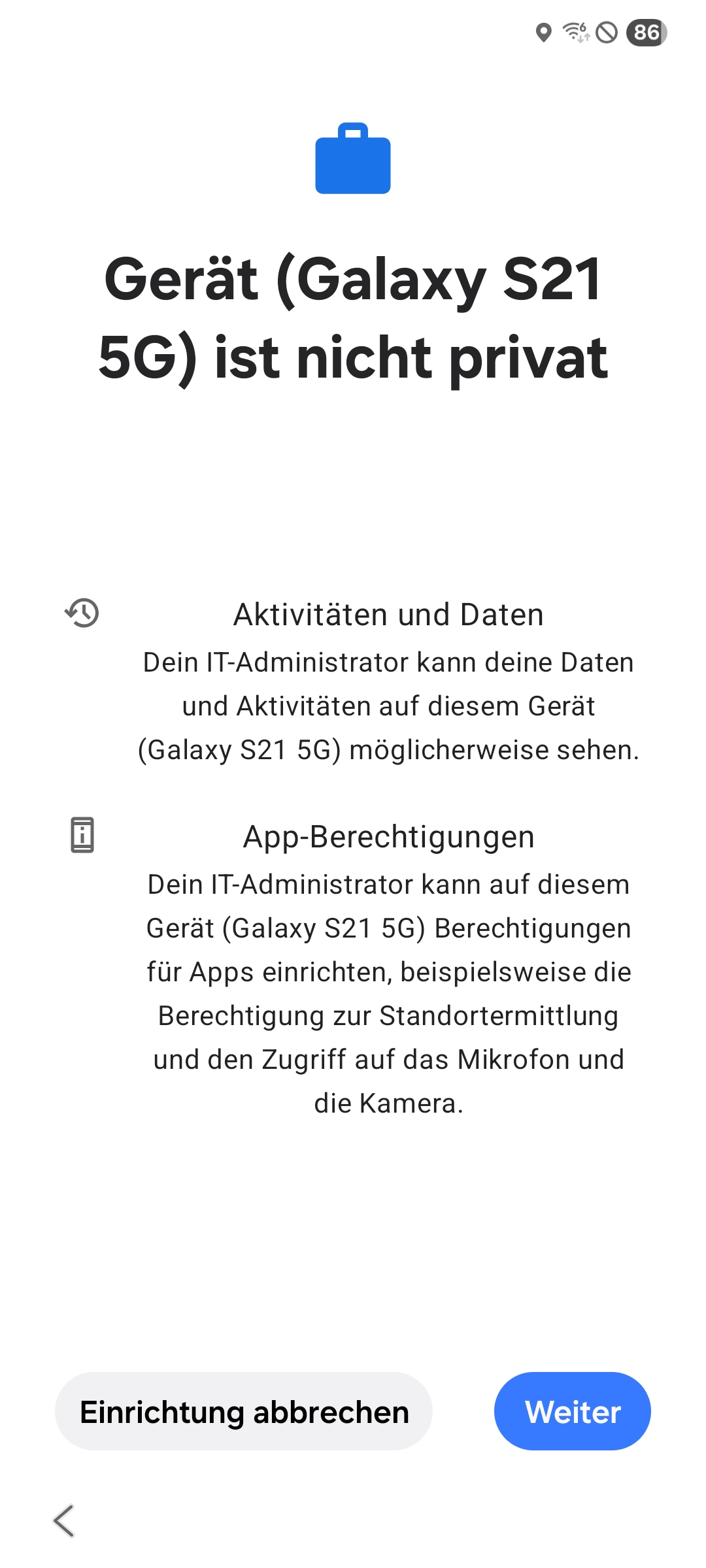
The required data is then downloaded. After the download is complete, several notices appear. Tap Next on each screen. |
|
||
7 |
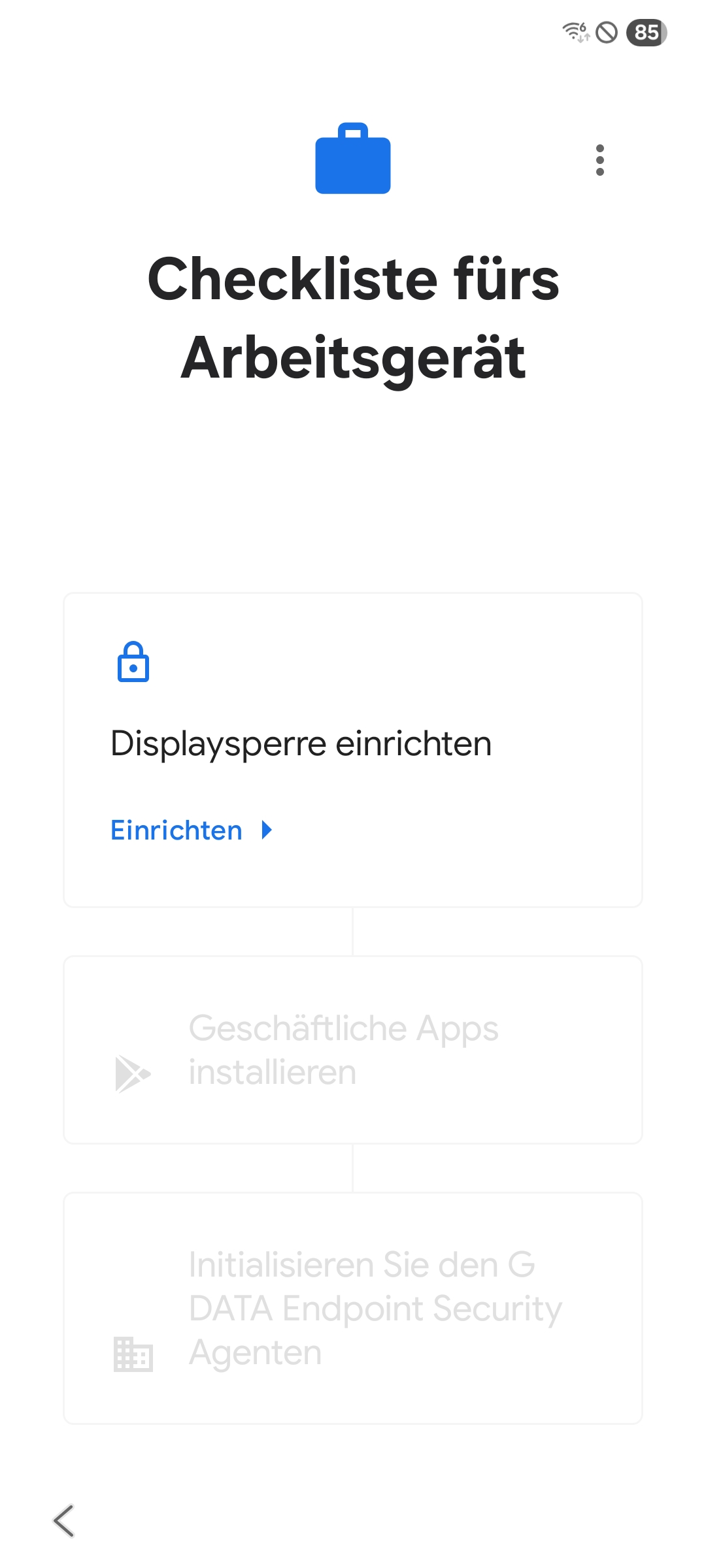
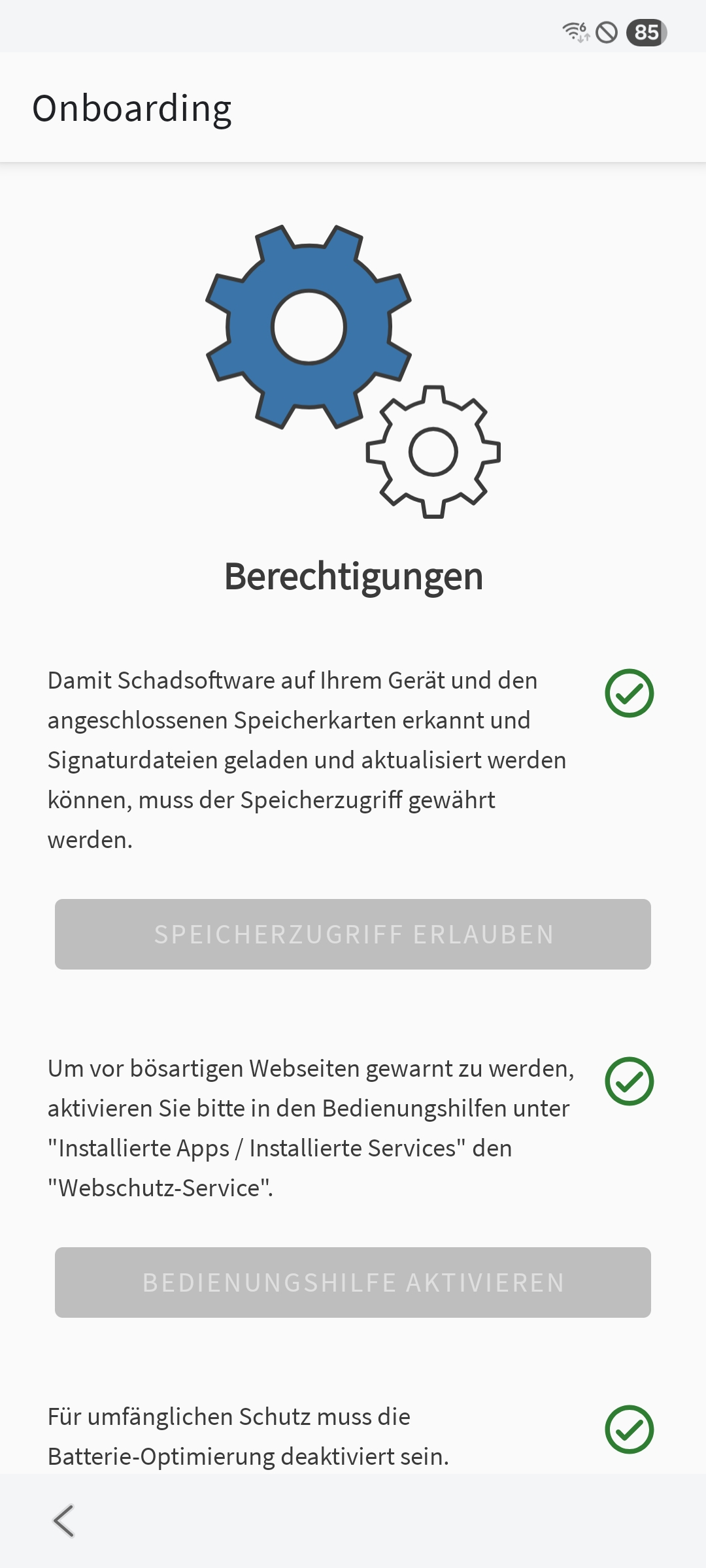
Complete the work device checklist. It covers security measures such as the lock screen and granting the permissions required by G DATA Endpoint Security.
|
|
||
8 |
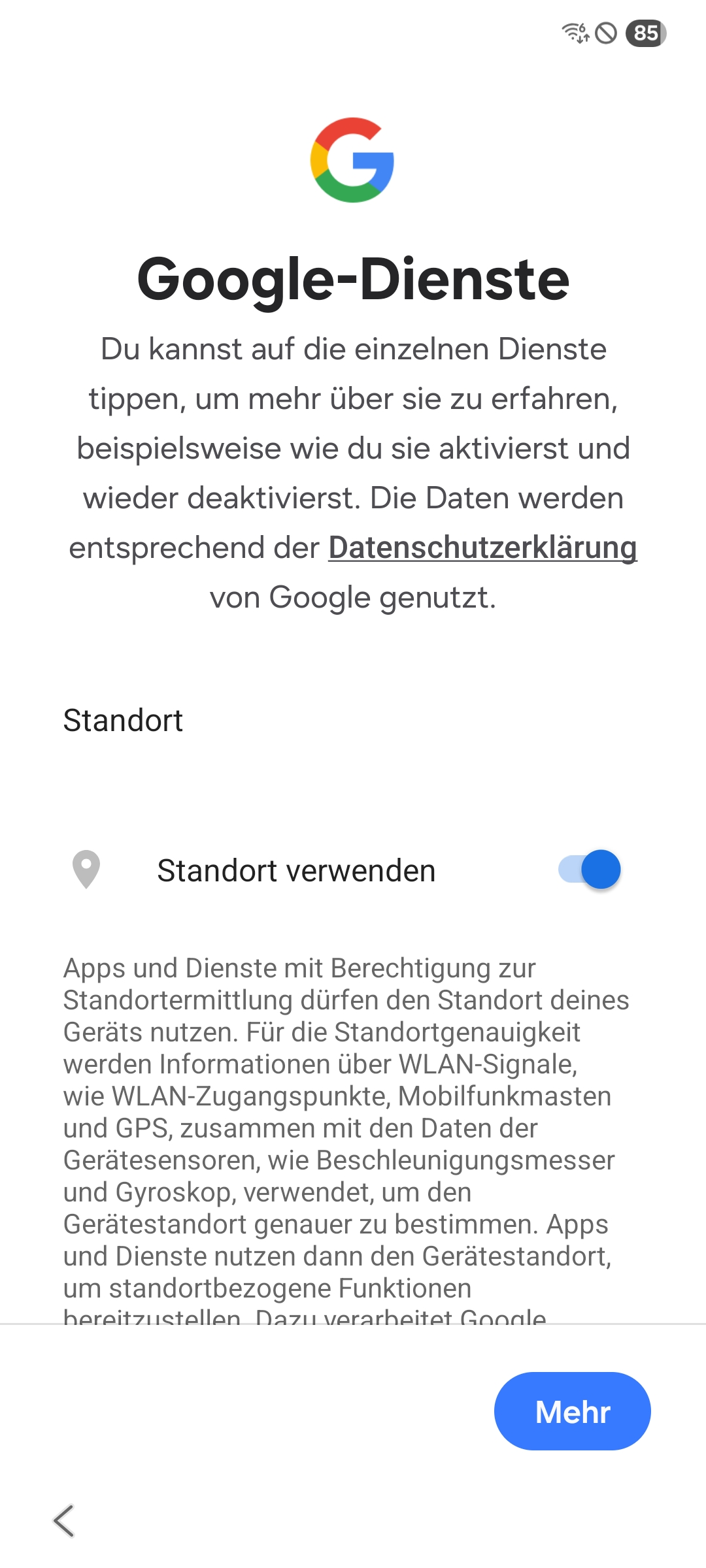
Configure Google services. |
|
||
9 |
Setup of your mobile device is complete, and it is now managed by G DATA Mobile Device Management. |
|||
G DATA Agent Installation (Android)
Show
1 |
Under "G DATA Agent," select the desired profile, then click Add device. |
|
2 |
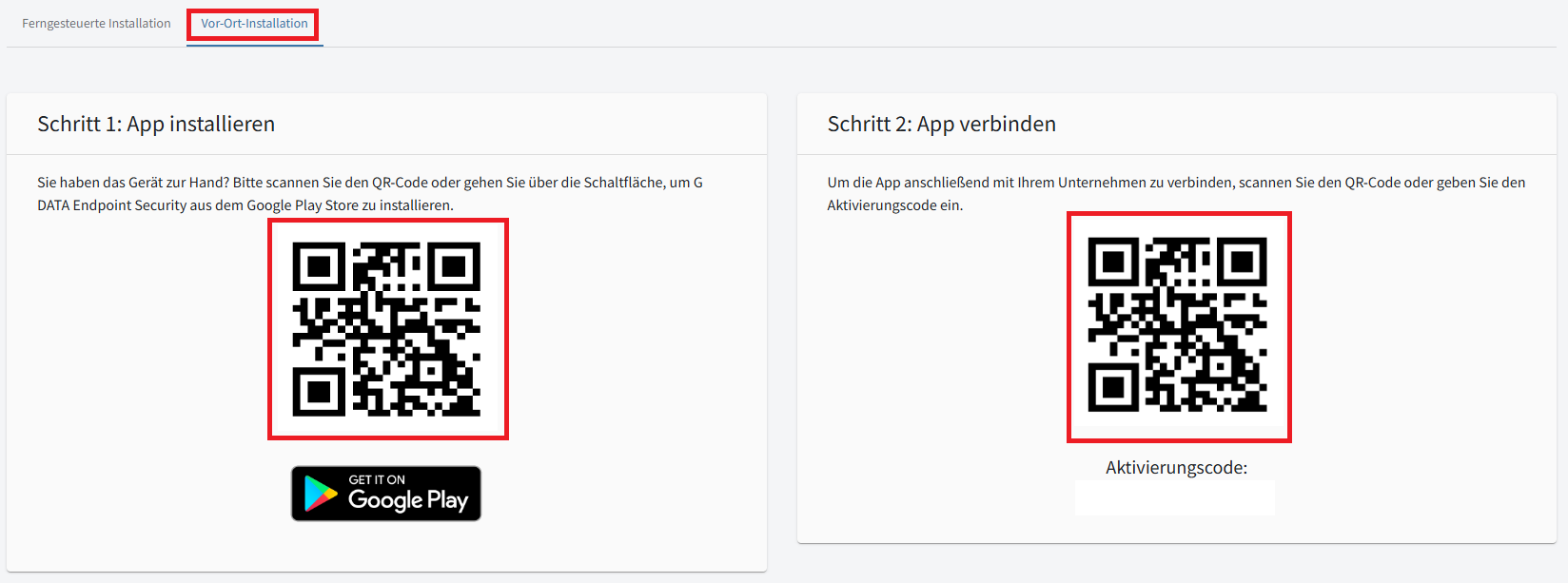
A new window opens with QR codes. You can start a remote installation or, if you have the mobile device, install it on-site. |
|
3a |
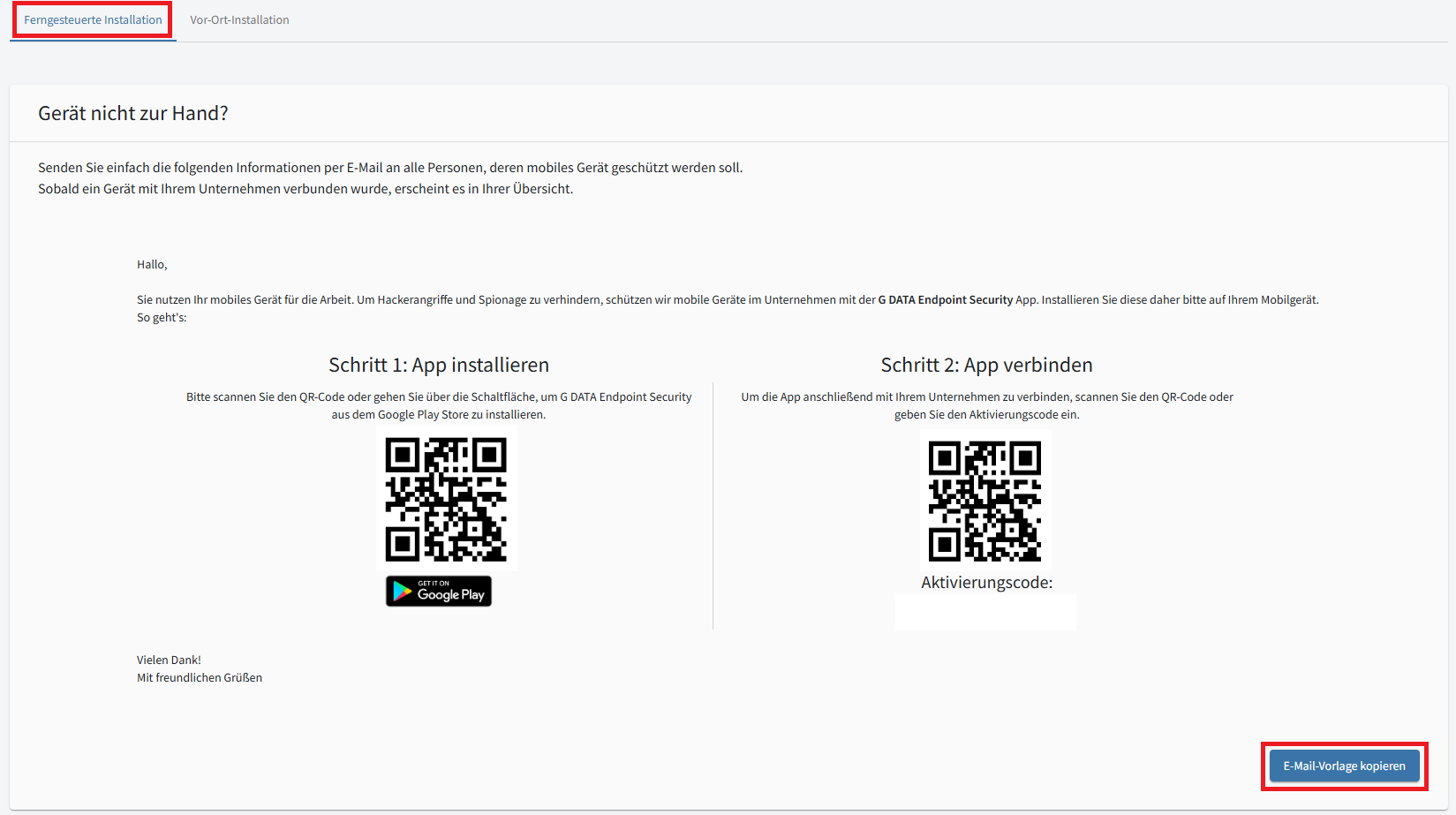
If you do not have the mobile device, you can copy the installation steps, including the QR codes, into an email as a template. The person with the device must then complete steps 4–6 below. |
|
3b |
If you have the device on-site, you can start setting it up directly using the QR codes. |
|
4 |
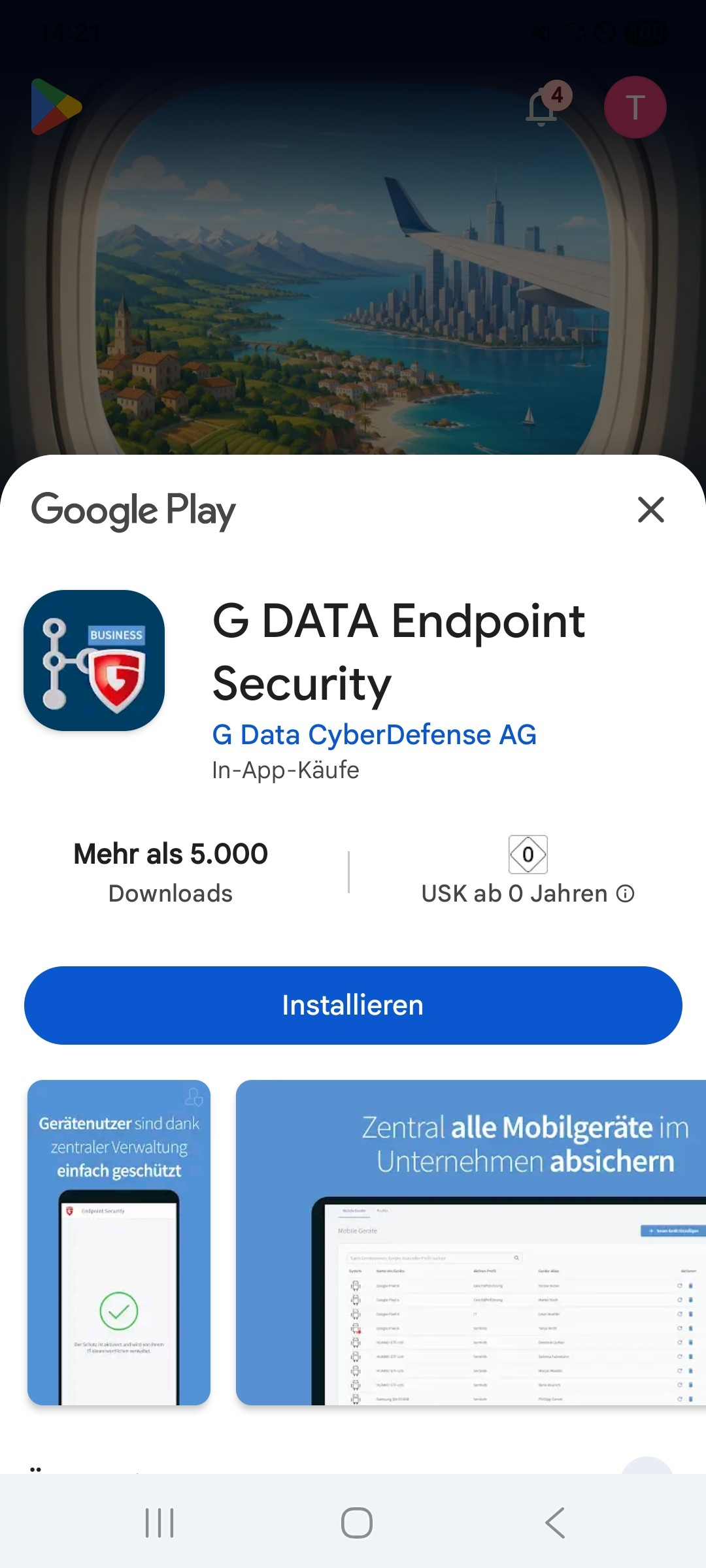
Scan the first QR code with the mobile device. The Google Play Store opens. Install the selected app (G DATA Endpoint Security). |
|
5 |
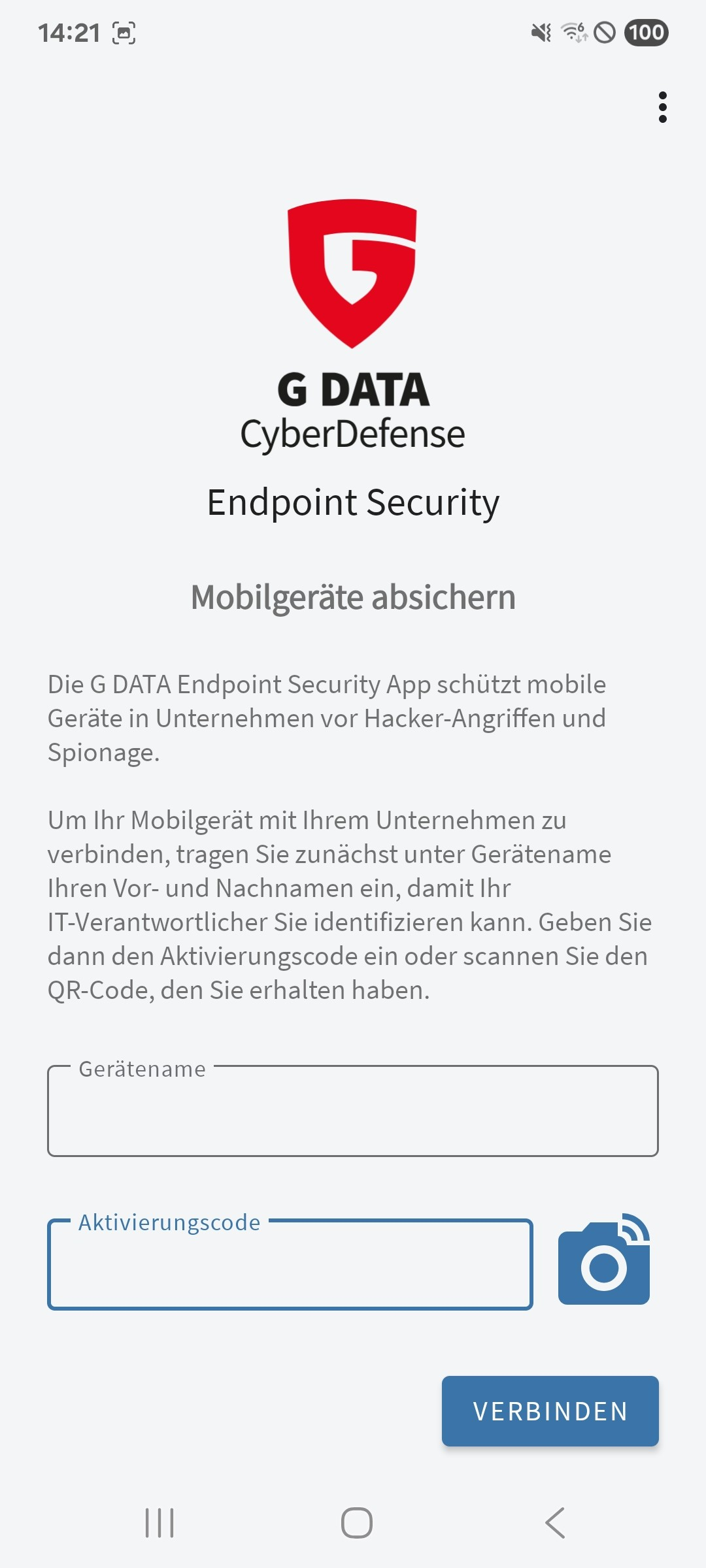
After installation, scan the second QR code with the mobile device. The G DATA Endpoint Security app opens, where you can enter a device name and the activation code. You can choose any name to make the device easy to find in the device overview. |
|
6 |
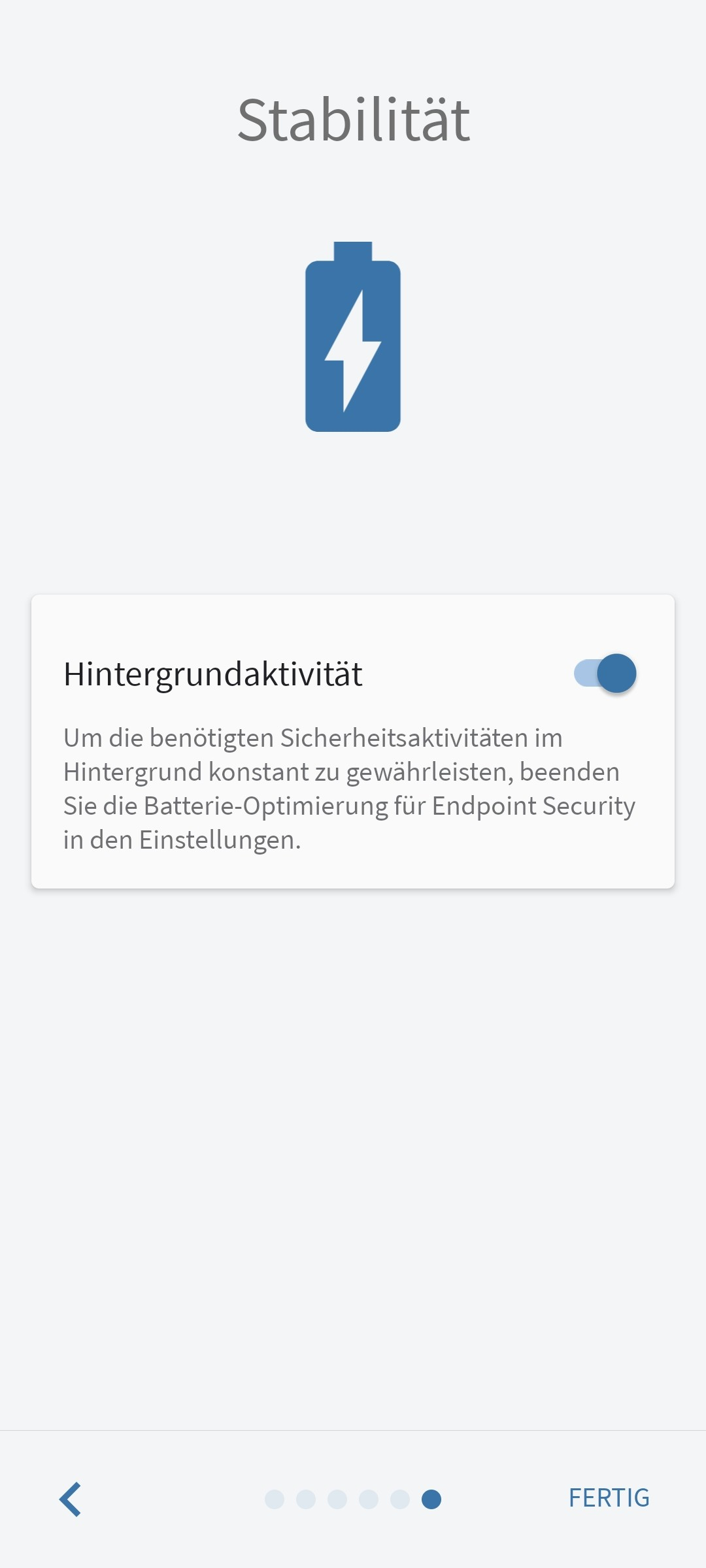
Grant all permissions required for G DATA Endpoint Security to operate on the mobile device. Tap Done to complete setup. |
|
7 |
Device setup is complete, and the device appears in the device overview. |

|
Apple Installation
| We recommend putting the Apple mobile device in supervised mode for full protection. Instructions for enabling supervised mode are available here. |
Show
1 |
Under "Apple," select the desired profile, then click Add device. |
|
2 |
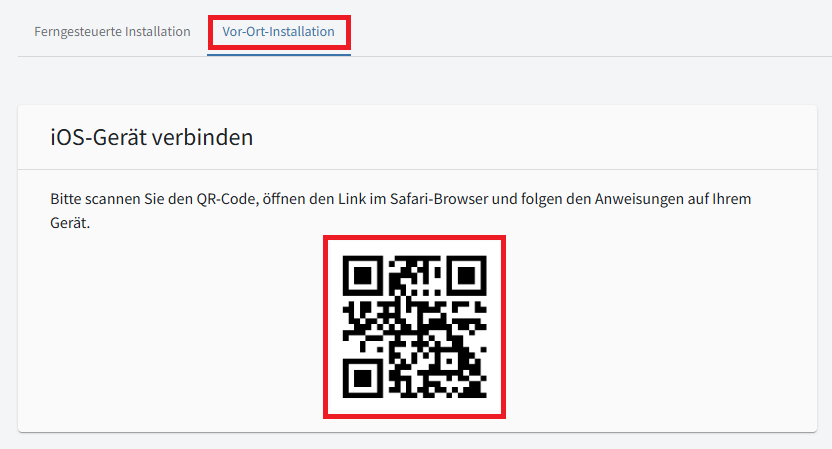
A new window opens with a QR code. You can start a remote installation or, if you have the mobile device, install it on-site. |
|
3a |
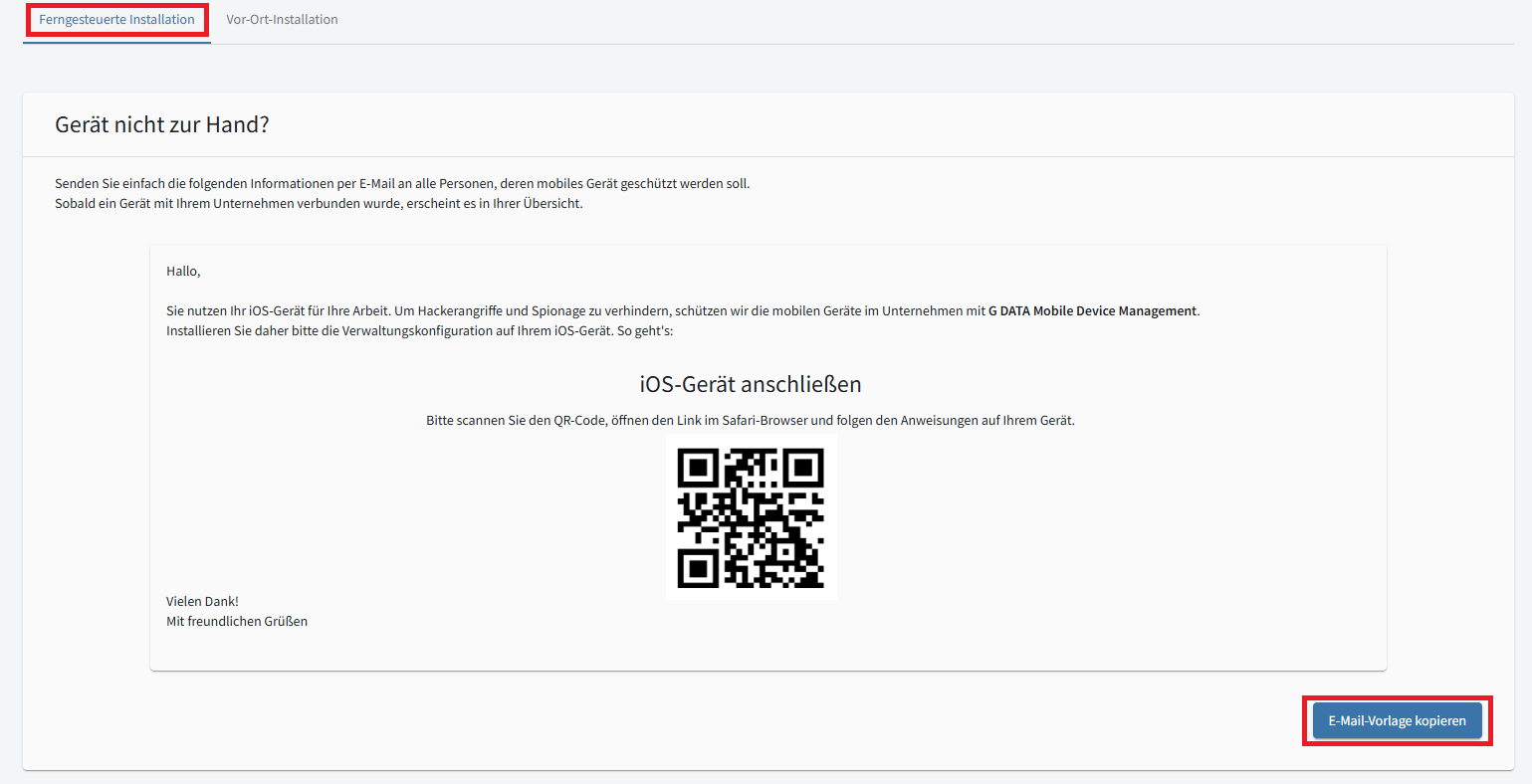
If you do not have the mobile device, you can copy the installation steps, including the QR code, into an email as a template. The person with the device must then complete steps 4–6 below. |
|
3b |
If you have the device on-site, you can start setting it up directly using the QR code. |
|
4 |
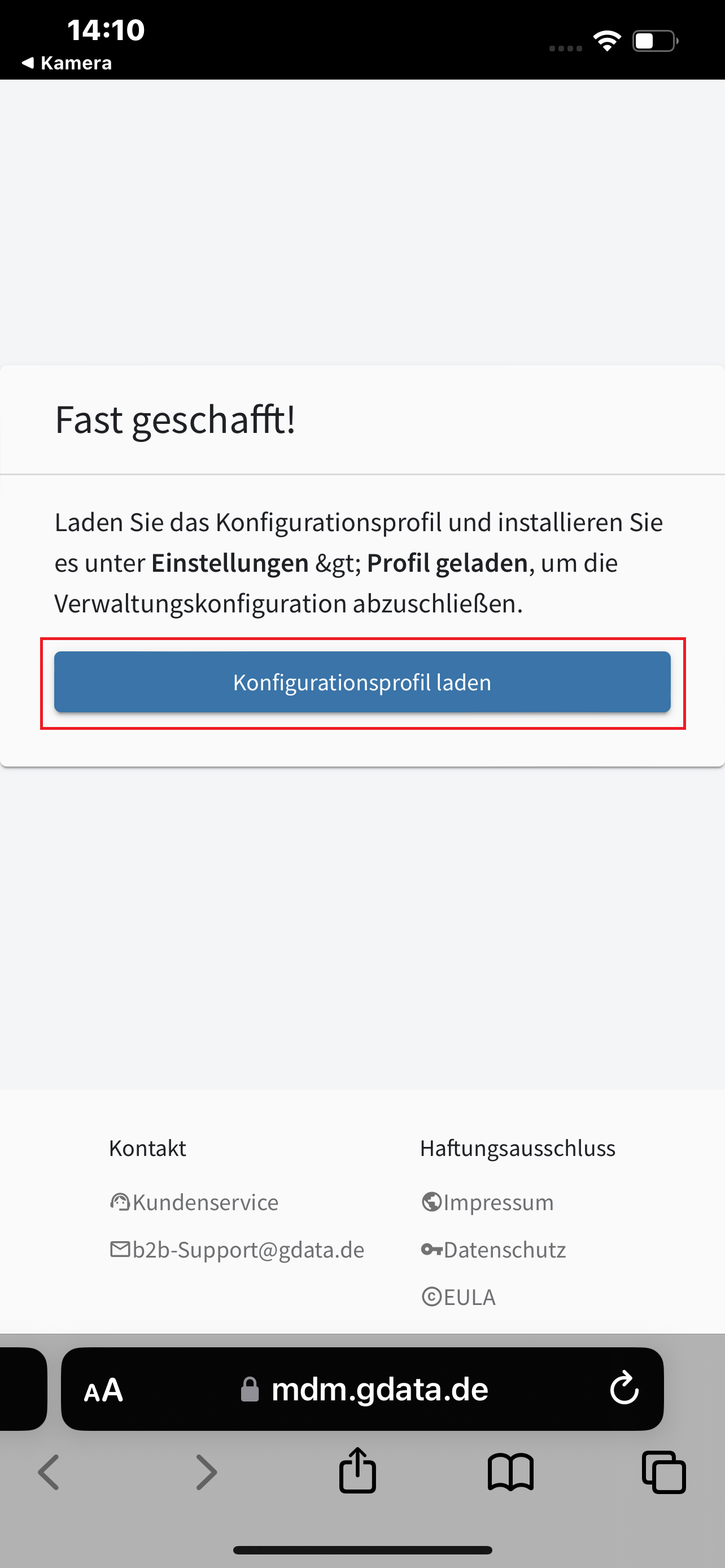
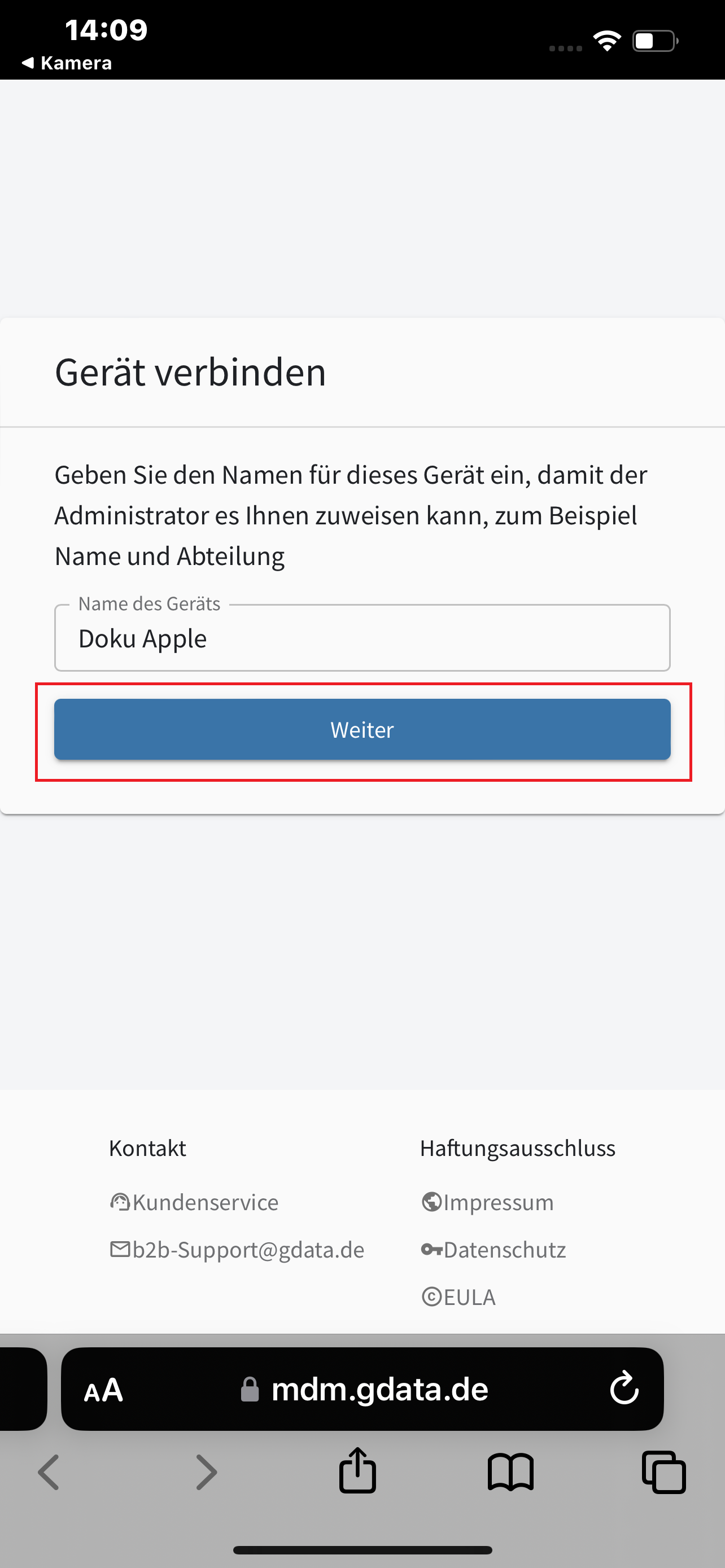
Scan the QR code with the Apple mobile device. Safari opens. Enter a name for the Apple device in MDM and tap Next. |
|
5 |
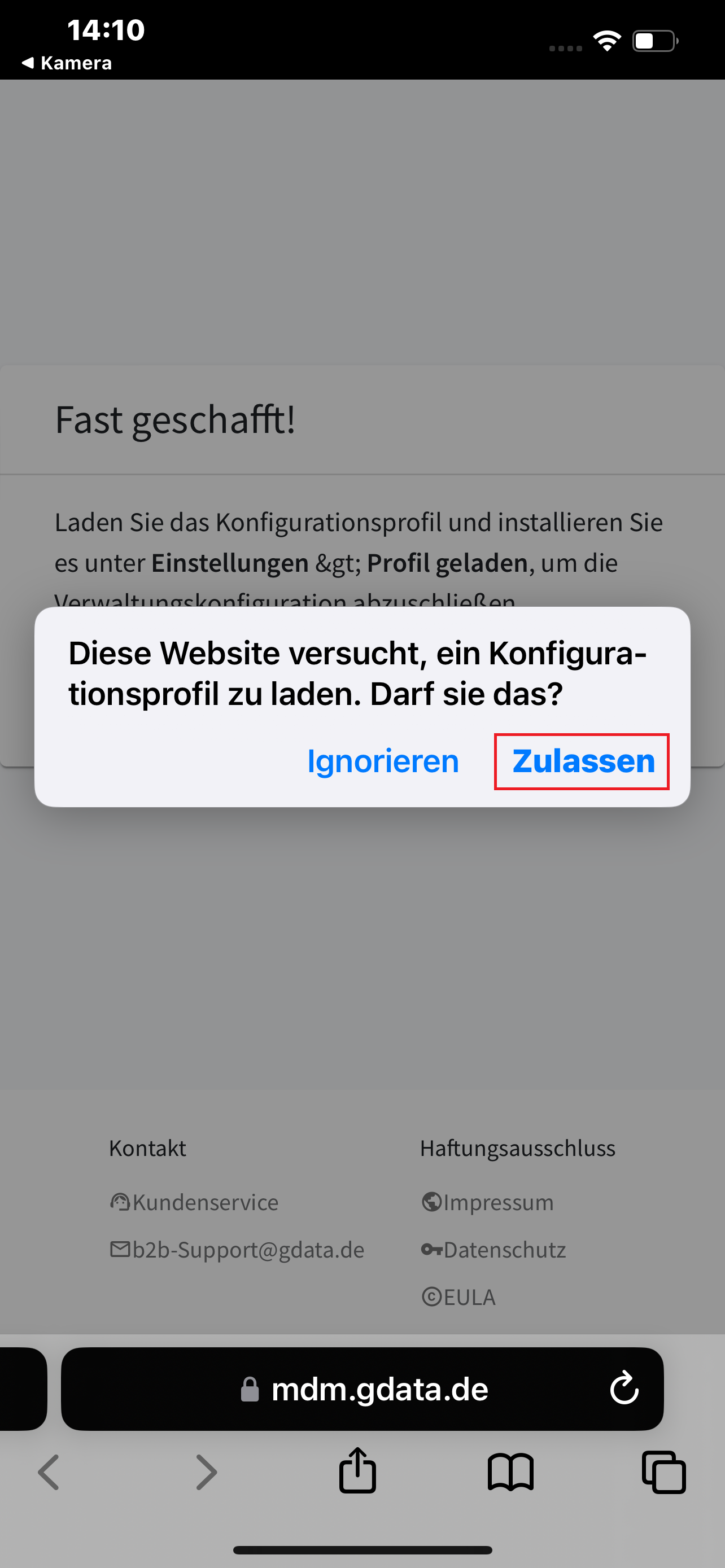
Allow the G DATA MDM configuration profile to download. |
|
6 |
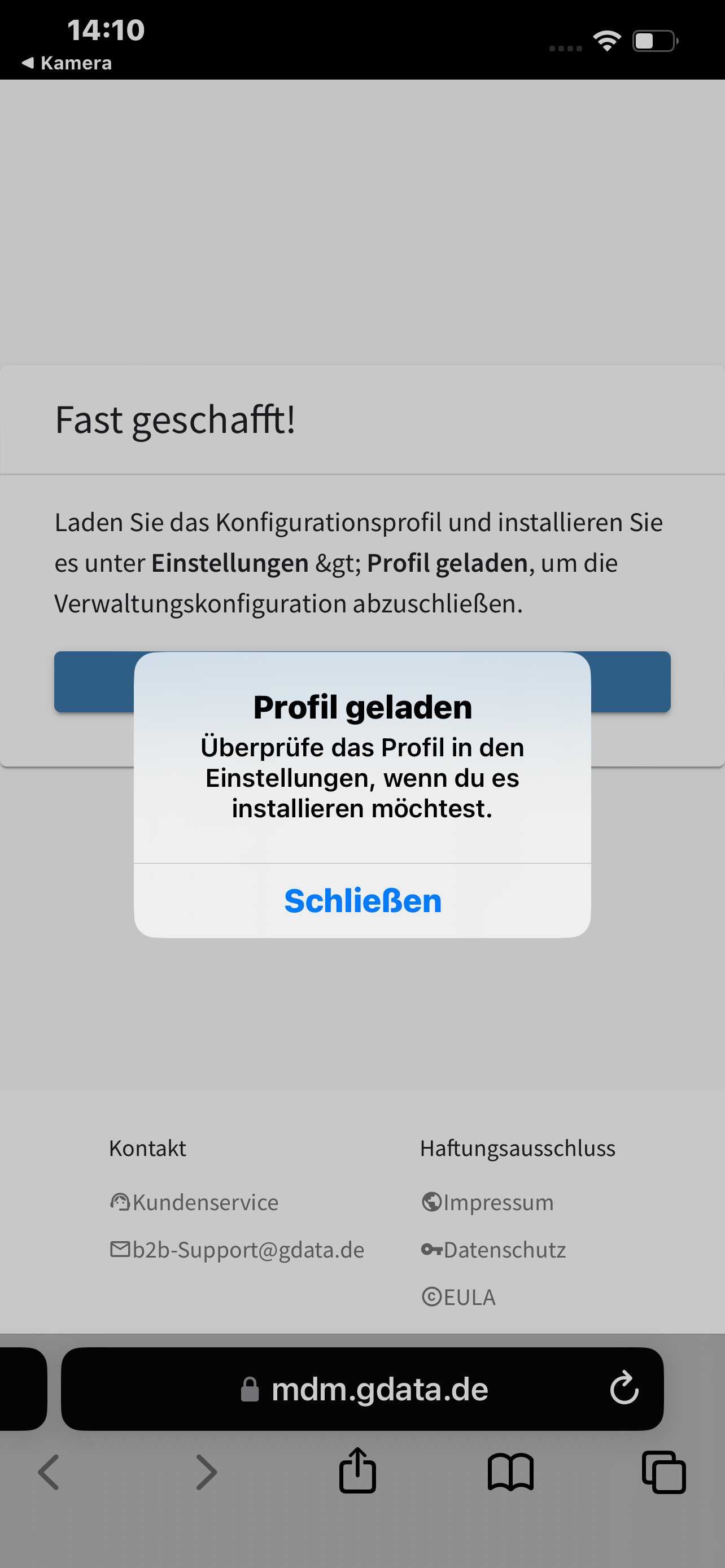
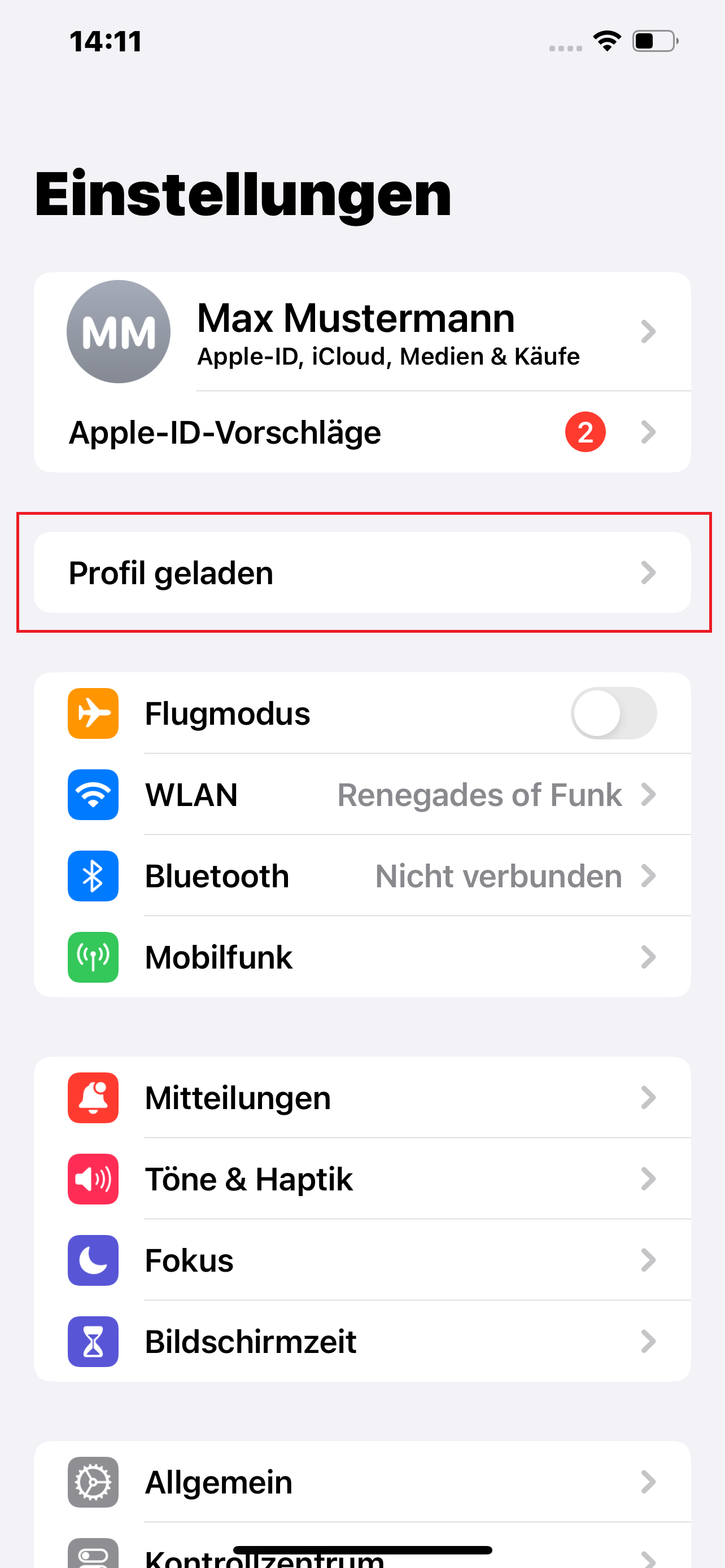
Open Settings and tap Profile Downloaded. |
|
7 |
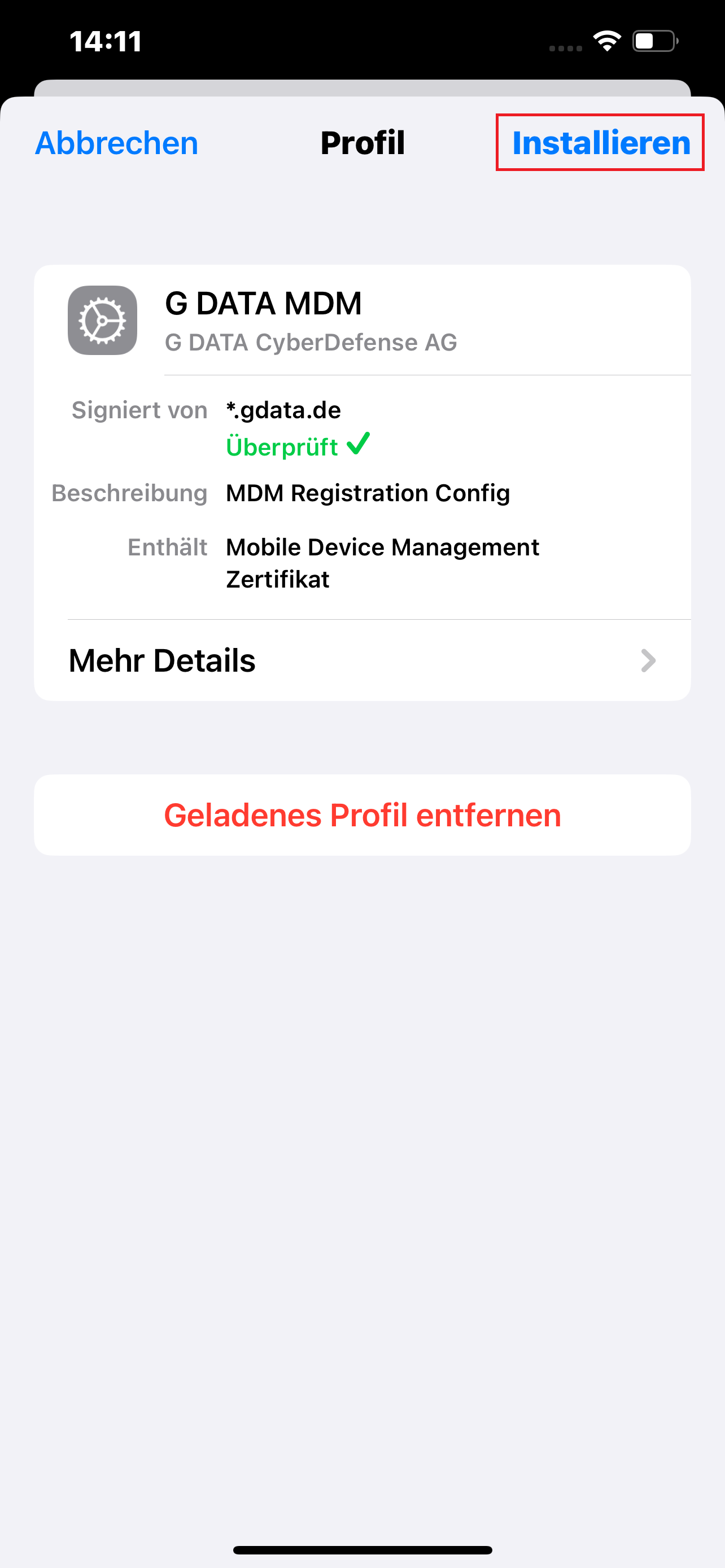
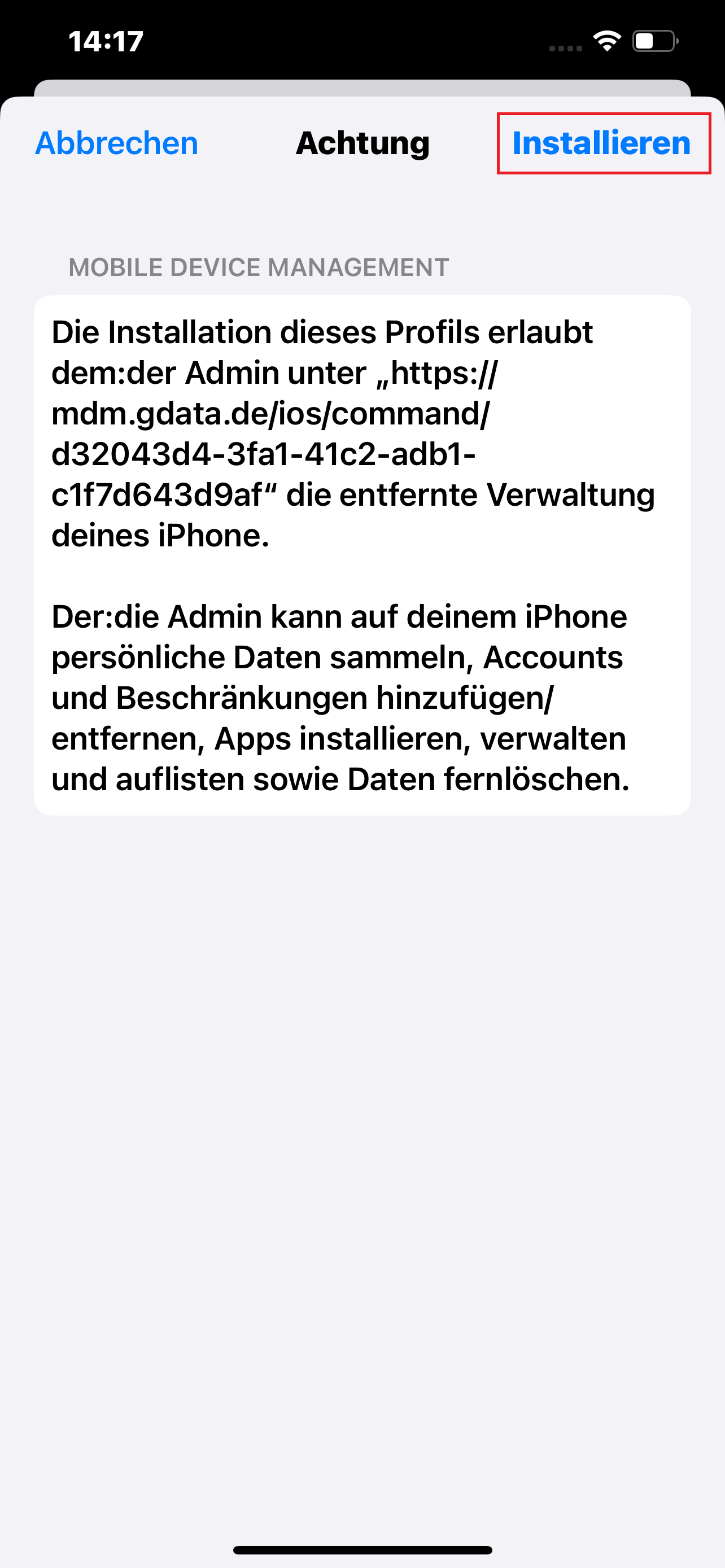
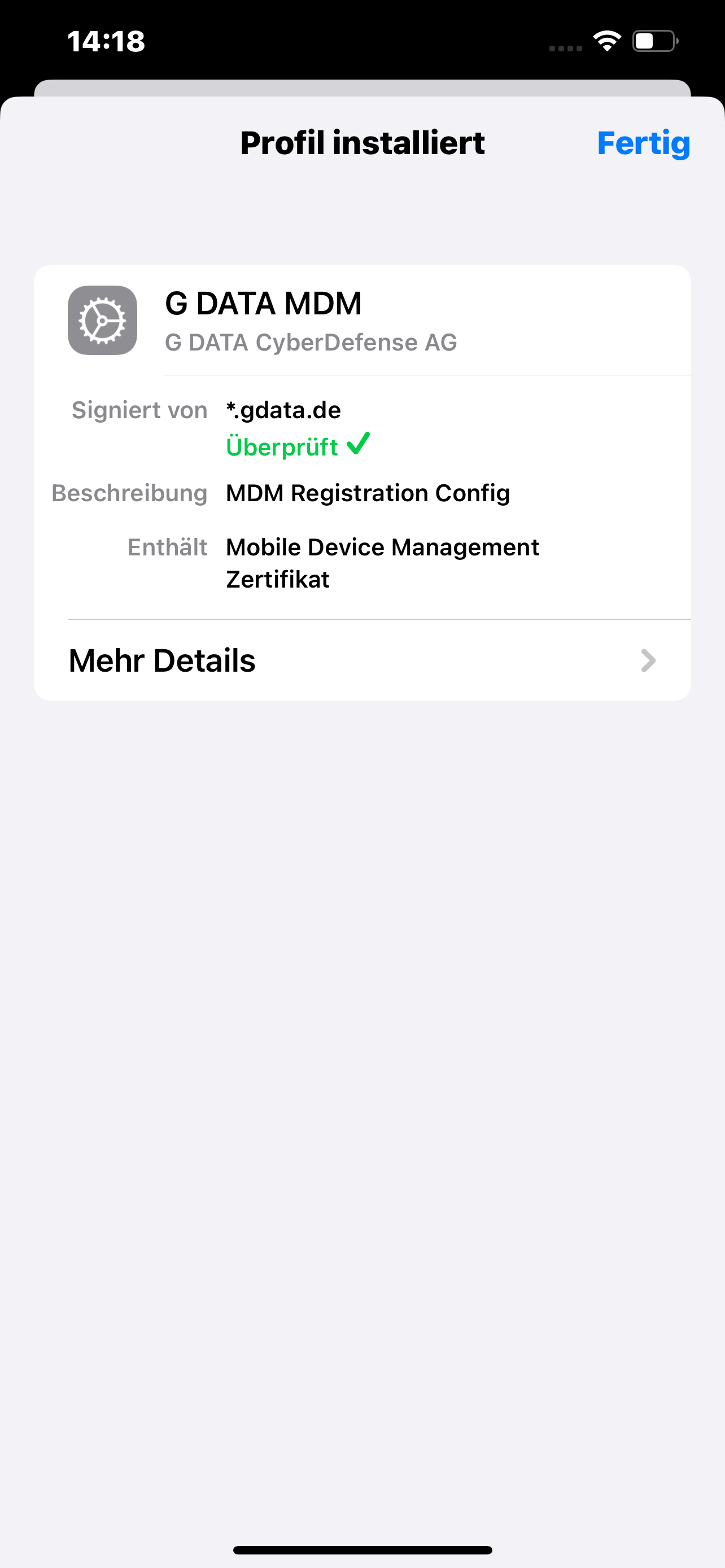
Install the "G DATA MDM" profile and confirm the installation. |
|
8 |
You have completed the setup steps on the Apple device, and it appears in the device overview. |
|