The Android Enterprise View
The "Android Enterprise" view initially lists the apps available for your devices. You can filter, customize, and search the list of available apps using the same controls as in the other views. You can also view information about the Google account in use.
Apps
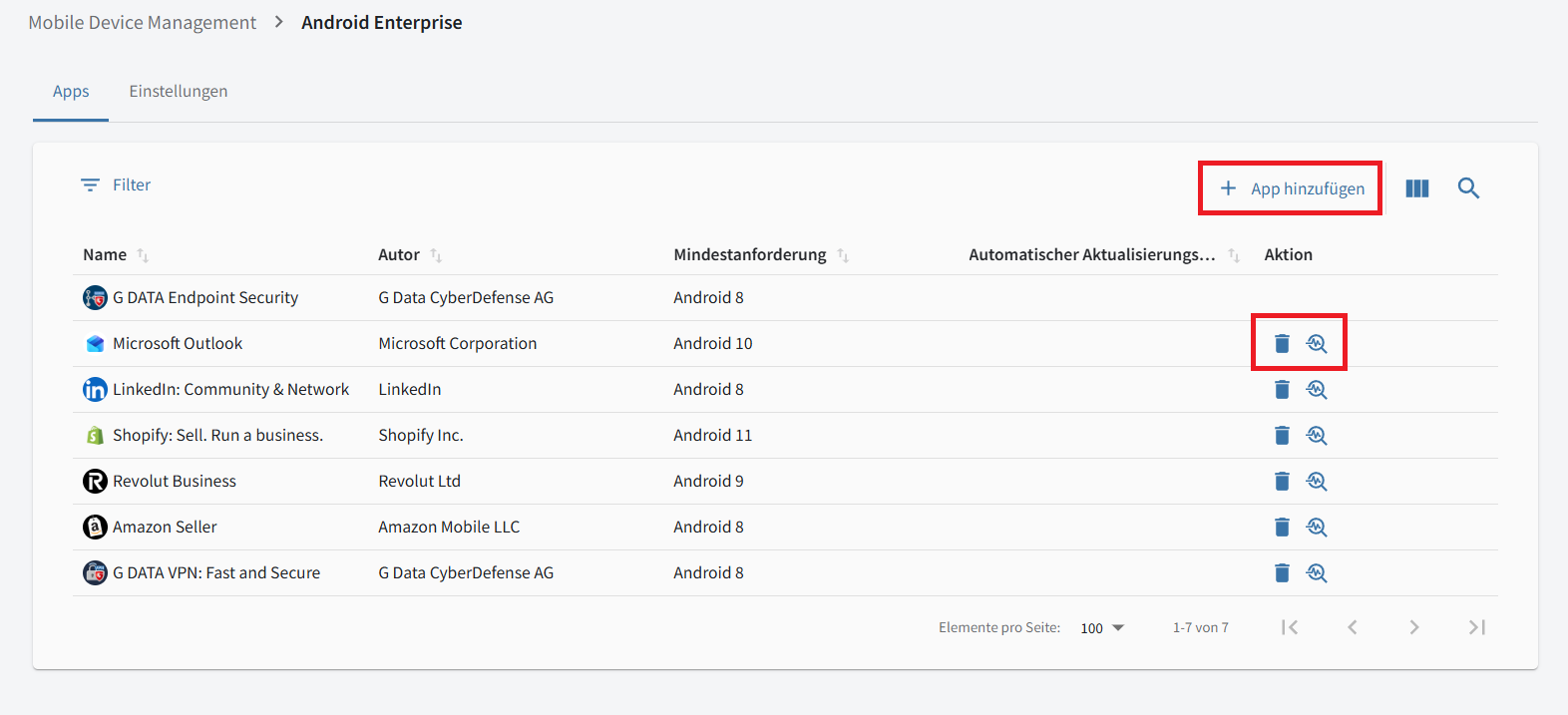
Managed Google Play gives you more control over app availability and distribution to your devices. For more information about Managed Google Play, see Google’s documentation.
The overview lists all approved apps that can be installed on devices administered through MDM. At a glance, you can see each app’s Name, Author, Minimum Required Android Version, and Automatic Update Mode. In the Actions column, click the  icon to remove an app from the Managed Play Store, or click the
  icon to open its details.
In the overview table, you can show or hide columns, filter entries, and search as in the other tables.
Add an app to the Managed Play Store
To add an app, click + Add App in the upper-right corner of the view.
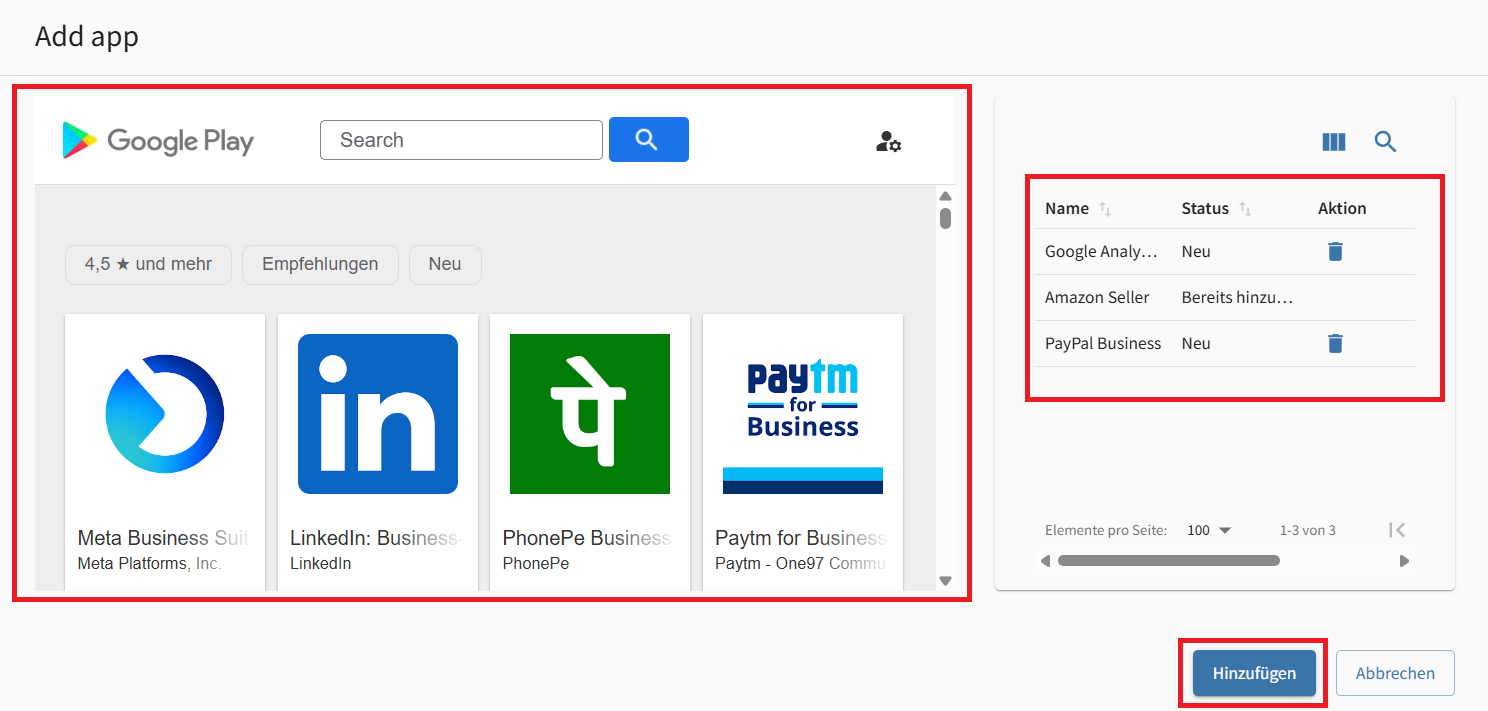
Managed Google Play opens. You can add one or more apps. Select an app in the Google Play Store and click Select. The app is added to the list of apps to be added.
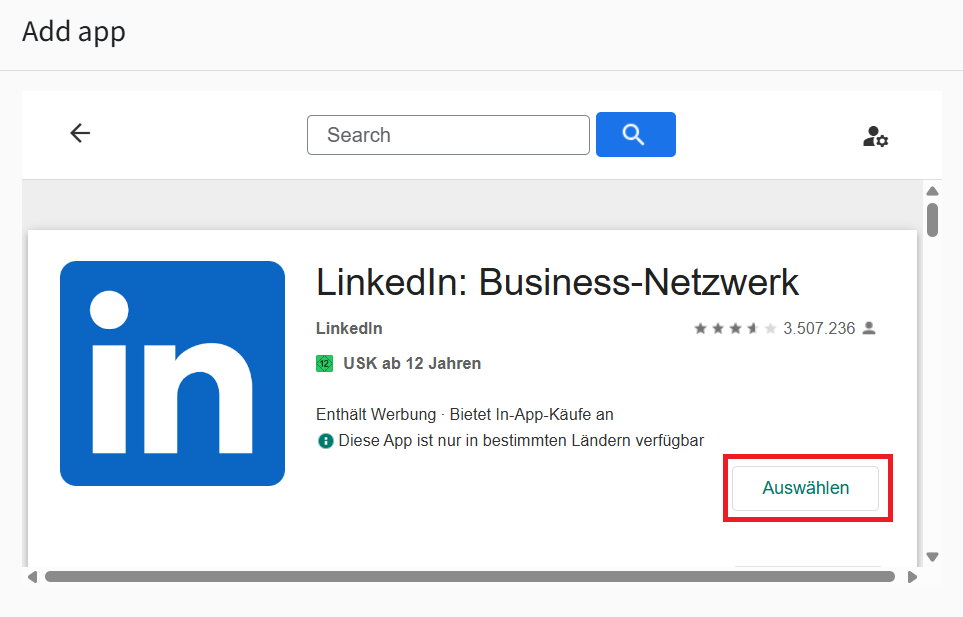
| If an app is already available, it appears in the "Already Added" selection list. |
When you have finished selecting apps, click Add to complete the process. The selected apps are then available to mobile devices administered through MDM.
The App Detail View
Click the icon to open the detail view for an app made available to your mobile devices.
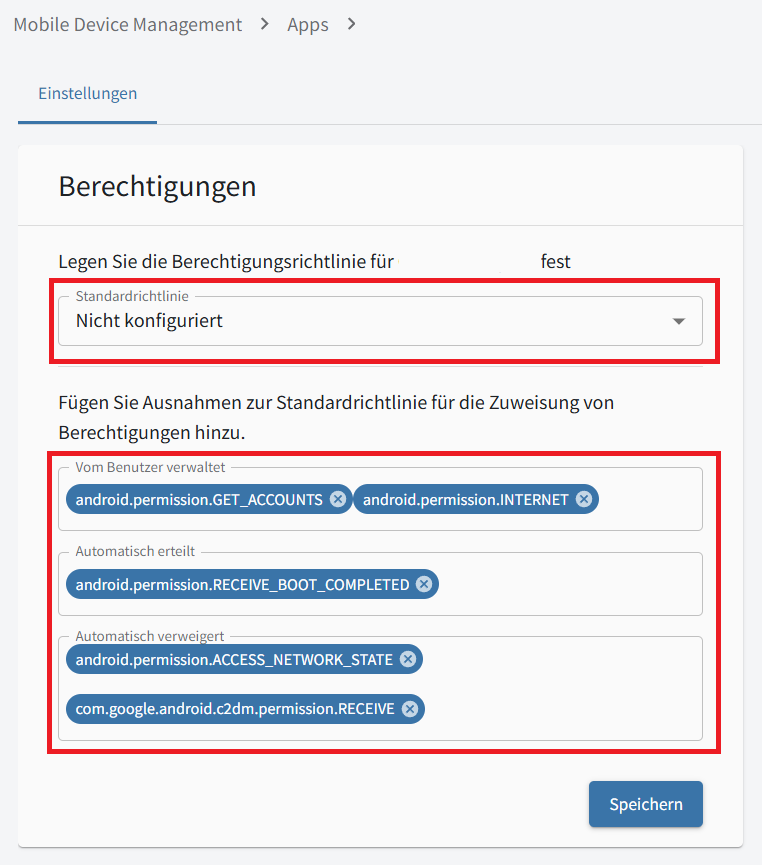
Here you can configure the app permission policy. The options are:
-
"Not Configured",
-
"Managed by User",
-
"Automatically Granted", and
-
"Automatically Denied".
You can also specify individual permissions that differ from the general permission policy. These permissions can be managed by the user, automatically granted, or automatically denied.
Creating managed configurations
Some apps support managed configurations. In the overview table, you can show or hide columns, filter entries, and search as in the other tables.
| G DATA has no direct control over this functionality. The developer of each app must provide its configuration options. |
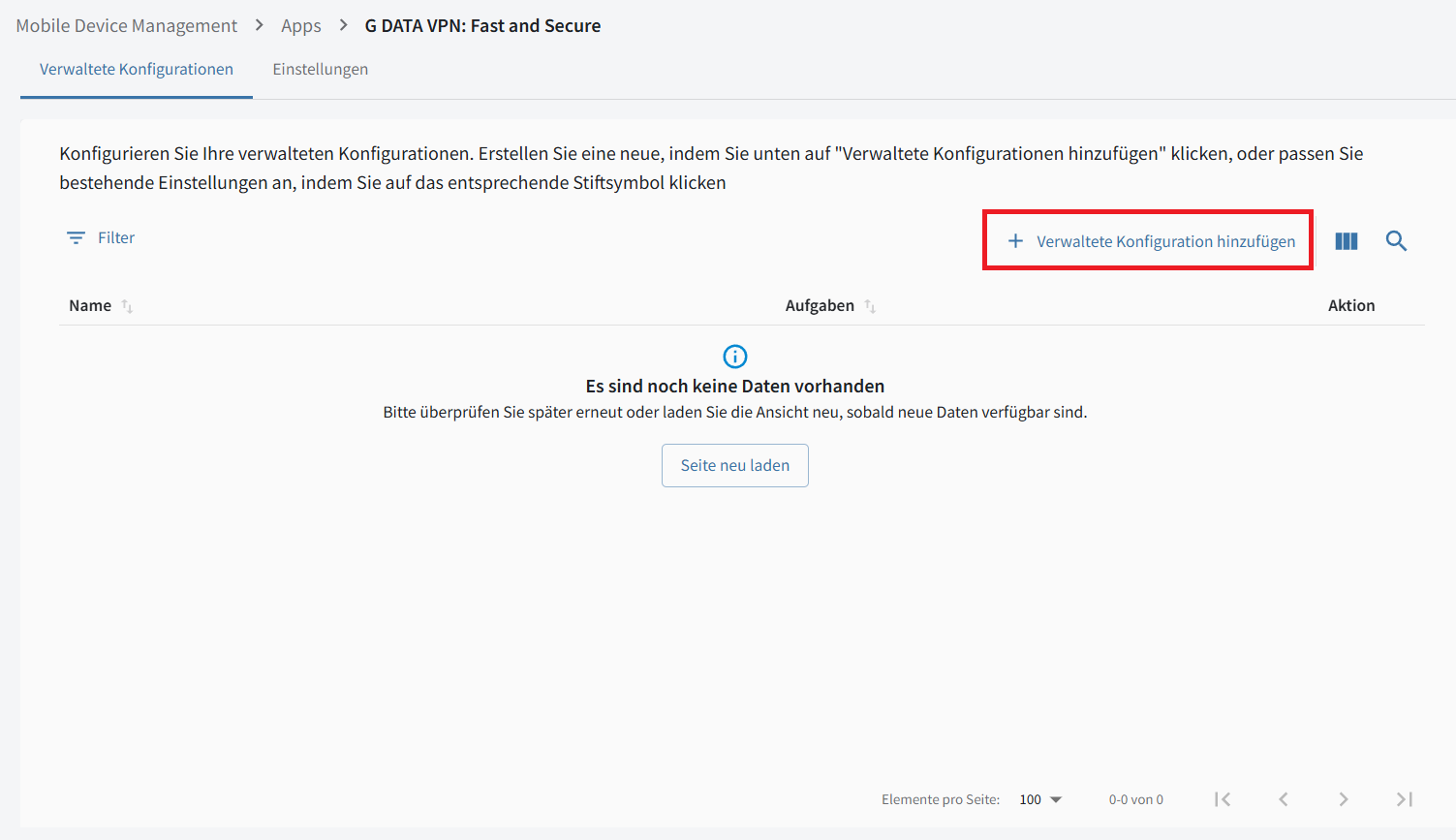
Click + Add Managed Configuration to create a managed configuration.
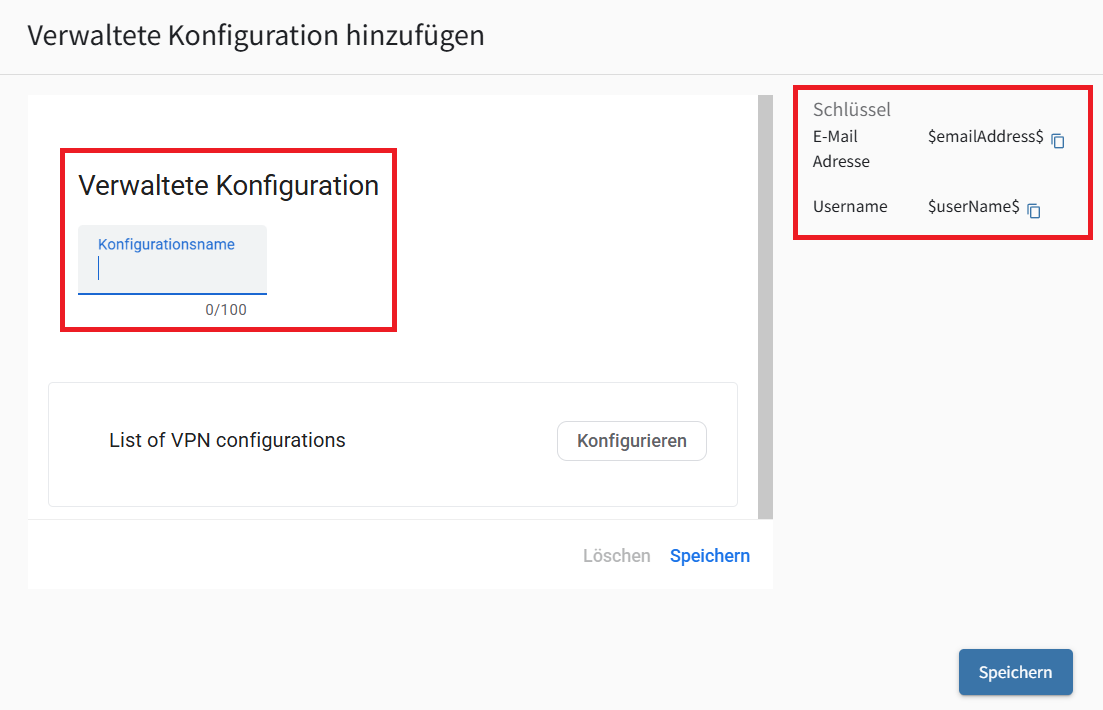
You can always specify a configuration name. You can also use variables identified by keys whose values can be set in the mobile device settings.
| The additional options for managed configurations cannot be documented here because they vary considerably by app. |
After completing the configuration, save it. You can then select it from the list of available managed configurations.
Settings
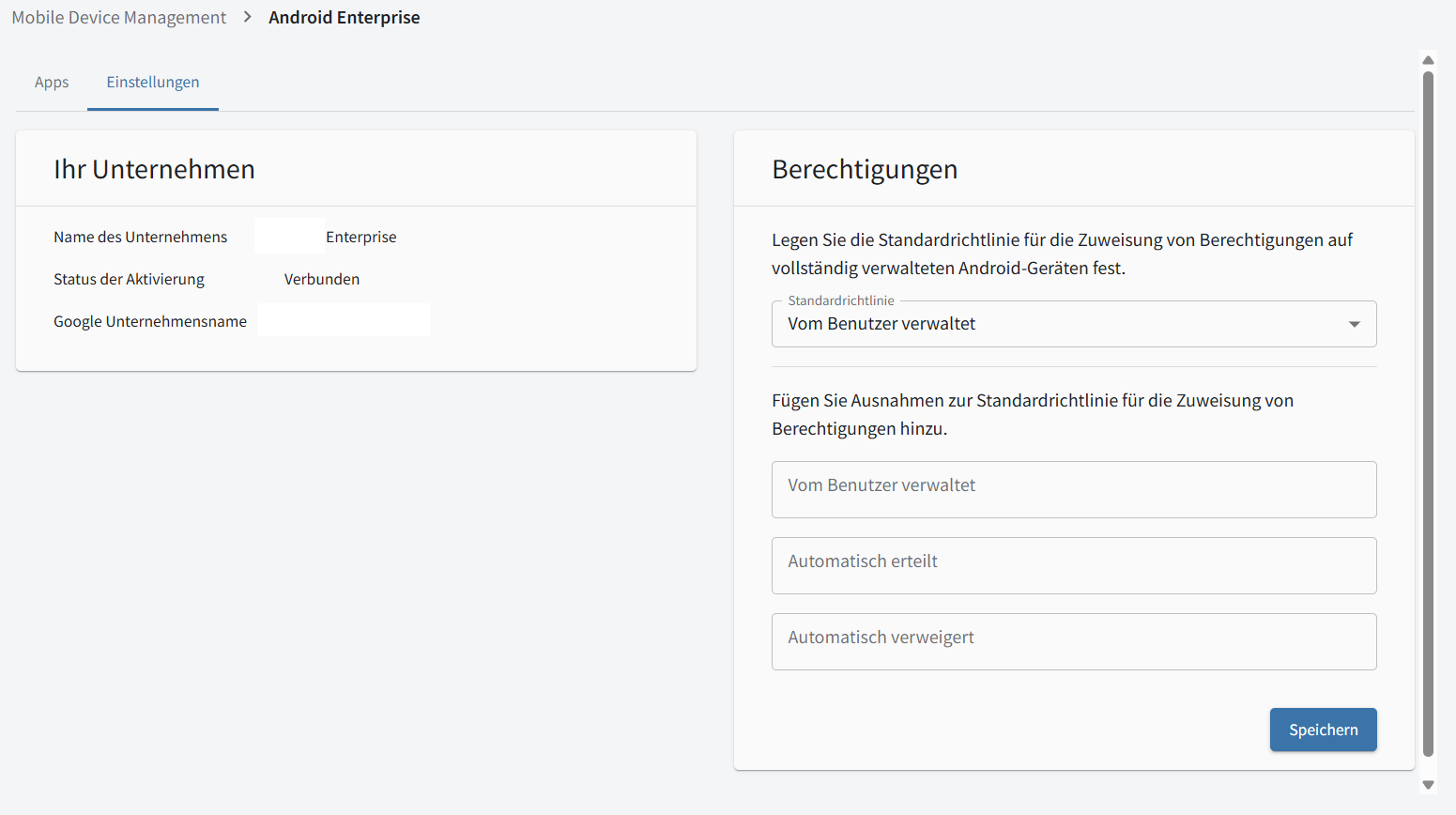
| This view shows the setup recommended by Google, in which a super-admin account for a Google Workspace or Cloud Identity domain was used during Android Enterprise setup. |
Click the "Settings" tab in the Android Enterprise view to see details of the Google business account in use: Company Name, Activation Status, and Google Business Name.
You can also assign a default policy, analogous to the app permissions in the Managed Play Store. It is used as a fallback when "Not Configured" is selected for app-specific permissions or when permissions have not been configured for an app.
Settings with a Private Google Account
As described in this article, you can also activate Android Enterprise with a private Google account. The settings then appear as shown in the screenshot below.
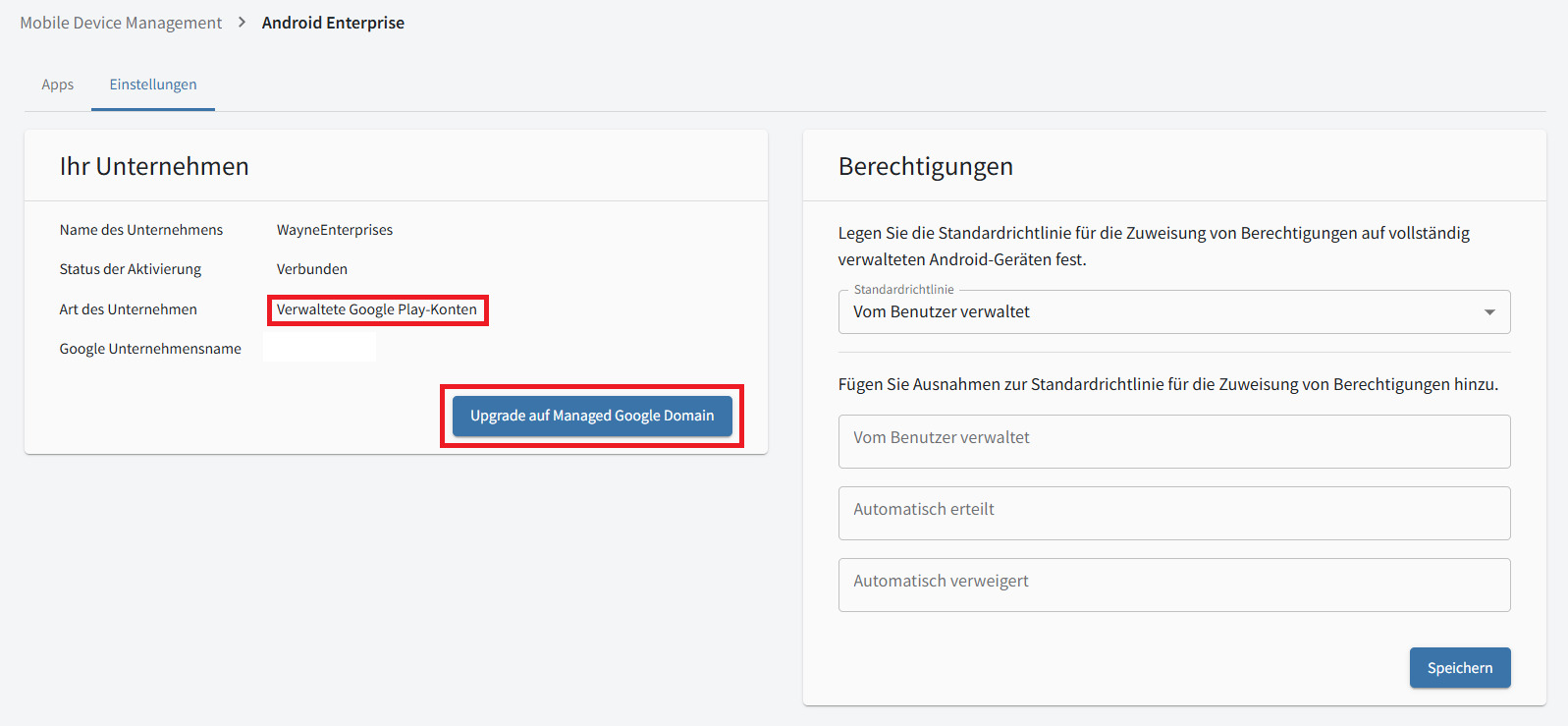
When using Android Enterprise with a private Google account, you can only assign anonymous accounts to your devices and are limited to approved apps in the Play Store. You cannot use Google services on the devices.
However, the Android Enterprise settings always allow you to upgrade the Google account in use to a managed domain. After upgrading, you can use all Android Enterprise features as though you had initially set it up with a super-admin account for a managed Google domain.