Setting Up G DATA Mobile Device Management
This guide describes how to set up G DATA Mobile Device Management.
Setting Up G DATA Mobile Device Management Without Enterprise Features
If you want to use the basic features of G DATA Mobile Device Management (see also this article), whether with MXDR, G DATA Management Server, or as a standalone product, you only need access to Mobile Device Management Web Portal. This access is provided when the product is activated or through the associated MXDR or Business license.
Setting Up G DATA Mobile Device Management with Android Enterprise
You can use Enterprise Mobility Management features with a private Google account (without a Google domain) or with a super-admin account for an existing Google Workspace or Cloud Identity domain. The option you choose affects the Managed Google Accounts available on devices managed in MDM.
| Android Enterprise is available only with MXDR or as a standalone product! |
| The Google accounts used for activation are not used to sign in to Mobile Device Management Web Portal. |
Private Google Account |
Super-Admin Account for a Google Workspace or Cloud Identity Domain |
|
|
Setting Up Android Enterprise in Mobile Device Management Web Portal
1 |
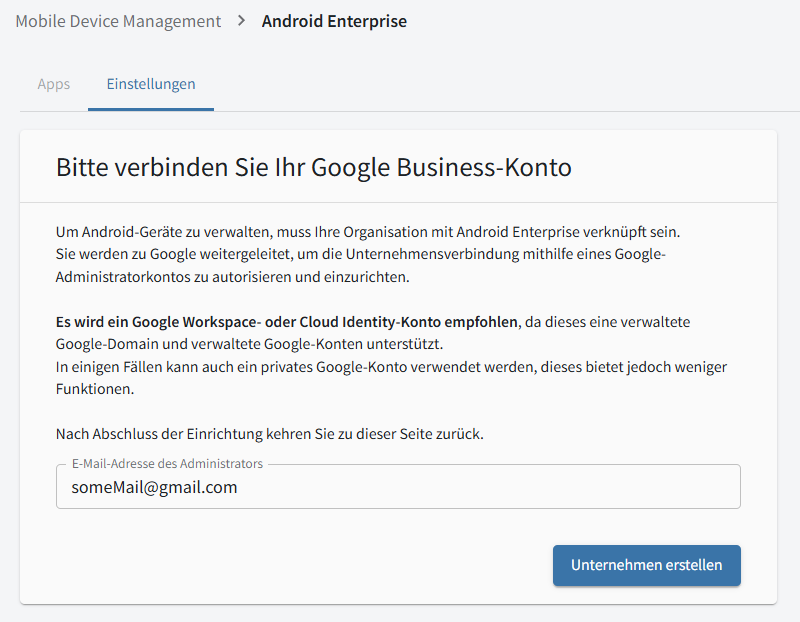
Go to the "Android Enterprise" view. If you have not yet added a Google account for Android Enterprise, the settings open automatically. |
|||
2 |
Enter the email address you want to use in the highlighted field and click Unternehmen erstellen.
|
|
||
3 |
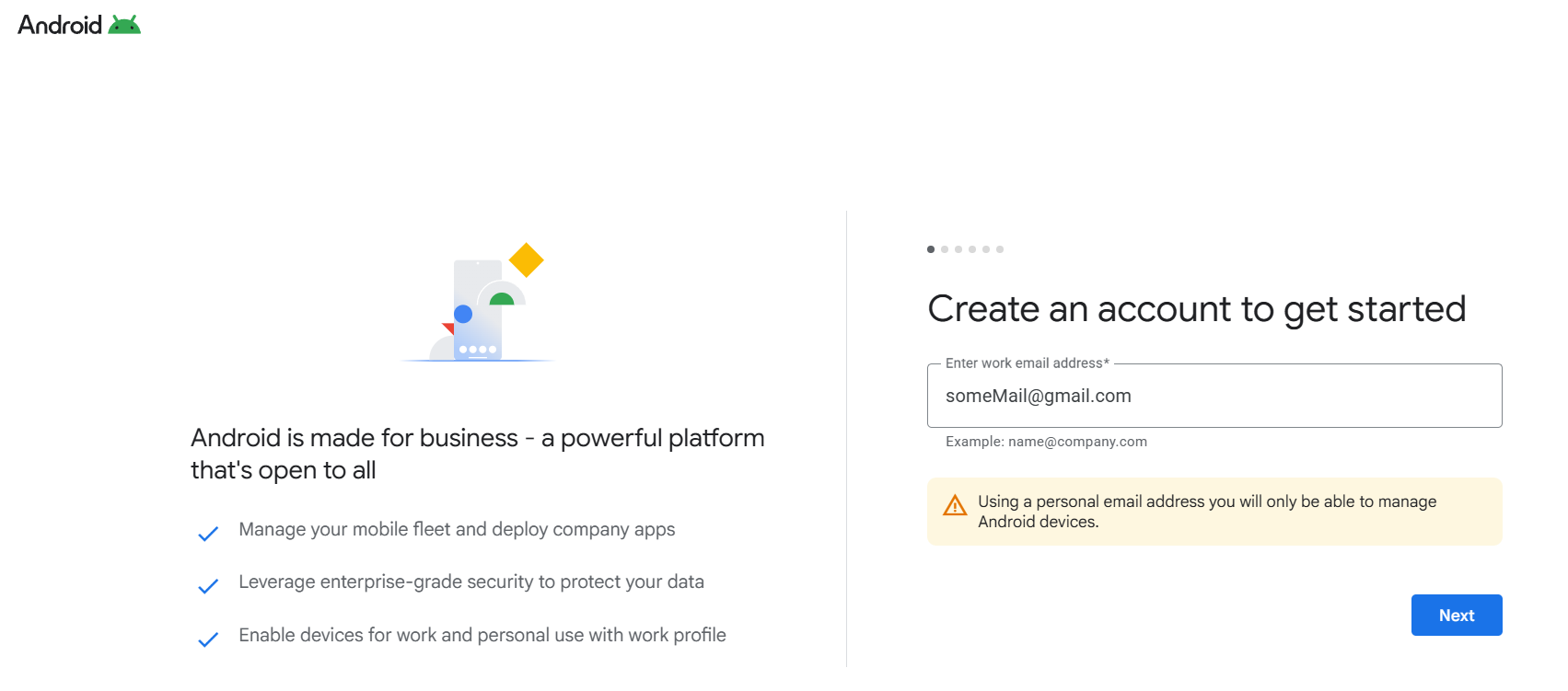
A Google page opens where you can set up the Google account.
|
|
||
4 |
Follow Google’s instructions to set up your account. |
|||
5 |
After you successfully set up the account with Google, MDM opens again and you can now use Android Enterprise. |
|||
6+ |
//TODO: Show the different views when using a full or private account |
|||