Detailed Instructions for Adding an iOS Device to G DATA Mobile Device Management
Before You Begin
These instructions cover the steps performed on the device you are adding if you want to manage it in supervised mode.
|
To enable supervised mode on an Apple device, you must reset the device to factory settings. To help avoid losing data and settings during this step, these instructions include a section explaining how to create a backup. |
After enabling supervised mode, you can continue setting up your Apple device as described in this article.
Enabling Supervised Mode with a Backup
To create the backup, you need the device you want to back up (Device A) and:
-
Another iOS device running the same operating system version (Device B).
-
A Mac with Apple Configurator installed.
Show
1 |
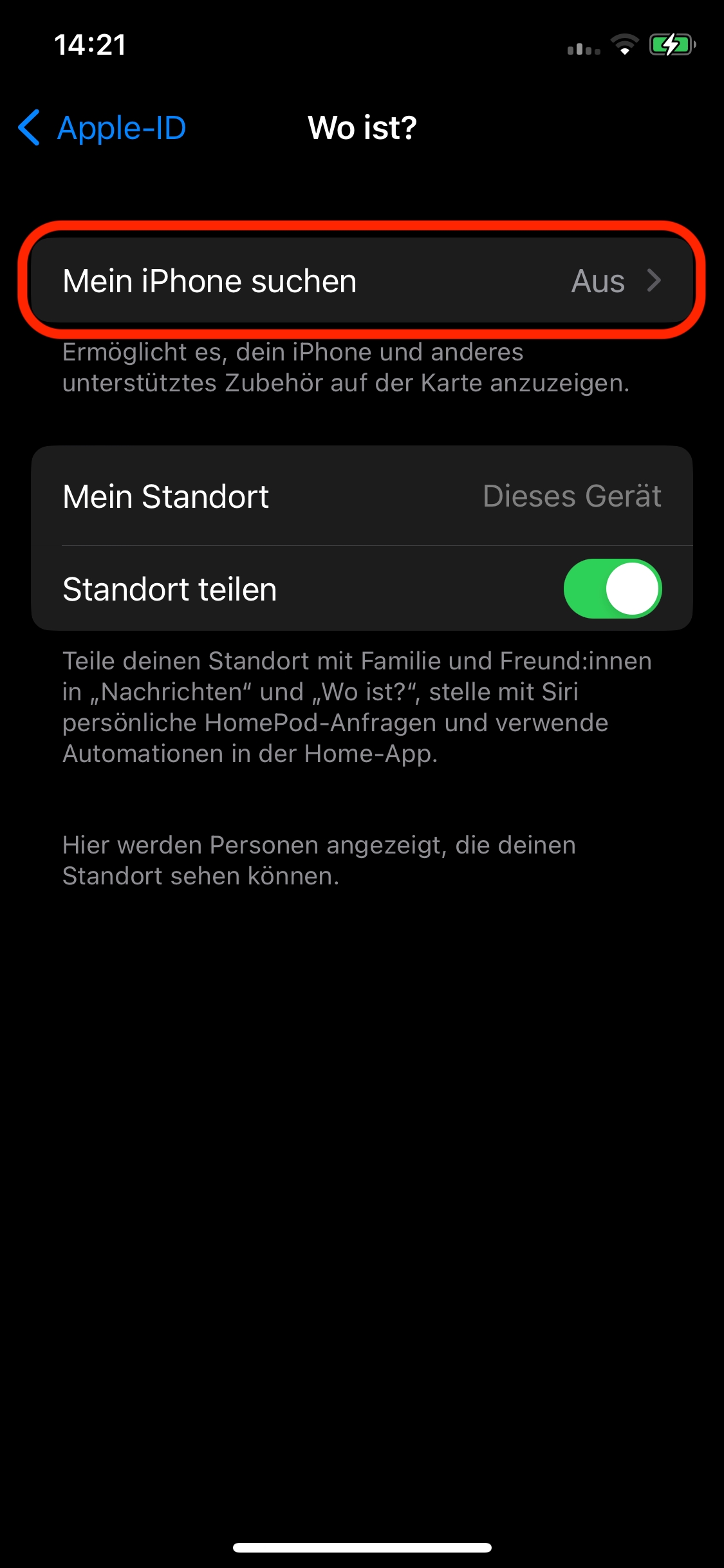
Turn off Find My (Settings → device name at the top → Find My). |
|
||
2 |
Connect Device A to the Mac with a cable. |
|||
3 |
Open Finder and select the device. |
|||
4 |
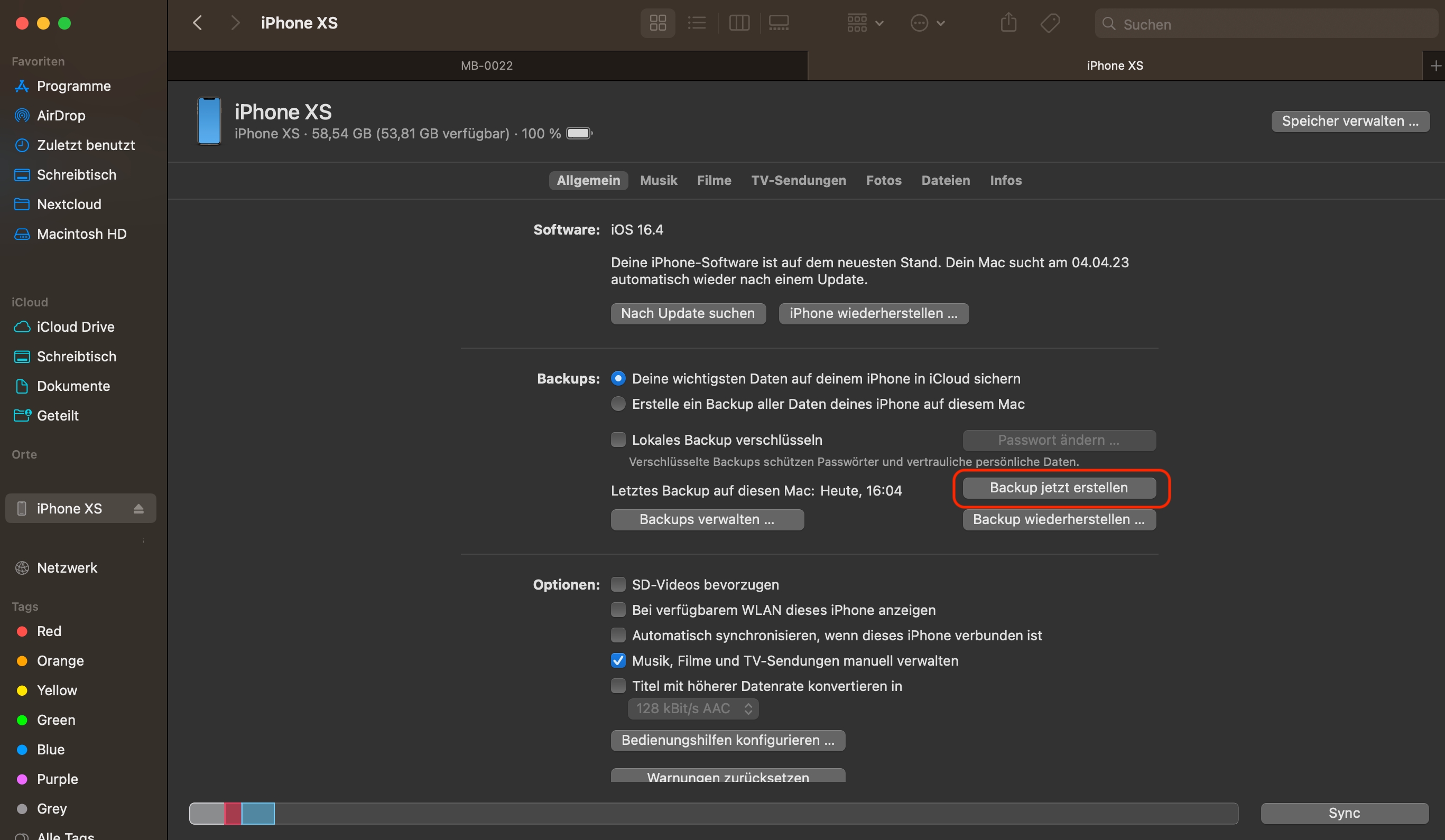
Create a backup. |
|
||
5 |
Then connect Device B and select it in Finder. |
|||
6 |
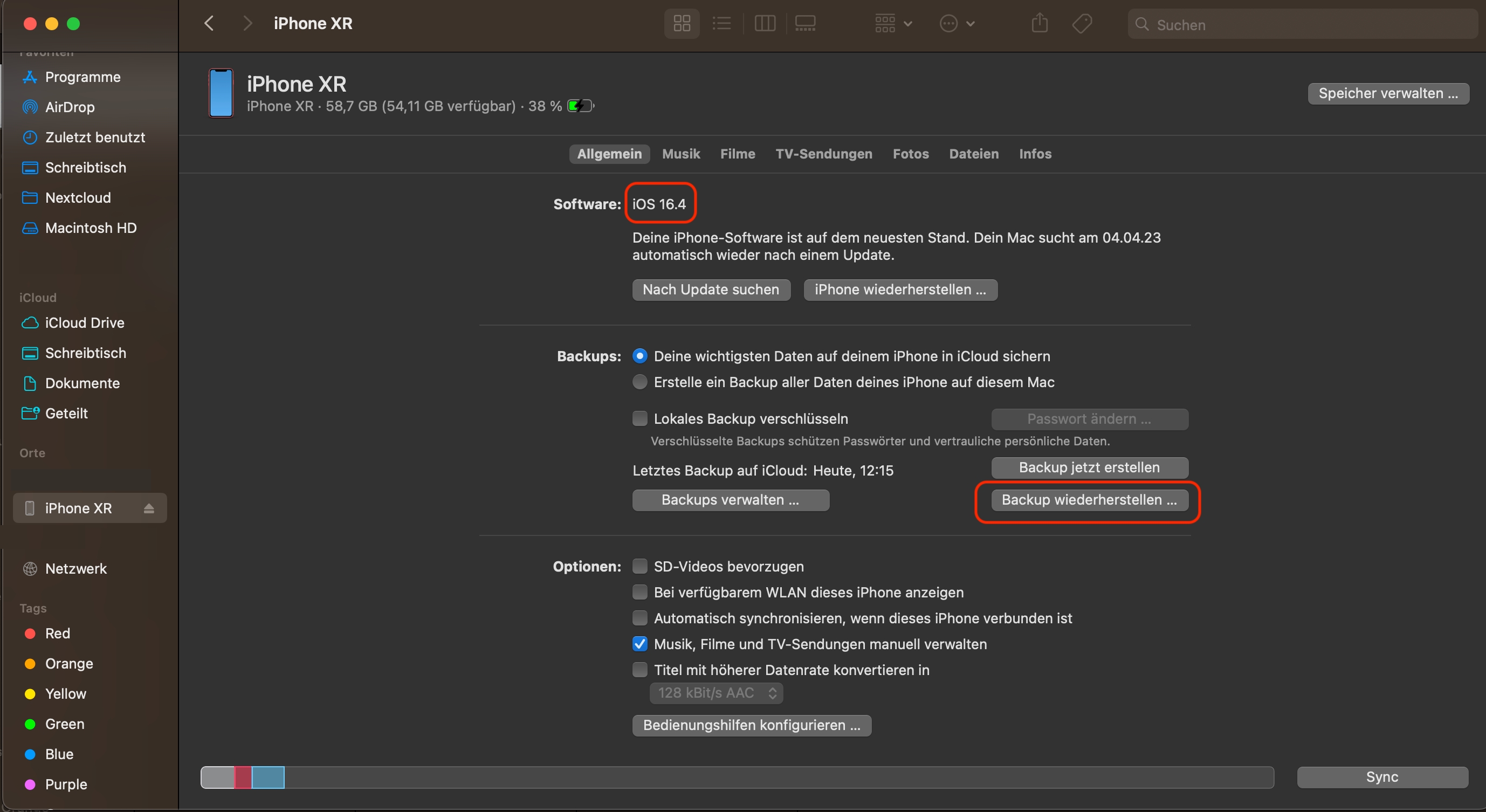
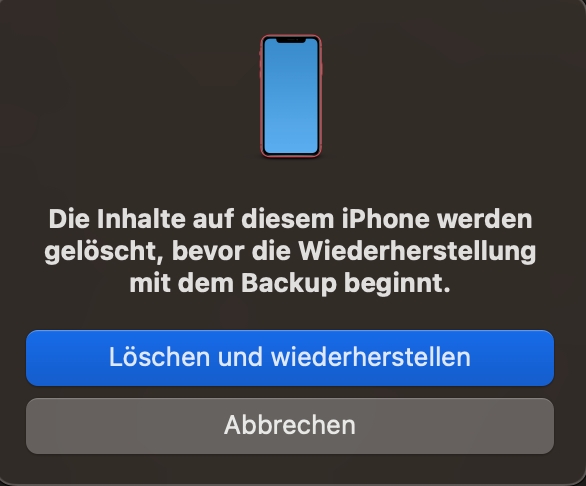
Verify that the iOS version on Device B matches the version on Device A, then restore the backup of Device A to Device B. Confirm by selecting "Erase and Restore." |
|
||
7 |
Reset Device B, then set it up until you reach the restore options. |
|||
8 |
Select "Restore from Mac or PC."
|
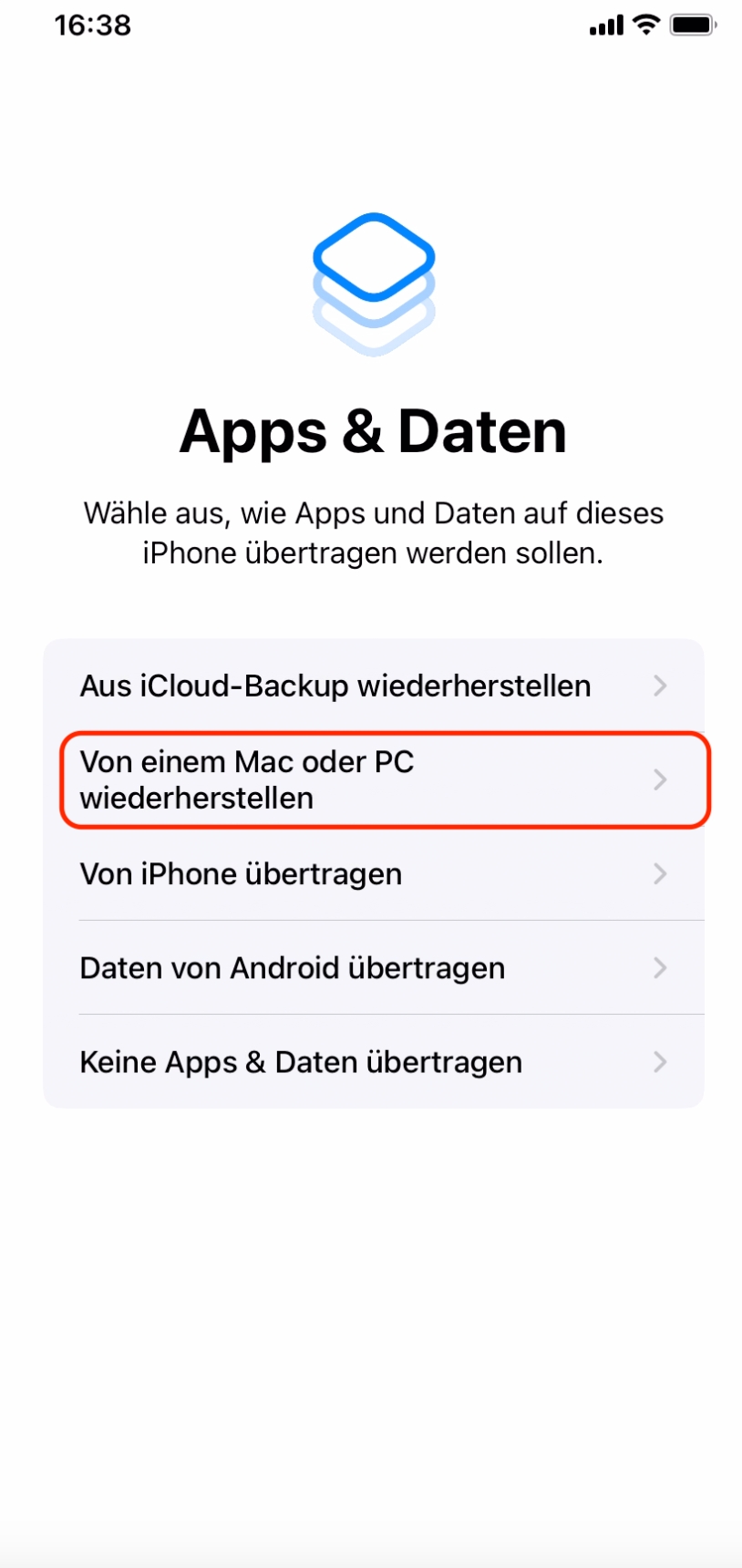
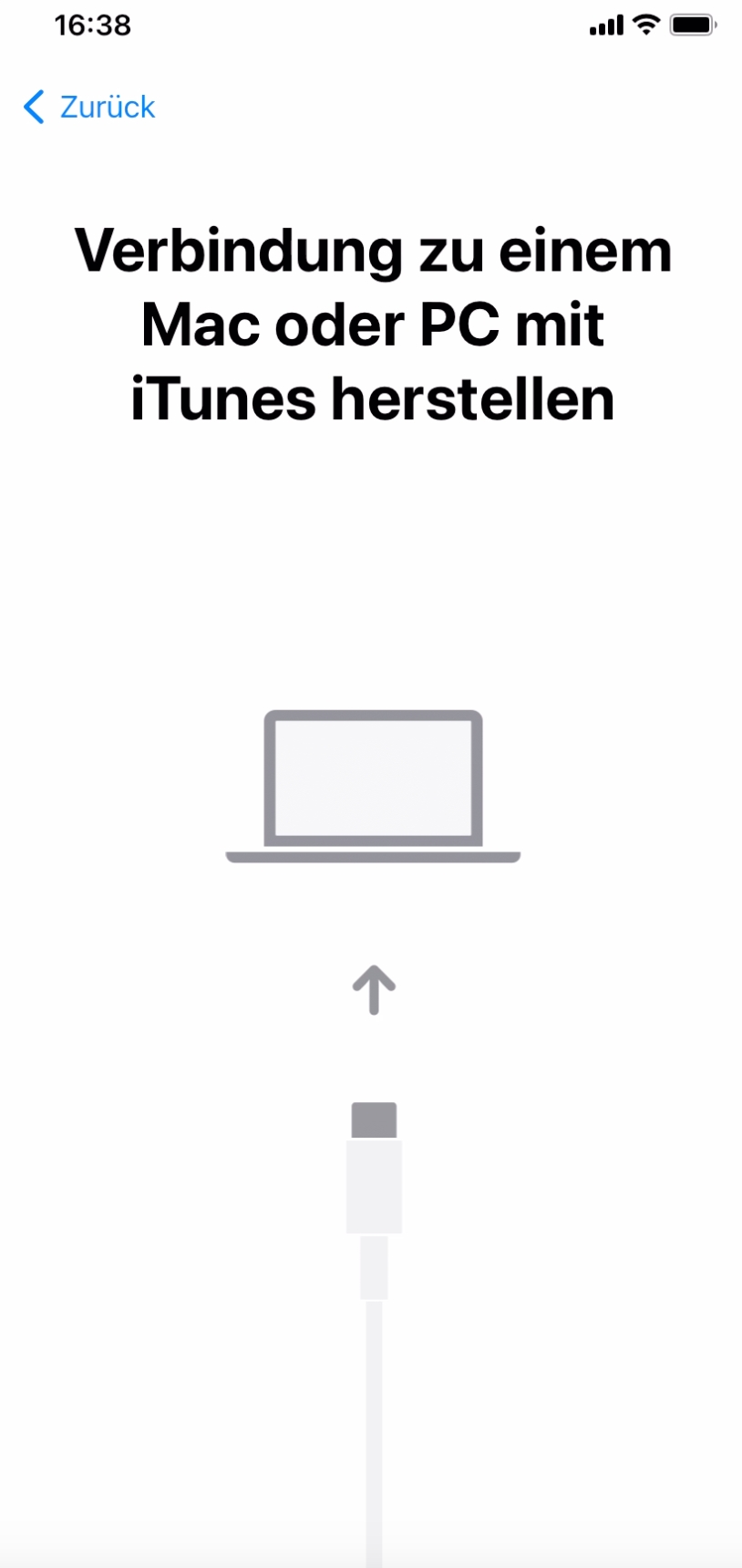
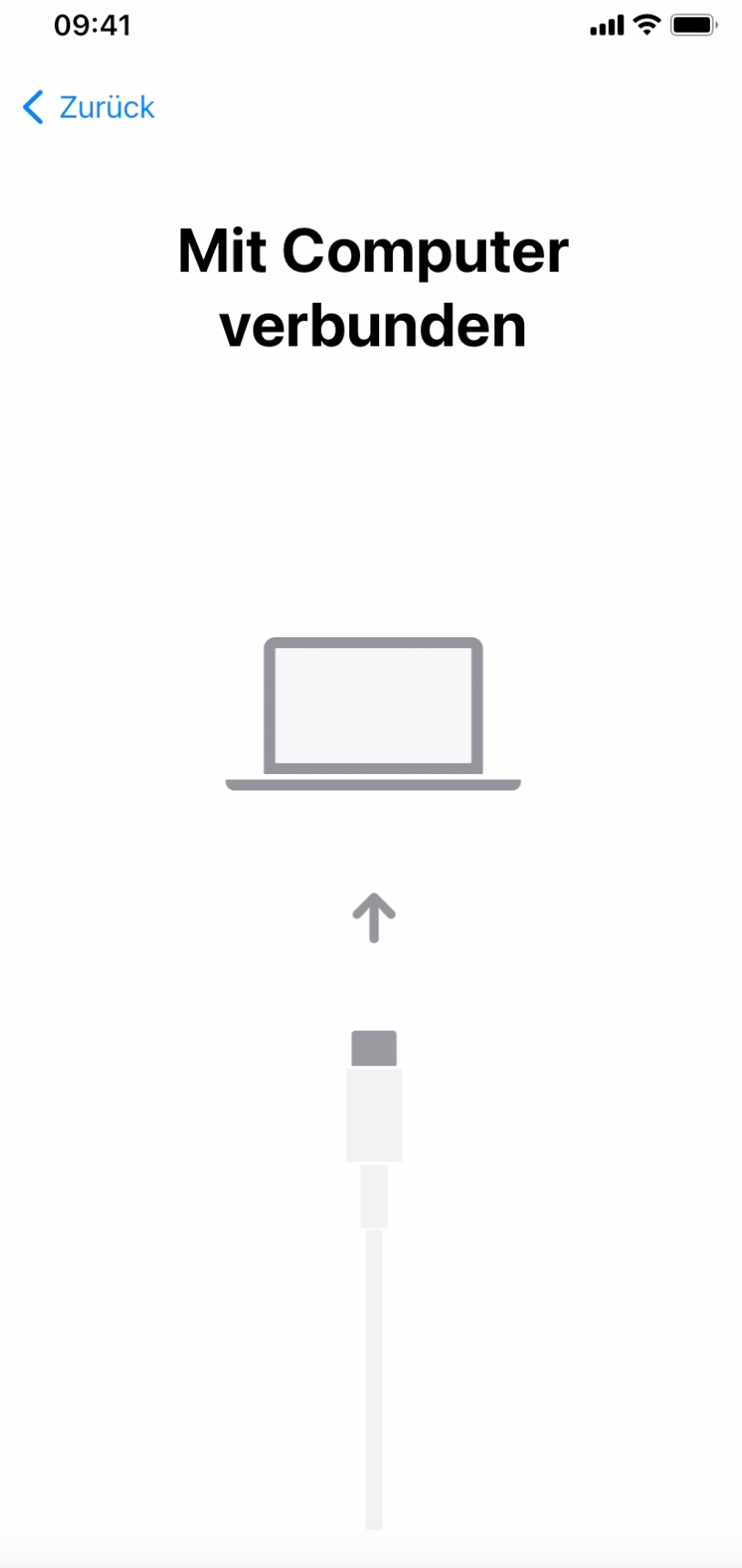
|
||
9 |
Complete the setup on Device B. |
|||
10 |
Connect Device A and open Apple Configurator. |
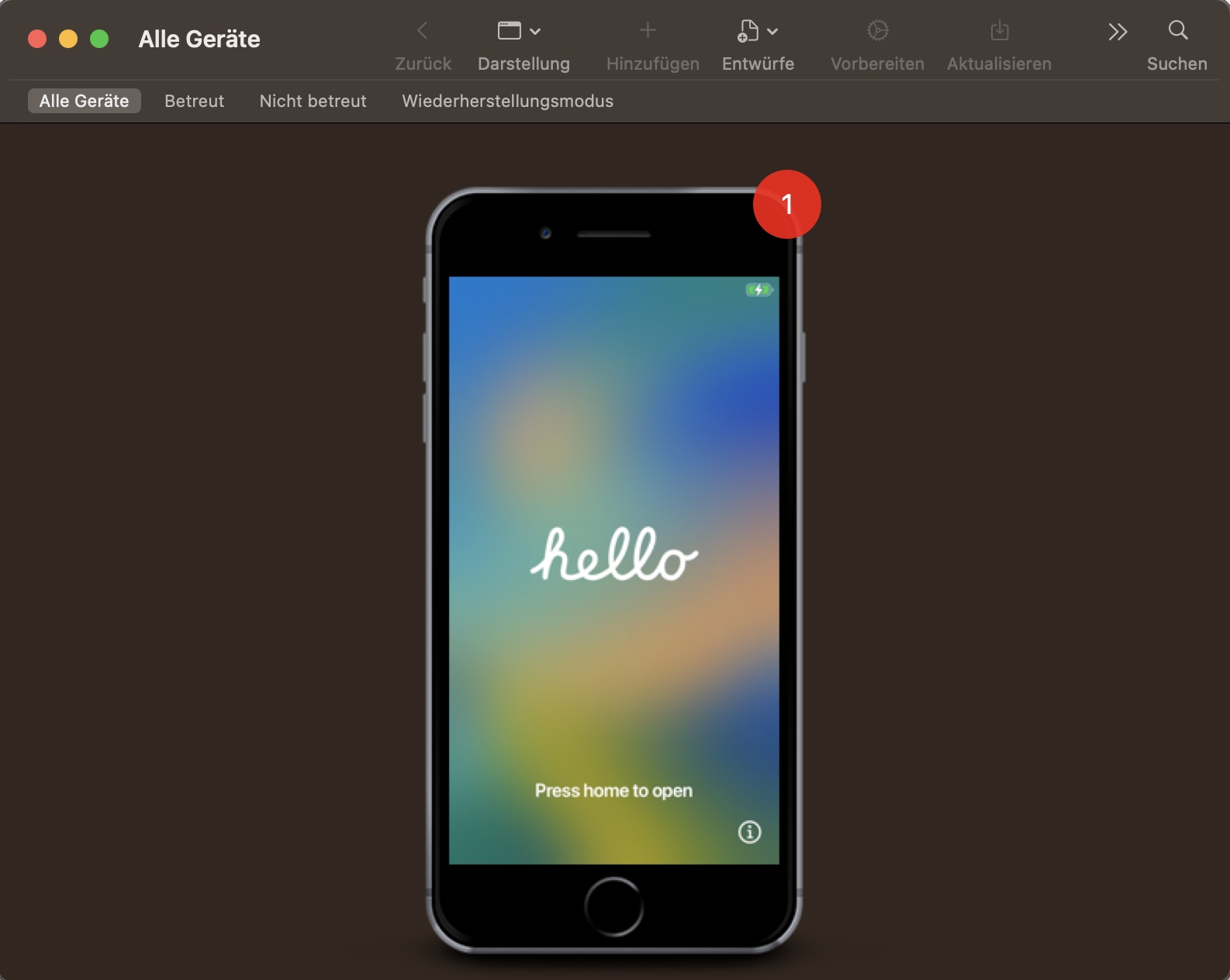
|
||
11 |
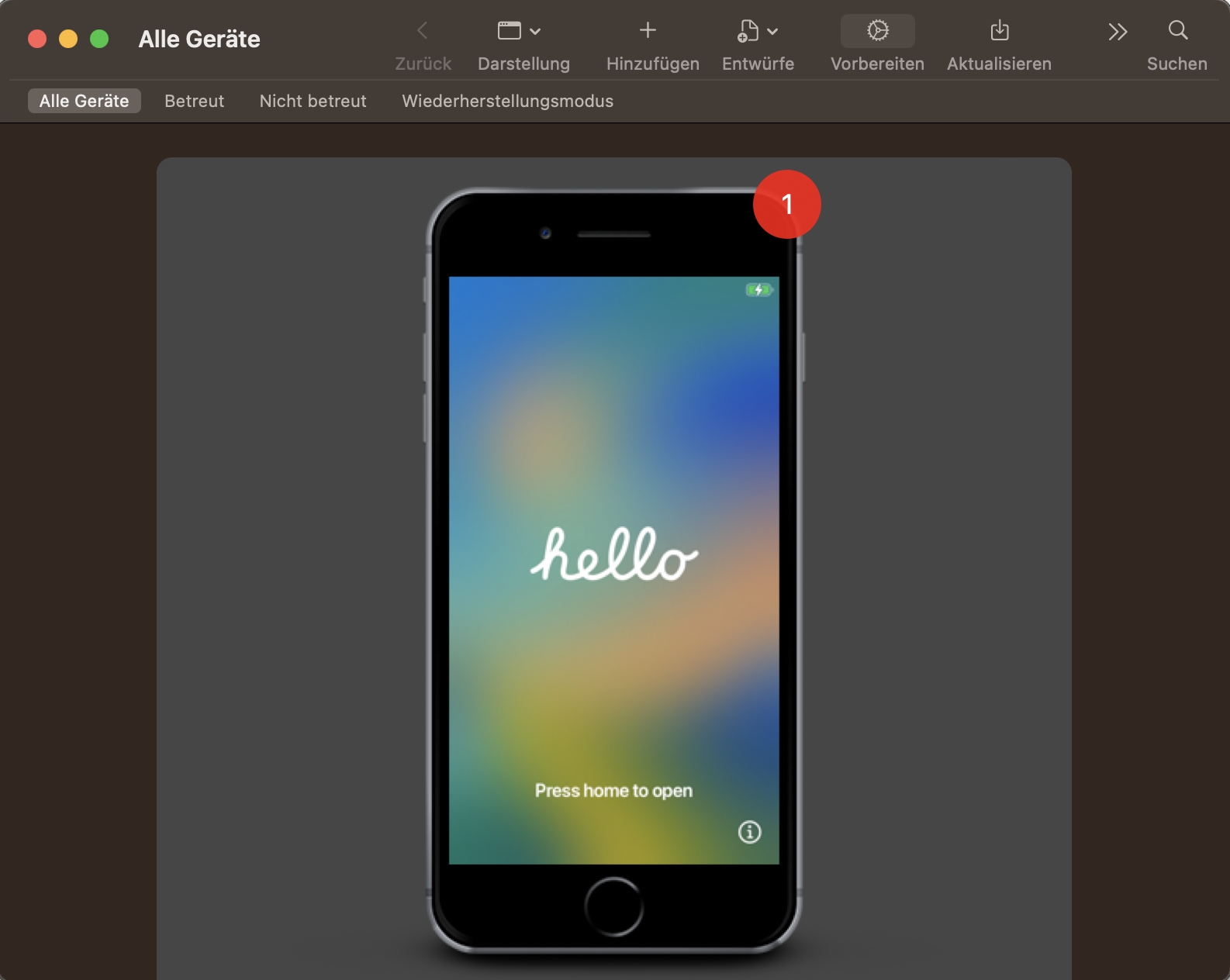
Select Device A and click Prepare. |
|
||
12 |
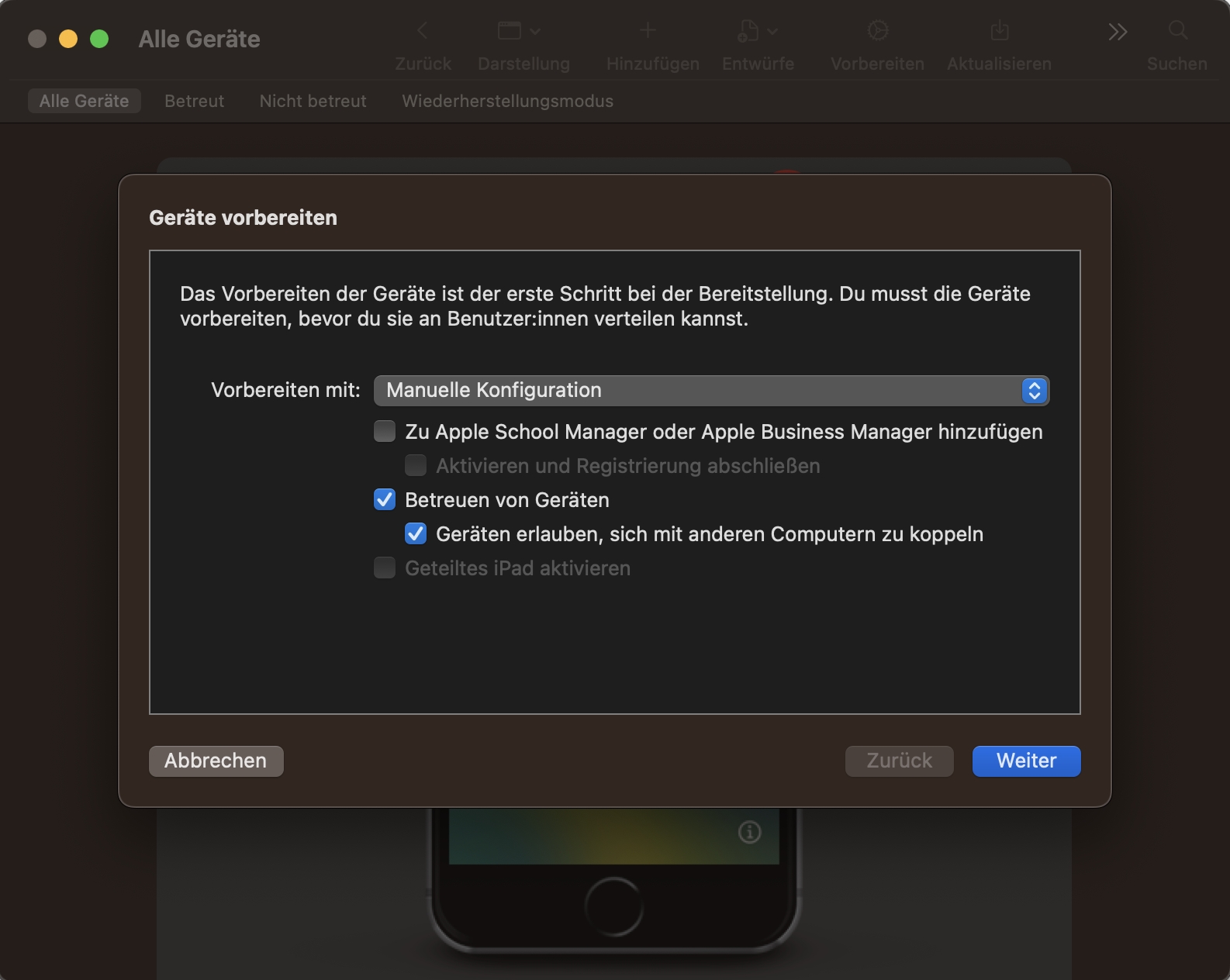
Leave manual configuration selected, make sure "Supervise devices" is enabled, and click Next. |
|
||
13 |
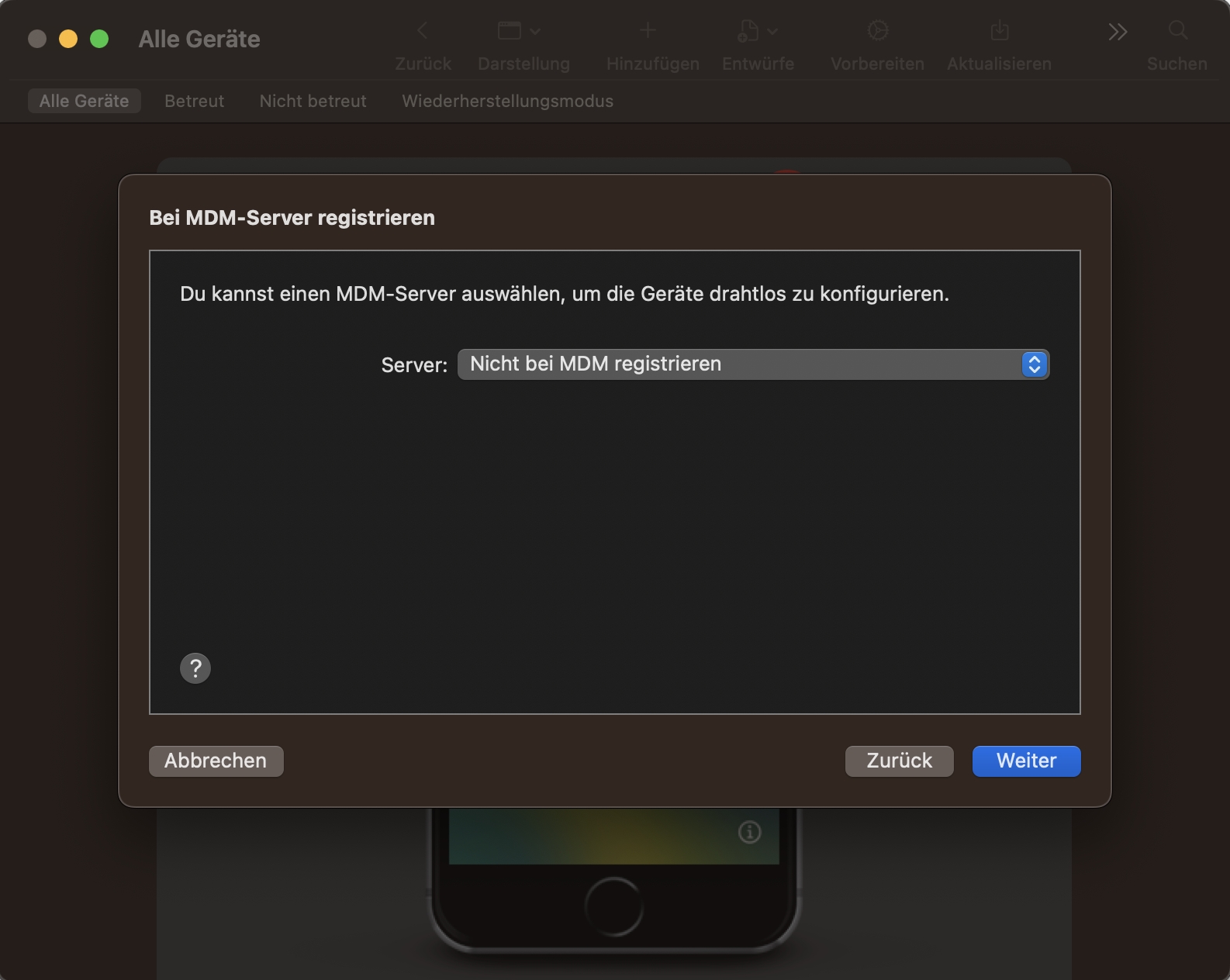
Select the option to not enroll in MDM, then click Next. |
|
||
14 |
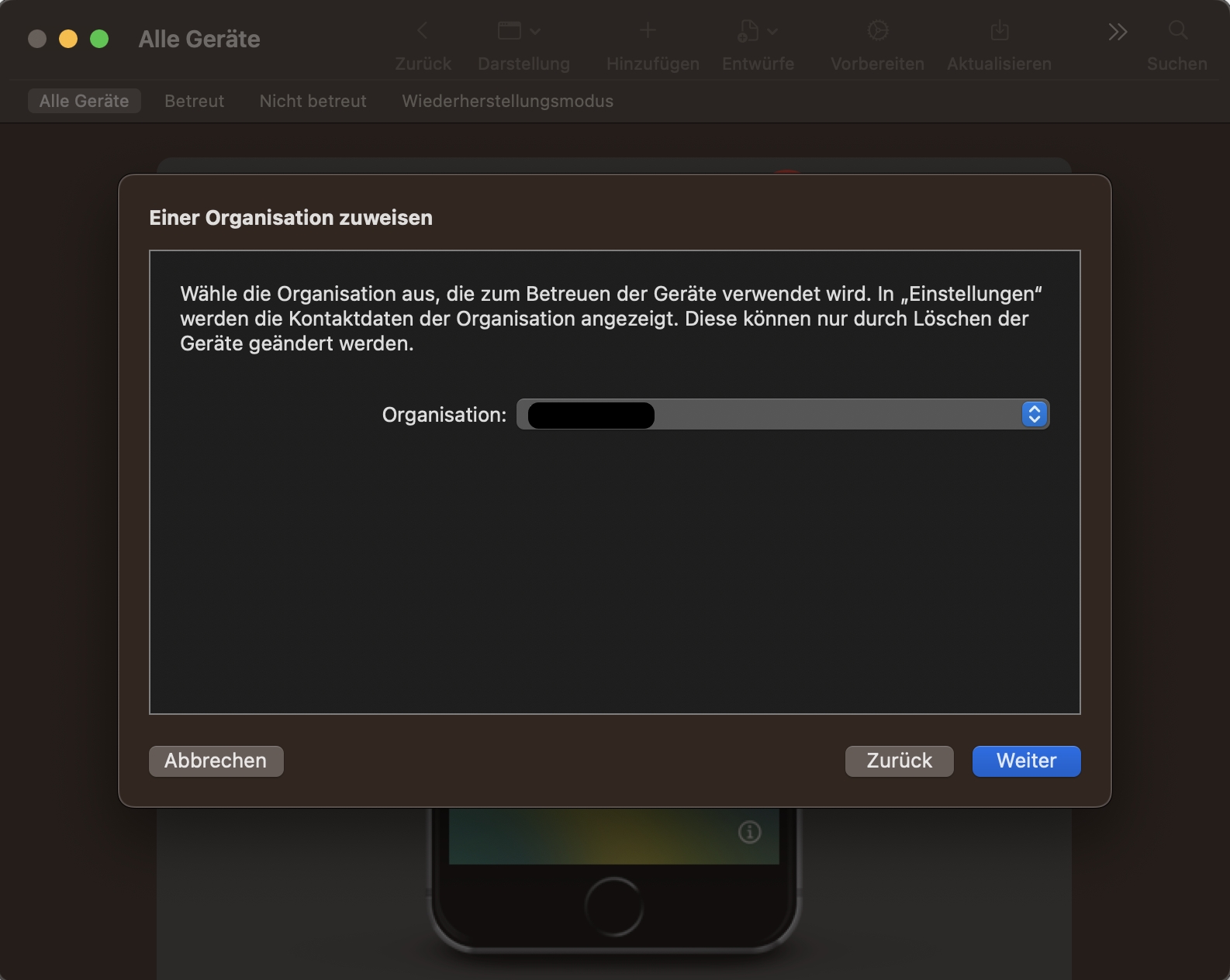
Leave the default organization selected (even if it is "None") and click Next. |
|
||
15 |
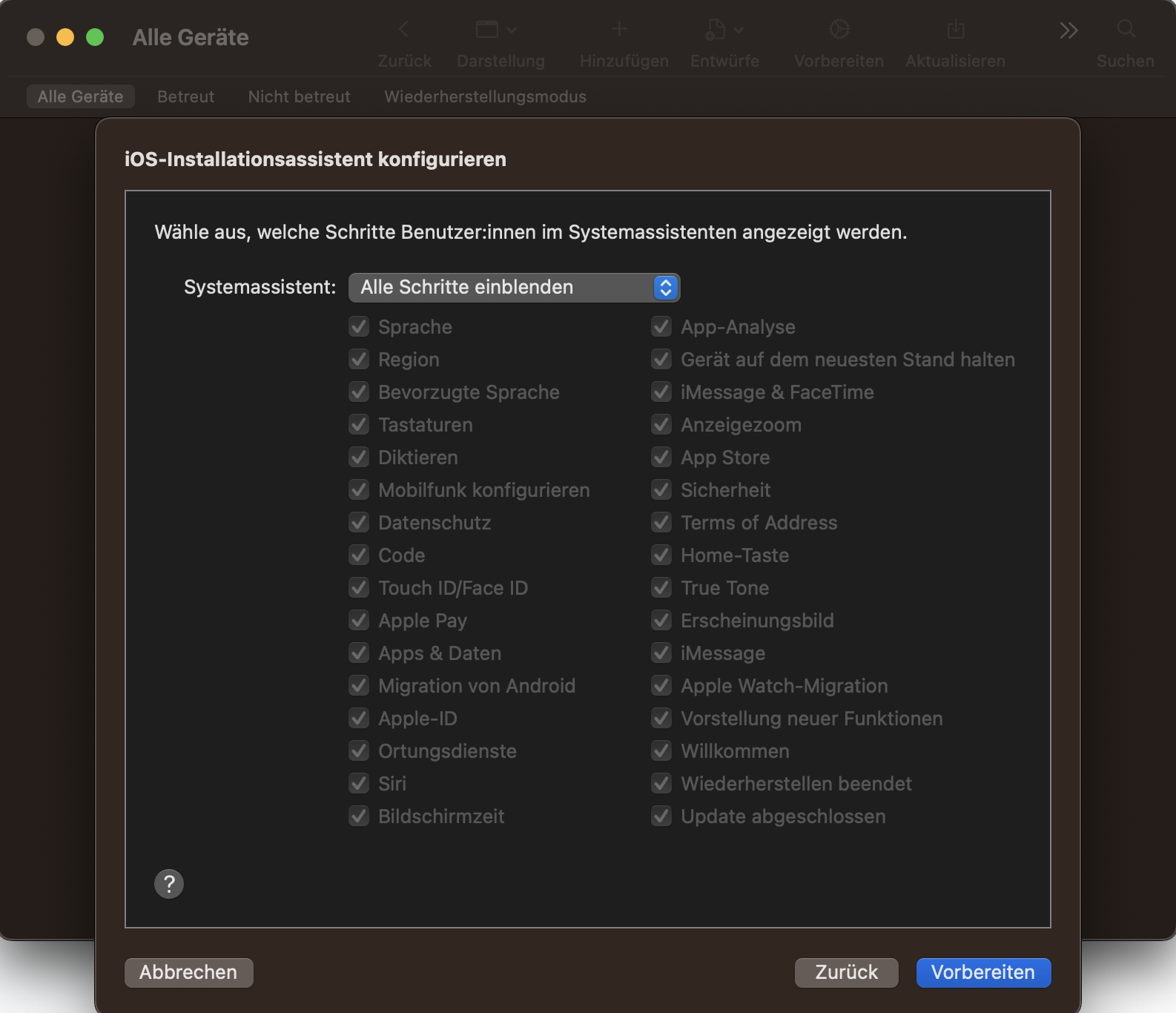
Do not change the configuration. Click Prepare. |
|
||
16 |
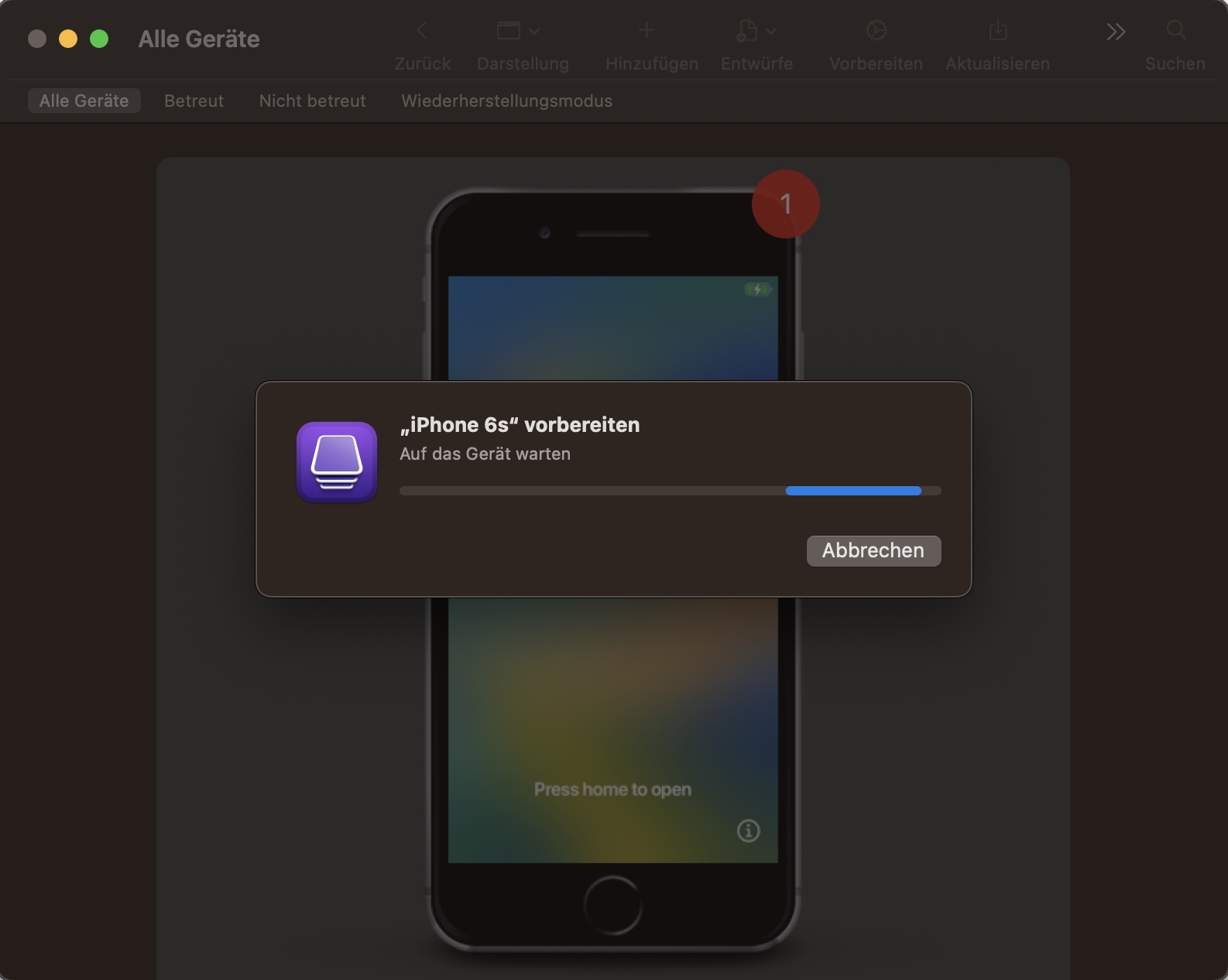
Wait for the process to finish. |
|
||
17 |
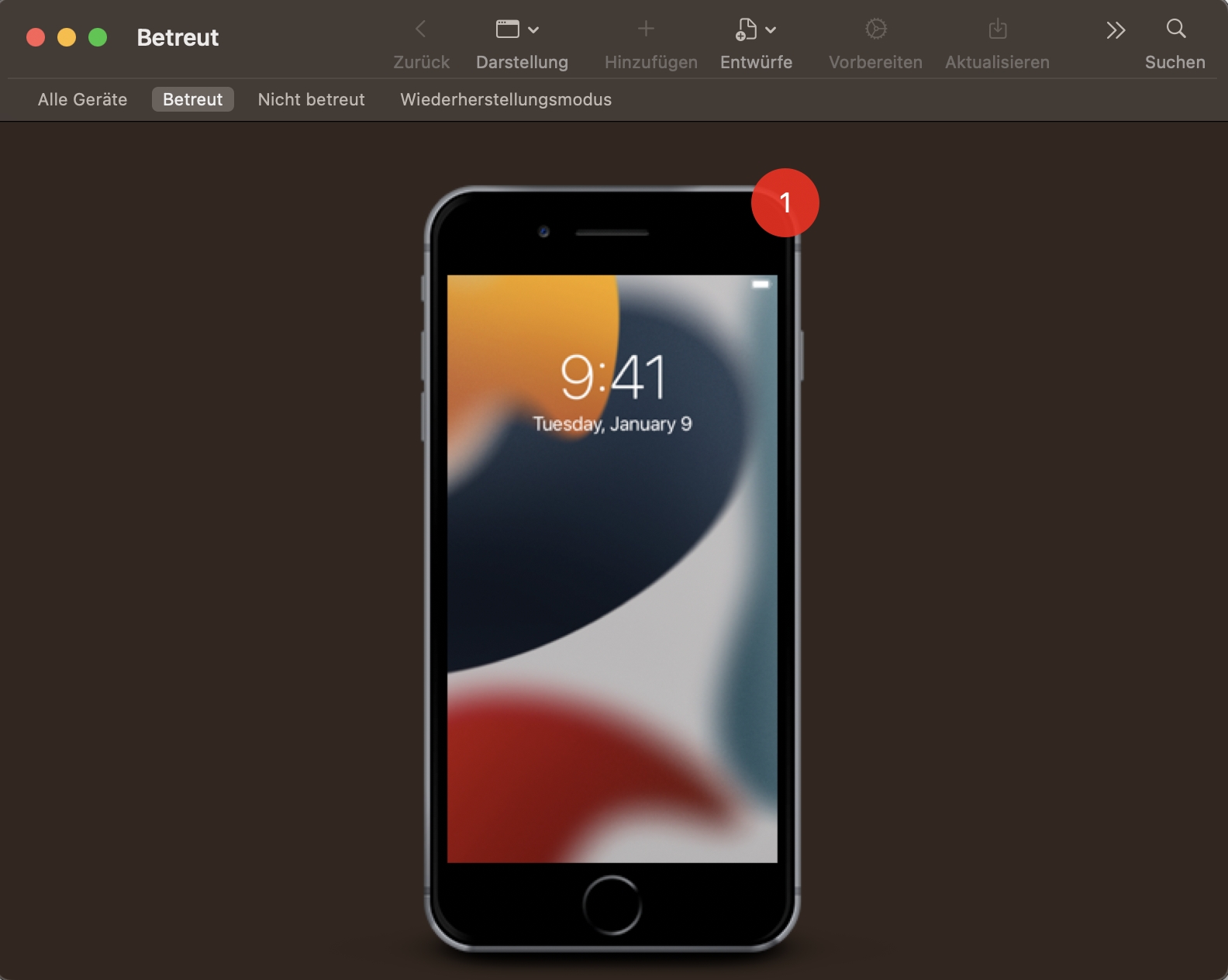
After the device has been prepared and is in supervised mode, continue setting it up (for example, language, Wi-Fi, security options, Apple ID, and privacy settings). You can now restore the saved backup. |
|
||
18 |
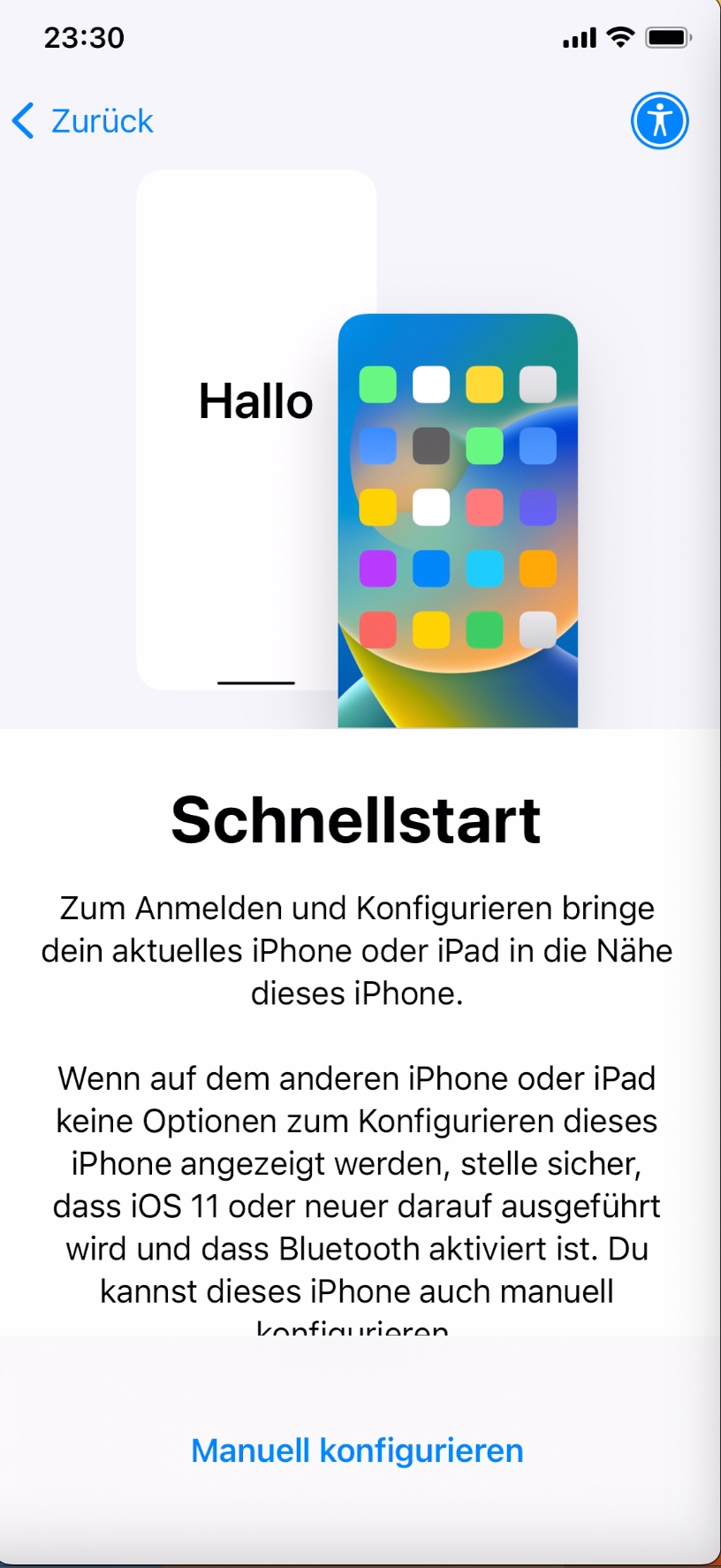
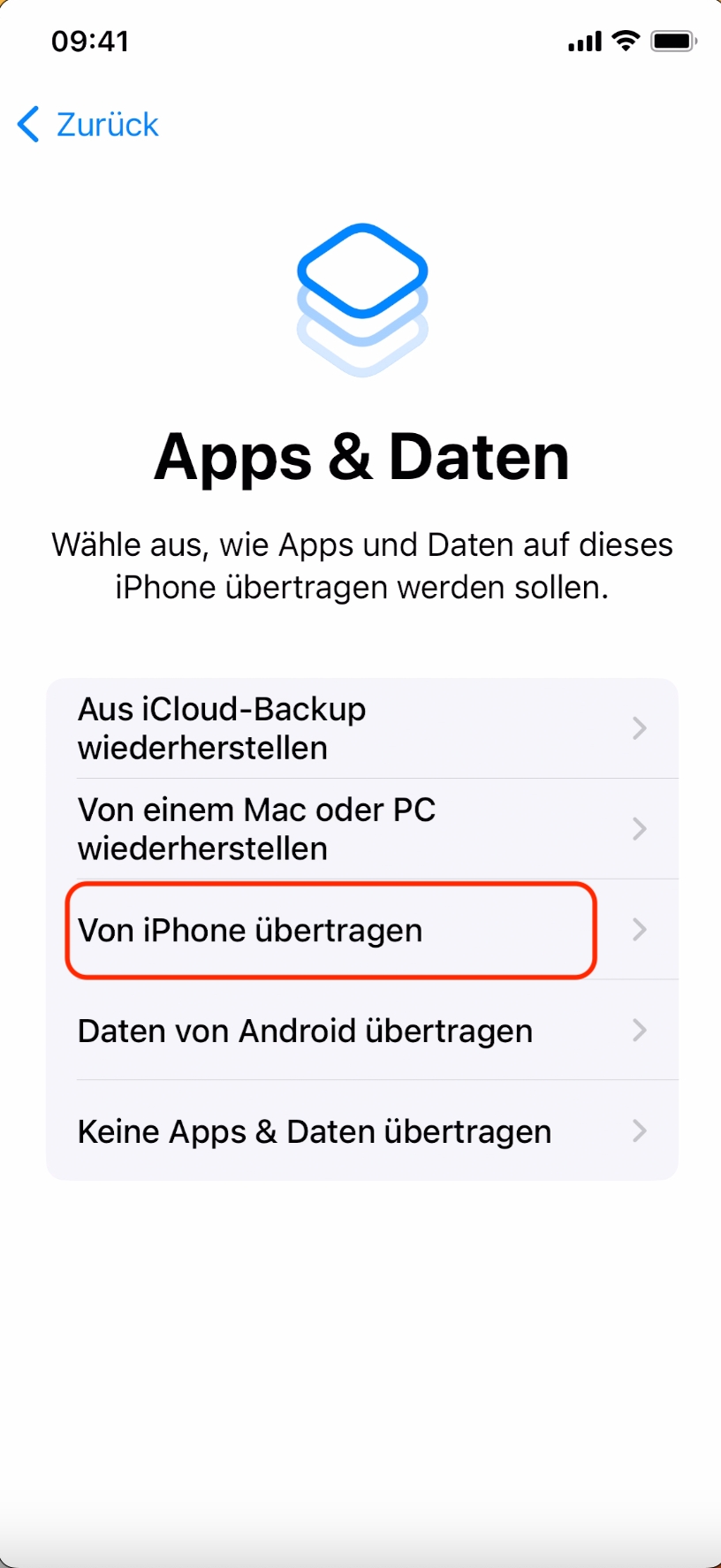
Configure and activate Device A until the restore options appear. Select "Transfer from iPhone." |
|
||
19 |
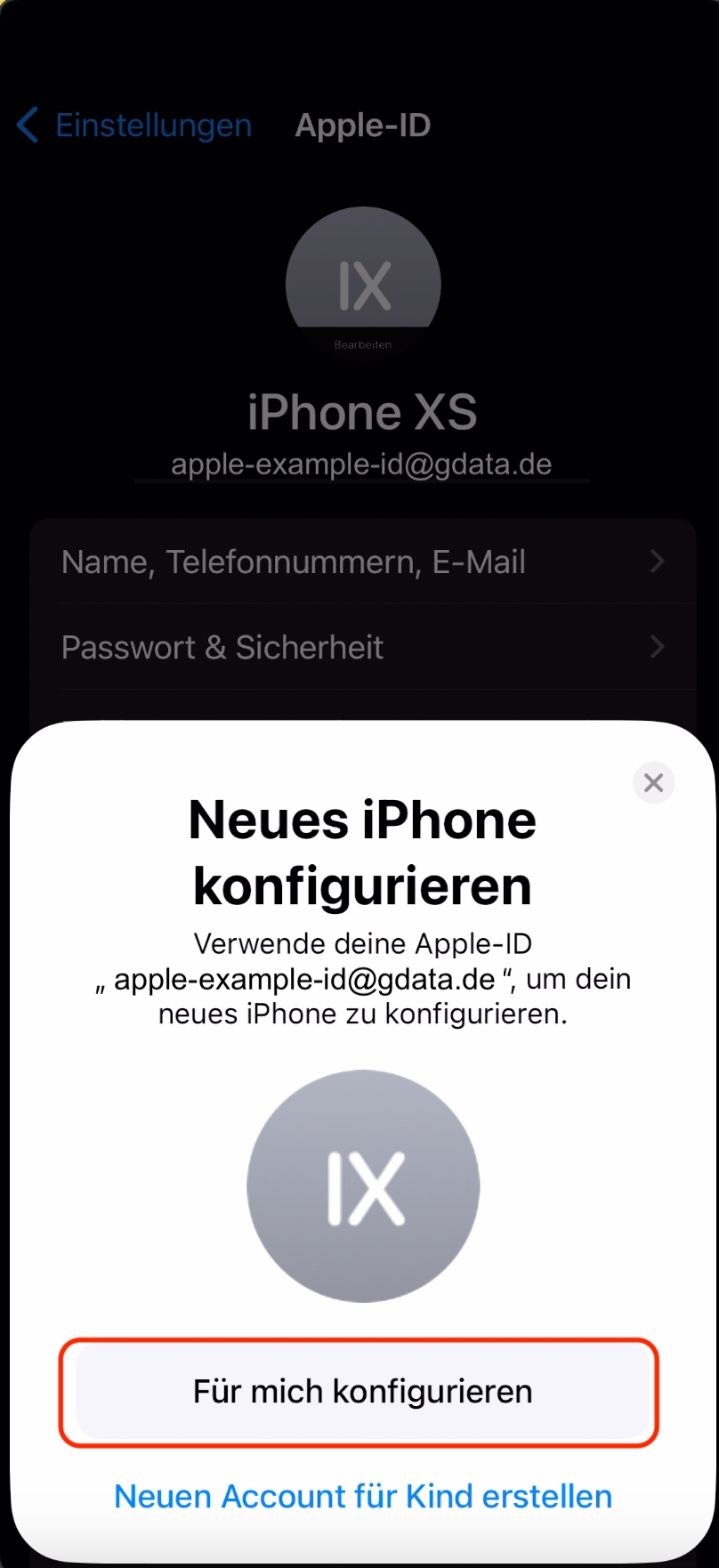
Place Device B next to Device A and wait for it to be detected. Confirm the transfer, scan the security animation with Device B’s camera, and continue setup. NOTE: Keep the devices close together throughout the transfer. |
|
||
20 |
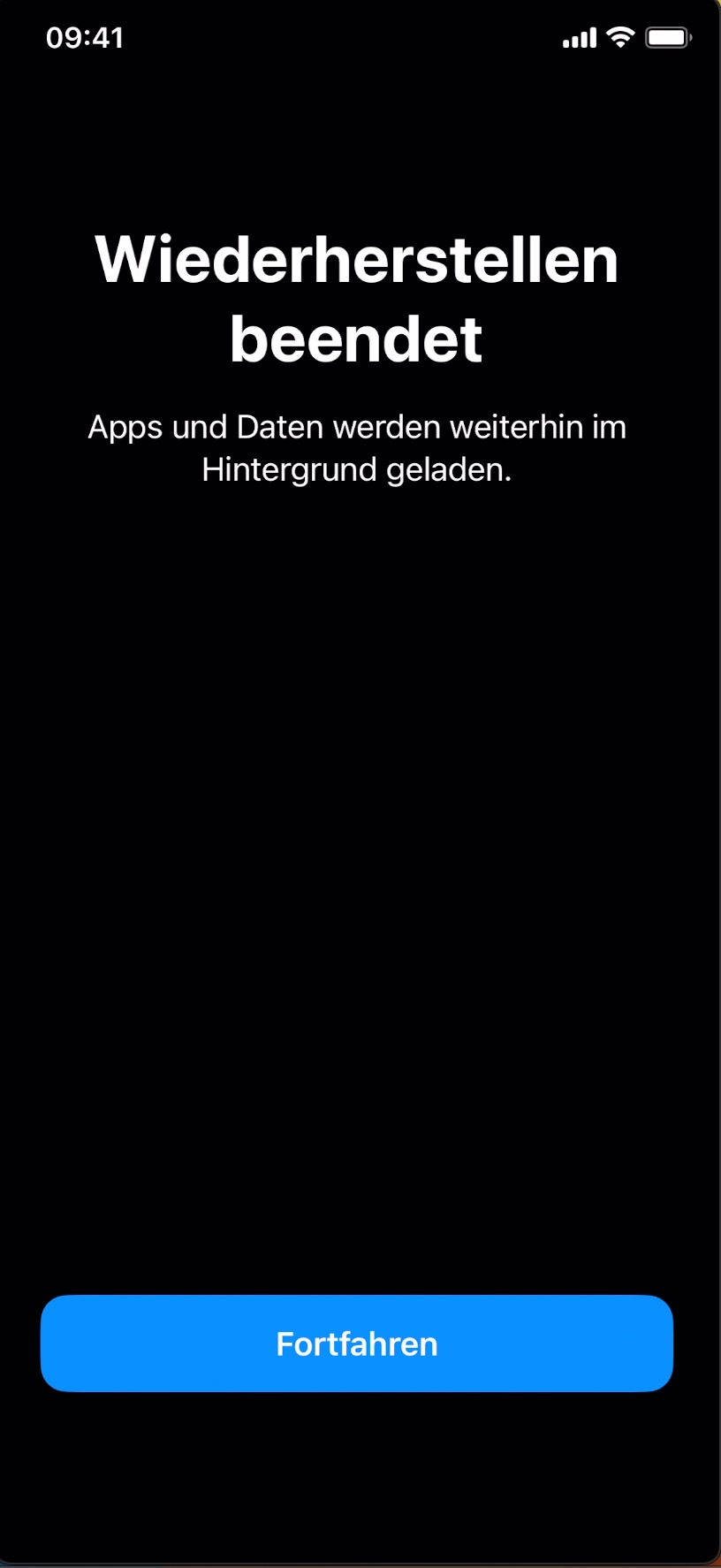
Complete the process on Device A. |
|
Device A is now in supervised mode and can be enrolled in G DATA Mobile Device Management.
Enabling Supervised Mode Without a Backup
The following instructions explain how to enable supervised mode with Apple Configurator. In addition to the device you are setting up, you need a Mac with Apple Configurator installed.
Show
1 |
Connect the iOS device you want to set up to the Mac and open Apple Configurator. |
|
2 |
Select the device and click Prepare. |
|
3 |
Leave manual configuration selected, make sure "Supervise devices" is enabled, and click Next. |
|
4 |
Select the option to not enroll in MDM, then click Next. |
|
5 |
Leave the default organization selected (even if it is "None") and click Next. |
|
6 |
Do not change the configuration. Click Prepare. |
|
7 |
Wait for the process to finish. |
|
8 |
After the device has been prepared and is in supervised mode, continue setting it up (for example, language, Wi-Fi, security options, Apple ID, and privacy settings). |
|
The device is now in supervised mode and can be enrolled in G DATA Mobile Device Management.