G DATA Phishing Simulation
Sending a test email
In G DATA Awareness Manager you will find, under the Whitelisting tab, the option to send a test email to your mailbox. This allows you to test whether the phishing emails we send later also pass through your security controls.
1. |
First, send the test email by clicking the corresponding button in the G DATA Awareness Managers interface. Screenshot anzeigen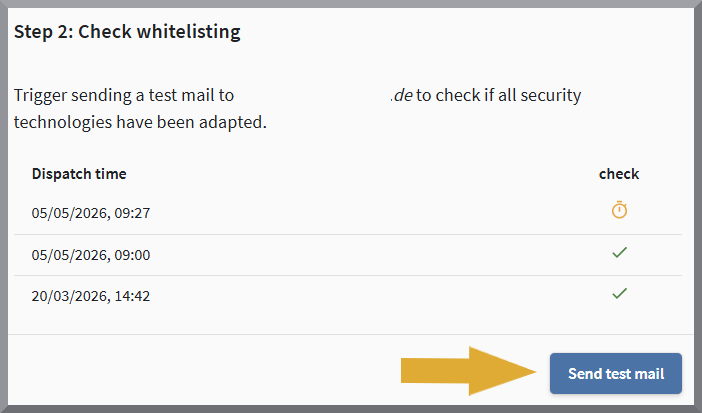
|
||
2. |
Close the G DATA Awareness Manager. Otherwise, for technical reasons, problems may occur when verifying the email. |
||
3. |
Open your mailbox via the Outlook web client (outlook.office.com) and check your inbox to see whether you have received an email. |
||
4. |
Click the email once. Under no circumstances should the email be opened with a double-click, as our server would immediately detect opening the email as a security violation. As a result, verification is no longer possible.
|
||
5. |
If the verification code is not displayed because you have (correctly) blocked downloading images, click the Show blocked content button (see screenshot). Screenshot anzeigen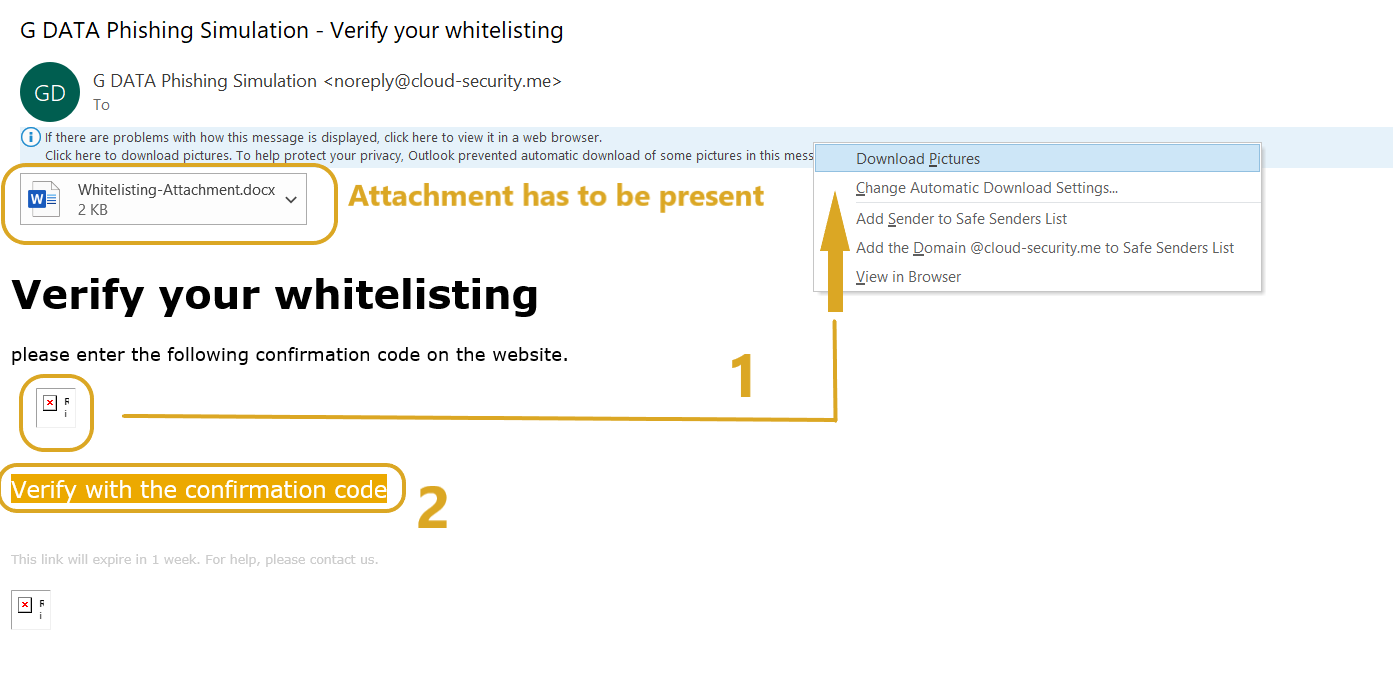
|
||
6. |
Click the Confirm whitelisting button. Screenshot anzeigen
|
||
7. |
Enter the code from the test email, confirm that the attachment was still present, and then click Submit. Screenshot anzeigen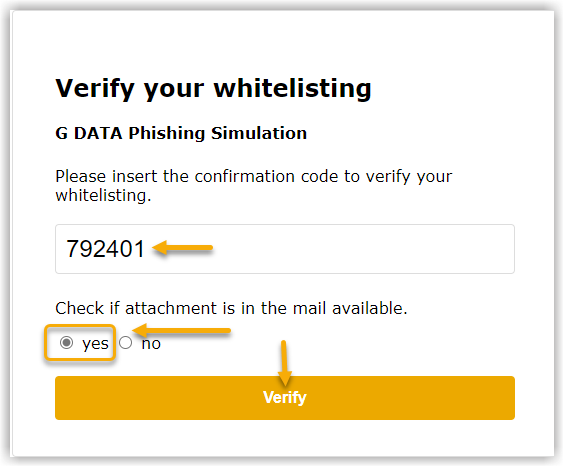
|
||
8. |
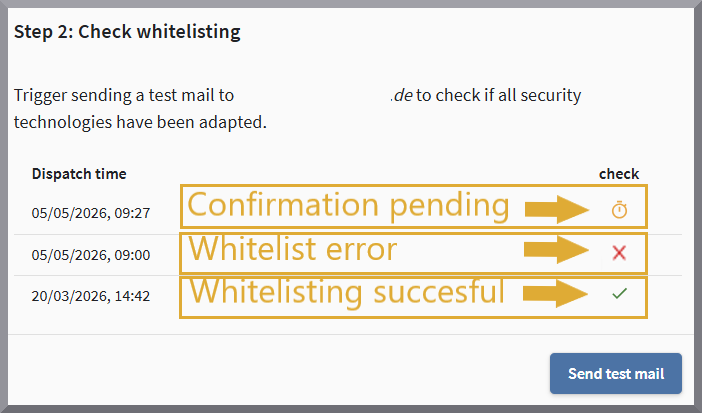
After step seven, the G DATA Awareness Manager login window opens.
|