G DATA Phishing Simulation
The G DATA Awareness Manager
With the help of our online platform - the G DATA Awareness Manager - you can easily manage your phishing simulation campaigns. |

|
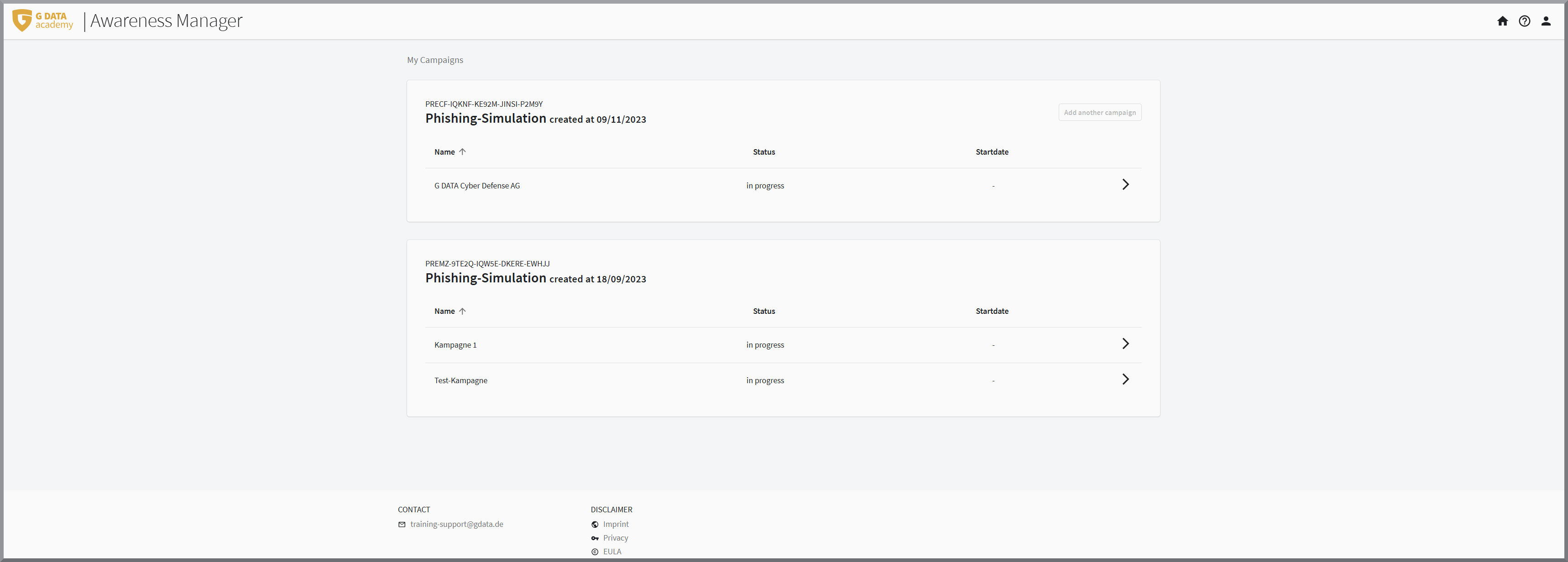
The G DATA Awareness Manager homepage clearly displays all completed and ongoing campaigns. You can create campaigns by clicking the Add Another Campaign button. The number of campaigns you can run (add) depends on how many campaigns you have purchased.
To run a campaign, first open it by clicking on the corresponding row.
|
You can return to the homepage with an overview of your campaigns at any time by clicking the yellow G DATA Academy logo in the top-left corner of your browser window. 
|
You can now carry out all the necessary steps within your campaign:
Dashboard
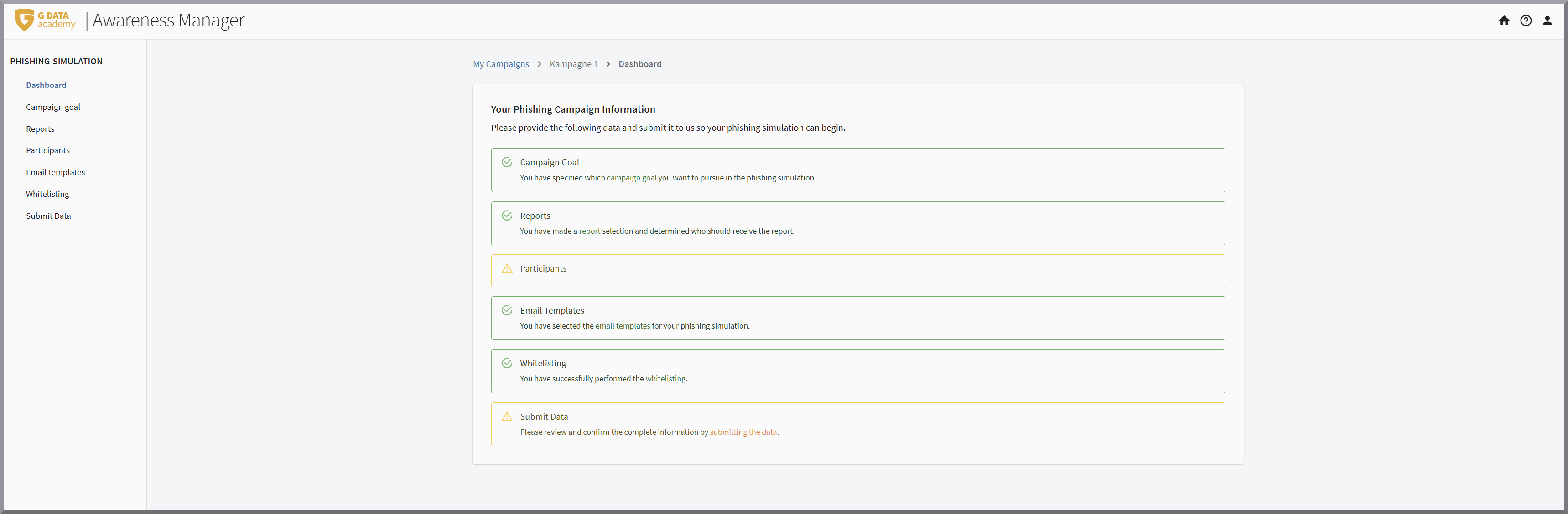
The G DATA Awareness Manager dashboard clearly shows you the status of your campaign preparations. A green border indicates that this task has been completed; a yellow border indicates that there is still something that needs to be done.
You can access the individual sections via the menu on the left side of the screen.
General settings
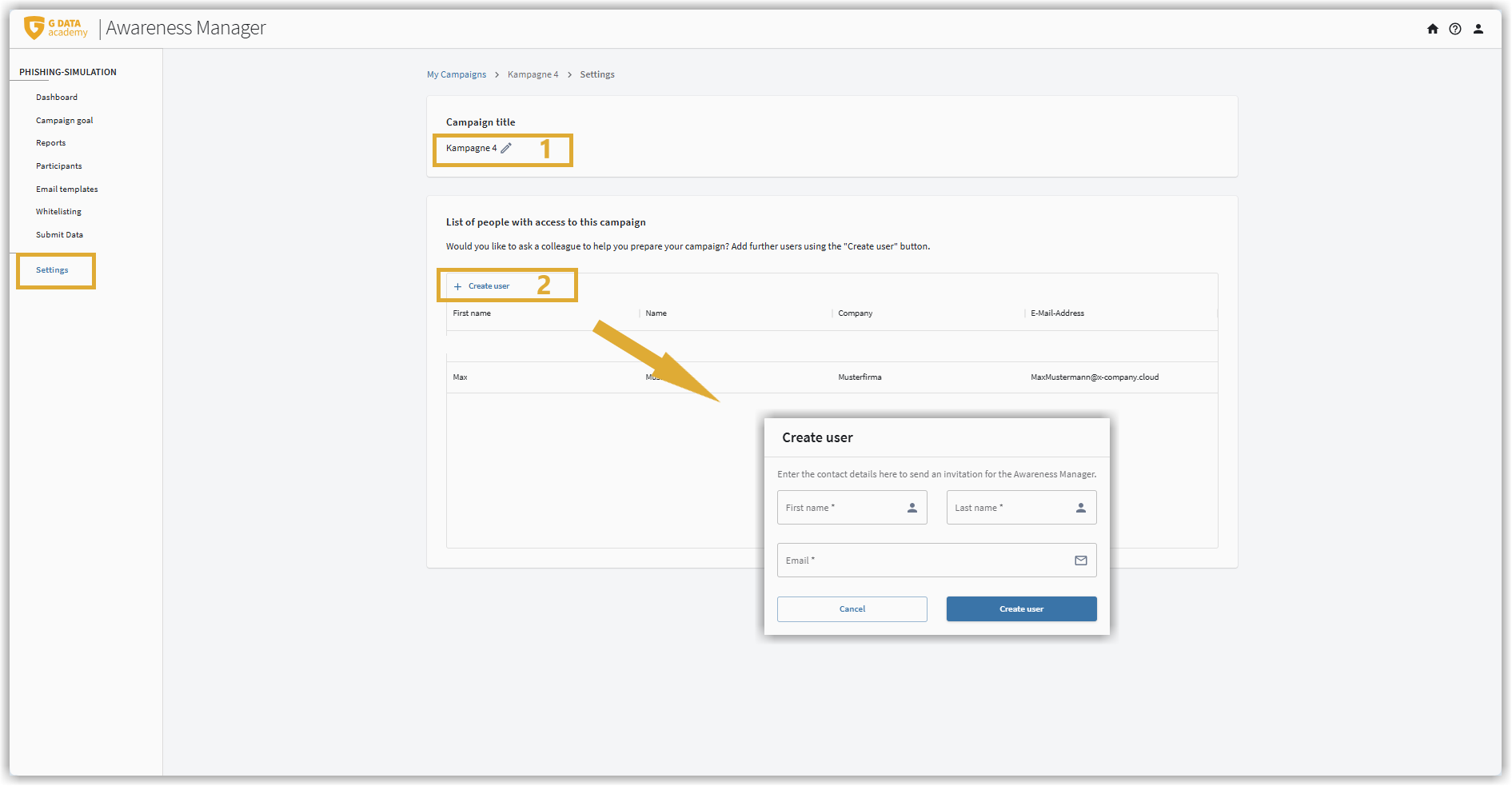
In the Settings section, there are two options you can configure:
-
By clicking the pencil icon next to the campaign name, you can freely choose a custom name for the campaign.
-
If you want other people to handle the campaign setup, you can add users to your campaign. These can be other members of your company or external service providers.
To do this, click Add User.
A form will open where you can enter the first name, last name, and email address of the person who should have access to your campaign.
After you have completed the entry by clicking the Create User button, the added person will receive the following email:
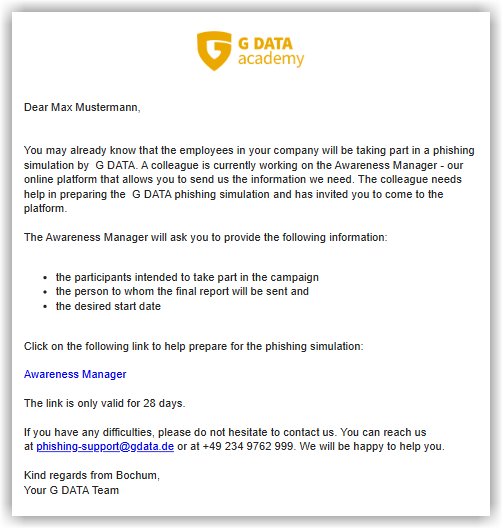
By clicking the link in the email, the newly added user can set their own password and login to the G DATA Awareness Manager.
| The invitation is only valid within the context of the phishing campaign in which you created the user. If there are other campaigns, the user is not included in those campaigns and may need to be added there as well. Third parties can also be invited to phishing campaigns that have already been completed, for example, to assist with the analysis. |
| If a service provider has been added to G DATA Awareness Manager but does not have network access, the responsibility for ensuring proper whitelisting lies with the customer. |
Set campaign target
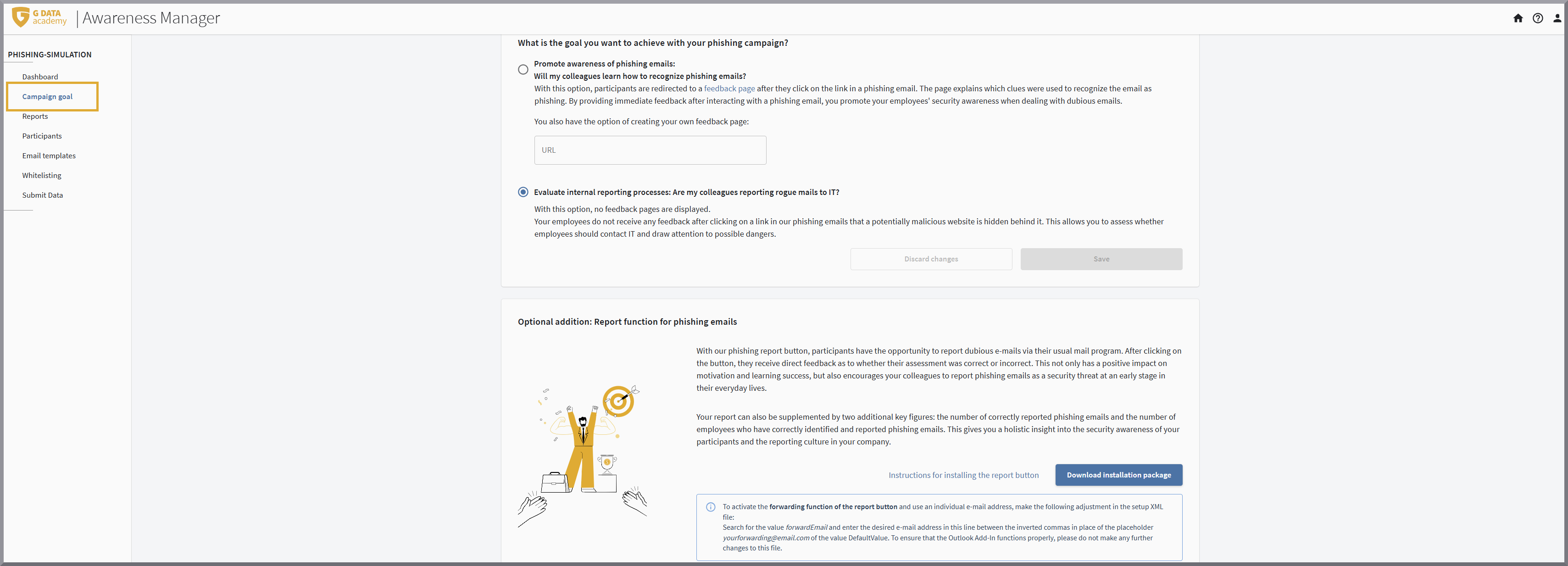
What is the goal of your phishing campaign?
Select whether your participants should receive feedback when they click on our links.
Are your employees receiving phishing emails that have found their way into their mailbox despite all the security measures? Is your IT department informed so that it can take measures to block these emails in future?
And: despite all caution, it can happen to anyone at some point to click on a phishing link. Often such mistakes happen in hectic everyday life. You usually quickly realize that you should not have clicked on this link. It is often just an unpleasant feeling that something is wrong with this link. If the employee quickly reaches out to IT, the damage can frequently still be prevented (for example, by swiftly changing passwords). However, if this oversight is concealed, the attacker has achieved his goal.
Do your employees report to IT after such an oversight has occurred?
This internal reporting process is a key factor in assessing your own IT security.
If the internal reporting process is the focus of your planned G DATA Phishing Simulation, participants should not receive any feedback. In comparison between the "Total number of clicked links in your simulation campaign" and the "Total number of reports of accidental clicks to your IT", you can see how well the participants' sense of responsibility with regard to IT security in your company is.
These findings will help you to assess whether training your employees in the correct handling of data leaks is a priority.
In this case, select Evaluating internal reporting processes: Do employees report potential IT risks?.
A good knowledge of phishing emails and how to recognize them helps to avoid such mistakes in advance. Even under stress, there are criteria that can be used to quickly identify a phishing email.
If you would like to raise your participants' awareness of how to recognize phishing emails, after clicking on one of our links, as well as after entering data on the landing page that opens, a corresponding info page will be displayed for the participant. A campaign can help you to assess whether training on the subject of phishing is necessary for your company or whether the training you have provided has sustainably improved the detection rate of your participants.
In this case, select Raise awareness of phishing emails: Promote security awareness through immediate feedback.
|
If you prefer, you can alternatively create your own webpage for participants to provide feedback. By entering the URL for this page, the g DATA default page will not be displayed; instead, the page you specified will appear. Please note that if you use a separate page, it will not be possible to display the information that would have enabled you to identify the specific phishing attempt. 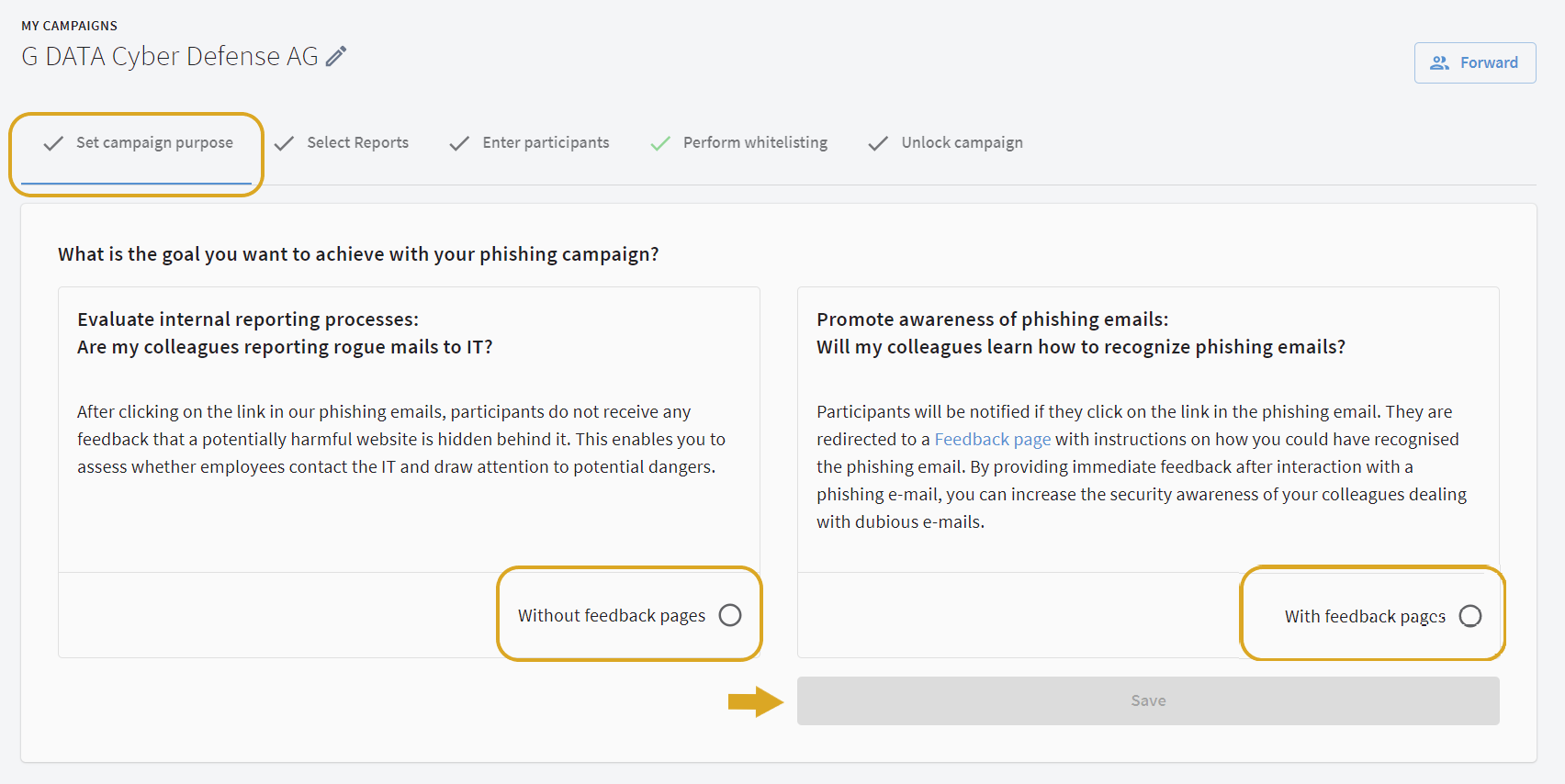
|
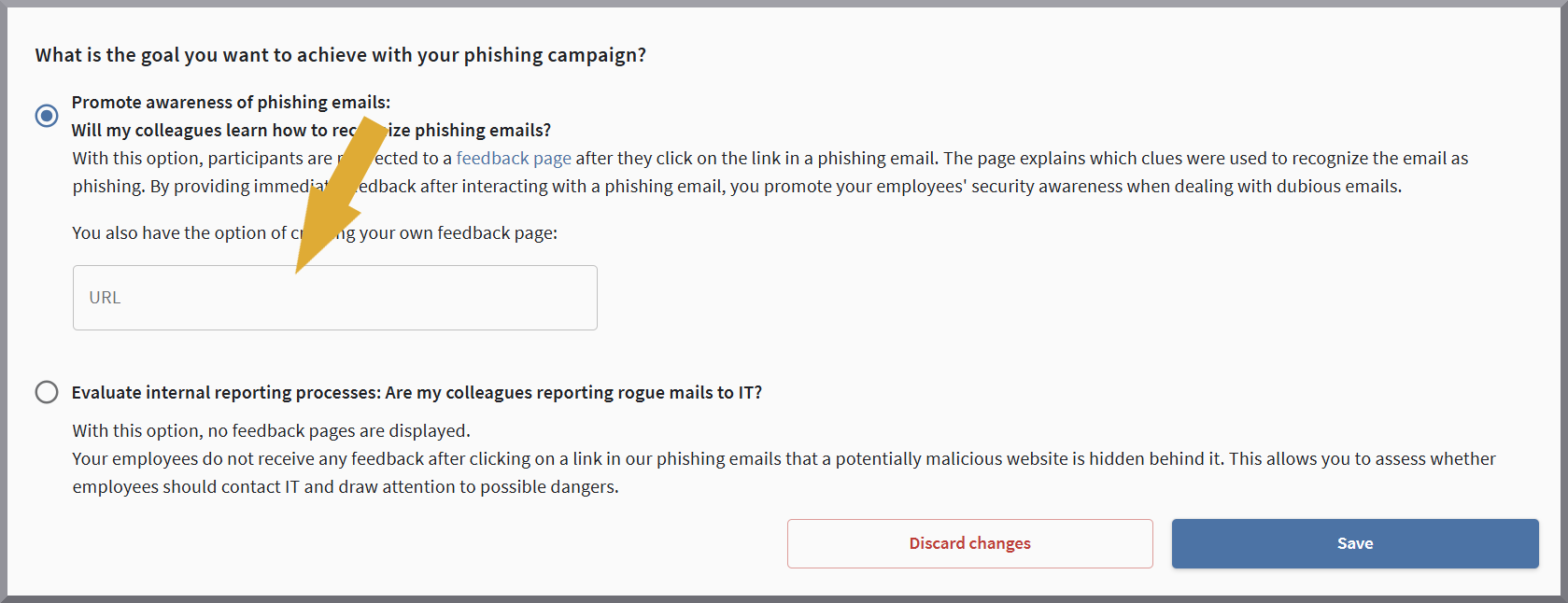
Optional feature: Phishing email reporting function
For participants in your phishing simulation campaign, you can install an add-in for Microsoft Outlook.
This add-in lets participants in your campaign report any suspicious emails via a report button.
The participant receives immediate feedback whether their suspicions were correct and whether the e-mail was part of the phishing campaign or not.
The evaluation of these messages is included in your final report.
There you will find
-
the number of participants who correctly reported phishing emails,
-
as well as an overview of the phishing e-mails reported correctly over time.
Select reports
Here, checkboxes will indicate whether you
-
receive only the standard report included in each campaign, which covers all participants after the campaign has ended,
-
or, additionally, the optional group report with key metrics based on specific groups (e.g., grouped by department or by employees/managers).
| Group analysis is an optional add-on service that you can obtain through our sales department. You define the groups individually. It is possible to assign participants to multiple groups. |
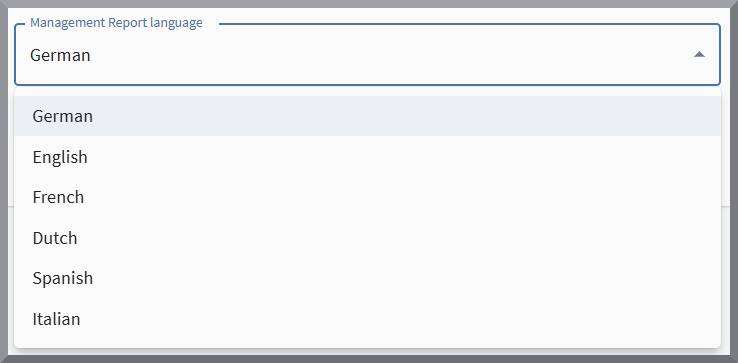
On this page, enter the name of the report recipient, the language in which the reports should be written and the e-mail address of the recipient.
Enter participants
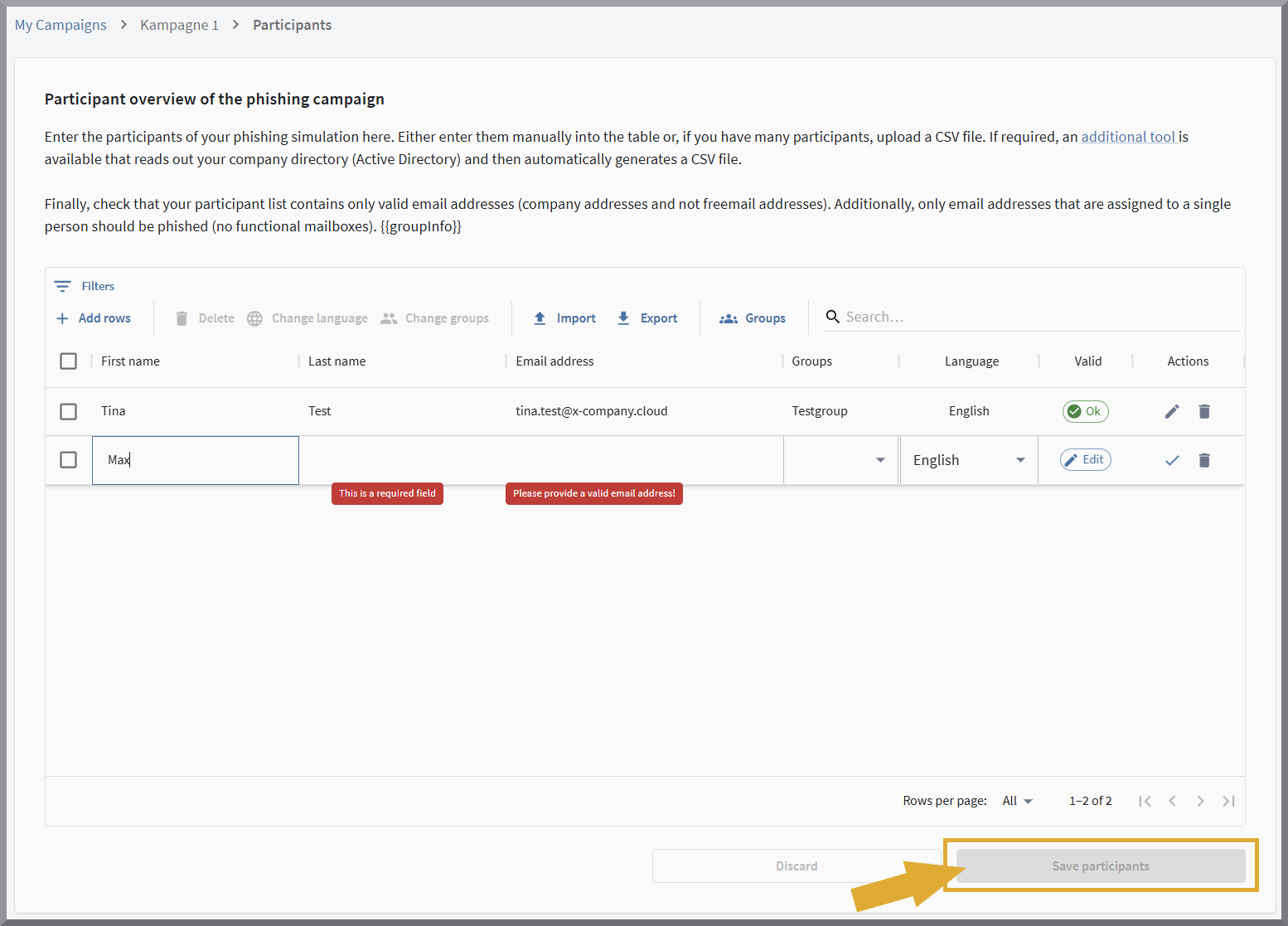
On this page you enter the participants in the G DATA Phishing Simulation. This can be performed by direct input on the page or by import of a previously created CSV file.
| Changes to the list you have entered or edited will not be applied until you have saved them. This can lead to problems if you remain inactive for a long time while entering participants. The input form will then lose connection to the server, and your entries will be lost. If you are working with long lists or if you need to interrupt your input, be sure to save periodically. |
Select / manage email templates
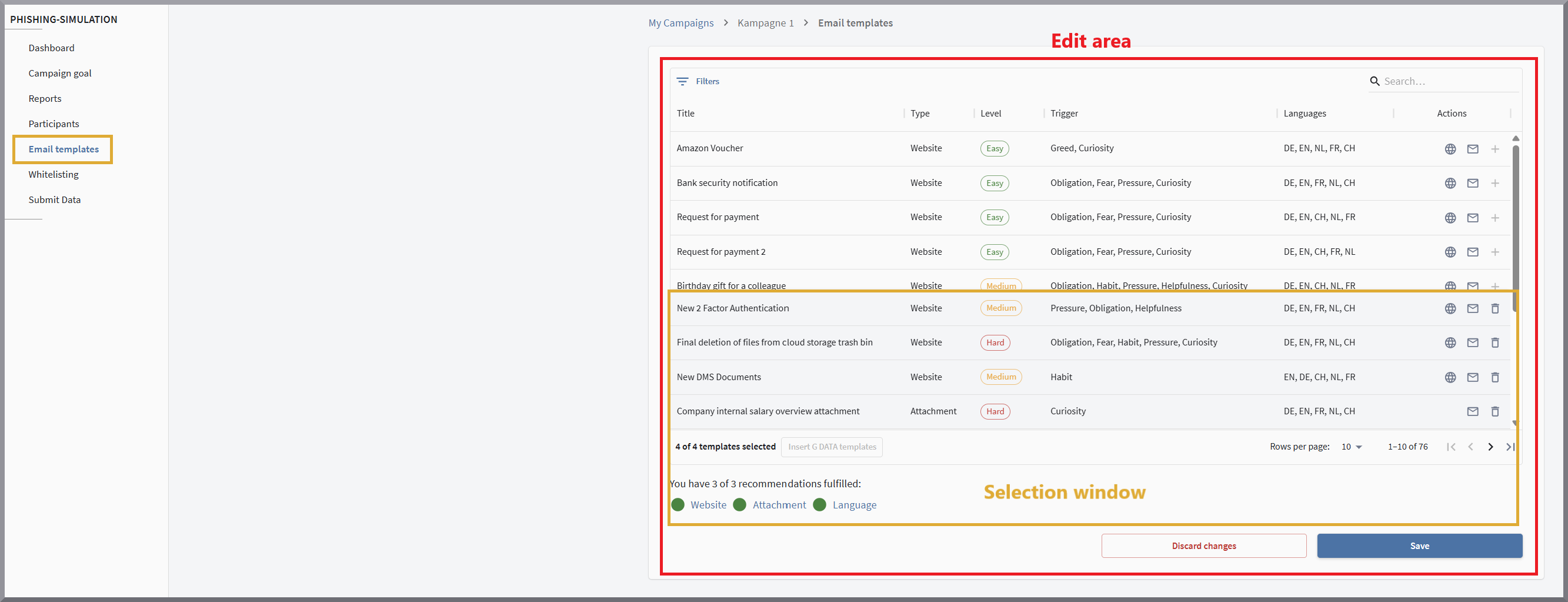
Each campaign sends four different emails to your participants. G DATA has already compiled four templates for you. These templates are ideal for getting started with the topic and cover common scenarios.
However, you can create your own template from a selection of email templates. You can select these templates via the Templates tab.
Perform whitelisting
Whitelisting depends on the security software you are using. You will find helpful information about it in this article.
Send data / Release campaign
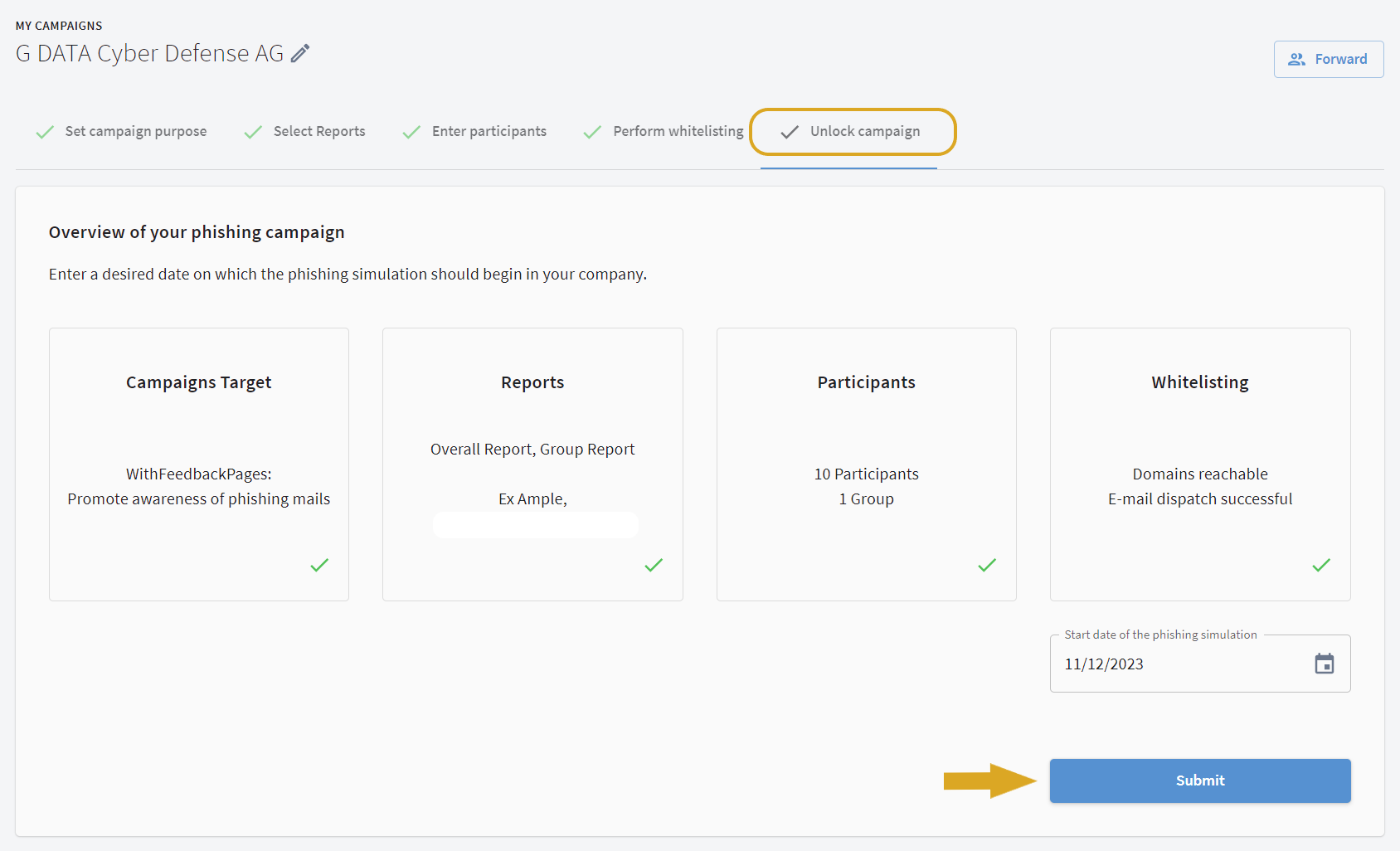
Once everything is set up and all sections in the dashboard are green, you can enter the start week under the Submit Data section and launch the campaign. Before launching, you must confirm once again that the whitelisting has been completed and tested correctly.