The Mobile Security Center
G DATA Mobile Security not only offers security features on your mobile device itself, but goes beyond that. You have the possibility to manage and control your mobile devices on which G DATA Mobile Security is installed in the G DATA Mobile Security Center and take further measures to safeguard against threats.
The Device View
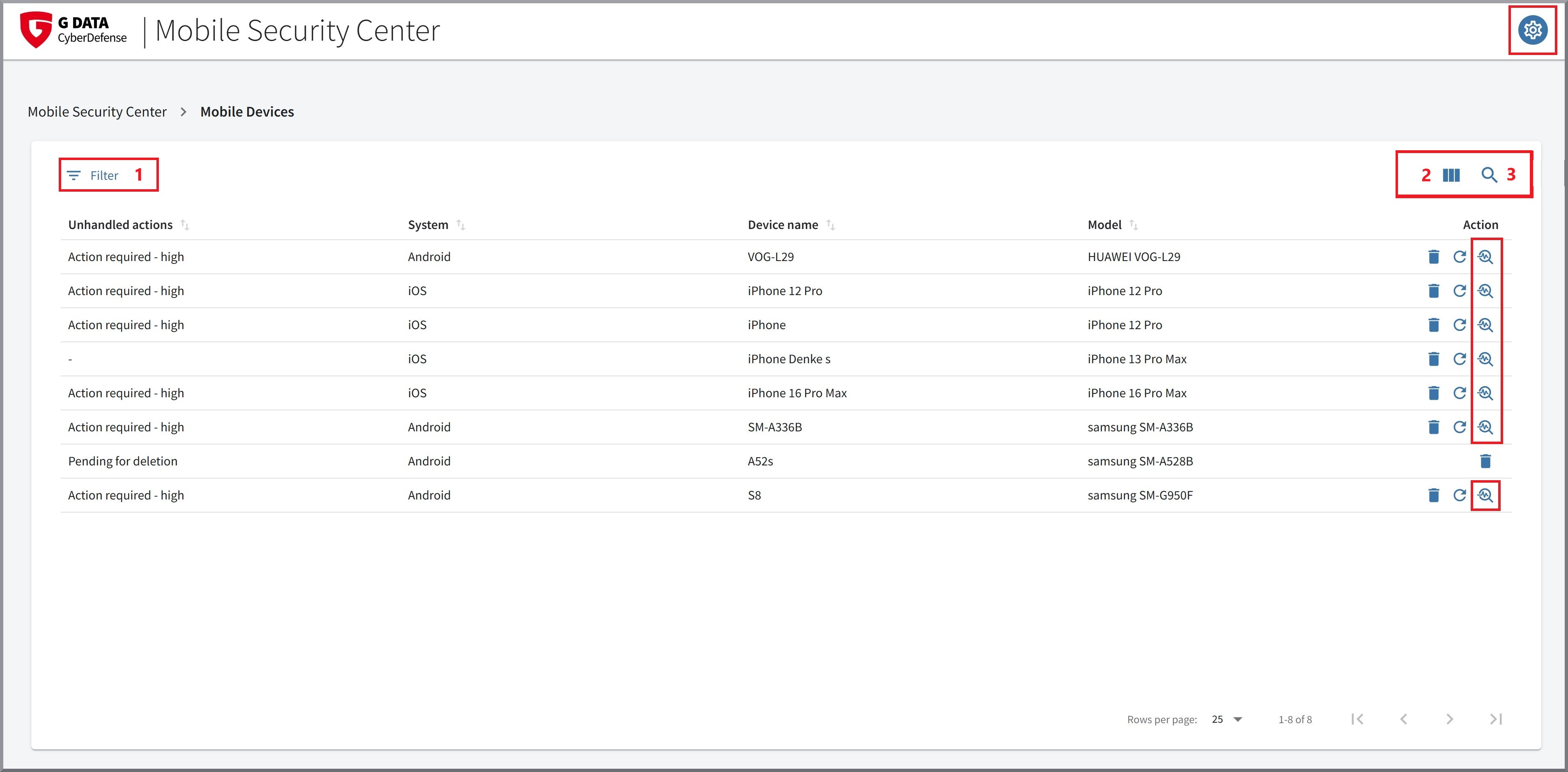
After successfully logging in, you will first see the
overview of all your mobile devices. Here, you can remove individual devices by clicking the trash can icon  or resync the devices. Click the magnifying glass
  to switch
to the detailed view for individual devices. You can
also click the gear icon in the upper-right corner of the screen to open the
Settings for the Web Portal.
to switch
to the detailed view for individual devices. You can
also click the gear icon in the upper-right corner of the screen to open the
Settings for the Web Portal.
|
If you delete one of your mobile devices in this view, you will be logged out of the G DATA Mobile Security app on that device,
and the data stored there will be deleted. This happens once a connection to G DATA Mobile Security has been established on the device. The devices remain in the overview until they are actually removed. You can remove them however from the list by clicking the delete icon again. |
You can filter the list of mobile devices, hide categories, and search for specific entries.
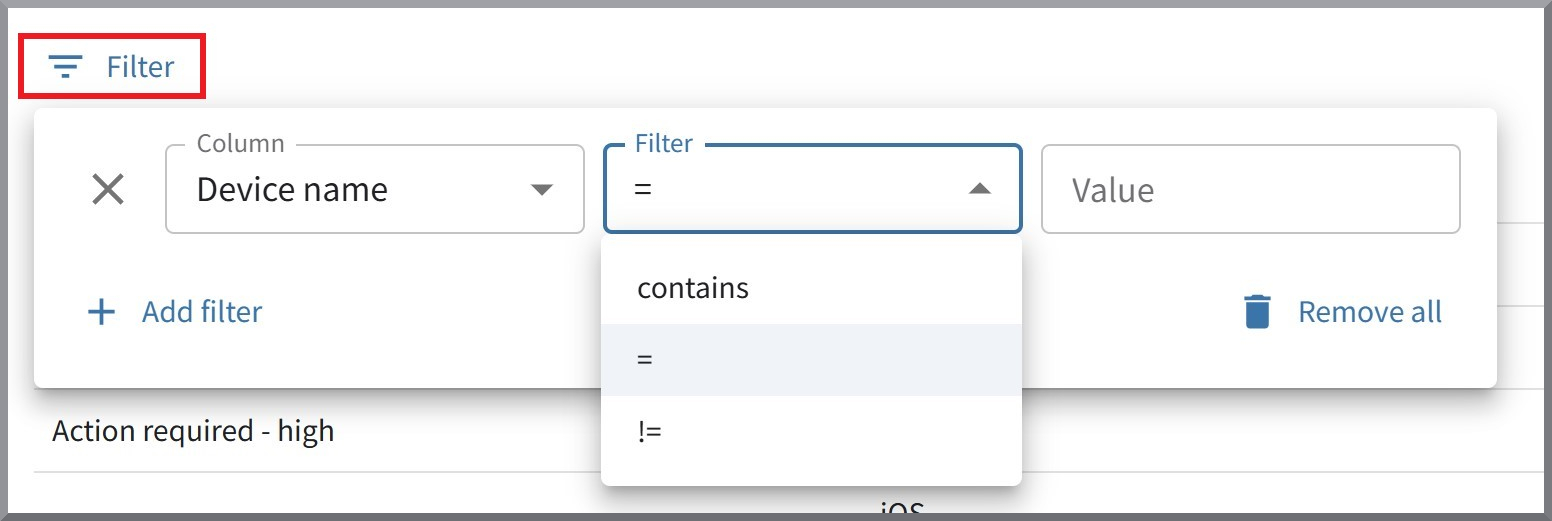
1 - Filter |
Here, you can create as many filters as you like based on unprocessed actions, system, device name, and model. |
|
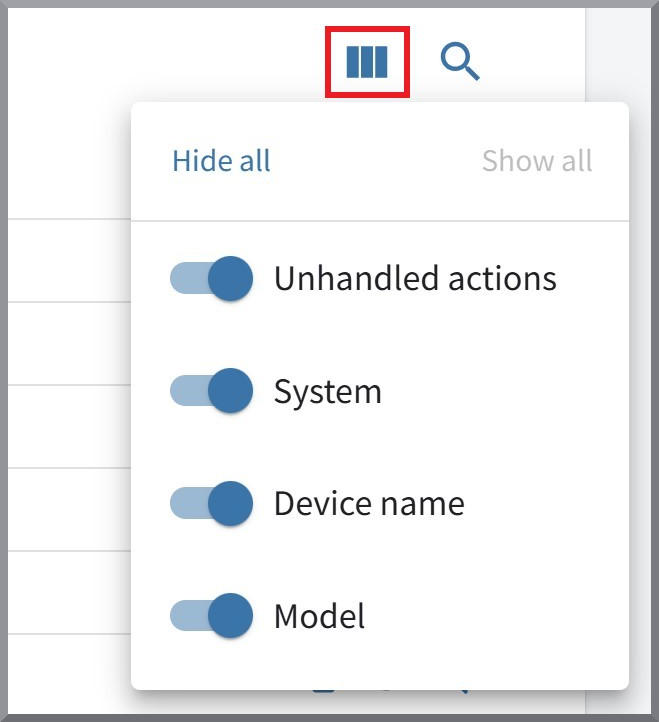
2 - Category display |
Here, you can show or hide any category in the table. |
|
3 - Search |
Here you can search the table for any (partial) sequence of characters. The search applies to all categories of the list. |
|
Detailed view of individual devices
When you open the details view for one of your mobile devices, you’ll see three different sections. These are Device state, Emergency Actions, and Settings.
| Depending on your operating system and its version, some features may not be available in your view. |
State of the mobile device
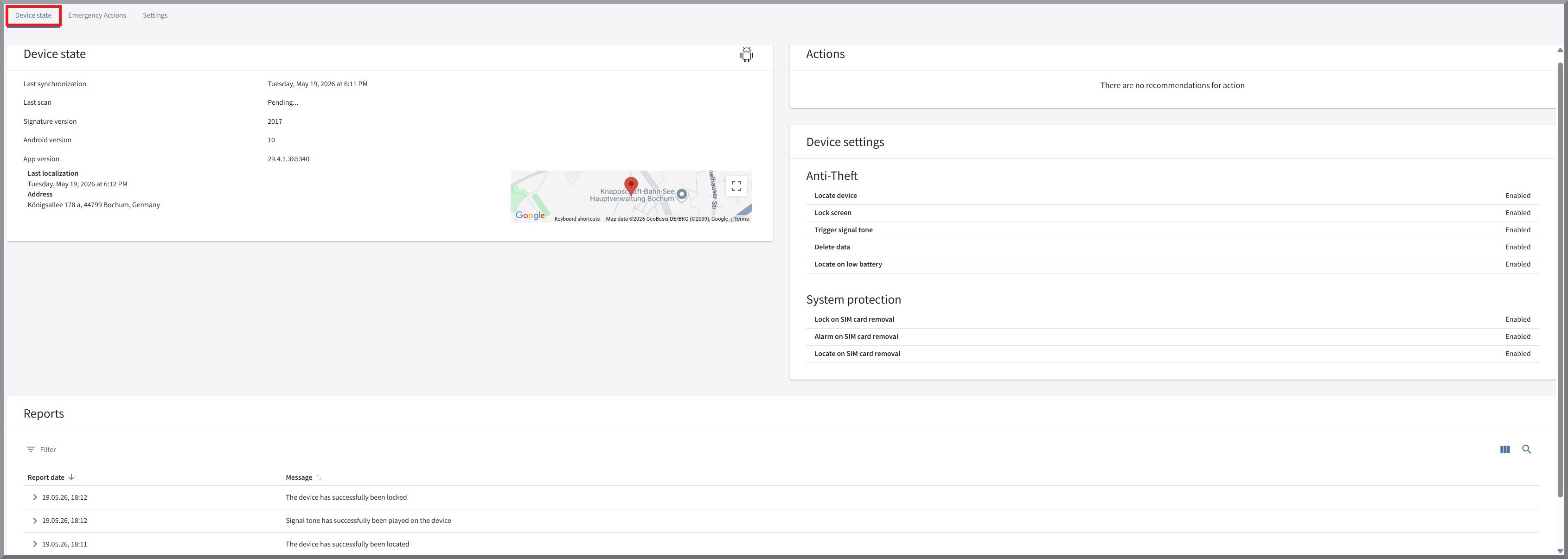
In this view, you can see the device status, any recommended actions, security-related settings on the device itself, as well as reports.
Device state
This section displays basic device information as well as details about the G DATA Mobile Security used on the device. These include:
-
Last synchronization between the device and G DATA Mobile Security,
-
Date of the last scan,
-
Signature version of G DATA Mobile Security,
-
Version of iOS or Android on the device,
-
Version of G DATA Mobile Security,
-
Location and date of the device’s last location detection.
A warning may also appear if the mobile device has been rooted.
Actions
Important recommended actions are displayed here. Some of these can be processed directly from this view, but others may also require actions on the mobile device or Emergency Actions.
| The severity of the action recommendation is indicated by a color-coded traffic light system. |
Device settings
This section differs strongly depending on the operating system.
Android
This section displays settings that can only be configured on the mobile device. These are divided into Anti-Theft and general System protection.
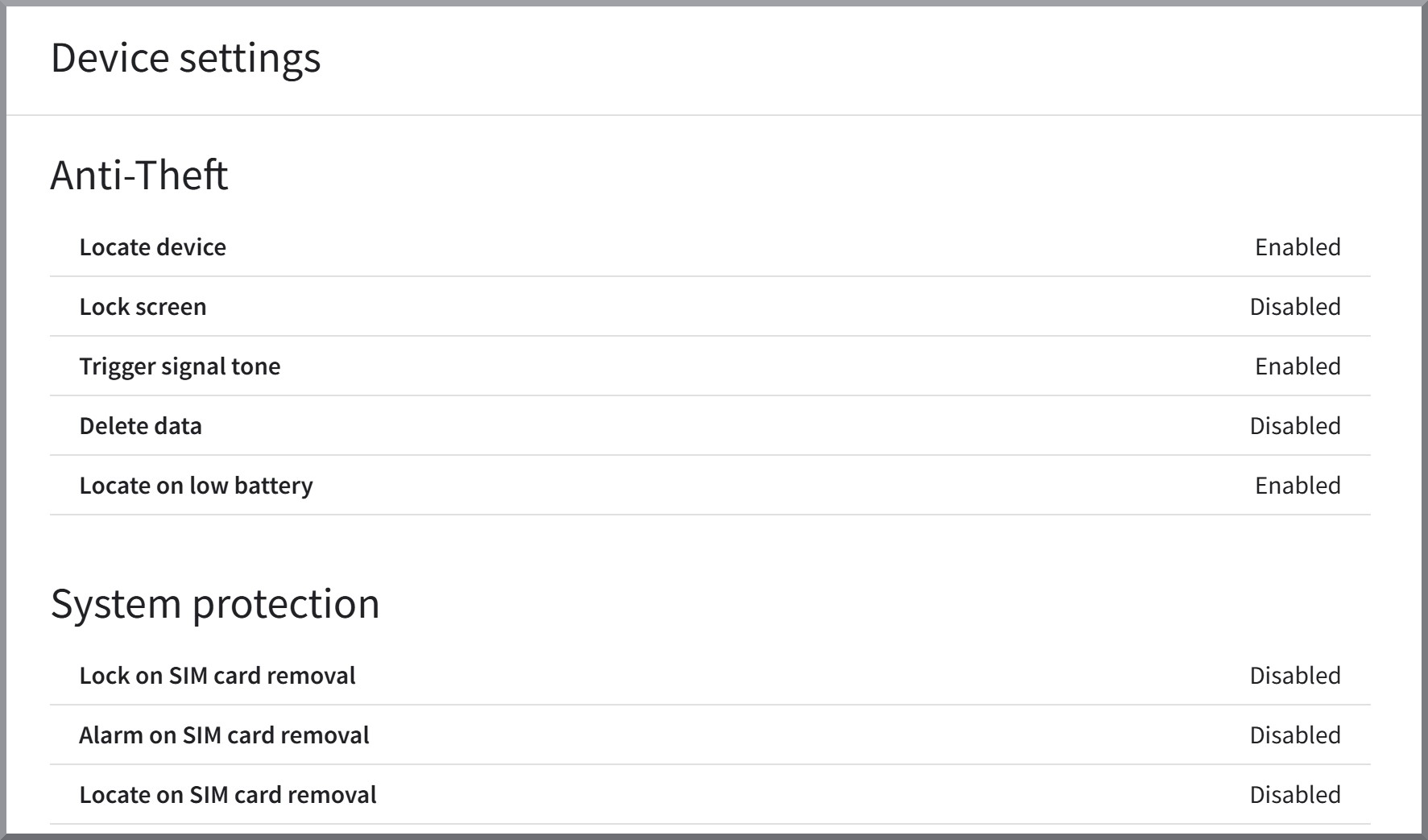
Anti-theft:
-
Locate device - If the device can be located.
-
Lock screen - If the Screen can be locked remotely
-
Trigger signal tone - If an alarm tone can be triggered.
-
Delete data - If the data on the device can be deleted remotely
-
Locate on low battery - If the device can be located when the battery is low.
System protection:
-
Lock on SIM card removal
-
Alarm on SIM card removal
-
Locate on SIM card removal
iOS
This section displays settings that can only be configured on the mobile device. These are divided into Anti-Theft and general Settings.
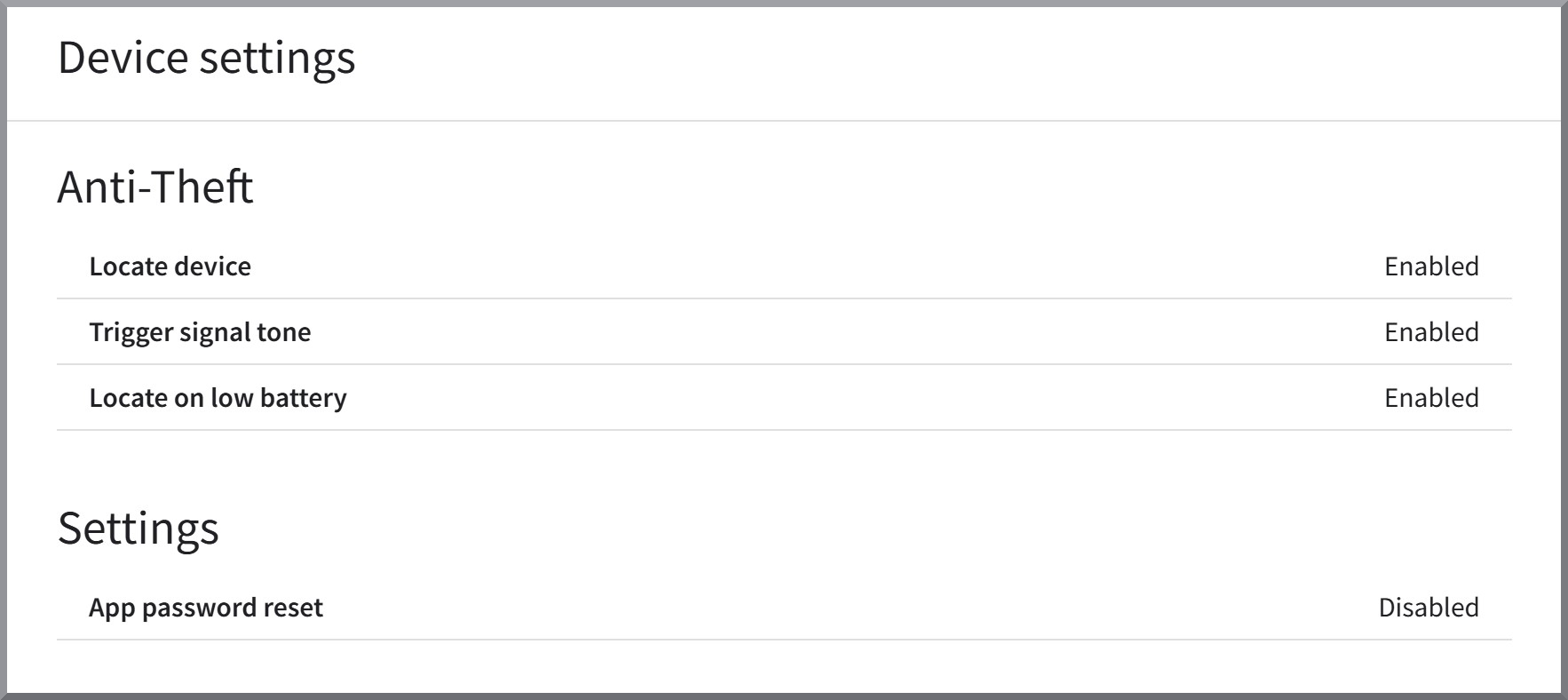
Anti-theft:
-
Locate device - If the device can be located.
-
Trigger signal tone - If an alarm tone can be triggered.
-
Locate on low battery - If the device can be located when the battery is low.
Settings:
-
App password reset - If the app password can be reset remotely.

Emergency Actions
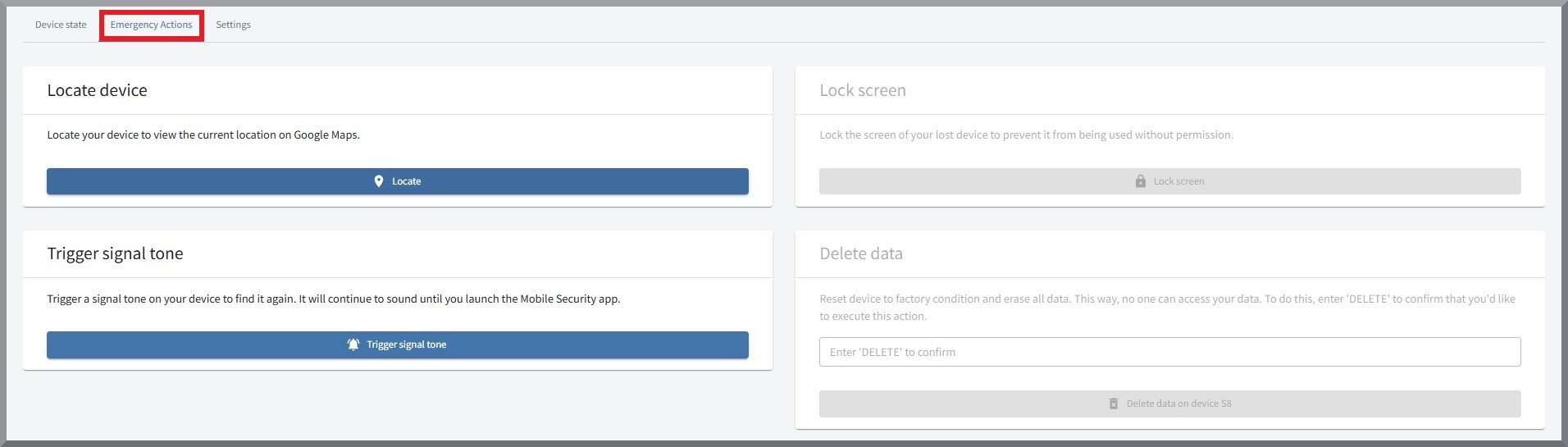
From this screen, you can trigger all available emergency actions. These include Locate device, Trigger signal tone, Lock screen, and Delete data.
| On iOS devices, only Locate device and *Trigger signal tone*are available. |
Device settings
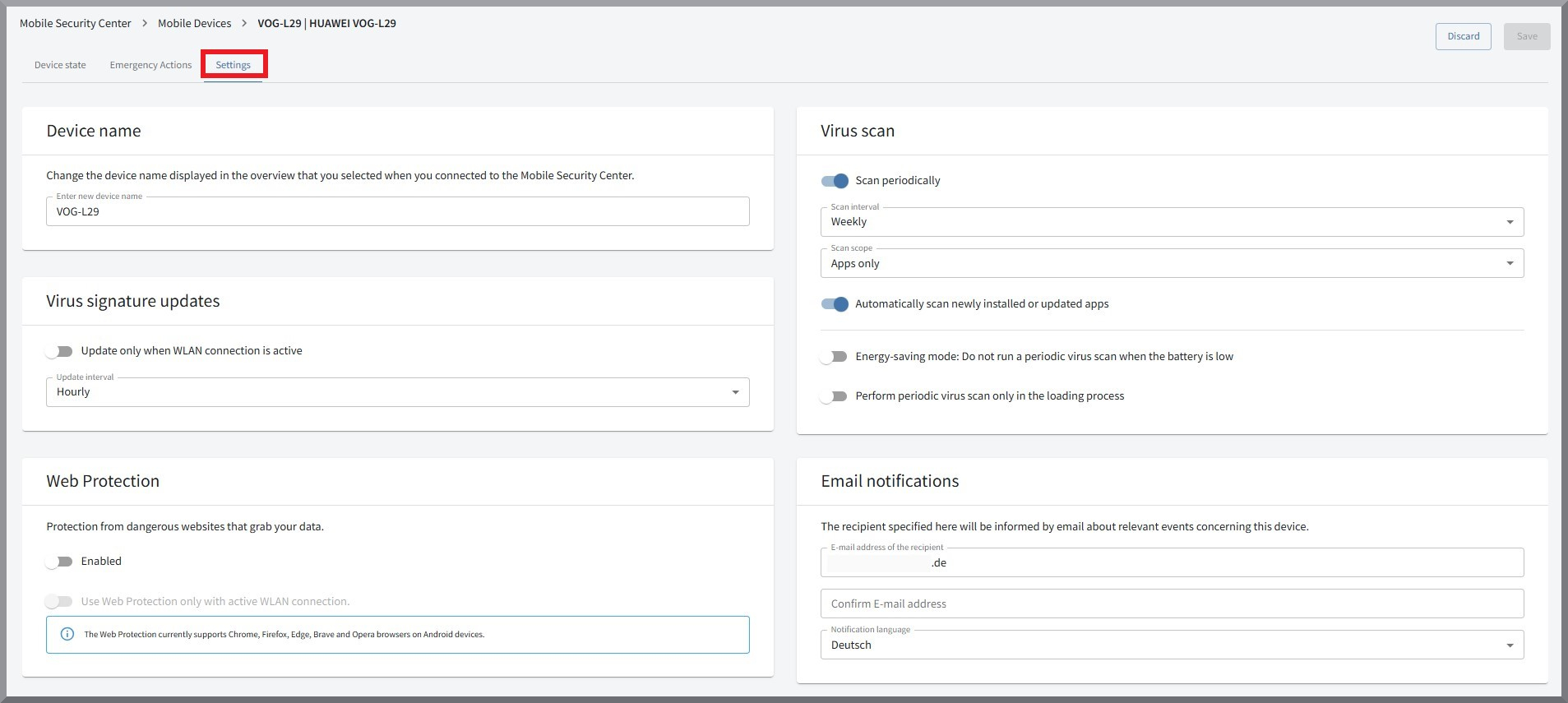
Here you can configure settings for your mobile device and G DATA Mobile Security.
| The view varies significantly depending on the operating system and version. For example, on iOS, only Device name, App password reset, and Email notifications are visible. |
Device name
Here you can change the device name you selected when connecting to the Mobile Security Center, which is also displayed in the Device Overview.
Virus scan
Here, you can configure the regular virus scan on the device. You can choose whether to scan only apps or the entire mobile device. You can also set the scan interval and choose to disable the regular scan when the battery is low or to run the scan only while the device is charging.
Virus signature updates
You can set the interval at which virus signature updates occur, and you have the option to allow signature updates only when a Wi-Fi connection is available.
Web Protection
You can enable or disable web protection in general, or allow it only when you have an existing Wi-Fi connection.
| Web Protection supports Chrome, Firefox, Edge, Brave, and Opera browsers on Android devices. |
Email notifications
Here you can edit the address to which emails are sent in case of an emergency. You can also specify the language in which the emails are sent. You can choose from all the languages in which the portal is available. For more information, see the overview below in Settings.
| You will receive an email if SIM protection is triggered or if an infected file or app is detected. |
Settings
In the web portal settings, you can customize the G DATA Mobile Security Center to suit your needs and have a direct link to the My G DATA portal.
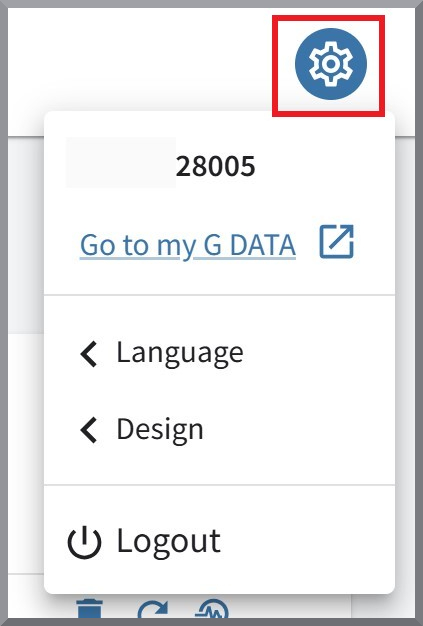
You can view the G DATA Mobile Security Center in a theme of your choice, as well as in German, English, Spanish, French, Italian, Dutch, Polish, or Portuguese.
Use Logout to log out of your current account.
Login
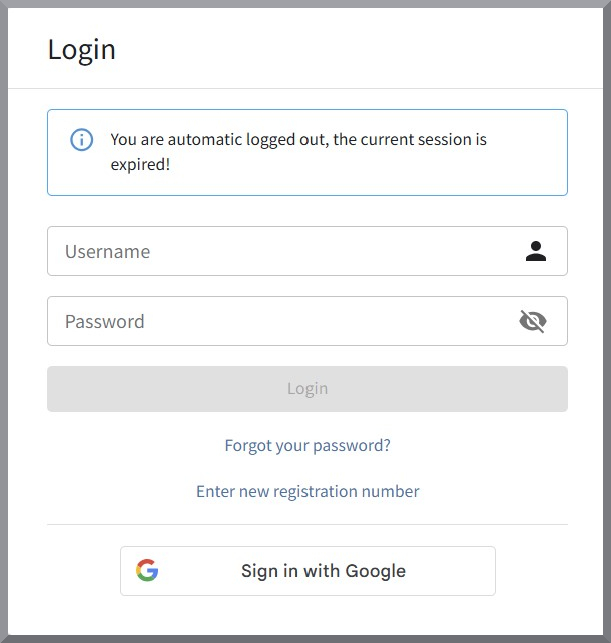
To log in to G DATA Mobile Security Center, simply use the same credentials you use to log in to G DATA Mobile Security on your mobile devices. If you do not have specific login credentials - that is, if you’re using the Lite version on Android - log in via Sign in with Google and use the Google account associated with your mobile device.